
With the POS app, you can change an order after it's placed but before it's fulfilled. Update quantities, remove items, or apply discounts to meet your customers' changing needs. Quickly adapt to requests and ensure order accuracy, leading to increased customer satisfaction and efficient service.
- Modern POS App Build: 5.6.0 or above
- Platform Support: iPad
- Offline Support: No
- In CMS, go to .
- Expand Advanced.
-
Enable these flags to allow orders to be modified on the app:
- Allow Editing of Order (allowEditOrder)
-
Treat Each Item As Separate Line Item (treatEachItemInCartAsSeparateLineItem)

- Save your changes.
POS Behavior
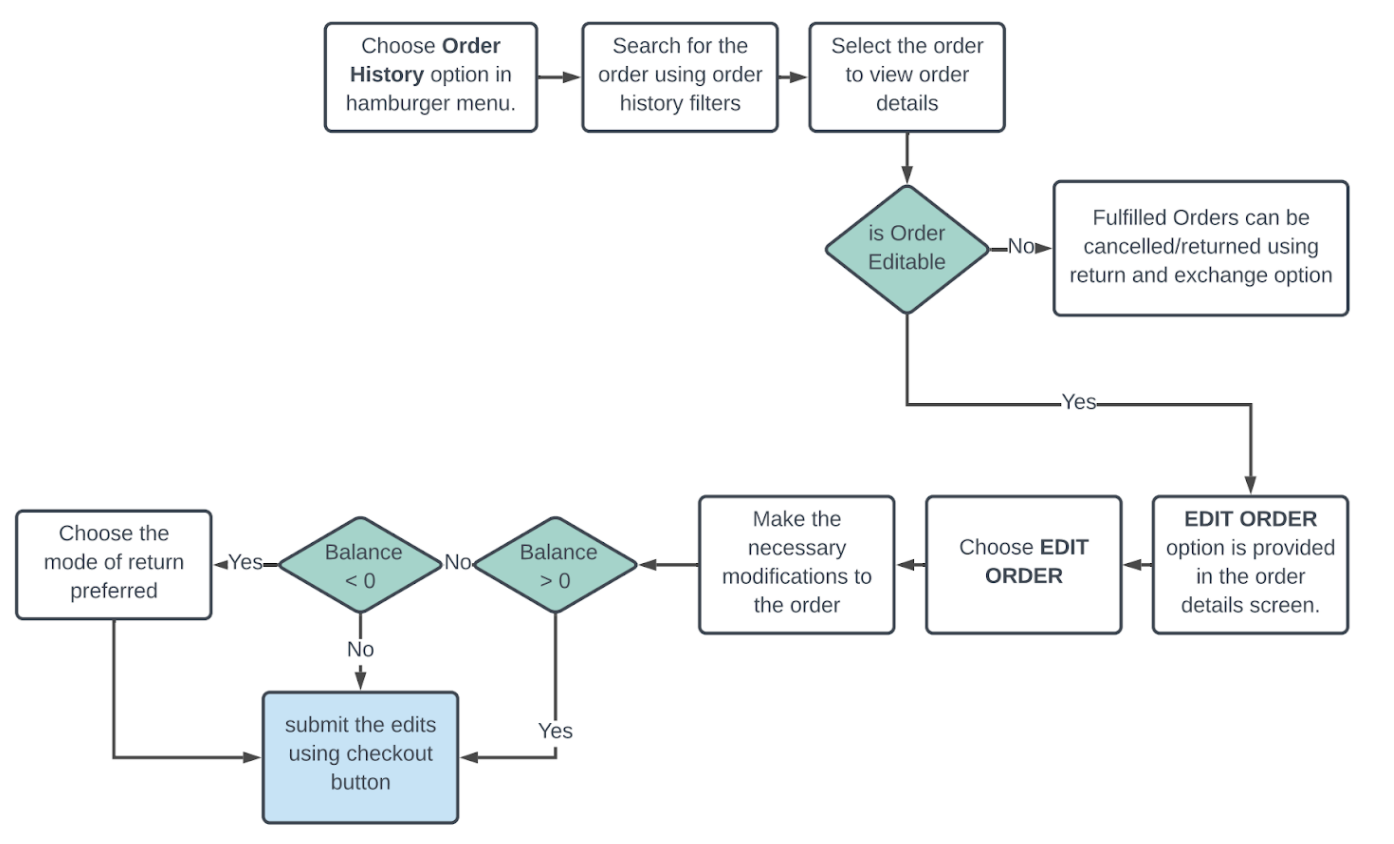
This feature allows the associate to make changes to an existing order if the order is yet to be fulfilled. The associate can access and modify the orders using the Order History option in the hamburger menu.
Search Orders
Go to the order history screens and search for the particular order using the filter
options.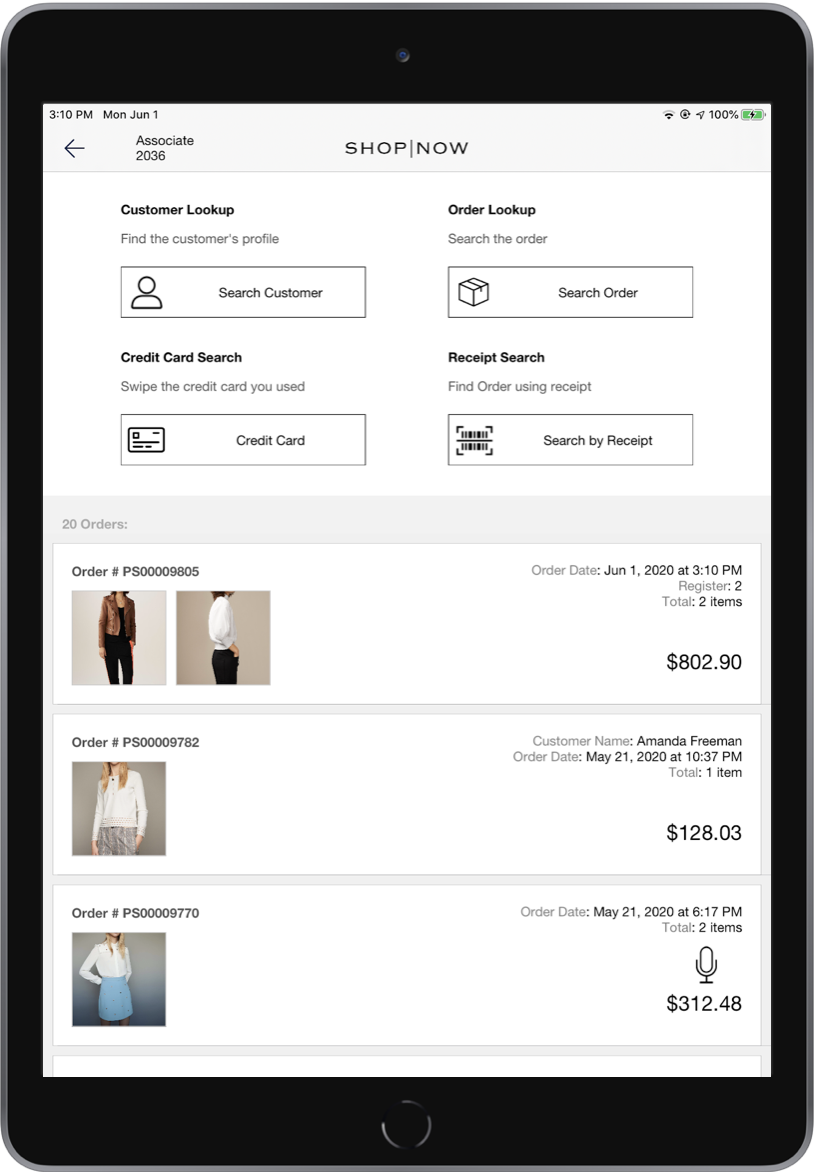
Select an Order to Modify
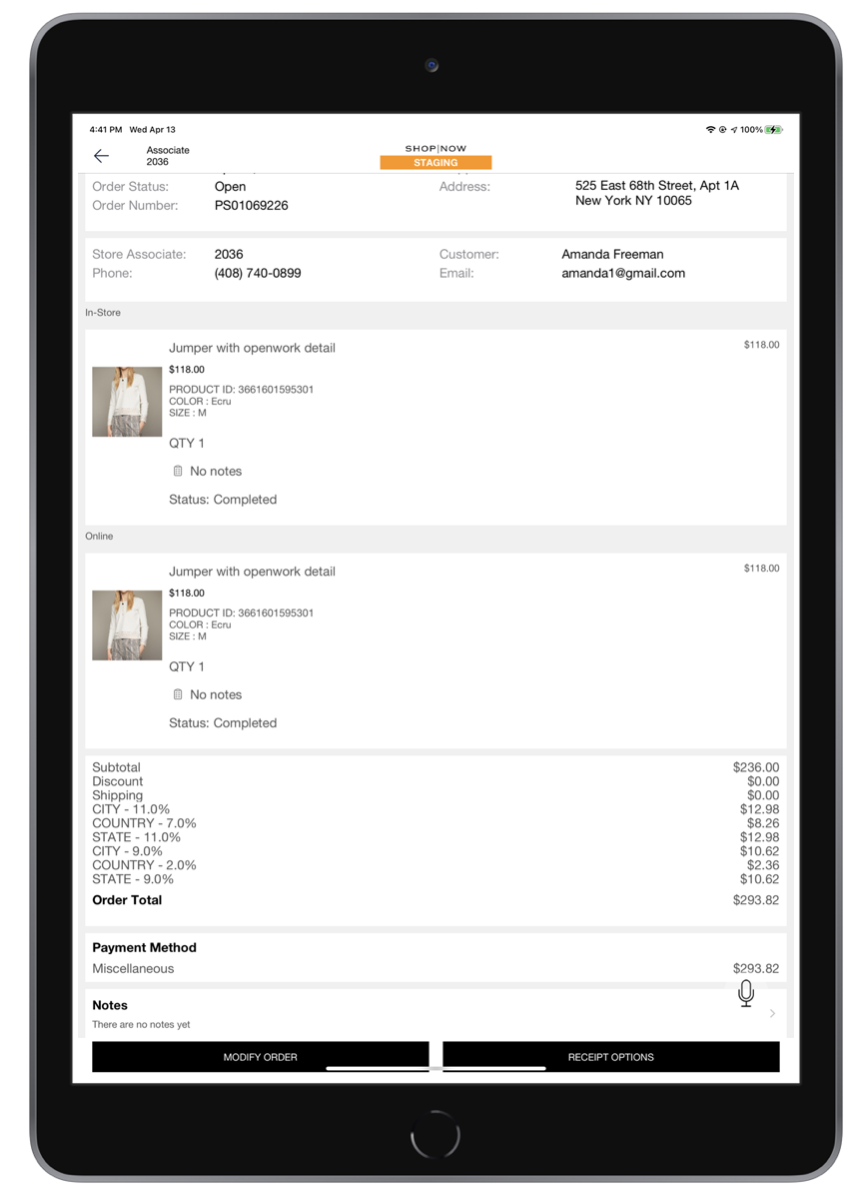
View the orders and select an order. Click the EDIT ORDER button at the bottom to start
editing the order. Note, for merchants utilizing the Order SPI, the edit order flow in the app leverages the
same GET order endpoint as other app areas, successfully retrieving and
displaying orders. Both the edit and create flows use the GET order endpoint
to retrieve orders, while the POST sale order endpoint is used to post updates
to the order.
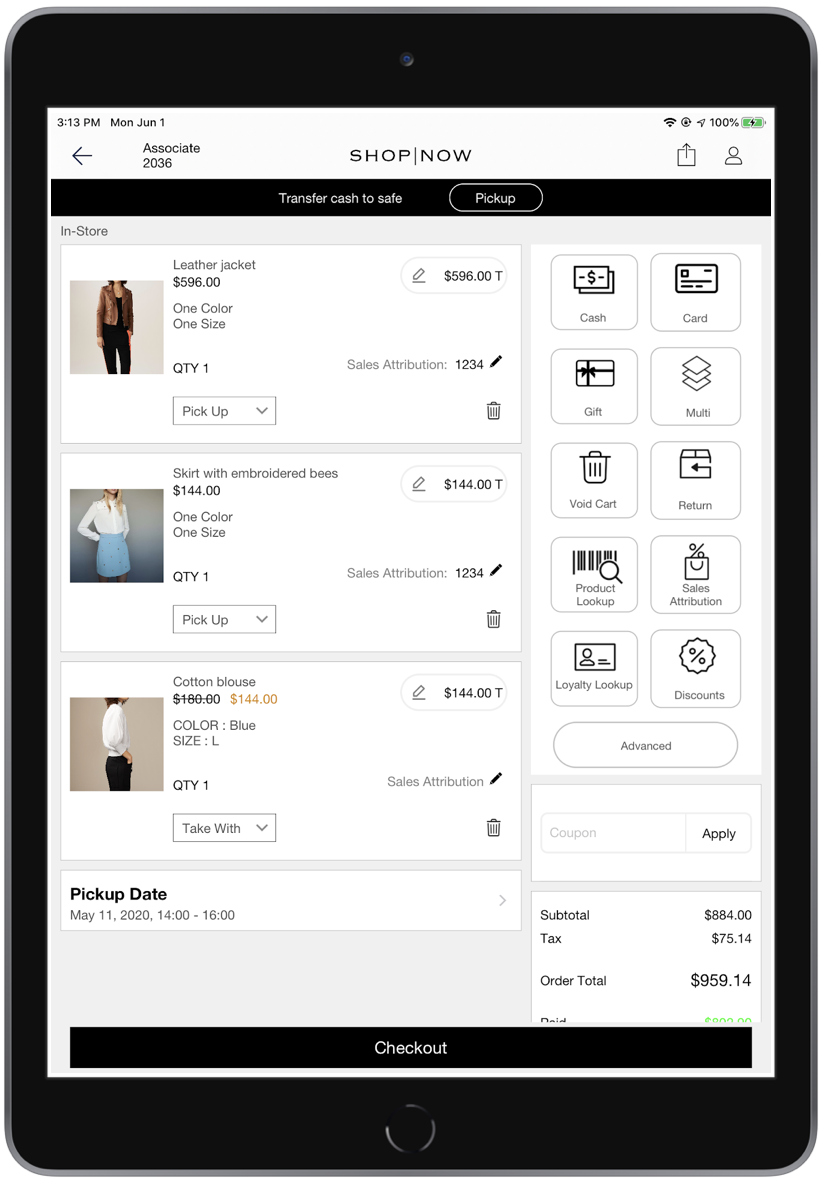
Add Items to the Order
New items can be added to be part of the existing order to share the same shipping
address, delivery dates, and order number. The associate can use the product look up option in
the cart or the scanner to scan and add the new product into the order.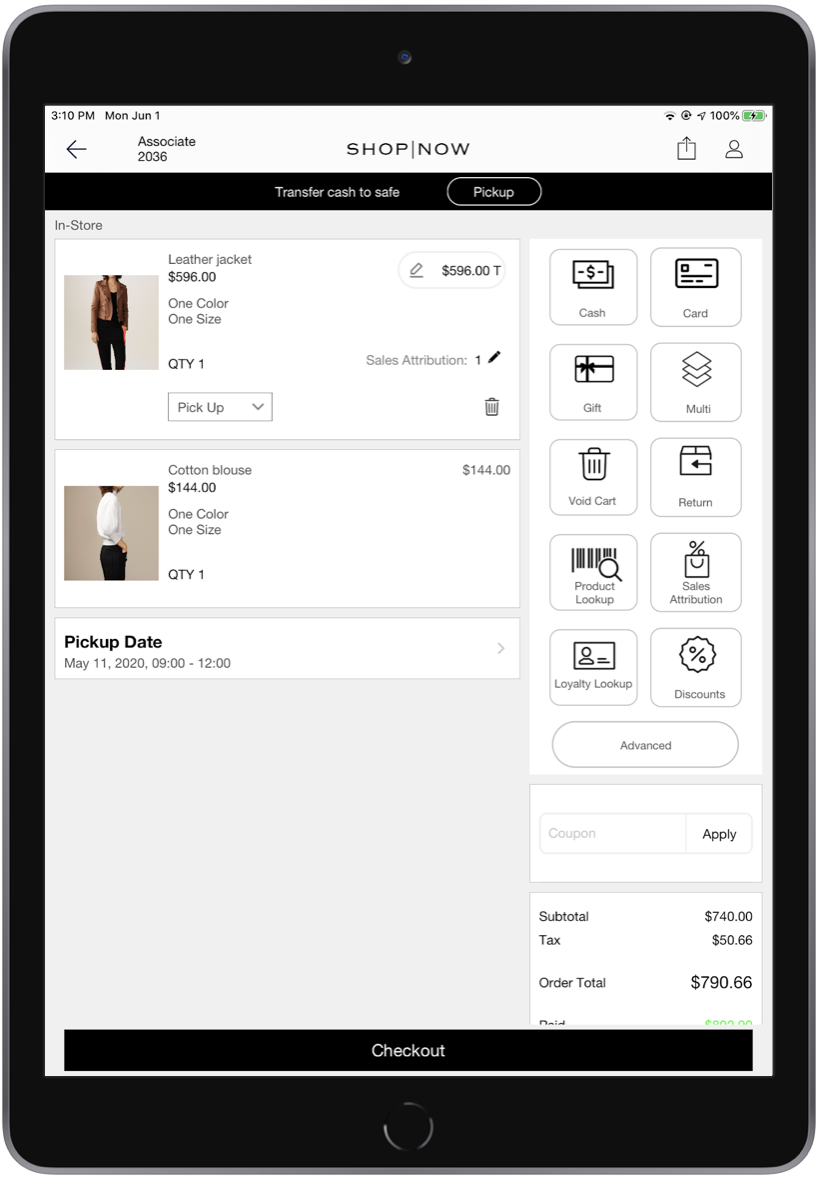
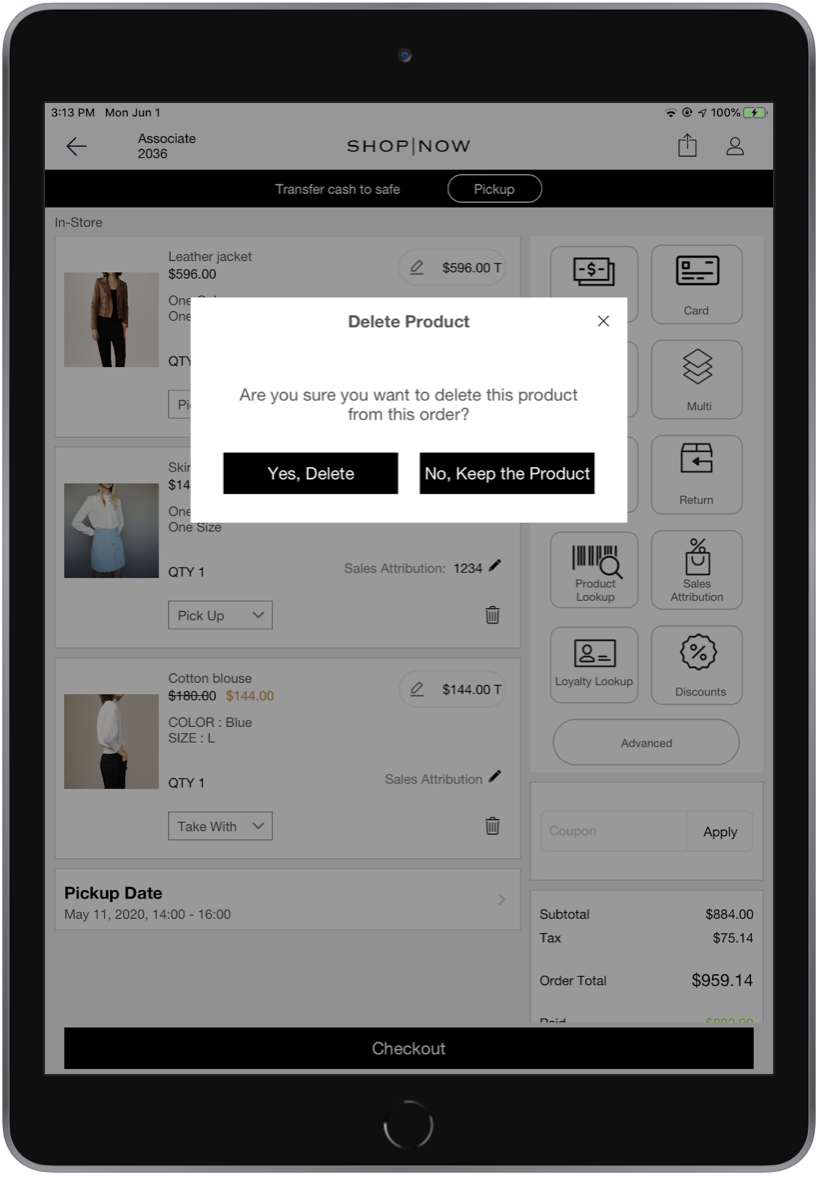
Remove Items from the Order
Some or all products from the Modifying Order screen can be cancelled and/or replaced
with new products. The Delete button in the cart on the item level can be used to remove the
product from the order. The Checkout button confirms the removal and returns the refund if
available. 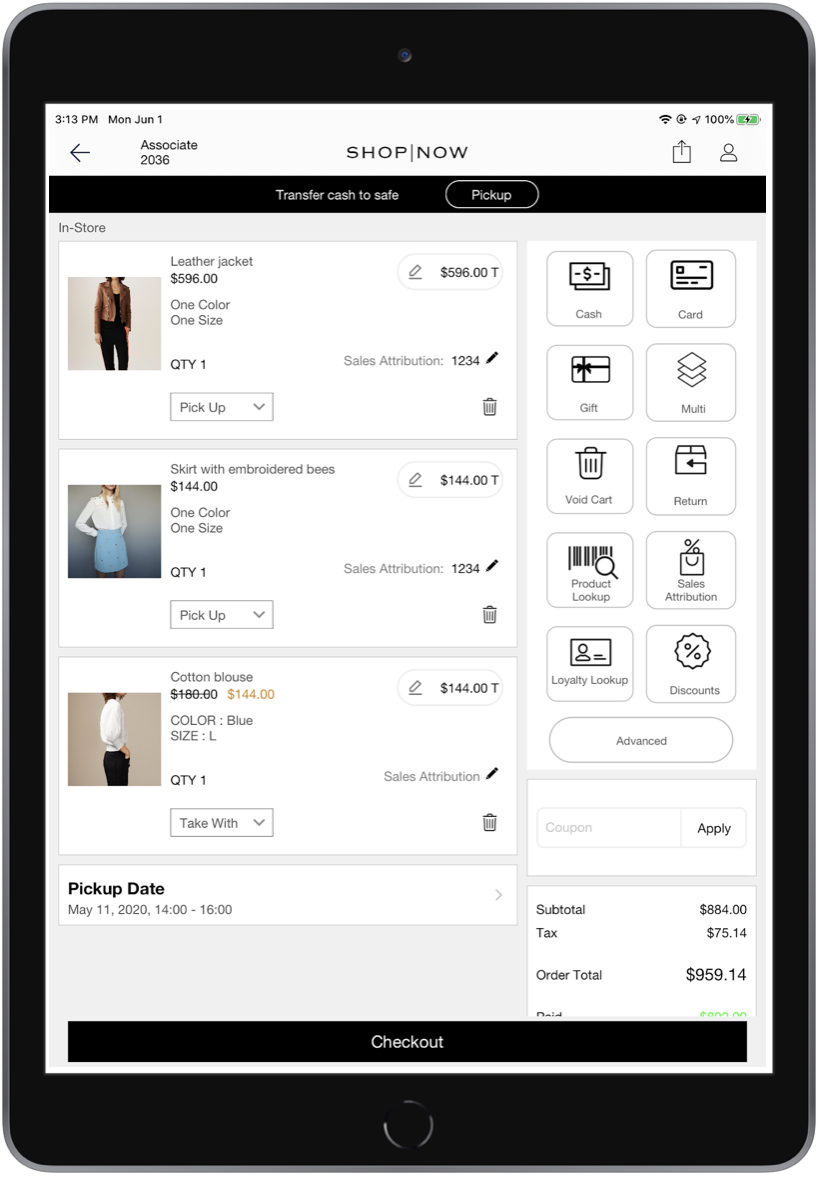
Remove Items in Bulk/Cancel Order
Items can be removed or canceled altogether in the cart screen using the Cancel
Entire Order button. 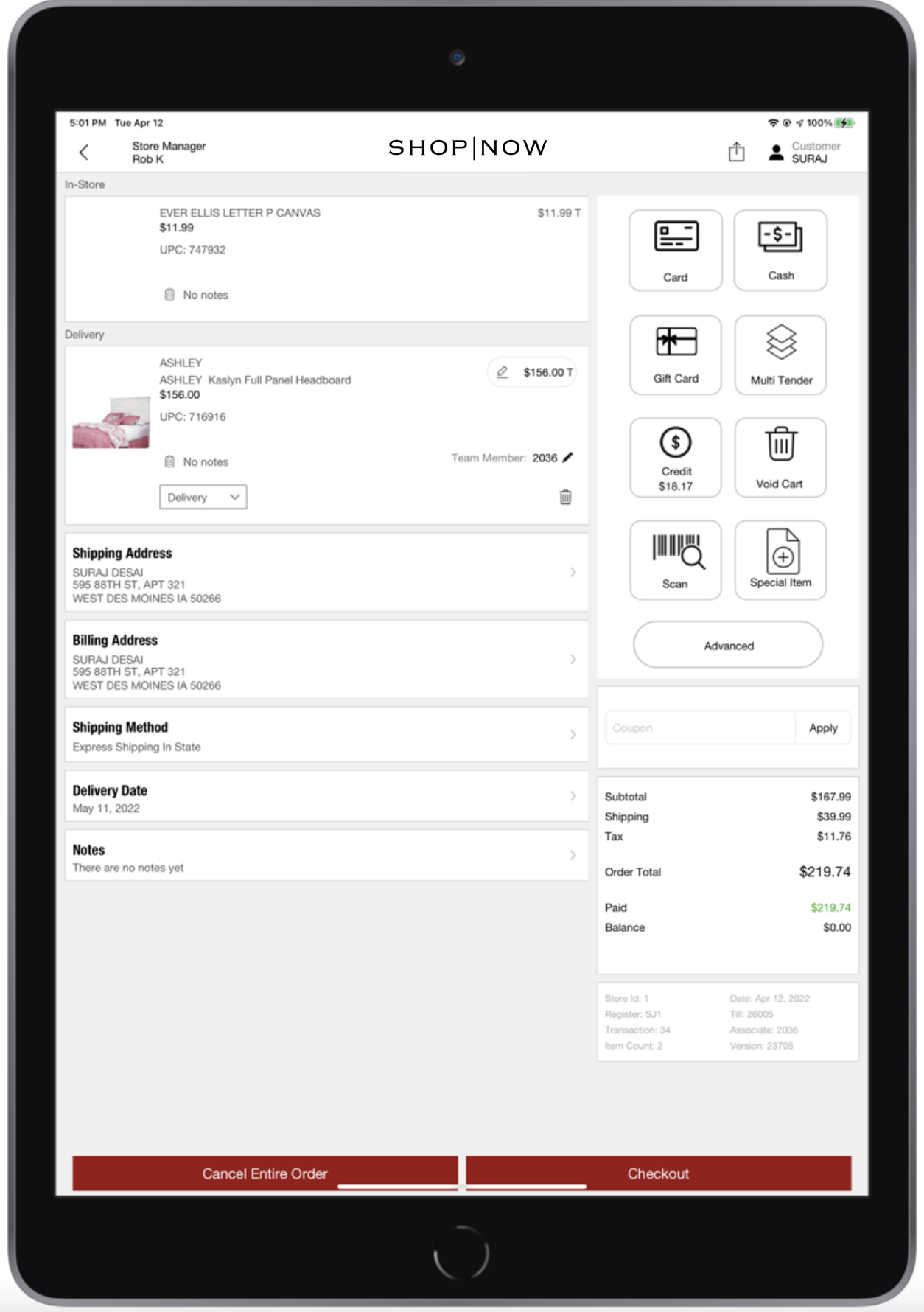
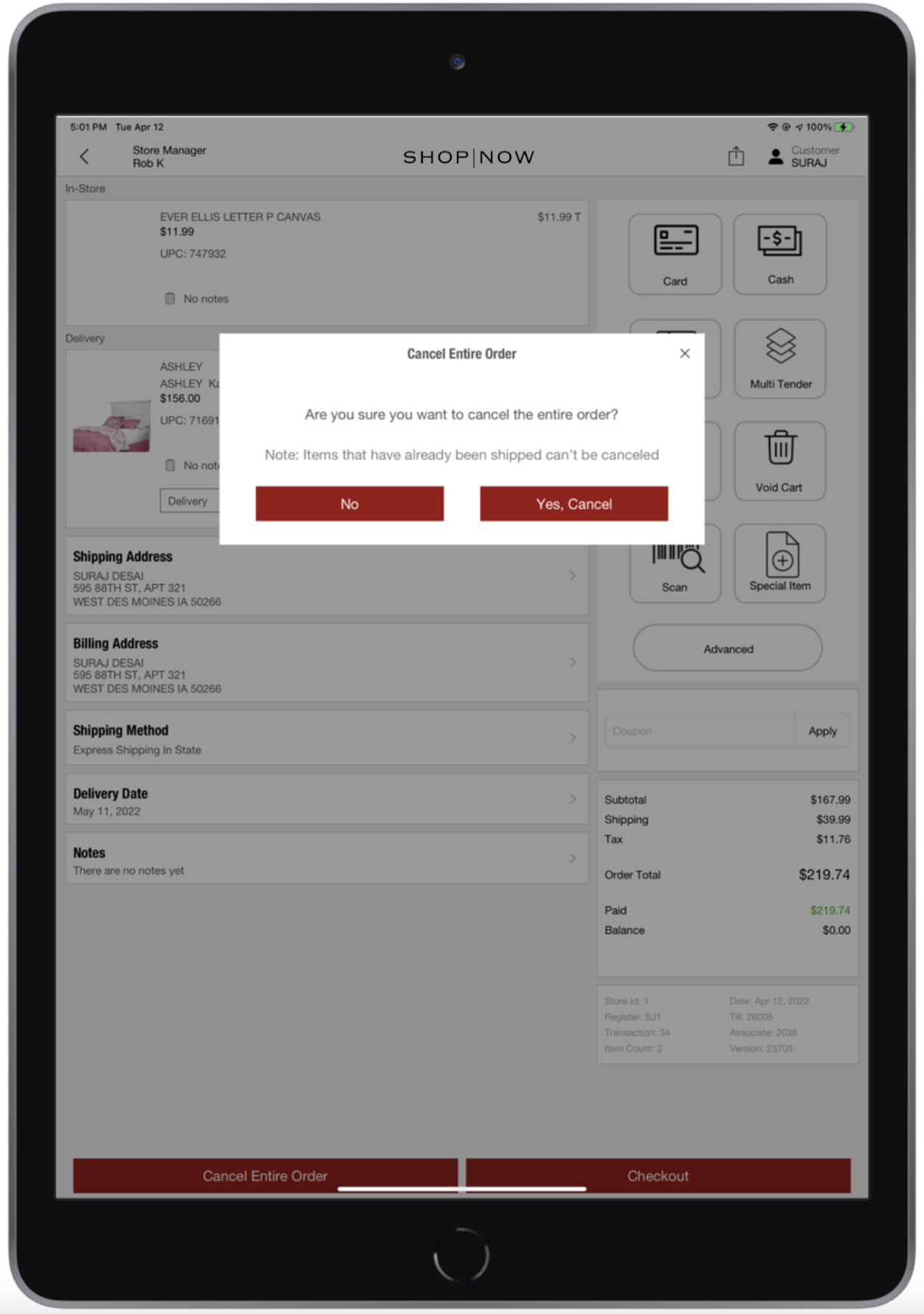
On click of the Cancel button, the app will show a confirmation message to cancel the entire order.
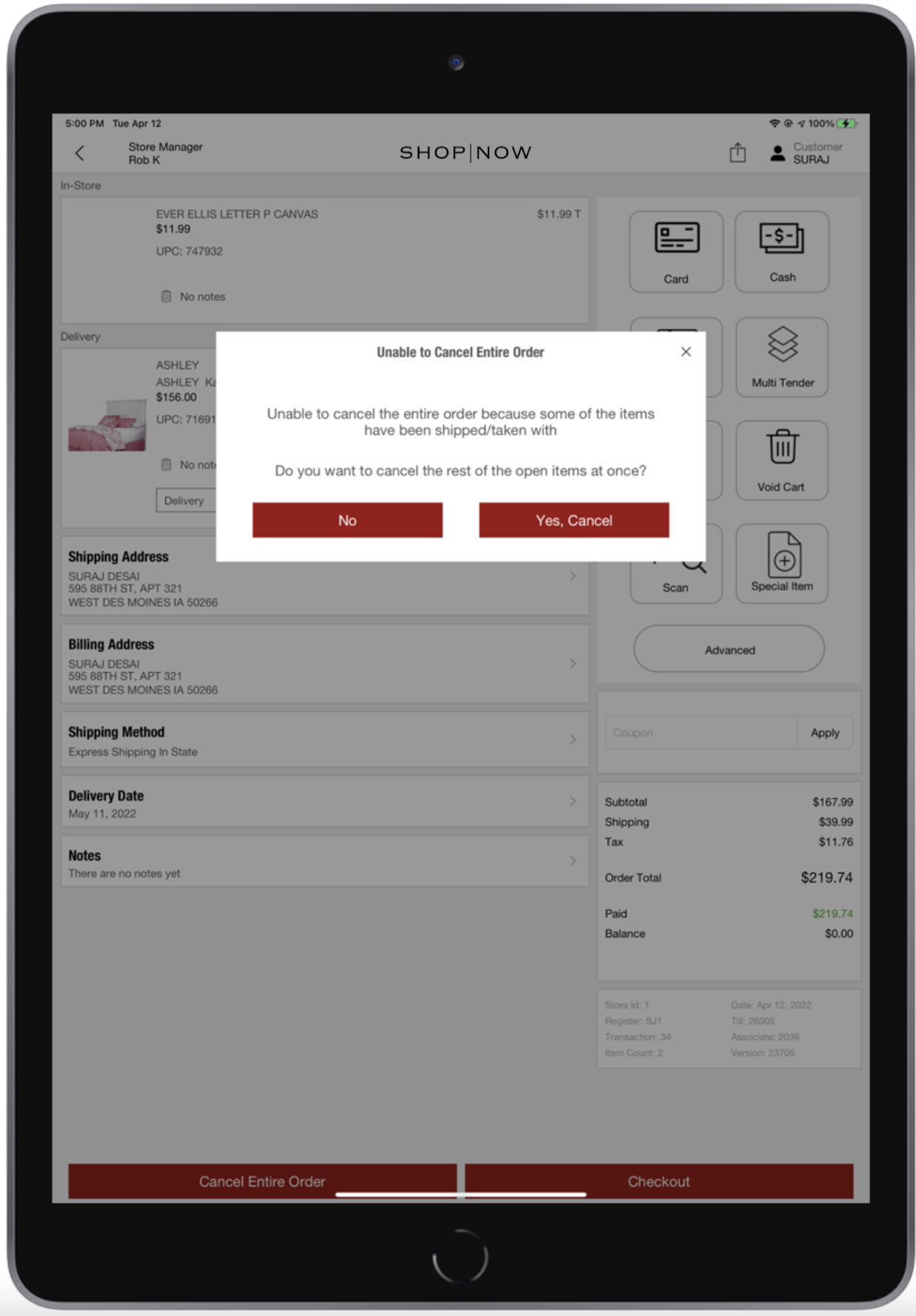
If some of the items are eligible for cancellation and some are not, then the app will show the below error message with confirmation to cancel open items.
Once the associate confirms the cancellation, all items in the cart will be switched to the canceled state and the cart summary will update to reflect the updated total/refund amount.
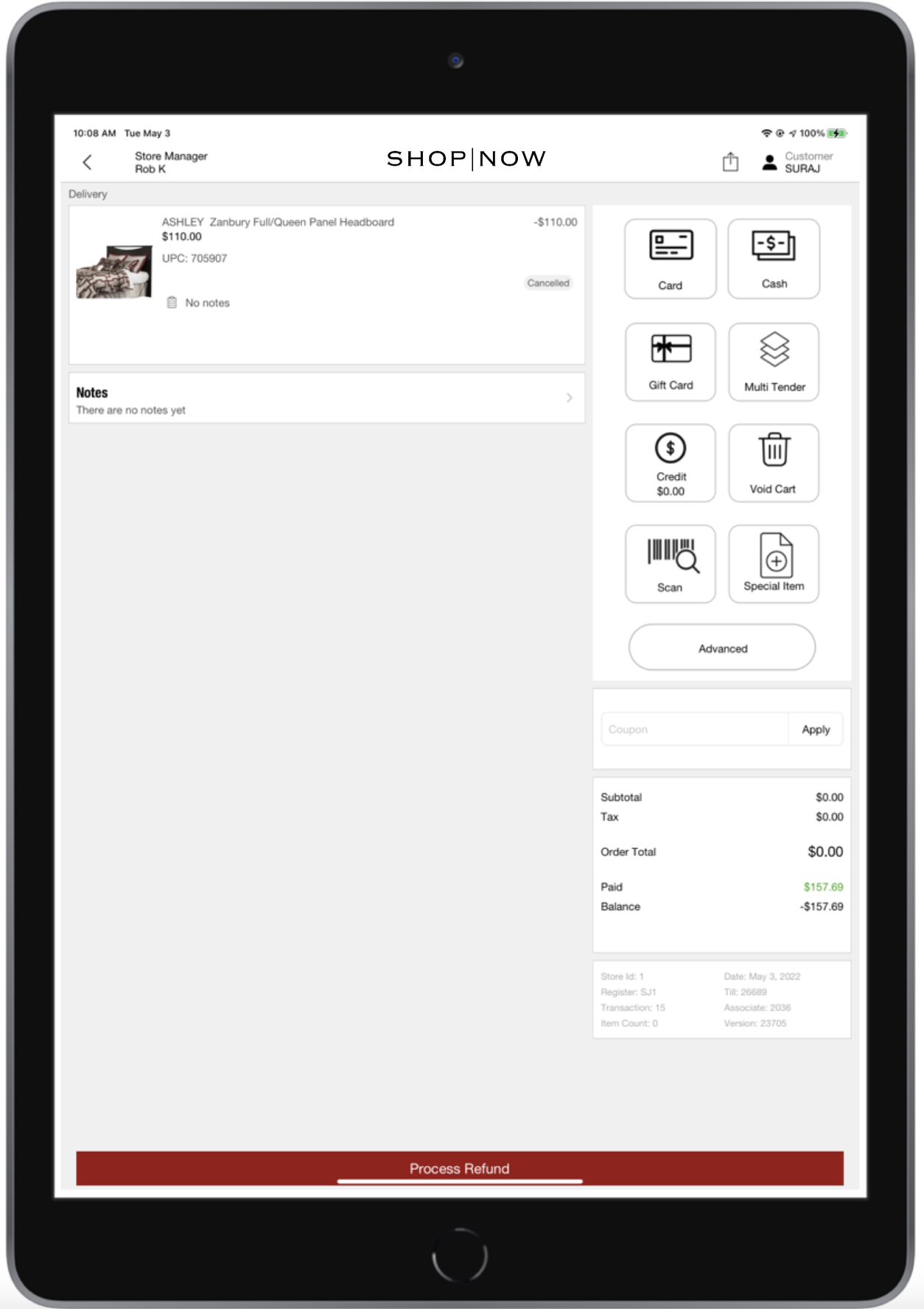
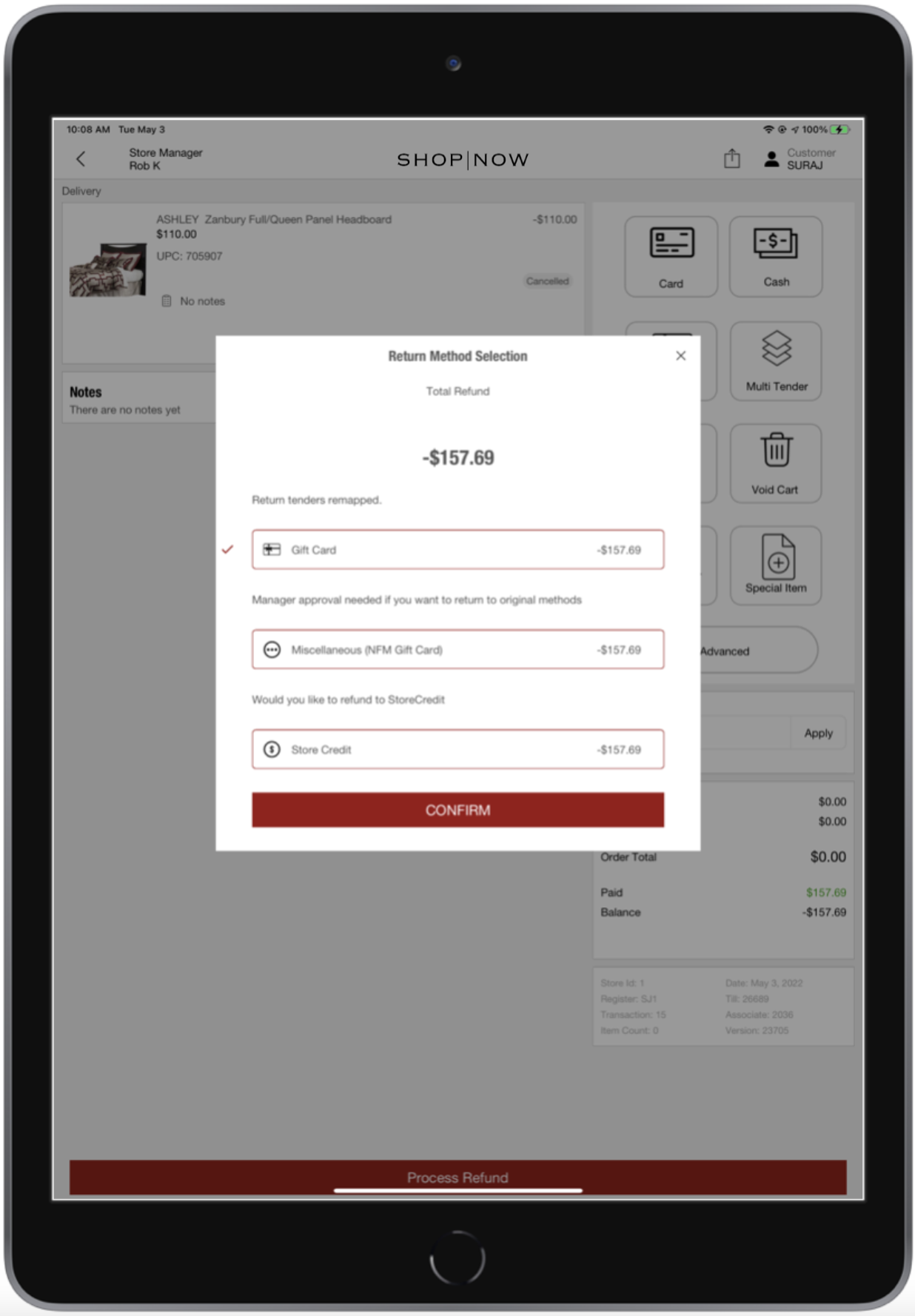
The associate can trigger the refund flow using the Process Refund button at the bottom.
Change Fulfillment Type, Shipping Address, Pickup/Delivery Dates
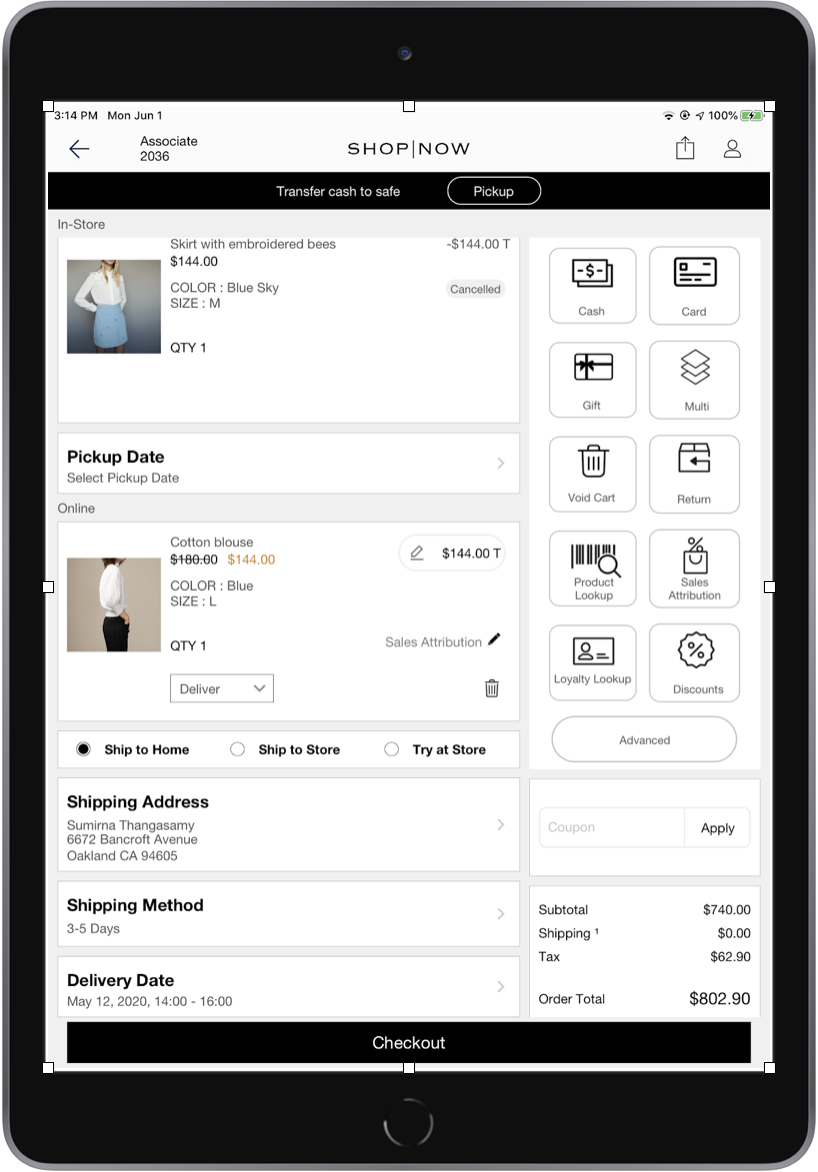
Fulfillment type can be changed to any of the three modes such as Pick Up / Delivery /
Take With. The user can change the shipping name and address as well as the pick up or delivery
dates for the already placed order.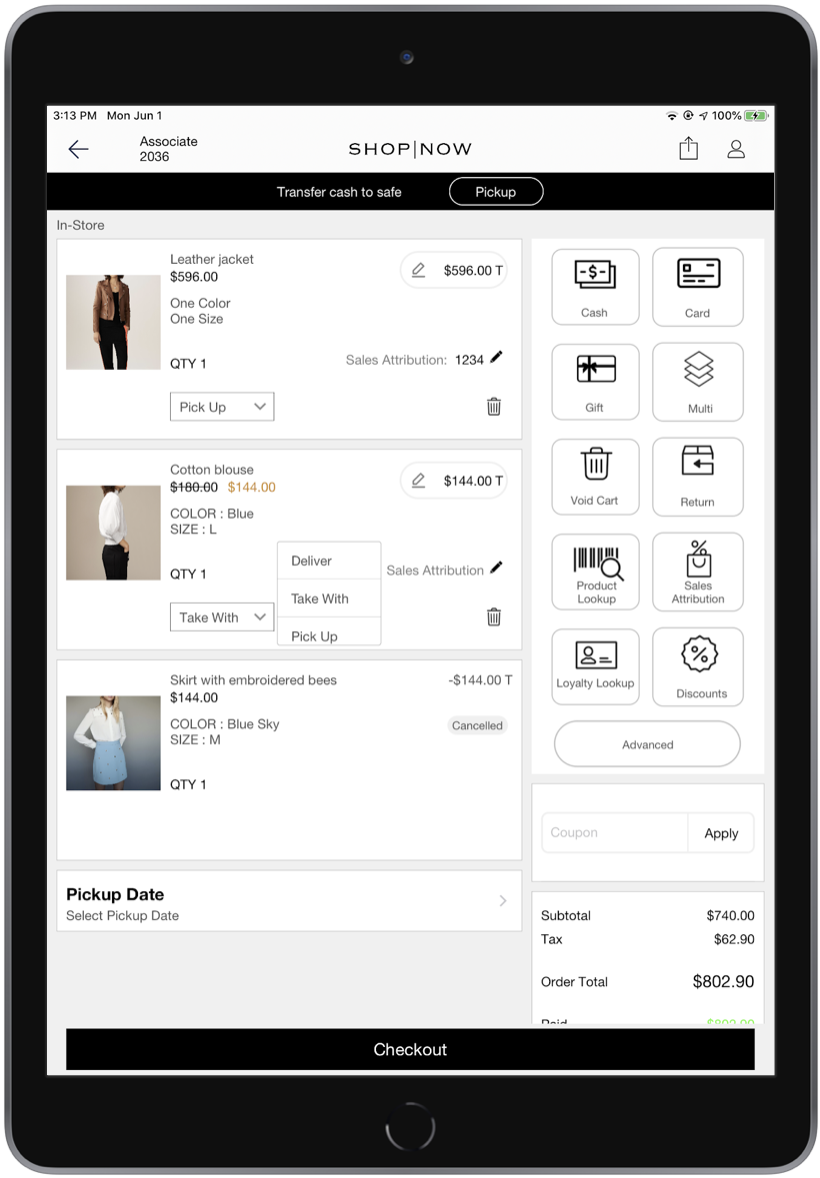
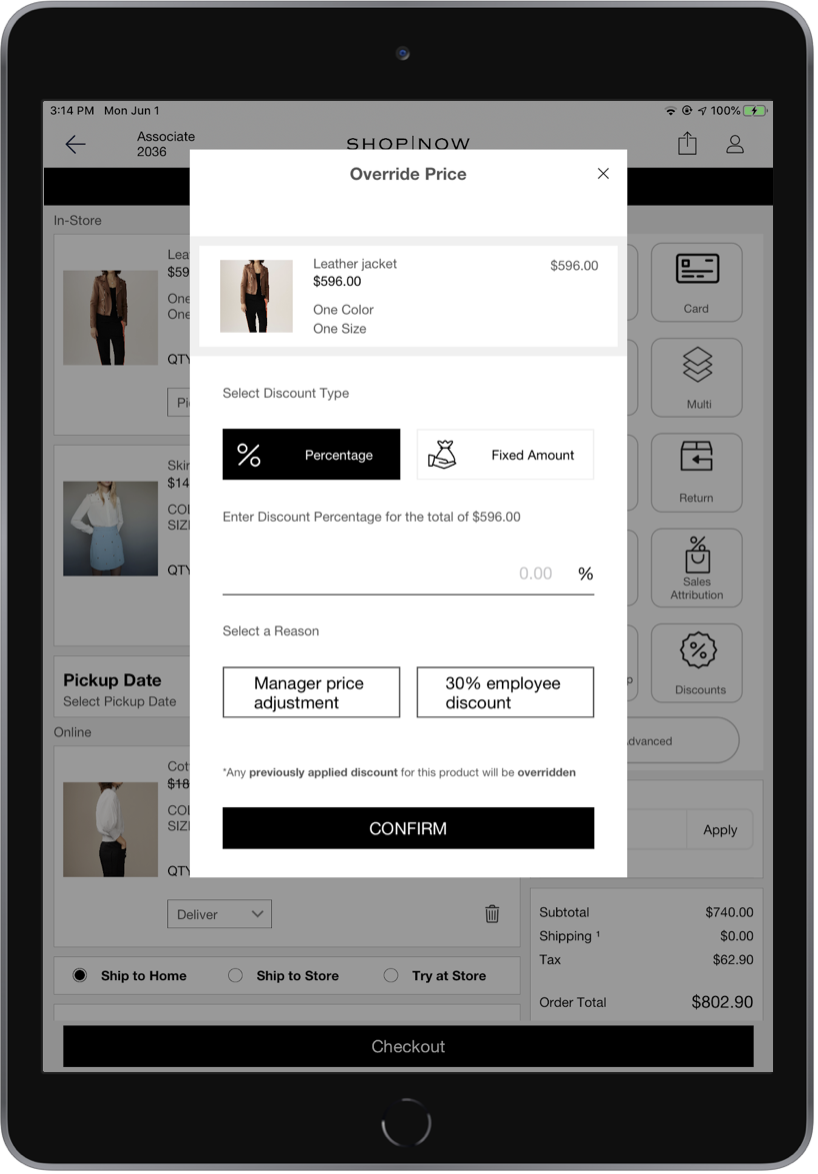
Apply Product Level and Transaction Discount
Product level discounts can be provided for the existing items in the order as well as
newly added items to the order. Overall cart level discount can also be provided using the
transaction discount option.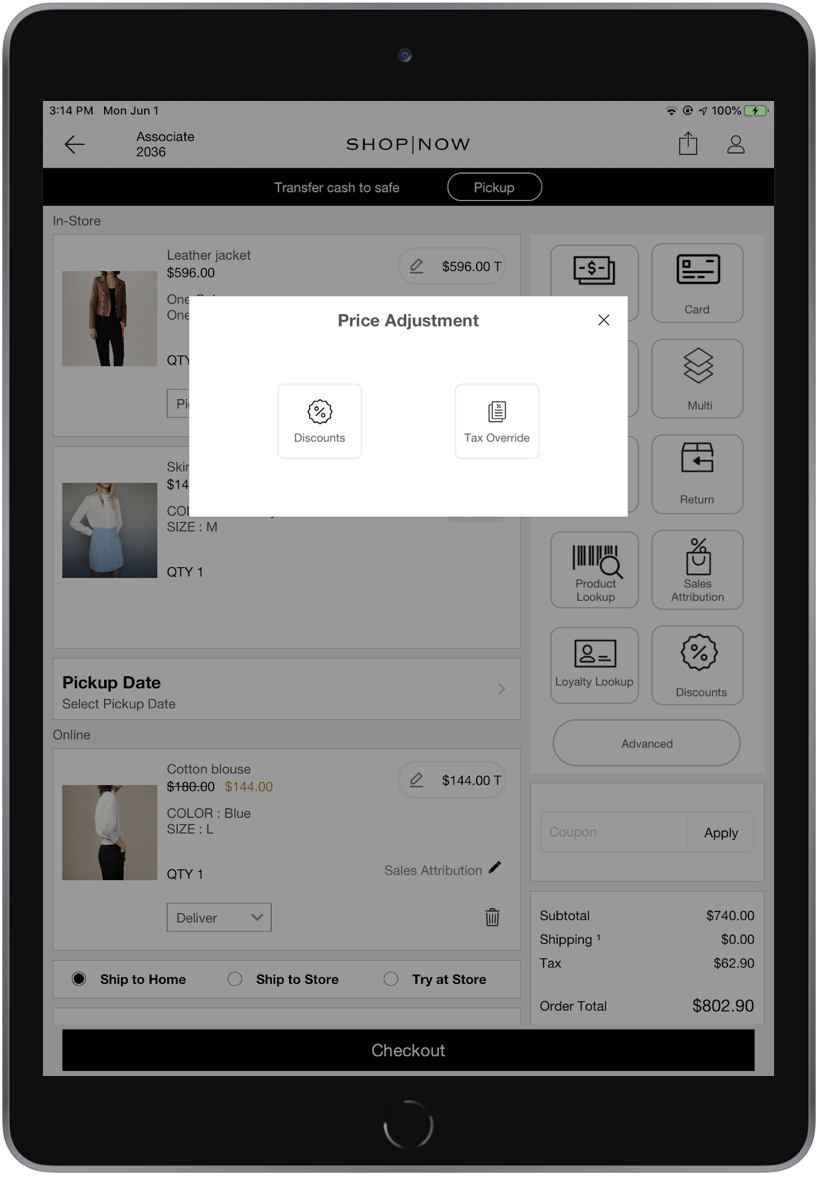
Refund/Pay for the Edited Order
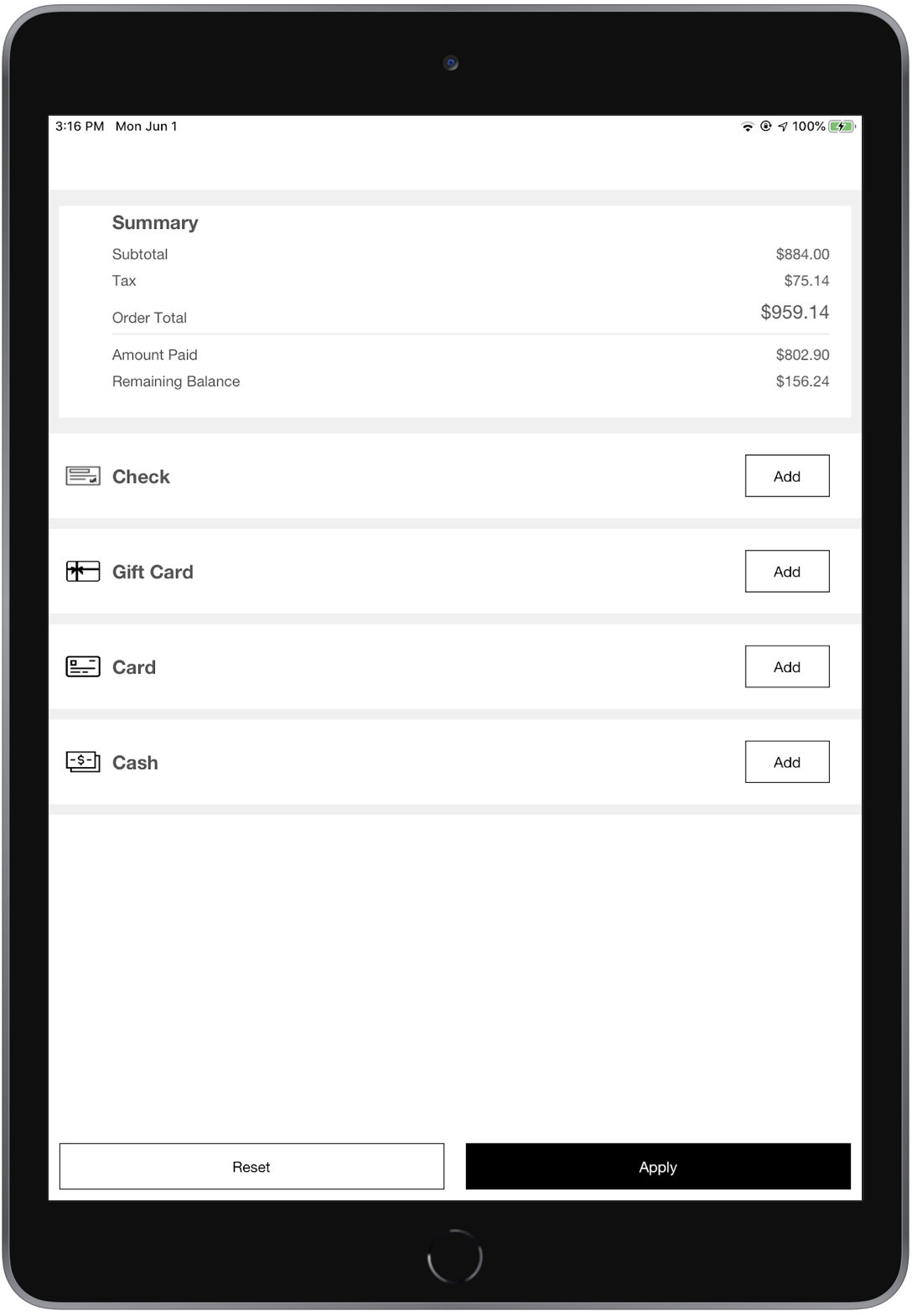
The summary section shows the paid amount as well as the balance available with respect to the modifying order. A negative balance indicates an available refund. The associate is provided options to choose the available mode of refund(cash/card/gift card) and the amount is refunded to the chosen tender. If there is a balance to be paid by the customer, the checkout option transfers the user to the Multi Tender screen to complete the payment.
No Refund
Changes to the fulfillment type and pick-up / delivery dates usually will not require
any additional charges.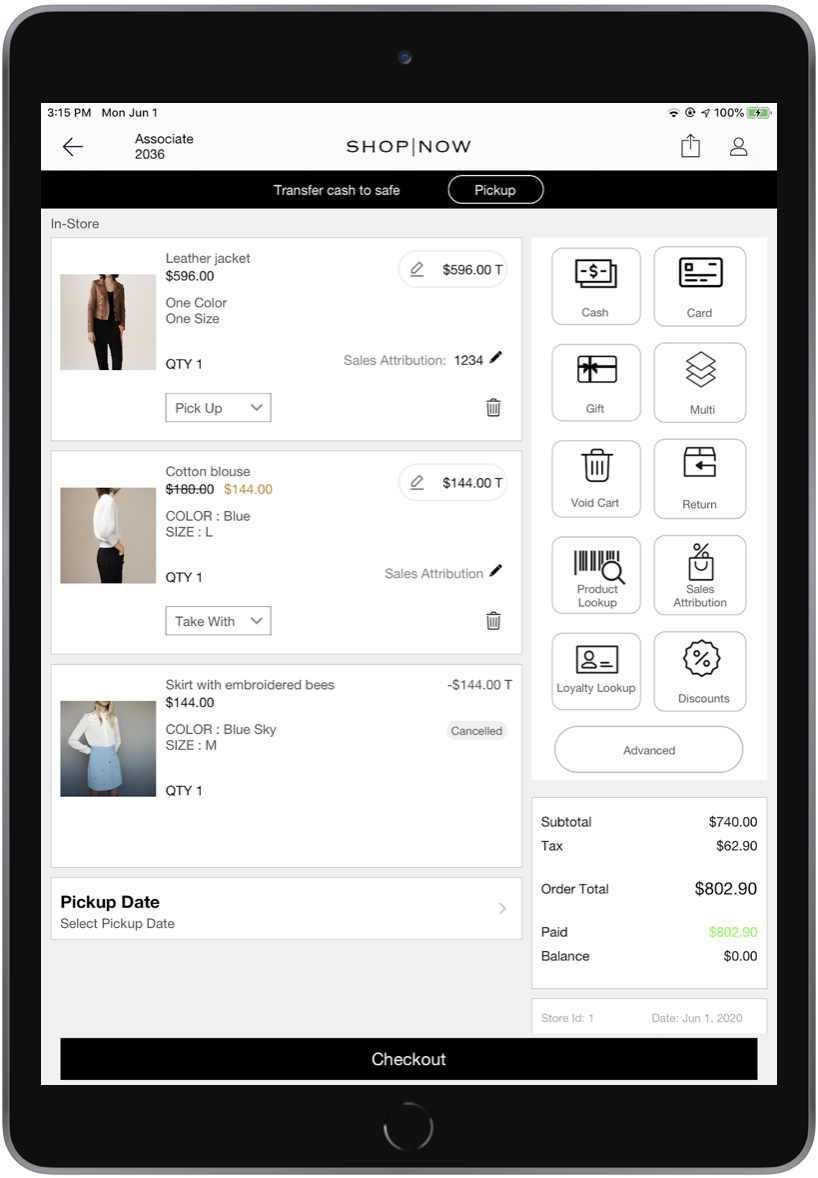
Refund for Edited Order
An existing item is removed/canceled from the order. The amount paid corresponding to
that item will be issued as a refund. 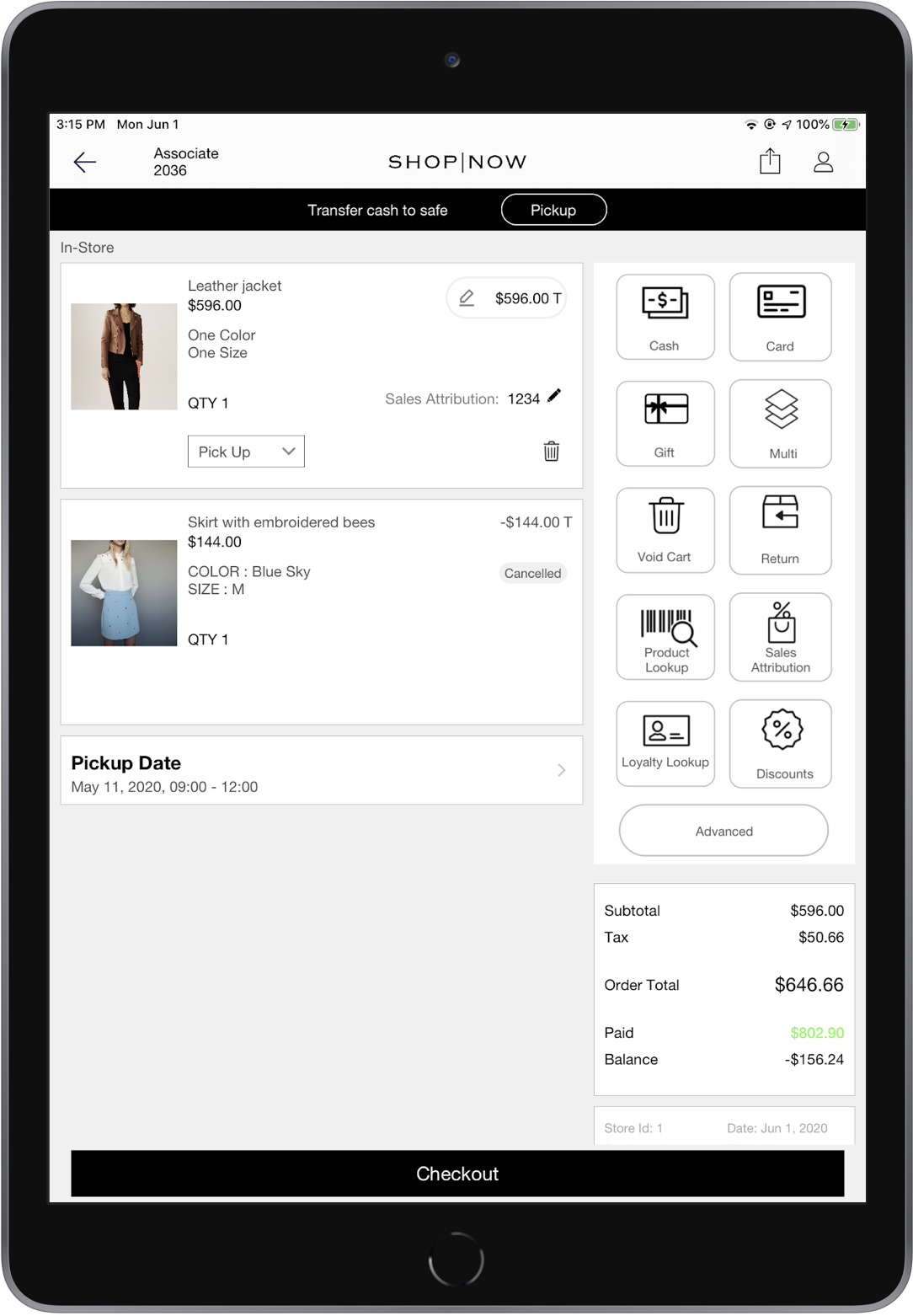
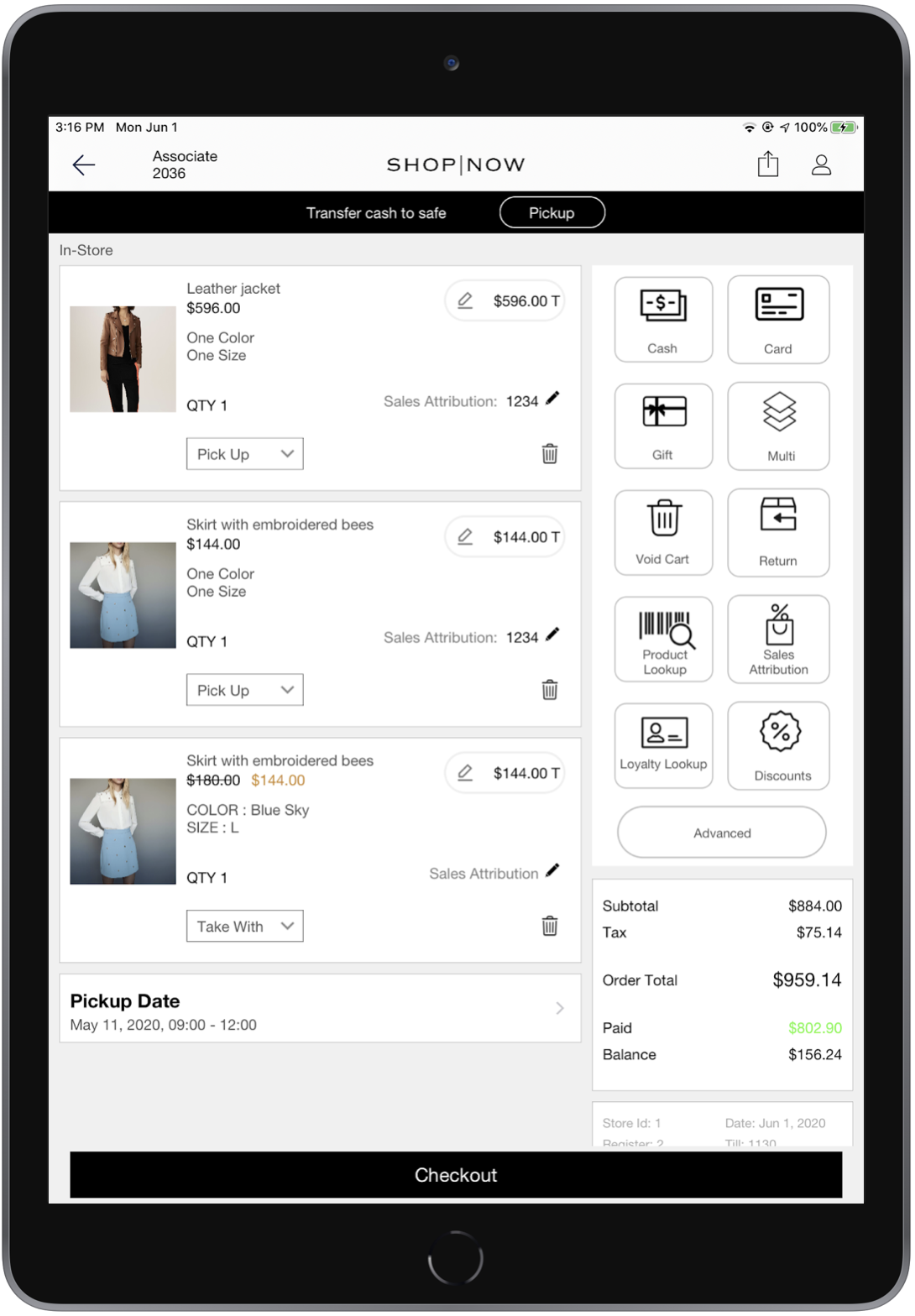
Cancel / Void Edit Order
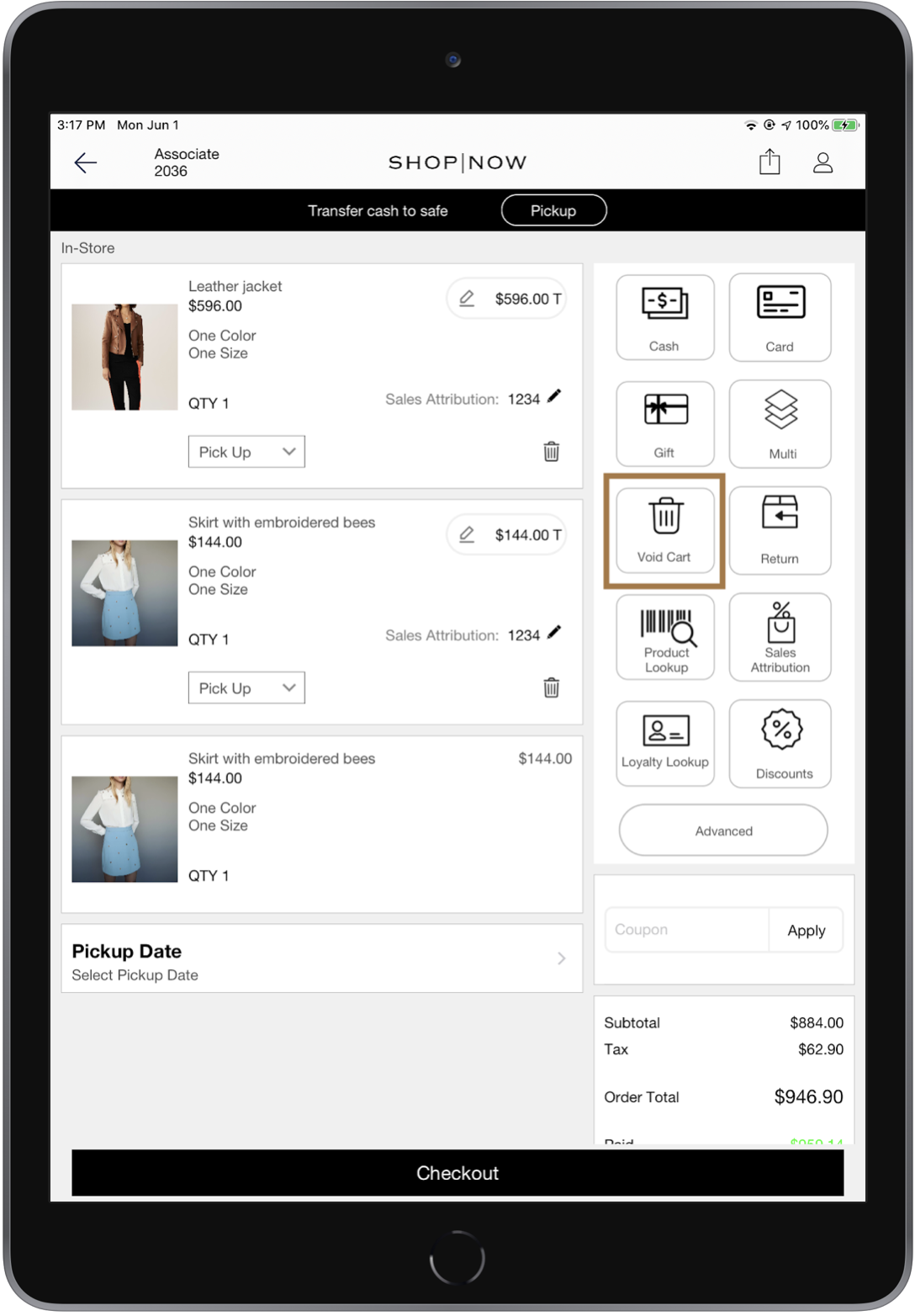
If the customer decides to not proceed with the modification at any time before opting for checkout, the associate can choose the Void Cart option on the cart screen to cancel the modification.

Known Issues and Restrictions
- Edit order payment is processed in the multi-tender UI. The app disables cash and credit card options on the cart screen
- Not all orders are editable. Depending on its fulfillment status, each order will be allowed to be modified.
- Edit order is transactional, only one associate can edit at any given time.
- Point of Sale services clean the status of an edit order in 15 minutes if the editing register has not made any communication to the Point of Sale services the order is not placed. All the changes made and not committed will be lost.
- A fulfilled order will have to be canceled/exchanged through the returns and exchanges flow.
- The current edit order implementation doesn’t support the UI on iPhone and iPod screens.
- If the edit order contains a previously made deposit, associates can choose to add an additional deposit via multi-tender.
- Associate can choose to complete the edit order with any charges due without any additional tender.
- Once cancel entire order flow is started, any new items will not be added to the edit cart. The app will show the error message that "Adding more items are not allowed".
- If a promotion or discount is applied to an order, it will be retained when the order is edited. However, new promotions cannot be applied during the edit. Users can only apply manual discounts—not promotions—when editing an order.