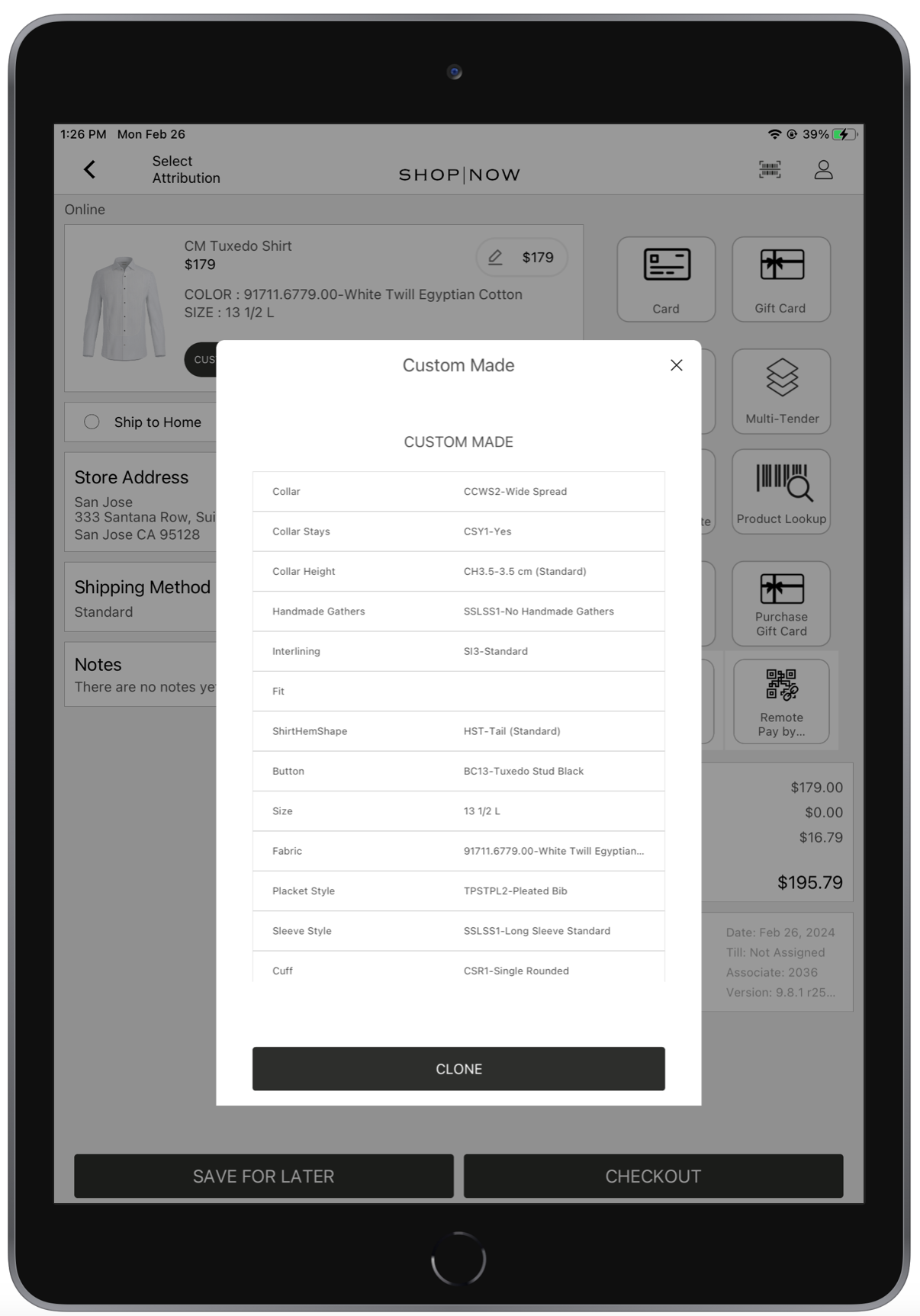
Point of Sale's Design Your Own (DYO) feature lets merchants integrate a Customizable Product WebView. Users can launch a WebView on the POS app to create or alter products. Then, they can add the products to the cart for checkout.
- Modern POS App Build: Current, available build in TestFlight
- Platform Support: iPhone & iPad
- Offline Support: No
The functionality of the DYO WebView varies based on your configuration, there are two options available for integration: cookie-based or event-based.

- Associates will have the ability to access an external URL for creating DYO products.
- Associates can opt for "Custom Made" to include a personalized product in their cart. This functionality is available exclusively for online products marked with a DYO URL. It can be initiated from either a generic product URL or from the PDP if the product link is configured via PDP V2.
- The price of a custom product will be visible to associates at the item level in the cart.
- Associates can choose "Custom Made" to review the details of the product customizations within the cart.
- Associates retain the capability to remove DYO products entirely by deleting the respective item from the cart.
Configure Product Feed
Configure your Product Feed to include a field for the DYO or Customizable Product URL.
- In the Product Feed, for each DYO-applicable product, create a dedicated column to list the product's DYO/Custom Made URL. This column can be labeled at your discretion as it will be later mapped to a custom string field in the Field Mappings.
- Upload the Product Feed, see Run Feeds Manually or Schedule Feed Runs in Point of Sale CMS.
- Once it's been uploaded successfully, configure Field Mappings in CMS by going to .
-
Under Source Field, look for the column that lists the URLs (e.g., "CustomMadeURL") and
map it with any available custom string under Target Fields, e.g., "CustomString0".

- Save your changes.
Configure Deep Link
Configure a deep link to launch your WebView in a PDP. Note, you may need to create several PDP layouts with different URLs to launch the WebView for different products (e.g, customizing jackets, shirts, dresses, etc. )
- In CMS, go to .
- Create or edit a PDP layout.
-
Using the deep link picker, go to URL.
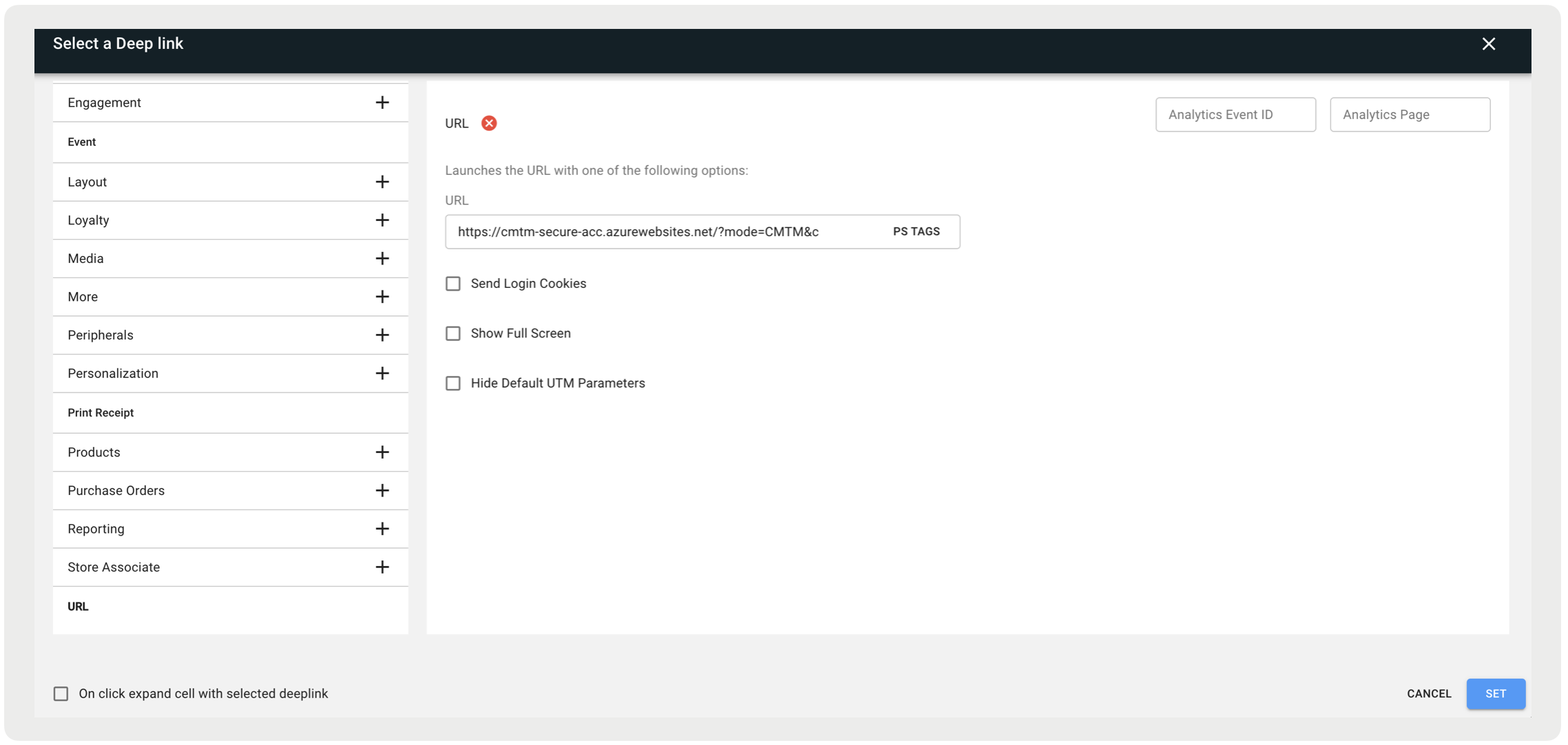
- Input the URL to launch the WebView.
Integrate the DYO App
This section is for merchants who wish to use their DYO app, for Customizable Products refer to Integrate Customizable Products App.
Configure Cookie-Based Integration
If the DYO app uses cookies, continue reading. If the app uses events instead, skip to Configure Event-Based Integration.
- In CMS, go to .
- Edit the app config you wish to enable this feature.
- Go to .
-
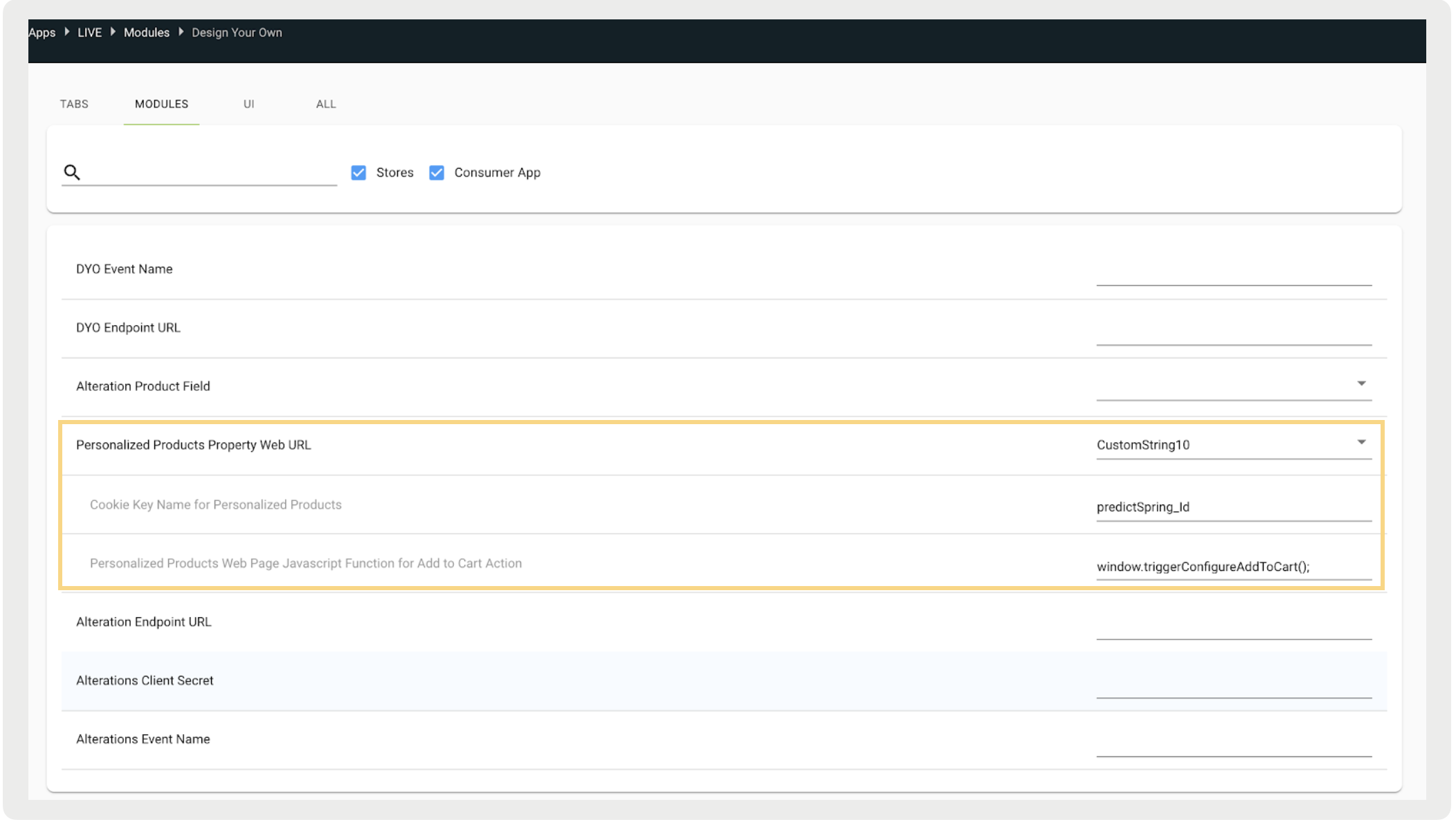
Configure these fields:
- Personalized Products Property Web URL: Enter the product feed field name containing the external URL for product personalization to load on the PDP.
- Cookie Key Name for Personalized Products: Provide the key used to retrieve cookie details of personalized products upon addition to the cart.
-
Personalized Products Web Page Javascript Function for Add-to-Cart Action: Enter the
Javascript function name responsible for triggering the add-to-cart action.
Configure Event-Based Integration
- In CMS, go to .
- Edit the app config you wish to enable this feature.
- Go to .
-
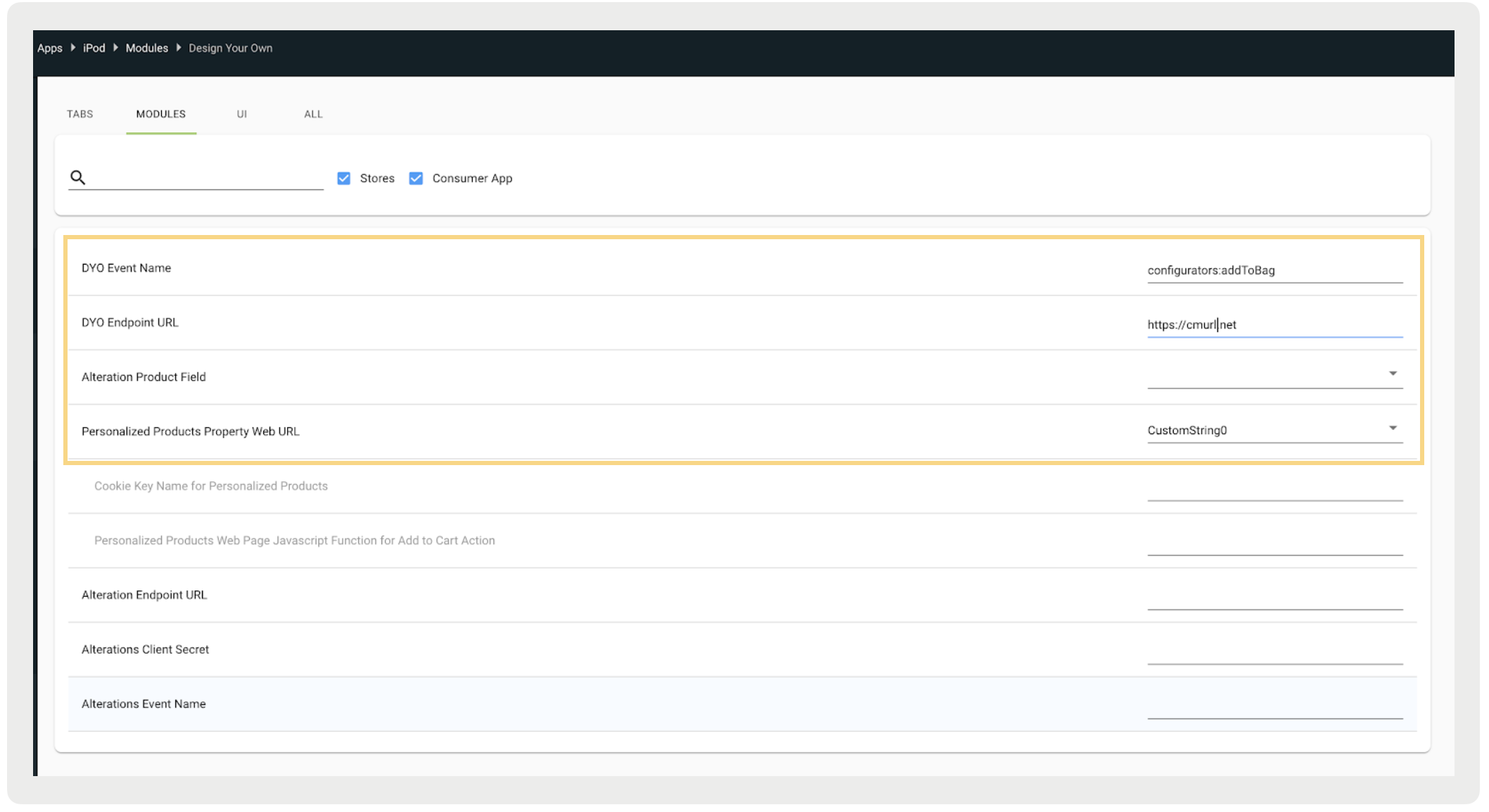
Configure these fields:
- DYO Endpoint URL: Input the endpoint URL for Design Your Own.
- DYO Event Name: Specify the event name used to trigger the add-to-cart action.
-
Personalized Products Property Web URL: Enter the product feed field name containing
the external URL for product personalization to load on the PDP.
Integrate Customizable Products App
- In CMS, go to .
- Edit the app config you wish to enable this feature.
- Go to .
-
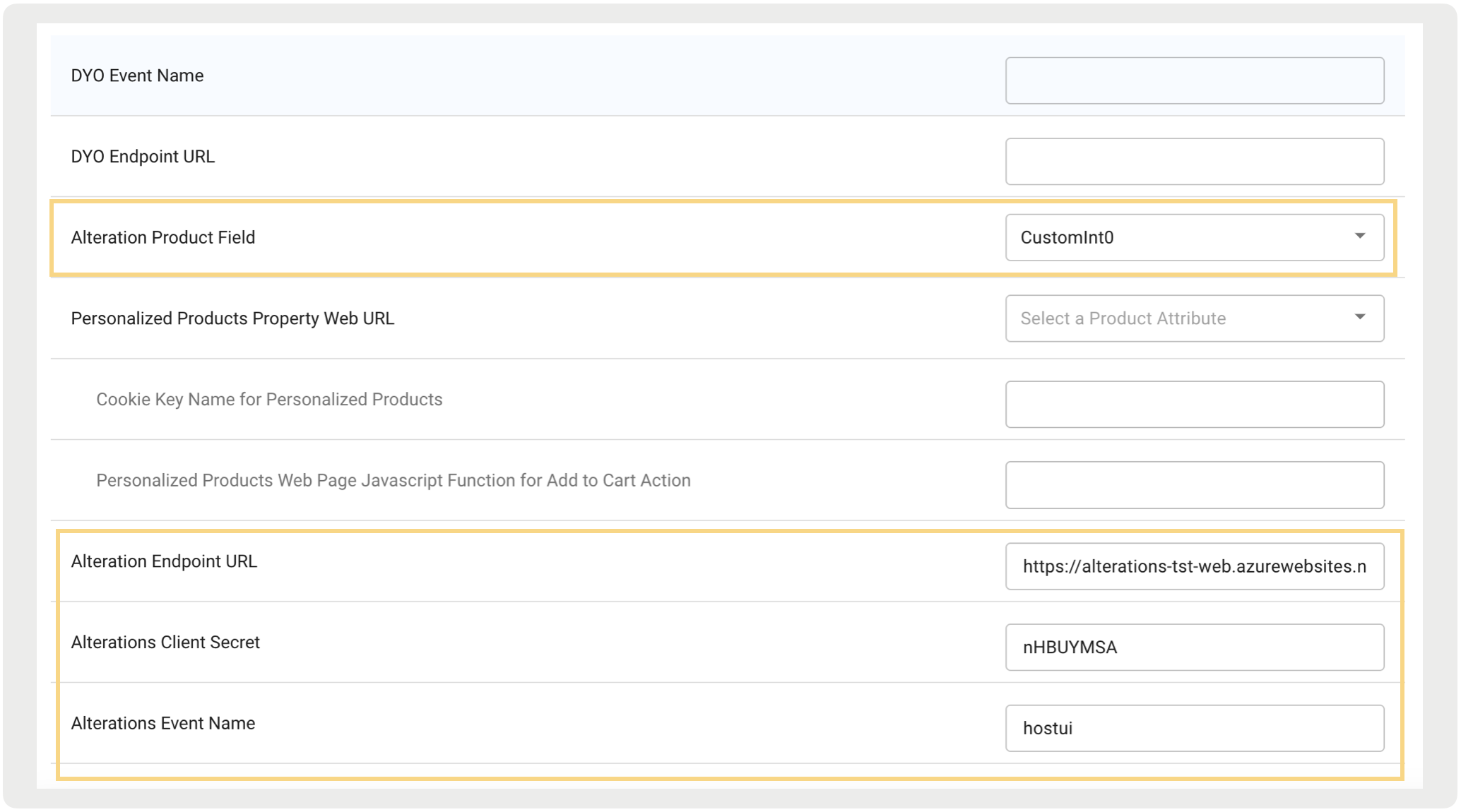
Configure theie fields:
- Alteration Product Field: Enter the product feed field name containing the external URL for product personalization to load on the PDP.
- Alterations Endpoint URL: Input the endpoint URL for Customizable Product.
- Alterations Client Secret: Input the clientSecret parameter of the Alteration Endpoint URL.
-
Alterations Event Name: Specify the event name used to trigger the add-to-cart
action.
POS Behavior
Upon enabling Point of Sale's DYO feature, successfully integrating with the merchant's WebView, tap on the deep link to launch the WebView.
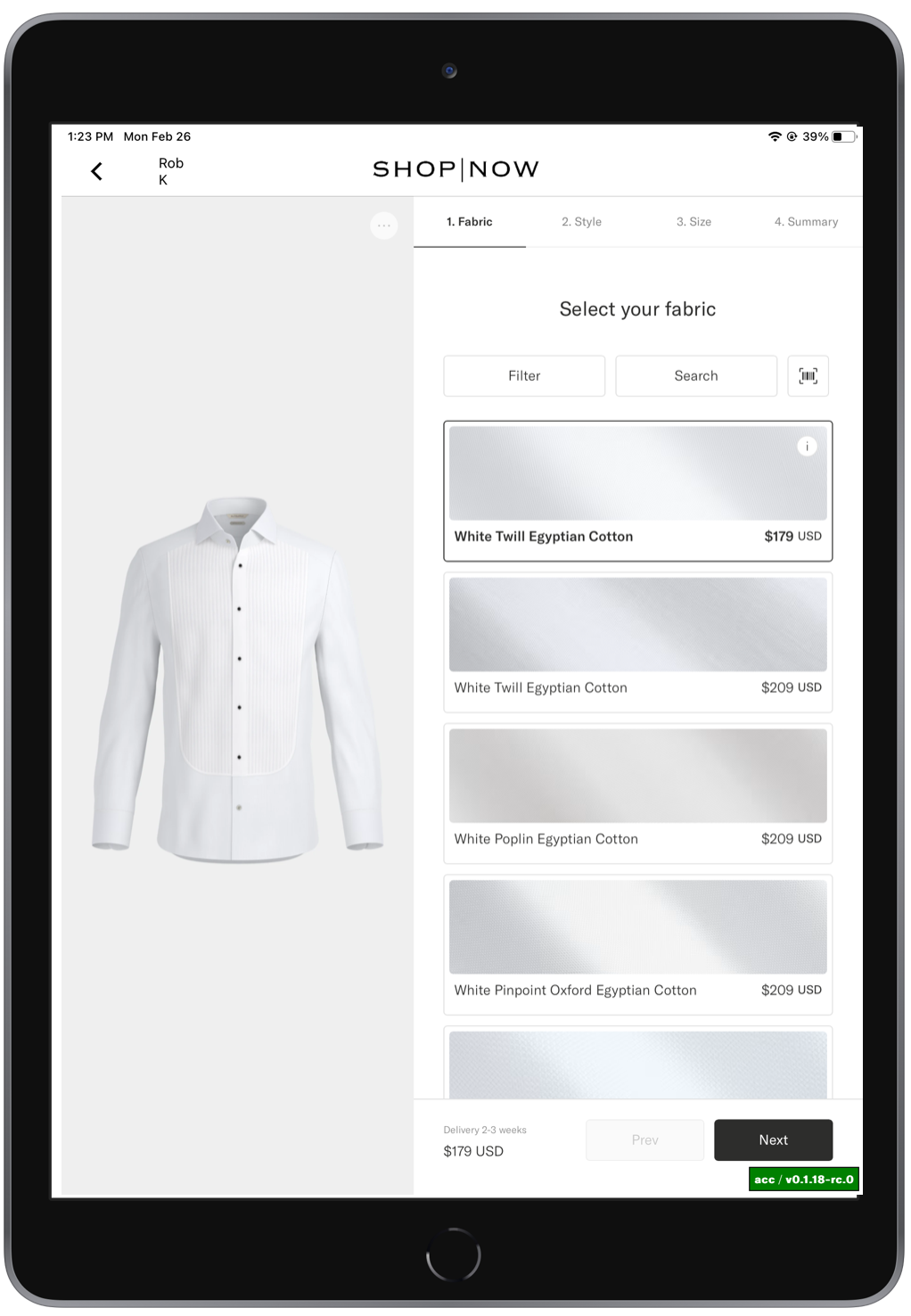
The WebView will allow users to customize the product and add them to the cart.
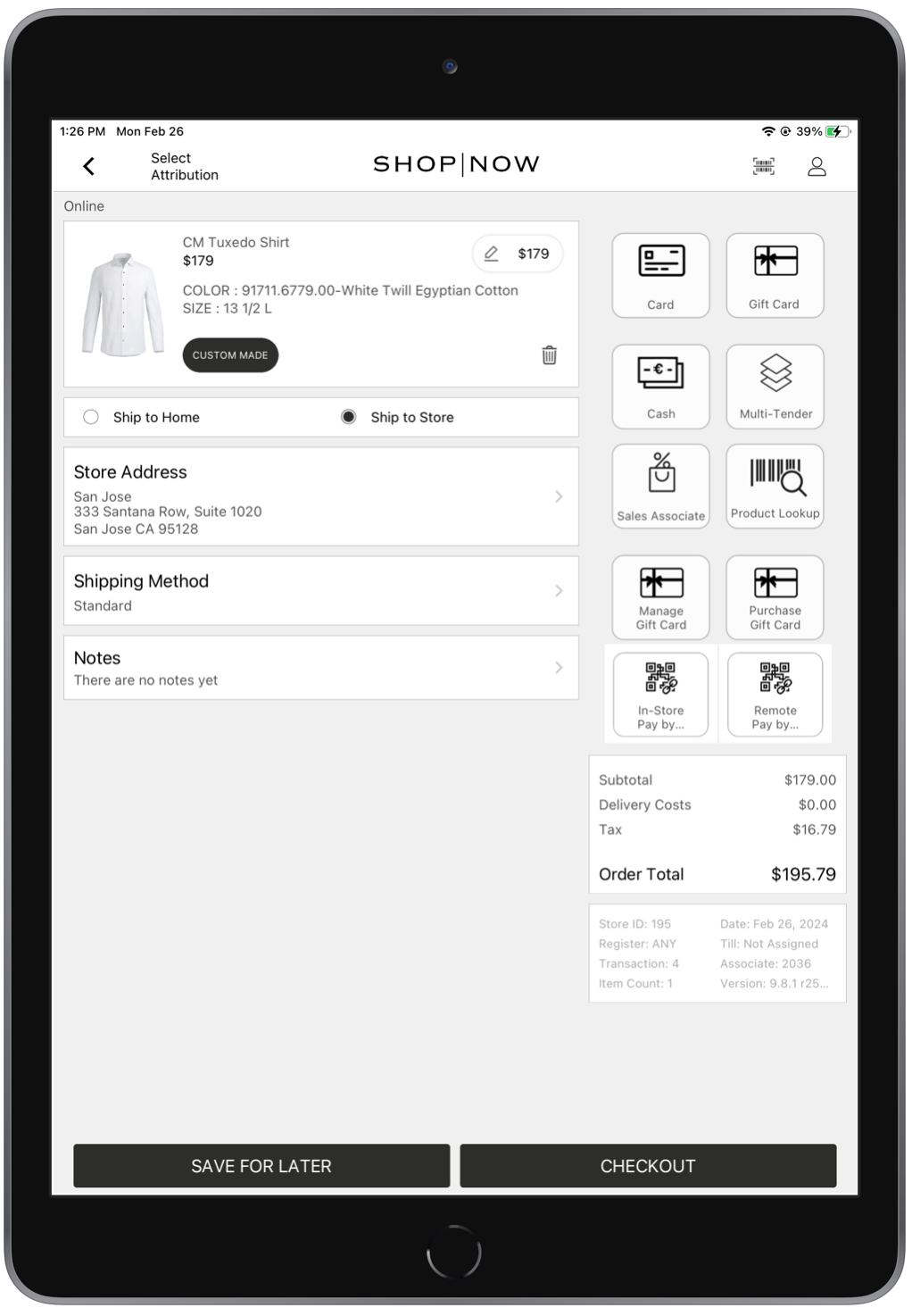
Product details can be viewed by tapping on the Custom Made CTA. This CTA is a default feature of the Custom Made layout, which can be configured in CMS by going to .