
The Point of Sale app offers an option to add Not on File items (products not listed in the Feeds) into the cart. Store associates can continue to add these items to the cart and finalize the checkout process.
- Modern POS App Build: 5.5.2 or above
- Platform Support: iPhone & iPad
- Offline Support: Yes
Enable POS Settings
This section lists the necessary POS settings for enabling the Not on File feature:
- Go to .
- Enable the flag, Is item not on file feature enabled for this merchant.
- Save your changes.
- Go to.
- Add the tax class for the Not on File item under Tax Class to Be Set for Not on File Items. - notOnFileProductTaxClass.
- Add the zero tax class for the Not on File item under Tax Class to be Set for Not on File Items when the Tax to be charged is 0% - notOnFileProductZeroTaxClass.
- Click Save.

Create a Not on File Layout
This section lists the steps for configuring a layout to add Not on File items in the cart.
- In CMS, go to .
- Edit the app config that will have the Not on File form.
- Go to .
- Under Cart Options Layout, click the pencil icon to the right.
- Create or select a cell.
- On the right toolbar menu, click .
- Set the deep link and save the changes.
POS Behavior
When an associate clicks on the deep link on the cart, they will be prompted to add details of the Not on File item. For app builds 9.2.1 and earlier, the associate layout will only display the following layout.
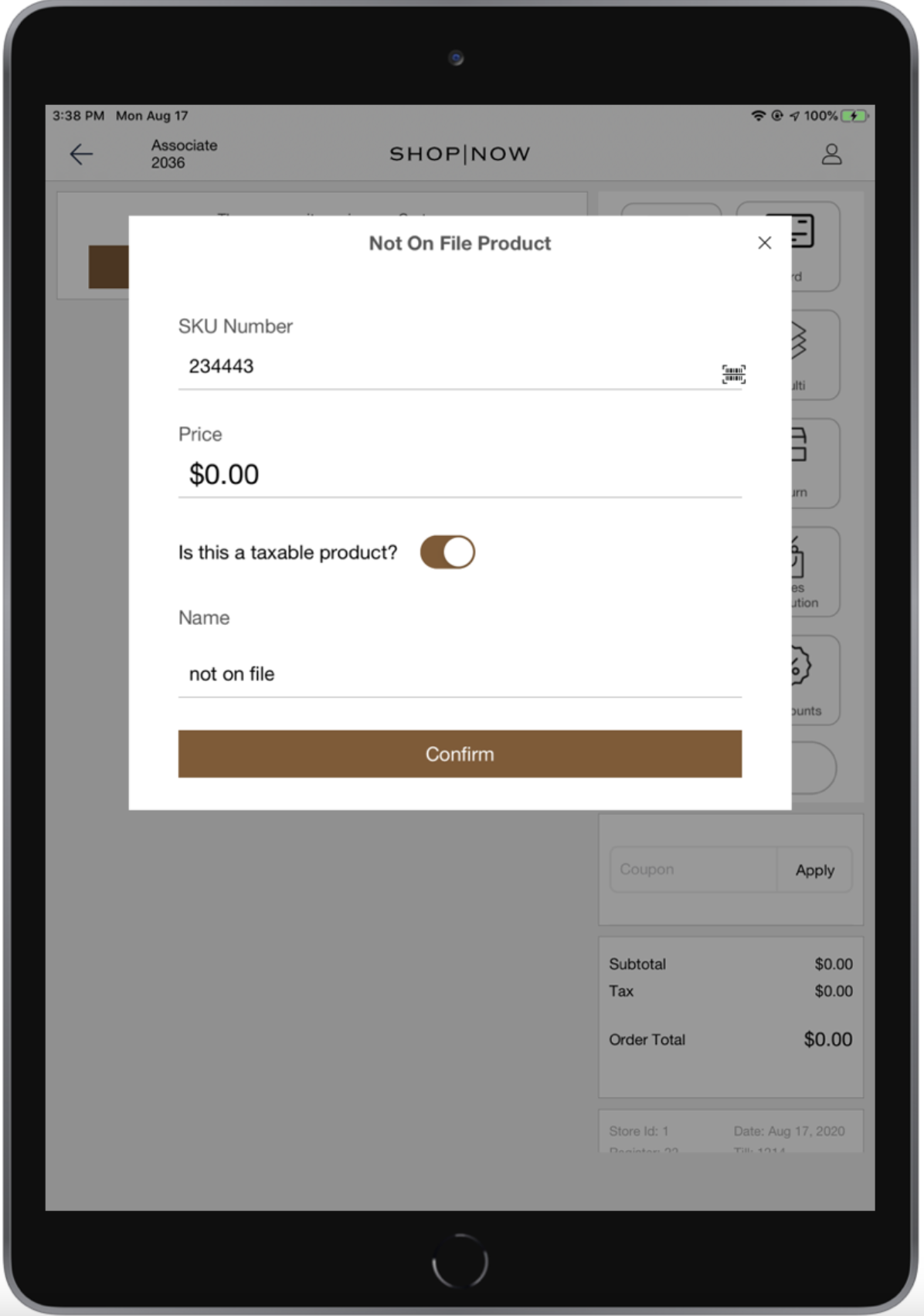
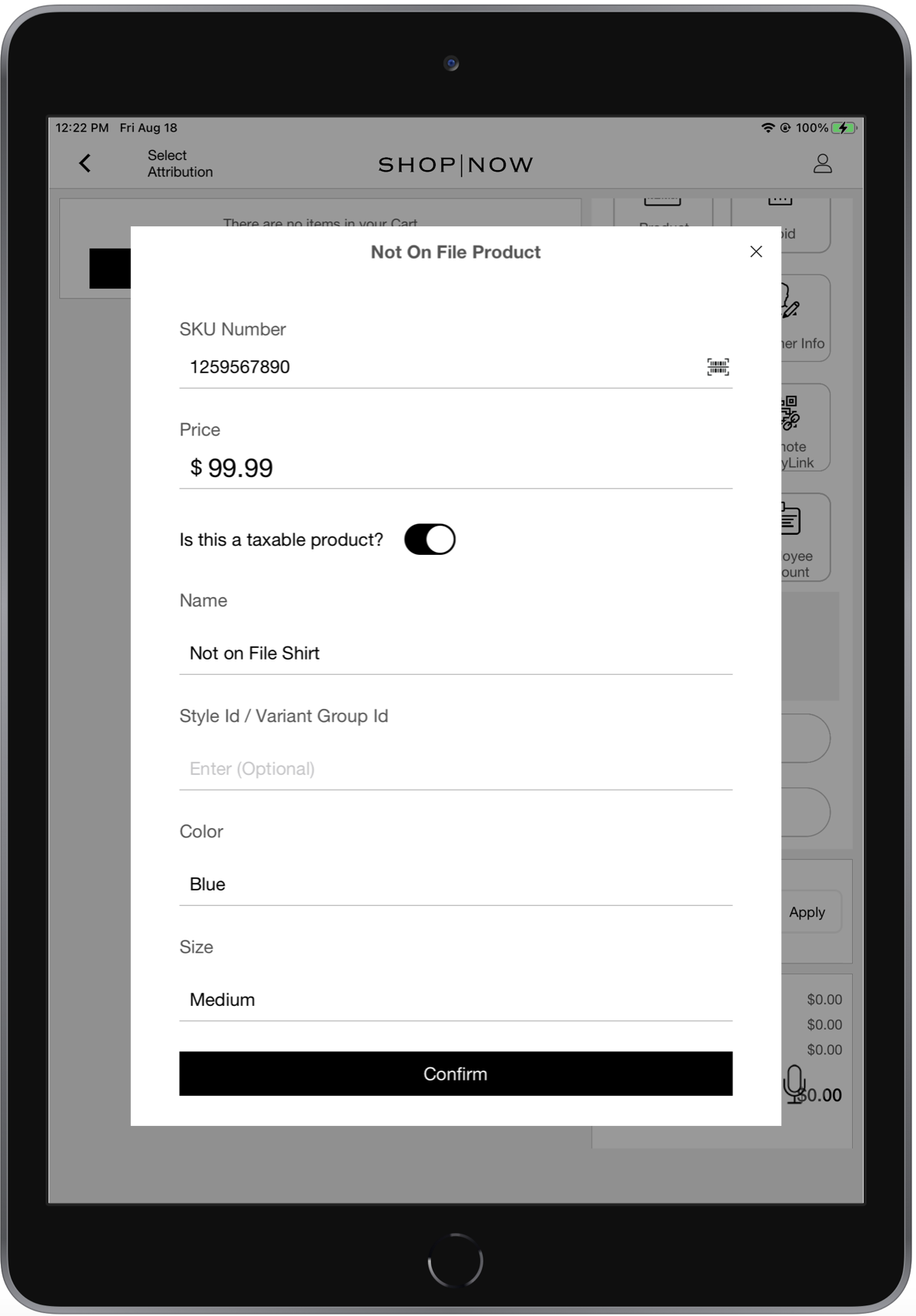
However, for app builds 9.3.1 and newer, the layout has been enhanced with three OPTIONAL fields: Style ID / Variant Group ID, Color, and Size. On the layout, the associate can either enter the SKU number or scan the bar code. The toggle, Is this a taxable product, will determine if the Not on File product will inherit the tax class set in the "notOnFileProductTaxClass" or "notOnFileProductZeroTaxClass" store settings.
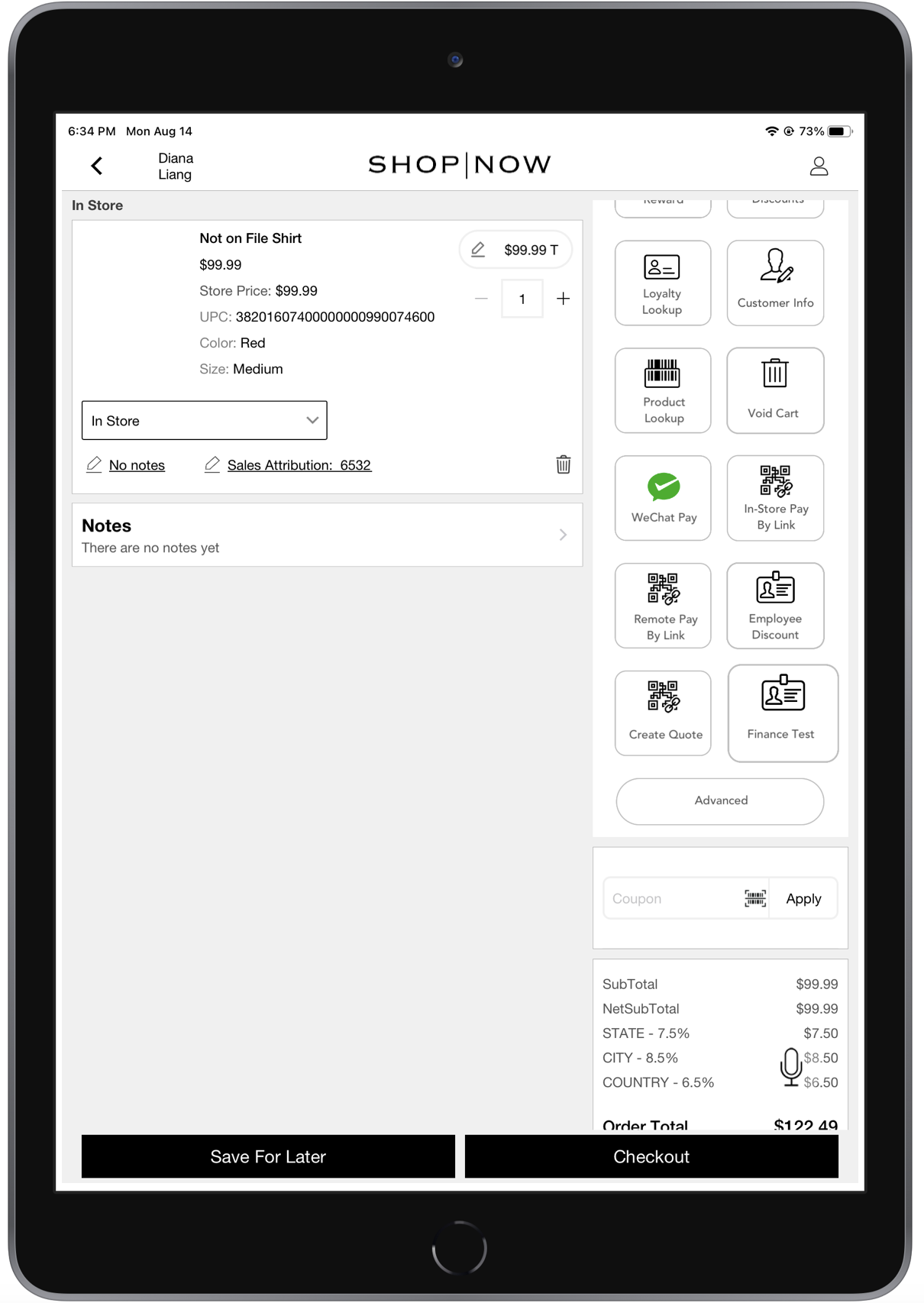
Once the item is added it will be processed and added to the cart successfully. If the same item is scanned or added again then it will increase the quantity of the already added item in the cart.
Known Issues & Restrictions
- The POS accepts Not on File items offline. These items are synced with the server, once the POS goes online. Due to this, the POS cannot recognize an already added Not on File item until the POS has synced online and refreshed the product feed for local use.
- When creating a Not on File item offline, the POS is unable to retrieve the correct tax class as this requires an online sync.