
POS enables you to configure non-merchandise SKUs, such as postage stamps and gift certificates, to meet your business needs. You can also configure the checkout rules that apply to these items. Control if these items are discountable or taxable, and set other rules.
- Modern POS App Build: 7.13.5
- Platform Support: iPhone & iPad
- Offline Support: Yes
- Technical Prerequisite: Create a product class (refer to Create or Edit Product Class) corresponding to the merchandising SKU and provide the SKUs in the product feed (refer to Create the Product Feed) along with their product class.
Create or Edit Product Class
- Go to .
-
Click Create or to edit a Product Class click the 🖊 icon.
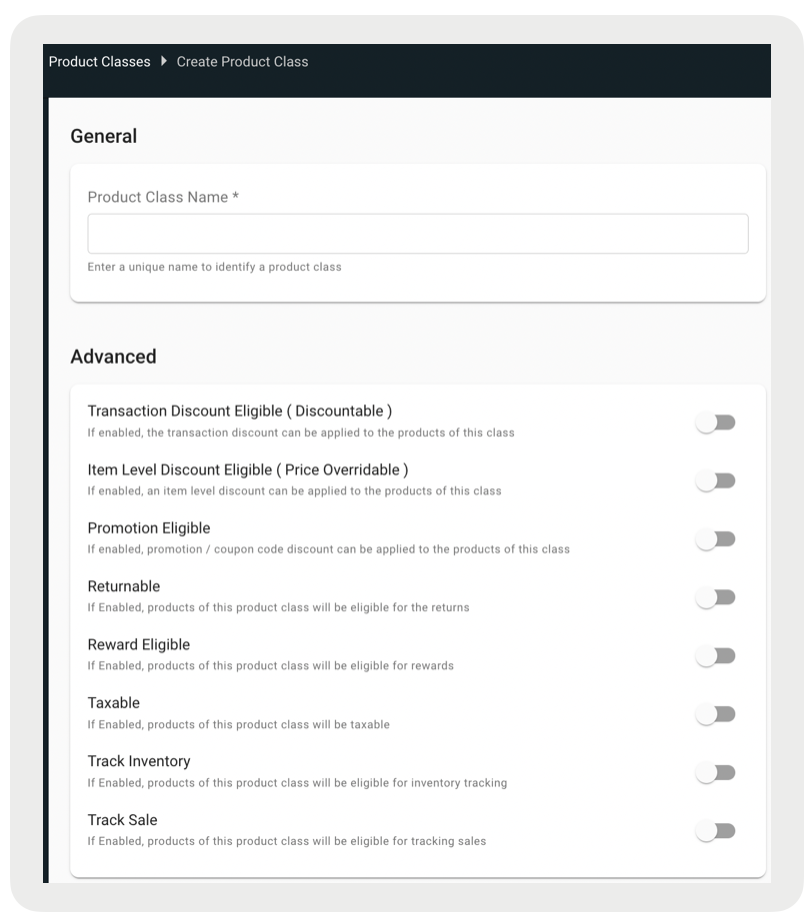
- Complete the required fields.
- Click Save.

Note Each Product Class name must be a unique name across all the product classes. CMS will
not allow duplicate names. 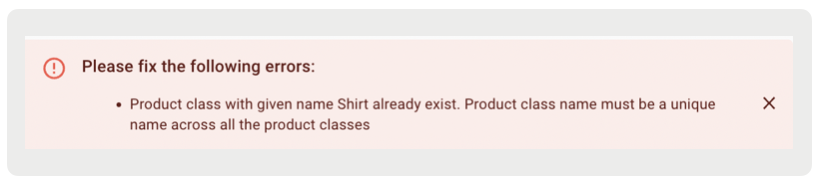
Use a Product Class
- Go to .
- Click Create or to edit click the 🖊 icon through the ellipsis (three vertical dots) of the product.
- Go to .
-
Select any Product Class from the created product class list. Note: Select Merchandise if
it's a standard product.
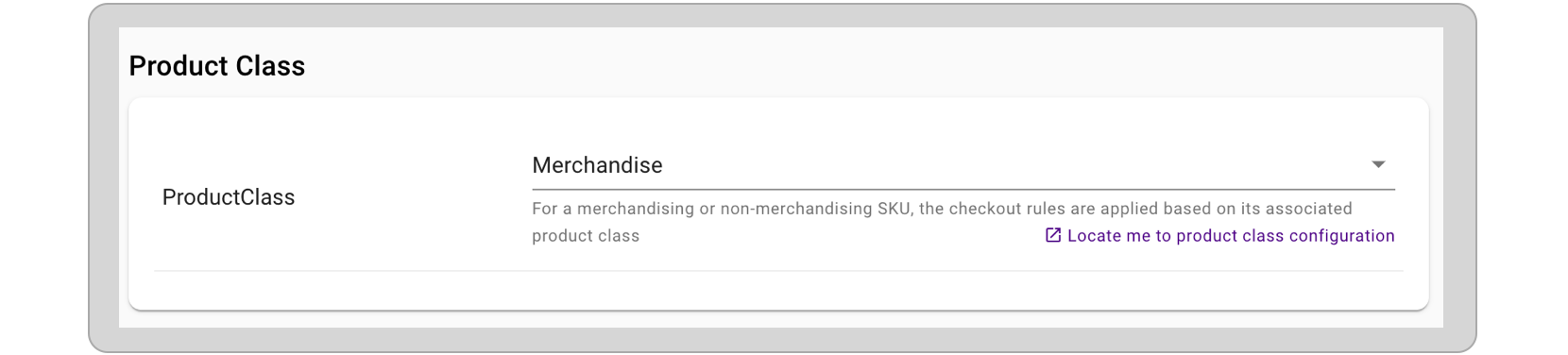
- Click Save.
Create the Product Feed
- Add a non-merchandise SKU to the product feed. Make sure to add its productClass. For product feed specifications, refer to the article Create the Product Feed to know more.
- The product class for the non-merchandise SKUs needs to be created in CMS. Steps to create a product class have been listed in the section Create or Edit Product Class. Once the product class is created, it then can be associated with the non-merchandise products in the product feed.

Note Manually created items are not removed by feed, they can be deleted via
CMS
POS Behavior
Product Class
- For a merchandised or non-merchandised SKU, the checkout rules are applied based on its associated product class.
- Product class is one of the attributes of Point of Sale's product.
- It can be provided in the product feed for every single product. It is an optional attribute and if not provided, then the product/s are considered Merchandising SKUs.
- The product class supports multiple checkout rules. All these rules that are associated with product class are listed in the section Checkout Toggles
- Below, the three product classes have out-of-box support in PS POS. The custom product
classes can be created as mentioned in the section Create or Edit Product Class and provided in the product feed mentioned in the section Create the Product Feed.
- Merchandise: This is the default product class. All the rules mentioned under Checkout Toggles are applicable to this product class. So all the products associated with merchandising product class are discountable, price overridable, promo eligible, returnable, sale trackable, inventory trackable, and taxable.
- GiftCard: This is a special product class for gift card SKUs and rules are applicable based on gift card integration.
- Bag: A new product class-specific to bag fees that will not be discountable, returnable, sale trackable, or inventory trackable but can be taxable based on tax class corresponding to the product.
Checkout Toggles
| Toggle | Description |
|---|---|
| Transaction Discount Eligible (Discountable) | Determines if transaction discount can be applied to the product |
| Item Level Discount Eligible (Price Overridable) | Determines if an item-level discount can be applied to the product |
| Promo Eligible | Determines if promotion/coupon code discount can be applied to the product |
| Returnable | Determines if the product can be returned |
| Reward Returnable | Determines if the products of this product class will be eligible for rewards |
| Taxable | Determines if the product can be taxed |
| Track Inventory | Determines if the product's inventory can be tracked after the sale or return transactions |
| Exclude from Sales Reports |
Determines if the product's sale is to be excluded from sales metrics. Important: Regardless of the flag's state reports used for reconciliation will still include this product class. |
| Retain Fulfillment Date After Adding Item | Determines if adding a product of this product class to cart, sale, or edit flow will trigger a request for a new delivery date. E.g., if disabled, every product with this class added will remove the previously selected delivery date and prompt for a new date on the app |
| Requires Activation Code via External Source | Determines if a digital code is needed to complete a transaction. For more information, see Activation Codes via SPI |
Sample Use Case
Donation SKU - charity2022 that doesn't support any of the rules listed under Checkout Toggles
- Create a new product class "Donation" (refer to Create or Edit Product Class).
- As the product doesn't support any of the Checkout Toggles, while creating the "Donation" product class, make sure to disable all these rules.
- Once the product class, "Donation" is created, update the product feed by providing the record for charity2022 with its product class as "Donation".
- Upload this updated product feed in the Point of Sale system through CMS's product feed upload feature.
- This way if the product charity2022 is added to the cart, none of the checkout rules will be applied.