
View safe funds within a store, check the safe balance at any time, and create a suggested bank deposit each day.
The Point of Sale (POS) app features a Safe Management tool designed for managers to view and manage safe funds within the store. Managers can create a safe fund that includes allocations for Safe Float, Till Float, Expenses, and Miscellaneous funds. It dynamically moves cash in and out of the safe funds based on transactions such as Till creation, Pickups, Till Reconciliation, Pay-ins, and Payouts.
The Safe maintains a Net Cash bucket and create a suggested Bank Deposit for the end of the day. The tool also records any changes made by managers in the Electronic Journal for all transactions related to Till Float, Expenses, and other entries.
Prerequisites
- Modern POS App Build: 5.5.1 and later
- Platform Support: iPhone & iPad
- Offline Support: no
Set up Point of Sale CMS for Safe Management
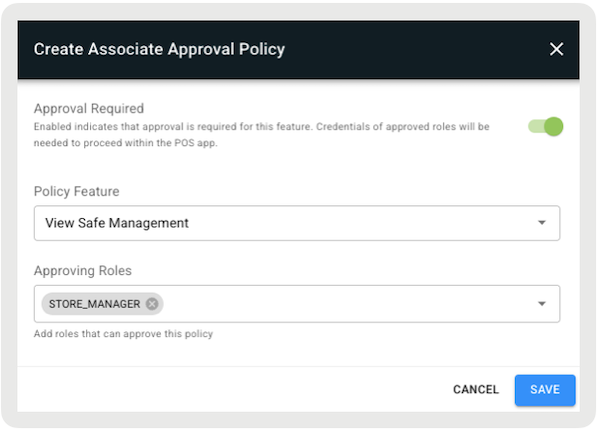
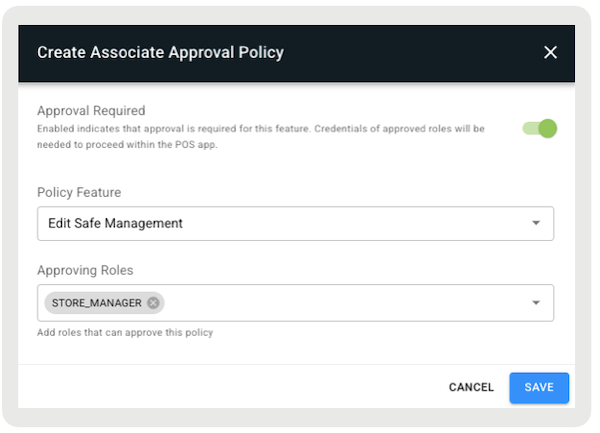
Configure approval policies for users to view and make float adjustments.
View Safe Management
- Go to .
- Select .
- Under , select "".
- Under , select the roles allowed to view the safe management.
-
Save your changes.
Edit Safe Management
- Go to .
- Select .
- Under , select "".
- Under , select the roles allowed to edit the floats in the safe management.
- Configure the rest of the fields by referring to this article.
-
Save your changes.

Setting Reason Codes
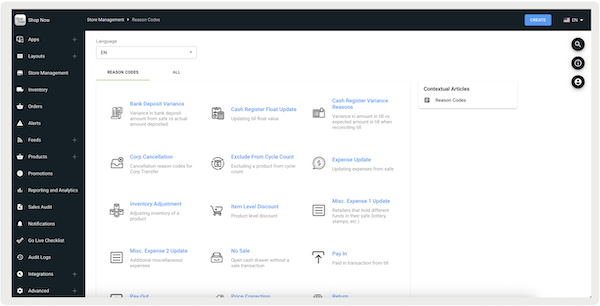
Configure reason codes for safe management adjustments on the Point of Sale (POS) app.
- Go to .
- For adjusting safe floats, go to .
- For adjusting till floats, go to .
- For adjusting expenses, go to .
- Configure reason codes by referring to this article.
-
Save your changes.
Access Safe Management in the POS App
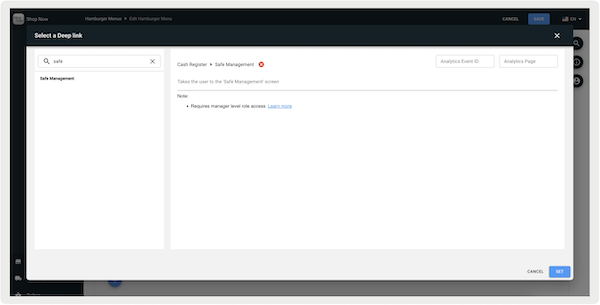
Use the Point of Sale (POS) app to view and manage store safe activity.
Opening a Store
After opening a store for the date, verify the previous day was closed before opening. More details can be found in Opening and Closing a Store.

Tap the .
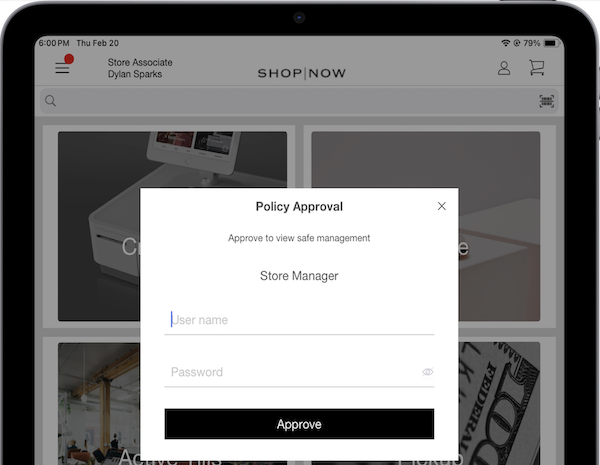
If an approval policy has been configured to view the safe management and the logged-in user isn't assigned one of the approval roles, a window appears prompting the user to enter the approval role credentials. The credentials are recorded in the Electronic Journal under "".
Cash Counting
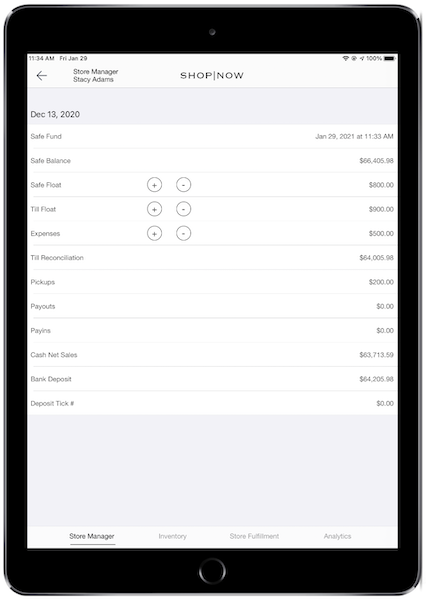
You'll be directed to a screen where you'll be able to review the safe's financial details, including safe funds, safe balances, and safe floats. All figures below the expense line have to read $0.00. Verify these amounts by counting the cash in the safe to verify the displayed safe amount is accurate. If the amount has a variance, verify the previous day was closed before opening.
More details can be found in Opening and Closing a Store.
To learn more about each field, including their descriptions, go to Safe Management Field Descriptions.
Adding or Removing Funds
You can add or remove funds for safe management. This function is used if you start a new store, add more registers, add more money to the till, or add money to the safe fund or expenses. Select + or - on the fund you want to add or remove funds from. If an approval policy has been configured to edit the safe management and the logged-in user isn't assigned one of the approval roles, a window appears prompting the user to enter the approval role credentials. The credentials are recorded in the Electronic Journal under "".
After you edit a fund, a window appears that allows you to enter the amount. A reason code must be selected for any adjustments. Tap to confirm the amount.
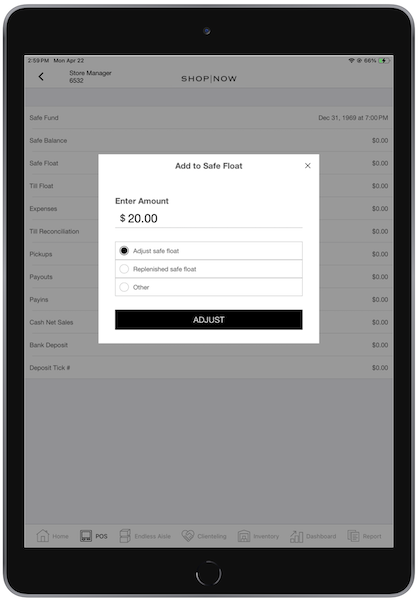
Adjustments are recorded in the Electronic Journal, along with their corresponding reason codes.
View Safe Management Field Descriptions
View descriptions of each field featured in the Safe Management screen.
| Field | Description |
|---|---|
| Safe Fund | Date and time funds were added to the safe. |
| Safe Balance | Current total amount of cash in the safe. |
| Safe Float | Cash reserved in the safe for pay-ins to the register from returns or payouts. Use the + or - to adjust the Safe Float. A reason code is required for changes. |
| Till Float | Initial cash provided to each register, calculated as the Starting Cash multiplied by the number of registers in the store. Adjust using + or -. A reason code is needed. |
| Expenses | Cash allocated to the store for expenses, coins, and so on Adjustments can be made with + or -, and a reason code is necessary. |
| Till Reconciliation | Process where cash exceeding the Starting Cash in a till is accounted for during the day. |
| Pick Up | Total cash collected from all registers throughout the day. |
| Pay Out | Cash dispensed for expenses, reducing the expenses upon reconciliation. |
| Pay In | Additional cash supplied to a till if running low, reducing the Safe Float. |
| Cash Net Sales | Total net cash sales from all tills for the day. |
| Bank Deposit | Estimated total cash amount to be deposited at the bank at the end of the day. |
| Deposit Ticket Number | Tracking number for the bank deposit. |