
Streamline both the opening and closing processes of stores directly through the Retail Cloud Point of Sale (POS) app.
Opening a store involves reconciling past tills, managing safe contents, and creating new tills. Store closure requires the reconciliation of daily tills, creating bank deposits, and the manual closing of the store.
Any differences found during these processes can be fixed by choosing a preset reason code. This code is recorded in the Electronic Journal.
Set up Point of Sale CMS for Opening and Closing a Store
To fully turn on opening and store operations on the Point of Sale (POS) app, configure approval policies, reason codes, and deep links.
Configuring Manager Approvals
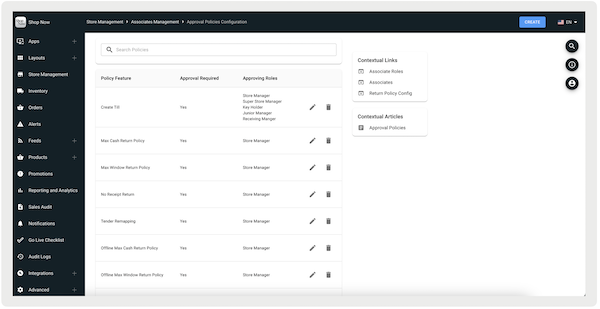
Configure an approval policy to allow only managers to manage tills.
- Go to .
- Select .
-
Create the following till-related approval policies:
- : required for starting the day with till setup
- : needed for end-of-day till reconciliation
- : allows managers to use previously used tills
- : grants the ability to monitor and reconcile all tills remotely
-
Configure the rest of the fields by referring to this article.
Configuring Reason Codes
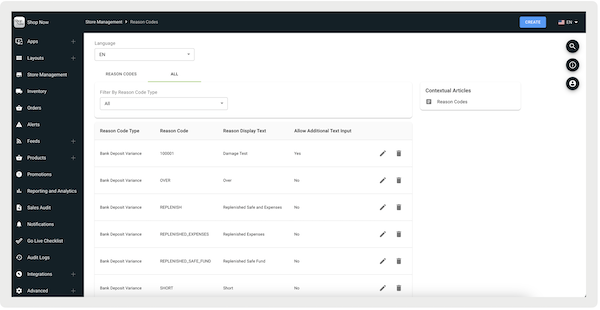
Configure reason codes for any variances found if closing a store for the day.
- Go to .
- Select .
-
Create reason codes for the following:
- — Variances founded during till reconciliation
- — Variances found during bank deposits
-
Save your changes.
Configuring Deep Links
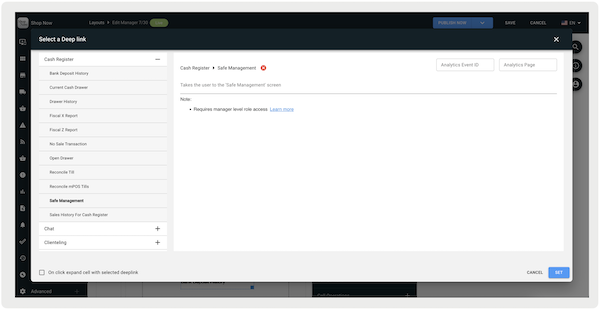
Configure deep links to open and close stores for the day.
- Edit a layout or hamburger menu.
-
Go to the deep link picker and add the following deep links:
- — Reconciles selected tills
- — Displays a list of tills associated with the store
- — Directs the user to the "" screen where they can view and manage all safe-related operations.
-
Set and save your changes.
Opening Store Operations in the POS App
At the beginning of the day, the store opening process involves verifying prior-day tills, reviewing safe management, and creating tills.
Viewing Safe Management
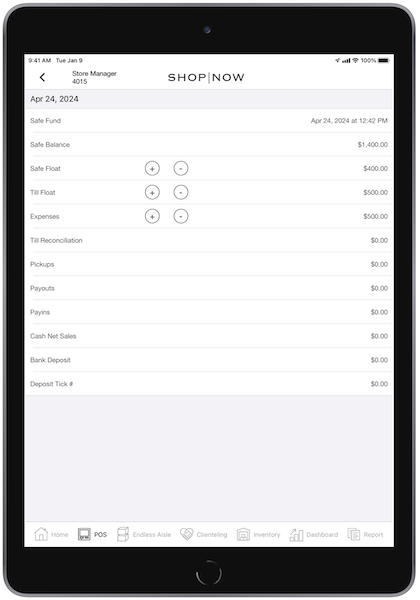
Tap the deep link and you'll be directed to the Safe Management screen. All figures below Expenses have a value of $0.00. Verify these amounts by counting the cash in the safe to verify the displayed safe amount is accurate. If the count has a variance, follow the retail operation guide from your company.
Verifying Prior-Day Closing Stores
Tap the deep link. You’ll see all the tills active for today. If there are any tills still active from a previous day, this indicates that the store wasn't properly closed for that day. To address this, refer to Reconcile Tills.
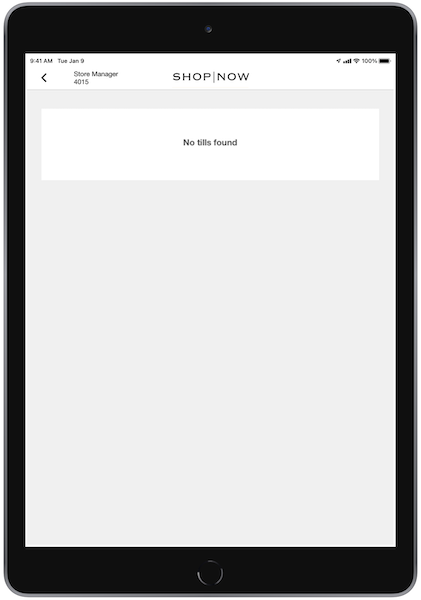
Creating Tills
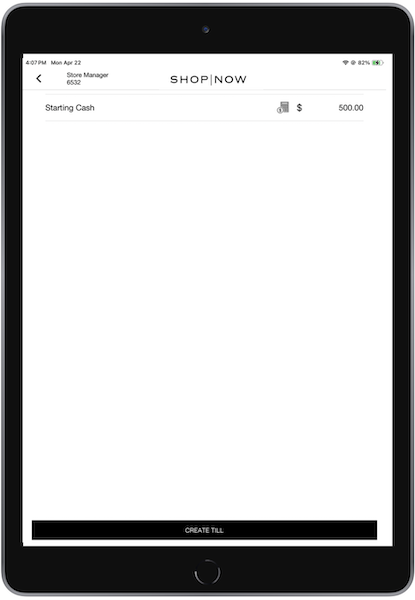
To complete the store opening process, tap the deep link on each register you're creating a till on. You'll be prompted to enter the amount for the till. After entering the amount, select to proceed.
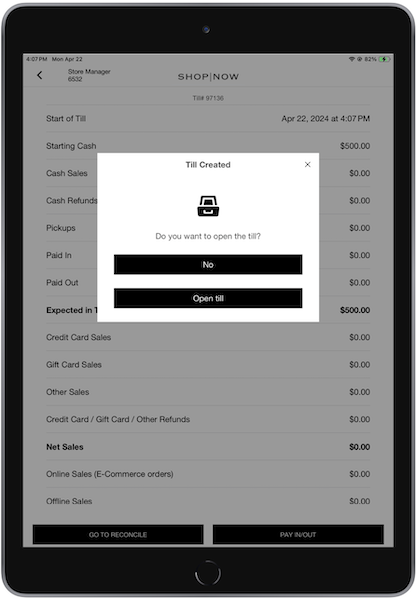
Then, select to open the drawer. If the drawer isn't opened, place the till inside, and close the drawer. For each till that is created, a record is written to the Electronic Journal with the starting amount.
Closing Store Operations in Point of Sale
At the end of the day, the store closure process involves reconciling the tills and preparing the bank deposit.
Reconciling Tills
To reconcile your store’s tills at the end of the day, on each register, tap the deep link.
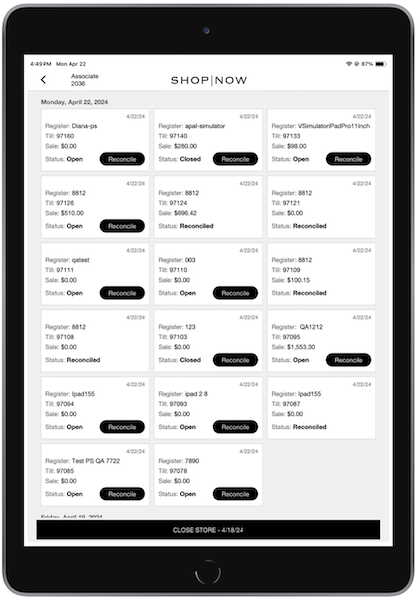
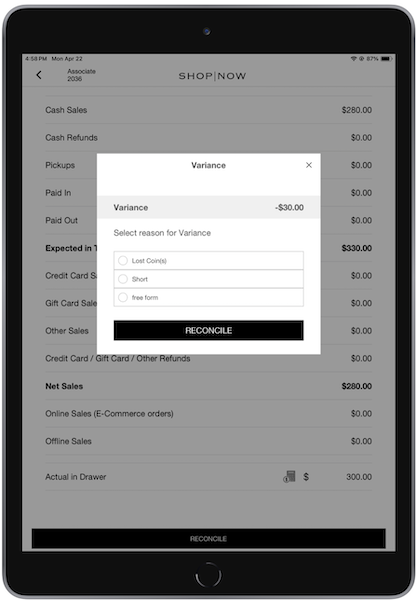
To begin the reconciliation process, tap at the bottom of the screen. Select to open the till or not. Enter the total amount of money in your till into the field. This amount matches the figure displayed. After entering the actual amount, tap .
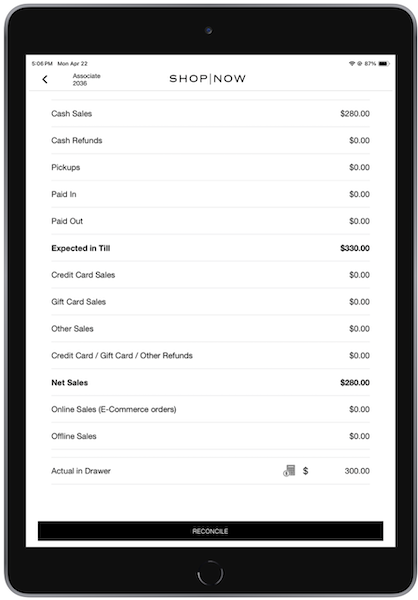
If there's a discrepancy between the actual and "", select a reason code to note the variance. Users can x out and reinput the amount if it was entered incorrectly. After the reconciliation is complete, continue with any remaining tills. For each reconciled till, a record is created in the Electronic Journal. This record shows the difference between the reconciled amount and the reason code, if applicable.
Creating Bank Deposits and Closing Store
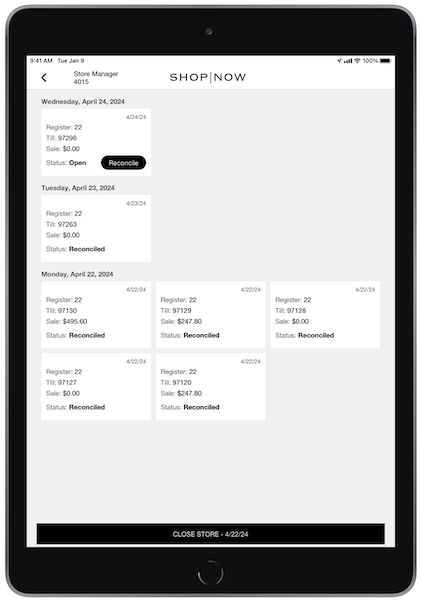
After all tills are reconciled, proceed to finalize the store closure by creating your closing bank deposit. Tap the deep link. If any tills remain open, reconcile them. Make sure to confirm that each till status is marked as reconciled.
After confirming, locate the "" at the bottom of the screen. Verify that the date that is shown is the date that you’re closing. If the date corresponds to a previous day, this indicates that tills from a prior day remain open. Close out any previous days first, followed by the most recent day. After everything is verified, tap to proceed.
This action brings up the bank's deposit window displaying the cash in the safe, the suggested deposit amount, and the business date as the closing date. Enter the deposit amount, then scan or manually input the bank deposit bag number and tap Confirm.

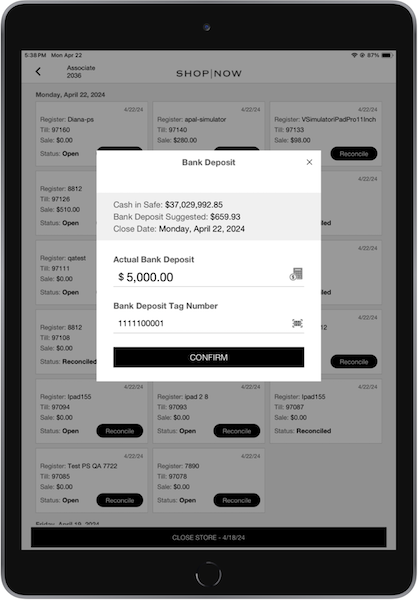
If there's a variance, select the appropriate reason code. Tap .
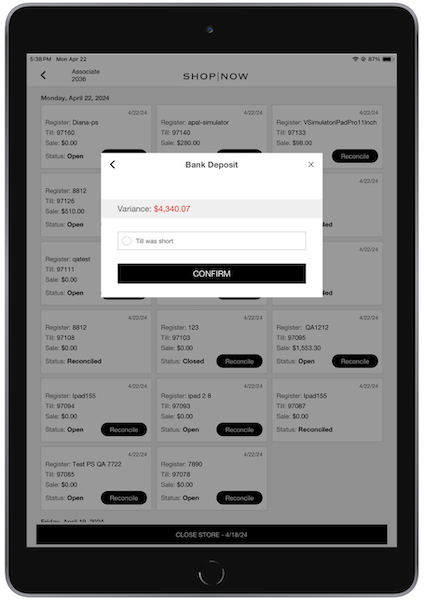
Before, you close the store, a window displays, allowing you to review the entered information. If accurate, tap to finalize and close the store. If incorrect, tap —the bank deposit is processed and a bank deposit record is written out to the Electronic Journal. The store remains open. If a deposit is made and the store closure is prematurely exited ('X' out), the store can reopen tills and process additional transactions within the same day, allowing for multiple bank deposits. If new transactions occur after the initial bank deposit, the closing procedure is repeated. This can result in multiple bank deposit entries in the Electronic Journal for the same day.
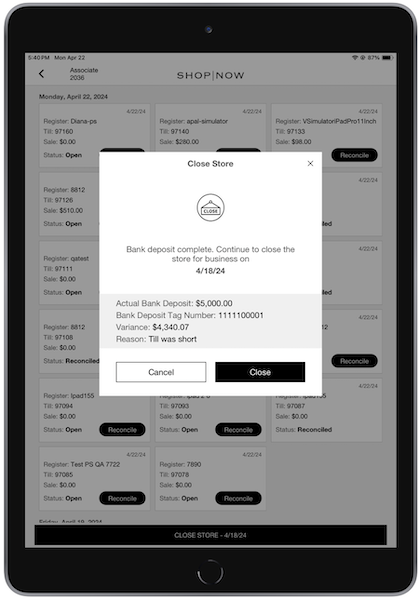
Bank deposits are recorded in the Electronic Journal with the deposit amount, variance, and reason codes (if any). The bank deposit bag ID, store business date, and the actual date the bank deposit was made are recorded under the column, indicating the date associated with the deposit. The actual transaction time of the deposit, which may occur after the store has closed, is recorded in the Electronic Journal under .