
Find customers as well as add new ones in the Point of Sale (POS) app.
Prerequisites
- Modern POS App Build: 5.1.0 and later
- Platform Support: iPhone & iPad
Configure Customer Search in Point of Sale CMS
Turn on the Customer Search feature and add additional search filters.
Set a Deep Link
In order to show the screen in the app, you'll need to add a deep link in your app configuration. The deep link can be added in a layout or a Hamburger Menu.
- Edit a layout or a Hamburger Menu.
- Add the deep link under .
-
Save your changes.
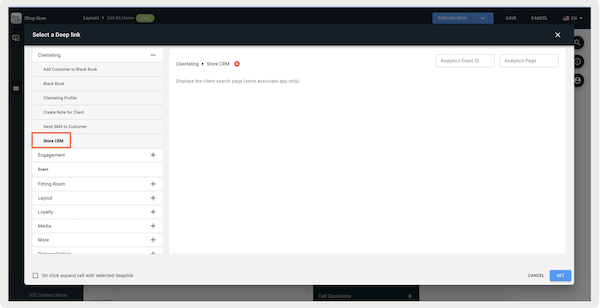
You can add a Customer Search icon in your app where after it's tapped, it shows the search form. This is done in your app configuration by going to and turning on .
Turn on the Customer Search Flag
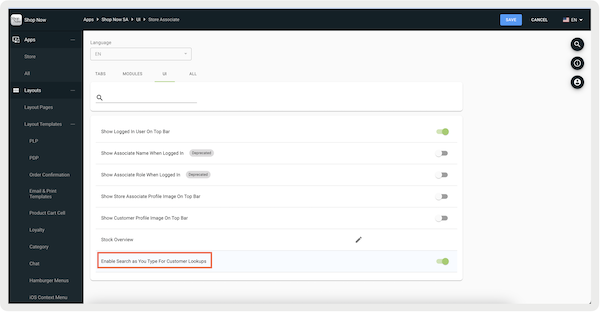
Though this isn't a requirement to use the Custom Search feature, you can enhance it with . With this setting, search results can automatically show as you're typing in the search field rather than having to manually tap .
- In CMS, go to .
- Edit the app configuration you want to have this enhancement turned on.
- Go to .
- Turn on .
-
Save your changes.
Default Layout
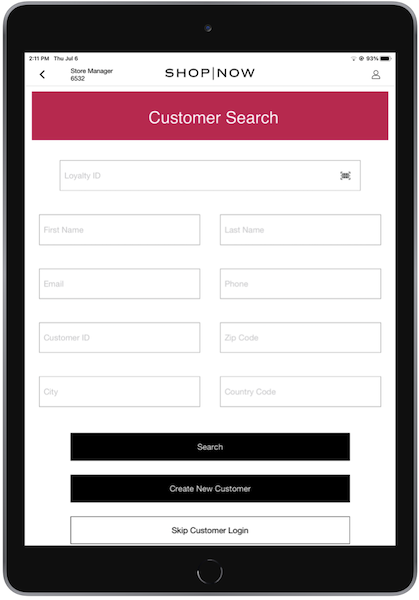
There are two types of layouts, default and customized. There's no configuration needed to create a default layout. By setting a deep link, tapping on it in the app automatically shows the default layout.
Additionally, if is turned off, the checkout process requires customers to sign into the app or proceed as a guest before proceeding further.
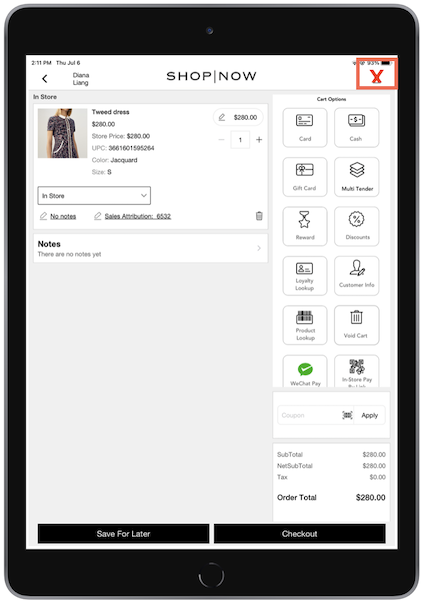
If the flag is turned on, store workers can finish the checkout process without signing in as a customer or going with them as a guest. It's important to note that enabling the flag also removes the clienteling icon. This means you can't search or sign in a customer without a deep link in CMS.
Customized Layout
Use a custom layout to have more search filters for a customer than name, phone number, and email. These search filters include customer ID, ZIP code, city, or country code. To customize a layout:
- Go to .
-
Customize the layout to fit your business needs.
By default, text fields in customer layouts accept only ASCII characters. To allow accented and locale-specific characters, such as Ü, go to , edit an app configuration, and turn on .
-
To add a button that allows store associates to create new customers, add a button to
the layout and assign Signup as the button action.
When a store associate taps this button, the app automatically presents the layout configured in in your app configuration settings.
-
Assign the layout to your app configuration.
- In CMS, go to Apps and edit a configuration.
- Go to Modules > Clienteling > Customer Search Layout.
- Select your layout from the list and save your changes.
Point of Sale added the ability to skip a customer login in any customized layout, similar to the "" CTA button on the default layout, through the use of a button that can be configured by going to . This button can be used elsewhere other than the screen, but it acts as a back button (that is, it sends the user to the previous screen).
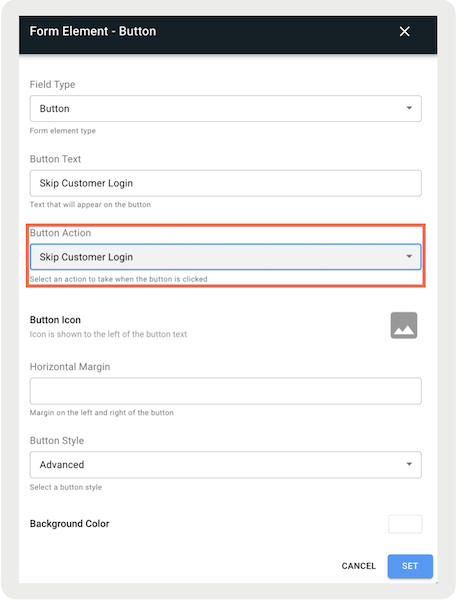
This action is only supported for 8.9.1 builds and later.
Perform Customer Search in the POS App
See how to use the Customer Search function in the Point of Sale (POS) app.
Customer Search Screen
The store associate is taken to the Customer Search screen after they've tapped on the deep link you've previously set up.

Add a New Customer
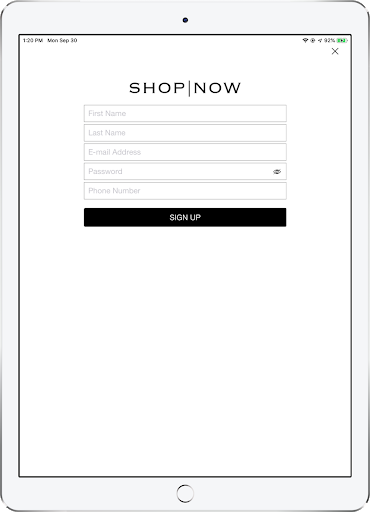
The store associate can add a new customer. To create a customer, tap “.” The screen shows where they can enter the customer's information and register them.
Search for a Customer
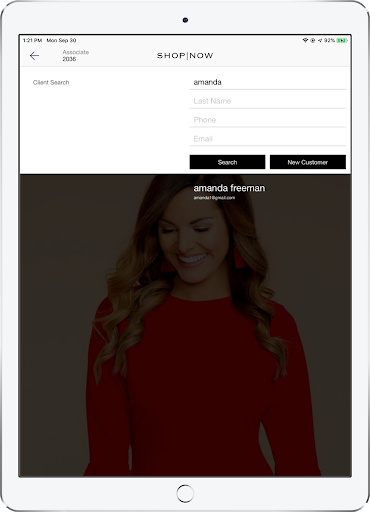
Store associates can search for a customer by their first or last name, phone number, and email address. The order in which customers appear after a search is determined by the search algorithm within the CRM. The POS system submits the search parameters and then displays the results in the order they are received from the CRM.
Customer Profile
After a search is performed and the results appear on the screen, store associates can go to the customer’s 360° profile view by clicking on their name. For information on how the profile and the editable features it has, read Clienteling 360° View of Customer.
View Known Customer Search Issues
Investigate possible issues with customer searches in the Point of Sale app (POS) uses an API through the backend.
We don't currently collect detailed customer sign-up data within the POS app. This includes how often customers look up their accounts. However, as a workaround, by using an API through the Backend, we can make a call to the merchant's Customer Relationship Management (CRM) system. This approach enables merchants to access comprehensive sign-up statistics through their server analytics. If you try to search for the same person over and over, the problem can be in the customer's CRM.