
Use the Point of Sale (POS) app to manage tills in-store and reconcile all tills at the same time.
Till management is the recording of the cash balance details of a store's sales. Retail Cloud’s Till Management feature allows store managers and associates to manage their tills in-store on their POS app. This includes the ability to create, update, and see past tills.
Set Up Point of Sale CMS for Till Management
Configure Till Management settings in CMS for use in the Point of Sale (POS) app.
Turn on Till Management
- Go to .
-
Under , set to one of the following:
- : The associate won't be prompted to create a till. Logging in takes care of the creation of the till and records its activity.
- : The associates are prompted to create a till if an active till isn't present.
- : The app won't prompt to create or reconcile tills.
Active Tills Deep Link
- Edit a layout or a hamburger menu.
- Access the deep link picker.
- Go to .
- Save your changes.
Reconcile a Till Deep Link
- Edit a layout or a hamburger menu.
- Access the deep link picker.
- Go to and select .
- Save your changes.
Reconcile all Tills Deep Link
Reconcile all tills at the same time. Only users with a manager role can do this.
- Set to .
- Edit a layout or a hamburger menu.
- Access the deep link picker.
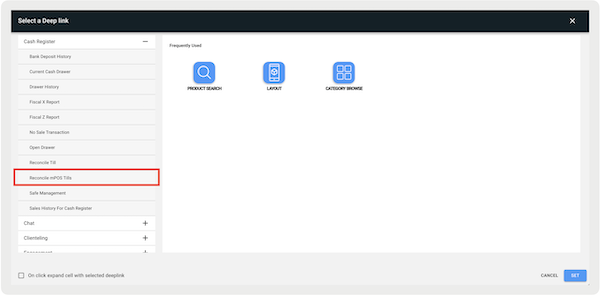
- Go to and select Reconcile mPOS Tills. "" is solely used for Voice Command. Don’t use it as a deep link.
-
Set and save your changes.
Configure Default Till Range
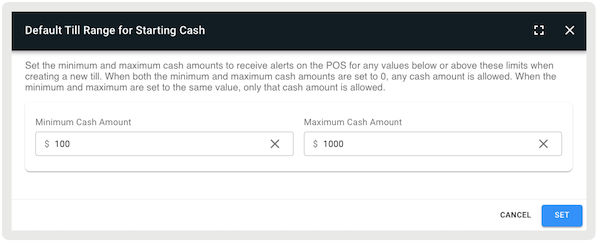
Set minimum and maximum cash alert limits if creating a new till on the POS app.
- Go to .
- Under, select the pencil icon to edit this setting.
- Set the minimum and maximum amounts. This is an optional setting. If no amounts are set, the app won't check against the entered starting cash amount.
-
Set and save your changes.
Access Till Management in the POS App
Access and manage till settings in the Point of Sale (POS) app.
Accessing a Till
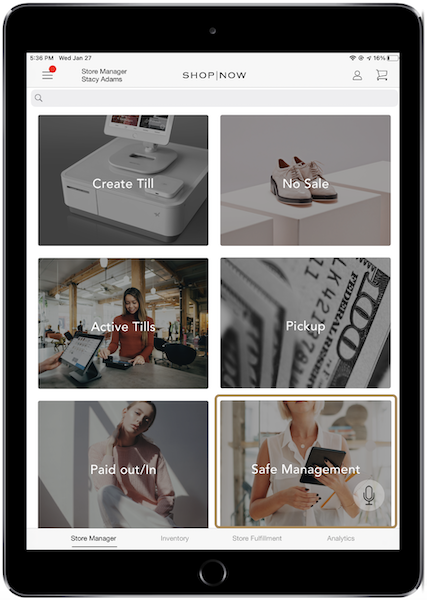
To access a till first select the tab at the bottom of the screen. Then, tap .
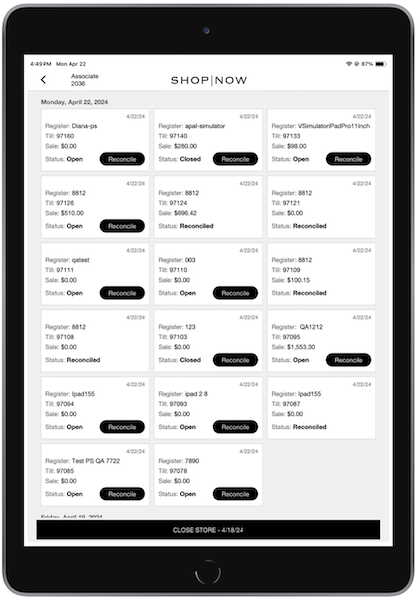
On the next screen, a list of all tills appears. You can select one of these tills to show its details.

Creating a Till
Tap the "" deep link in the app. If there's an active till, you'll need to reconcile it before creating a new one.
For app builds before 10.2.1, enter the starting cash for the till and tap "" You'll then be prompted to open the till after entering the starting amount. This action is recorded in the Electronic Journal as "."
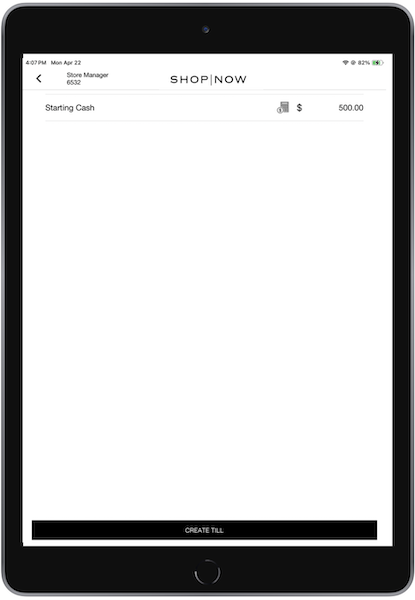

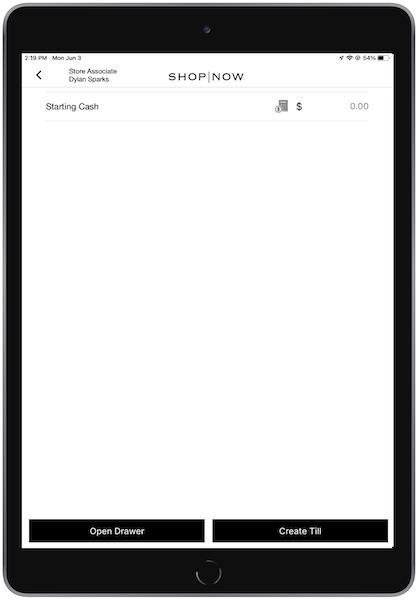
For app builds 10.2.1 and earlier, you have the option to open the drawer and count the money before creating a till. If the drawer is opened, it'll be recorded in the Electronic Journal as "" with a system-generated reason code of "." The store associate can access the cash in the drawer. The till won't be created until the starting amount is entered and "" is selected.
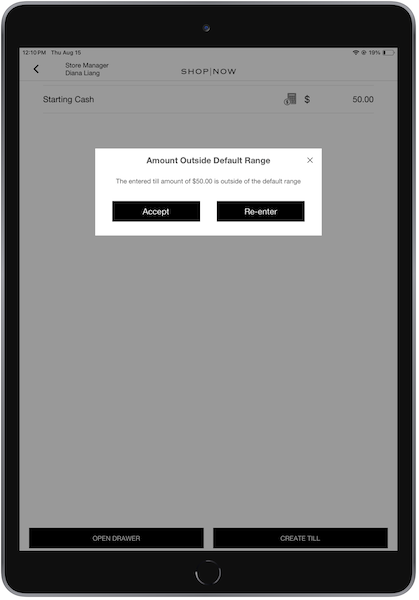
For app builds 10.3.1 and later, if a default till range is configured and the starting cash amount is outside the range, the user is prompted with a warning. Users can accept the entered amount, or reenter it. After a till is created, it'll be recorded in the Electronic Journal as "Create till."
Reconciling a Till
There are two ways to access the till reconciliation screen, either logging in or using a deep link. If the till wasn't closed the previous day, after you log in, you'll be prompted with the options to or . Selecting allows you to reuse the old till, and it'll be recorded in the Electronic Journal as "" along with details such as store ID, register ID, date and time, transaction number, associate ID, manager approval (if applicable), and notes specifying the till’s business date and reused till number.
To reconcile a till via deep link, tap the deep link and tap . You'll be prompted to open the cash drawer or not. This allows you to count the cash within the drawer before entering the amounts/bills for the reconciliation of the till.

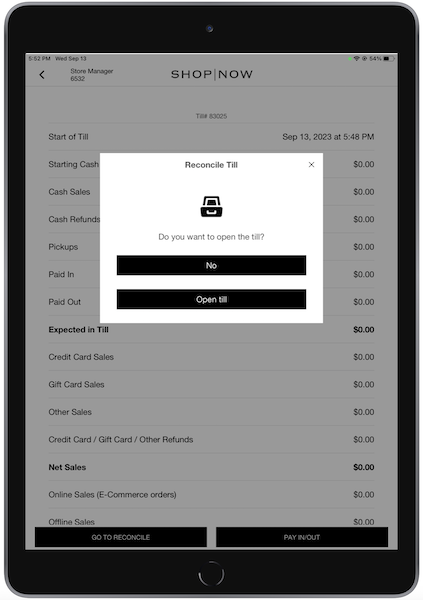
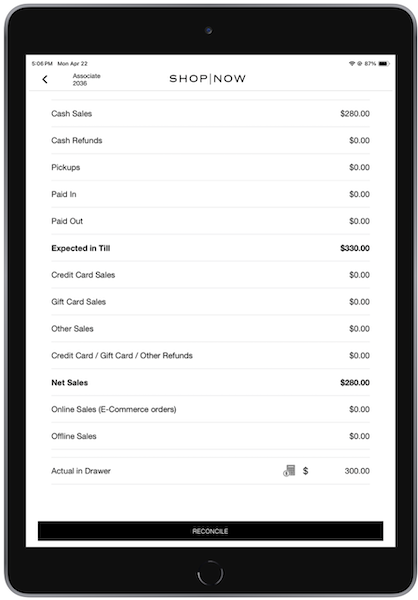
Enter the amount of money you have in your till in the field. This amount matches the amount displayed for . For a list of descriptions of all the fields, refer to .
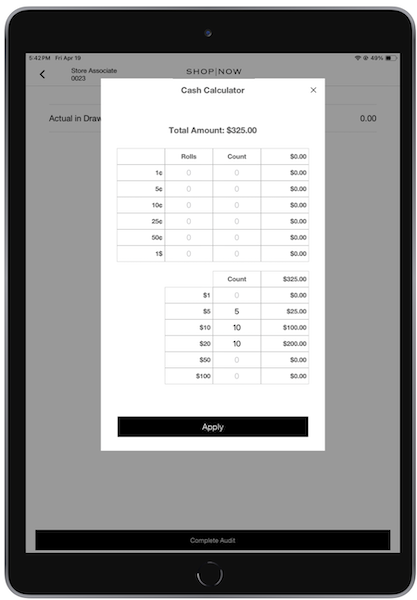
Cash Calculator
You can tap the cash calculator icon next to to enter the exact amount of rolls and counts of each currency in the drawer. The total amount is automatically calculated.
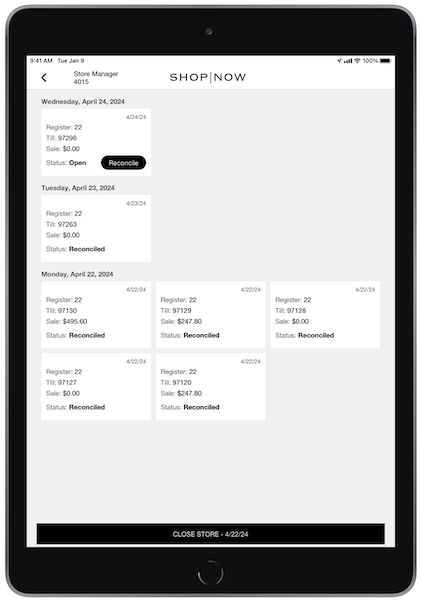
After you've entered your amount, tap . You’ll see all tills as .
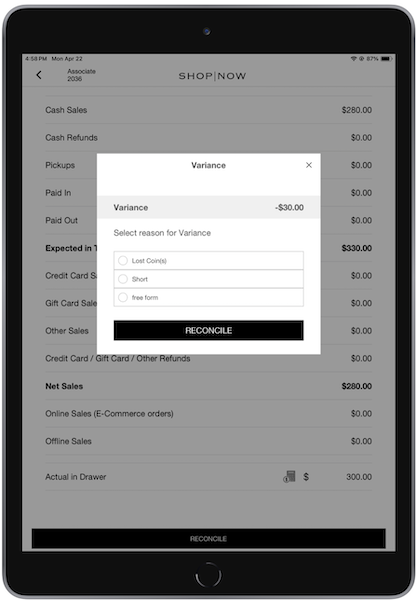
If there is either a surplus or deficient amount entered in , you'll see the screen pop up after you tap . You'll need to select or enter a reason for the variance and reconcile again.
View Till Fields
View a list of all the fields with their descriptions that you’ll see on the till detail screen in the Point of Sale (POS) app.
Till Fields
| Start of Till | Date and time till was created |
|---|---|
| Starting Cash | Total amounts till started with |
| Cash Sales | Total amount of cash sales processed by till |
| Cash Refunds | Total amount of cash refunds processed by till |
| Pickups | Total amount of cash for pickups |
| Paid In | Total amount of cash paid in. 10-digit values are not supported and can cause a till reset |
| Paid Out | Total amount of cash paid out. 10-digit values are not supported and can cause a till reset |
| Expected in Till | Total amount expected to be in cash drawer |
| Credit Card Sales | Total amount of credit card sales processed by till |
| Gift Card Sales | Total amount of gift card sales processed by till |
| Other Sales | Total amount of sales processed by the till that aren't from cash, credit cards, or gift cards |
| Credit Card / Gift Card / Other Refunds | Total amount of noncash refunds processed by till |
| Net Sales | Gross sales excluding refunds |
| Online Sales (ecommerce orders) | Total sales amount of Omni-Channel orders placed through the POS |
| Offline Sales (ecommerce orders) | Total sales amount of Omni-Channel orders placed through the POS while offline |
| Actual in Drawer | Total amount in the cash drawer |
Troubleshooting Till Management in Point of Sale
View common issues with Till Management and how to fix them.
Prompted for Till Despite "NONE" Till Management Setting
If Till Management has been set to "NONE" at the store level, but you are still prompted for a till, check the register-level flag and set it to "NONE" or "AUTO" to align with the behavior of the store setting.
No Cash Tender Configured Yet App Prompts to Close Out or Keep Tills Open
This issue occurs if there's no cash tender configured at the register or store level, but the app prompts to either close out or keep tills open. To address this situation, set the Till Management Mode to “NONE” at either the store or register level, as expected.
"Store XXX was not opened on XXX" Error Message
If you see an error message after closing a store, at least one register is still open. Make sure all registers are closed to fix this. If the issue continues after closing all registers, you can manually close the store in Point of Sale CMS. This issue happens if a different time zone opens a register in that store.
"Till already exists. Please log in to get the till details" Error Message
If you log out while offline, your till will be set to a "close" state. The next time you log in online, the app will prevent creating a duplicate till because the offline till hasn't synced yet. If you try to create a till if one exists, you'll see the error message. This occurs because an active till in the "CLOSE" status exists. If you're logged out automatically after seeing this message, simply log back in, and you can proceed without creating a new till.
"Till xxx was reconciled earlier but the status didn’t update due to a network error. The status is now 'Reconciled'" Error Message
If a reconciliation attempt is made on a locked till before entering the expected amount, the app checks the cloud for the till's status. If the till is reconciled, the app displays the error message.
This measure prevents duplicate reconciliations if a manager reconciles a till, and the cloud successfully updates the status, but the app doesn’t receive the response due to a timeout or offline mode. In such cases, the till remains in a "Not Reconciled" status on the app, which leads to another reconciliation attempt.