
Select and integrate various shipping services, configure prepopulated item weights and box dimensions, and create multiple boxes during packing.
Point of Sale's SPI offers integration capabilities for shipping aggregators. This extensible solution allows merchants to select and integrate various shipping services, including options like ProShip. With this feature, merchants can configure to have prepopulated item weights and box dimensions or make selections during the app flow. Additionally, merchants can create multiple boxes as needed during the packing process.
This feature is available for Buy Online, Fulfill In-Store (BOFIS), Store to Store (STS) Transfer, Return to Vendor (RTV) Transfer, and Corporate Transfer (CTS) order flows.
Prerequisites
- Modern POS App Build:
- 9.7.1 and later for BOFIS flow
- 9.8.1 and later for STS/RTV flows and label generating via deep link
- 10.4.1 and later for CTS flows
- Platform Support: iPhone & iPad
- Offline Support: No
Set up Point of Sale CMS for Configuring and Printing Shipping Labels
Configure Point of Sale CMS to generate and print shipping labels. Select applicable flows and configure a deep link to generate shipping labels outside defined flows.
Selecting Applicable Flows
You can multiselect which flows to turn on this feature.
- Go to .
- Expand .
- Edit .
-
Turn on applicable flows.
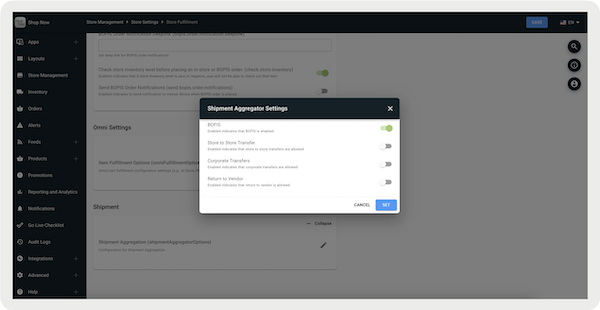
Configuring Deep Link
Configure a deep link to generate shipping labels outside defined flows.
- In CMS, edit a layout or hamburger menu.
- In the deep link picker, go to .
- Set and save your changes.
Set Box Dimensions
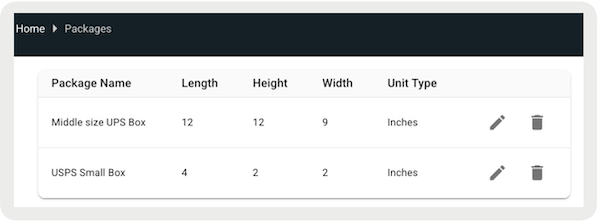
Add and configure a list of available shipping boxes on the POS app.
- Go to .
- Select in the upper right.
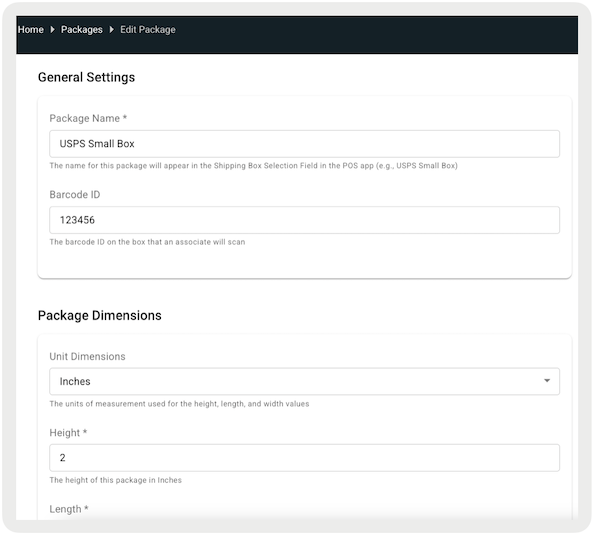
- Under , enter the package details, which include the barcode ID and any relevant notes.
-
Under provide the package's length, height, and width measurements.
-
After the configuration is saved, the list of shipping boxes on the main screen will be
automatically sorted alphabetically in the CMS. The same sorting applies to the POS app, but
only for app builds 10.8.1 or greater.
SPI Integrations
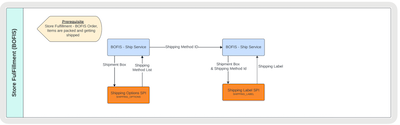
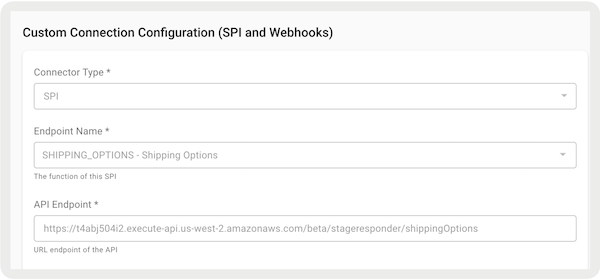
To receive the shipping options, shipping method, and shipping label, configure the SPIs. The diagram illustrates the Buy Online, Fulfill in Store (BOFIS) flow in relation to the Shipping Options and Shipping Labels SPIs.
This SPI is required for enabling shipping aggregators.
- Go to .
- Create a connector by selecting Create in the upper right.
- Under , select "".
- Under , select "".
- Configure the rest of the fields by referring to Point of Sale API, SPI, and Webhook Specs.
-
Save your changes.
Shipping Methods
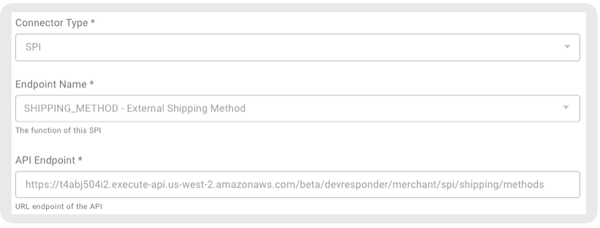
This SPI is required to enable cart flows. If "Enable External Shipping Provider" is enabled, the SPI must be set up and integrated along with the Shipping Options and Shipping Labels SPIs. If the flag is disabled, only the Shipping Options and Shipping Labels SPIs are needed. In this case, Point of Sale will use the shipping methods configured in CMS during the checkout flow and external shipping methods during the shipment flow.
This SPI is required for enabling shipping aggregators.
- Go to .
- Create a connector by selecting in the upper right.
- Under , select "".
- Under , select "".
- Configure the rest of the fields by referring to Point of Sale API, SPI, and Webhook Specs.
-
Save your changes.
Shipping Label
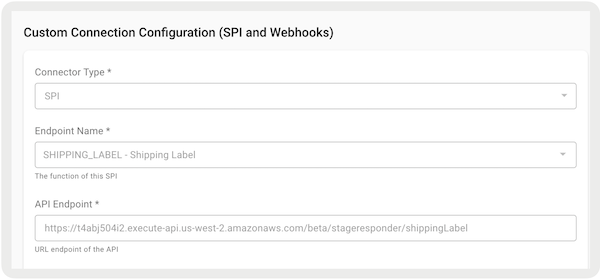
This SPI is required for retrieving and printing shipping labels.
- Go to .
- Create a connector by clicking in the upper right.
- Under , select "".
- Under Endpoint Name, select "".
- Configure the rest of the fields by referring to Point of Sale API, SPI, and Webhook Specs.
-
Save your changes.
Configure and Print Shipping Labels for BOFIS Orders
Initiate the Buy Online, Fulfill In-Store (BOFIS) flow on the Point of Sale (POS) app, pack items into multiple boxes, and generate shipment labels with predefined box options to complete the fulfillment process.
Packing Items
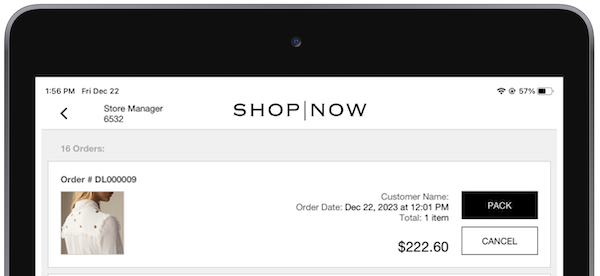
Initiate the BOFIS flow on the POS app and select the New Orders deep link.
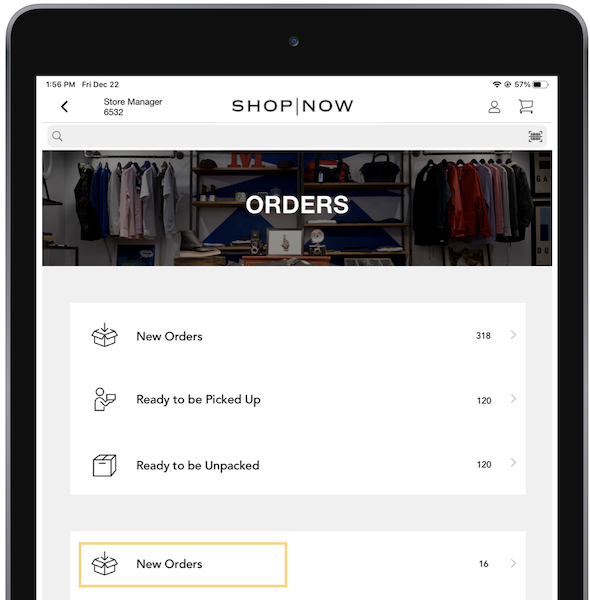
Locate the order and tap Pack to the right of it. You'll be directed to the order details screen, which lists the items to be packed.
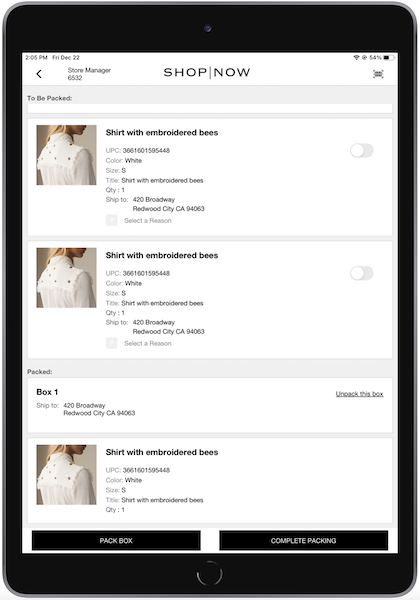
During the pack flow, you can pack multiple boxes by scanning or selecting items. Tap and the selected items and quantities will be moved into a sequential box (for example Box 1, Box 2) and be shown at the bottom of the screen. To pack the next box, repeat the process by scanning or selecting the items and tap again. Boxes can always be unpacked by tapping .
After all items are packed in boxes, tap . If there are any products not selected during packing, you will have to select a and then proceed with a refund or cancellation flow.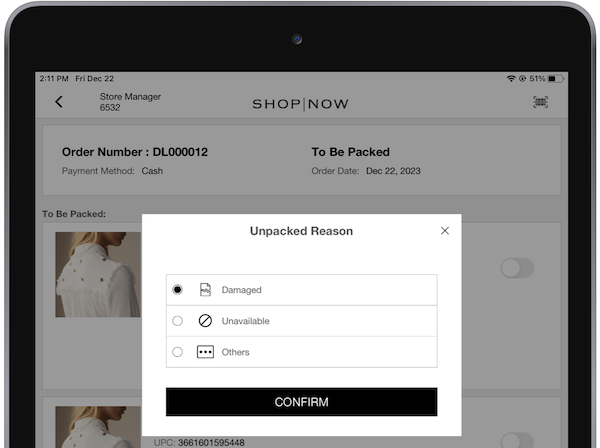
Generating Shipment Label
To ship packed boxes, tap the deep link.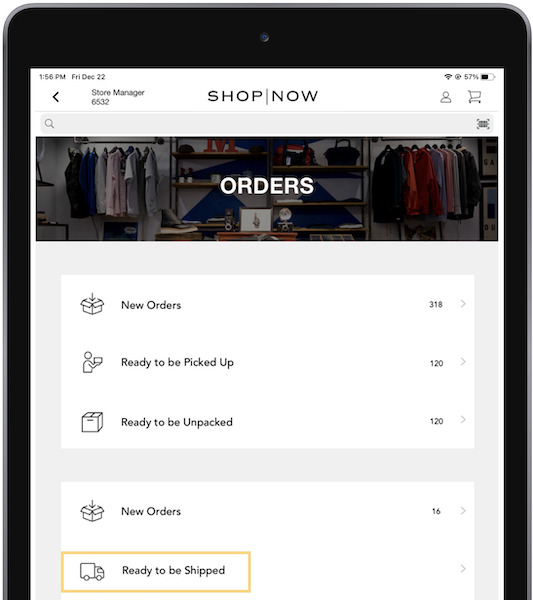
Locate the order and tap to the right of it.
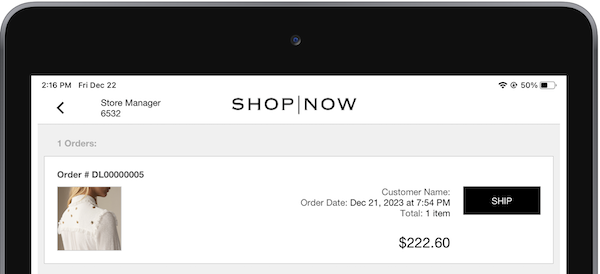
On the next screen, the number of boxes is shown on the list of ready-to-ship orders. Tap .
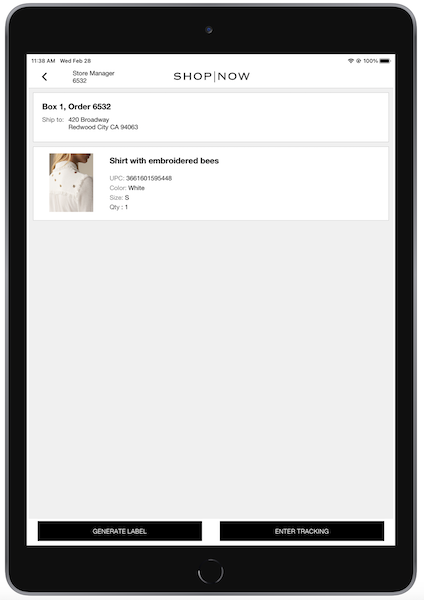
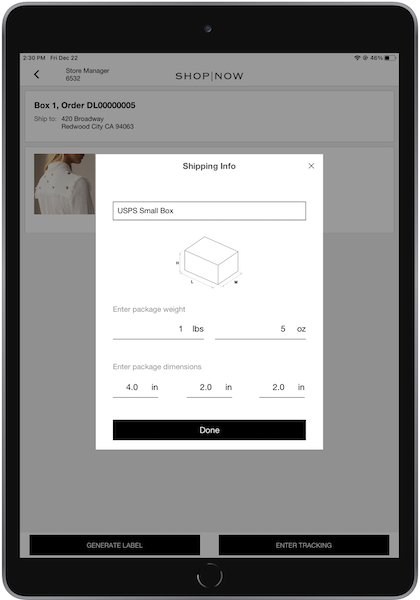
The window shows. At the top is a dropdown with the option to select predefined boxes. The window also allows editing of weight and dimensions.
Tap and the next screen allows you to select a shipping option.
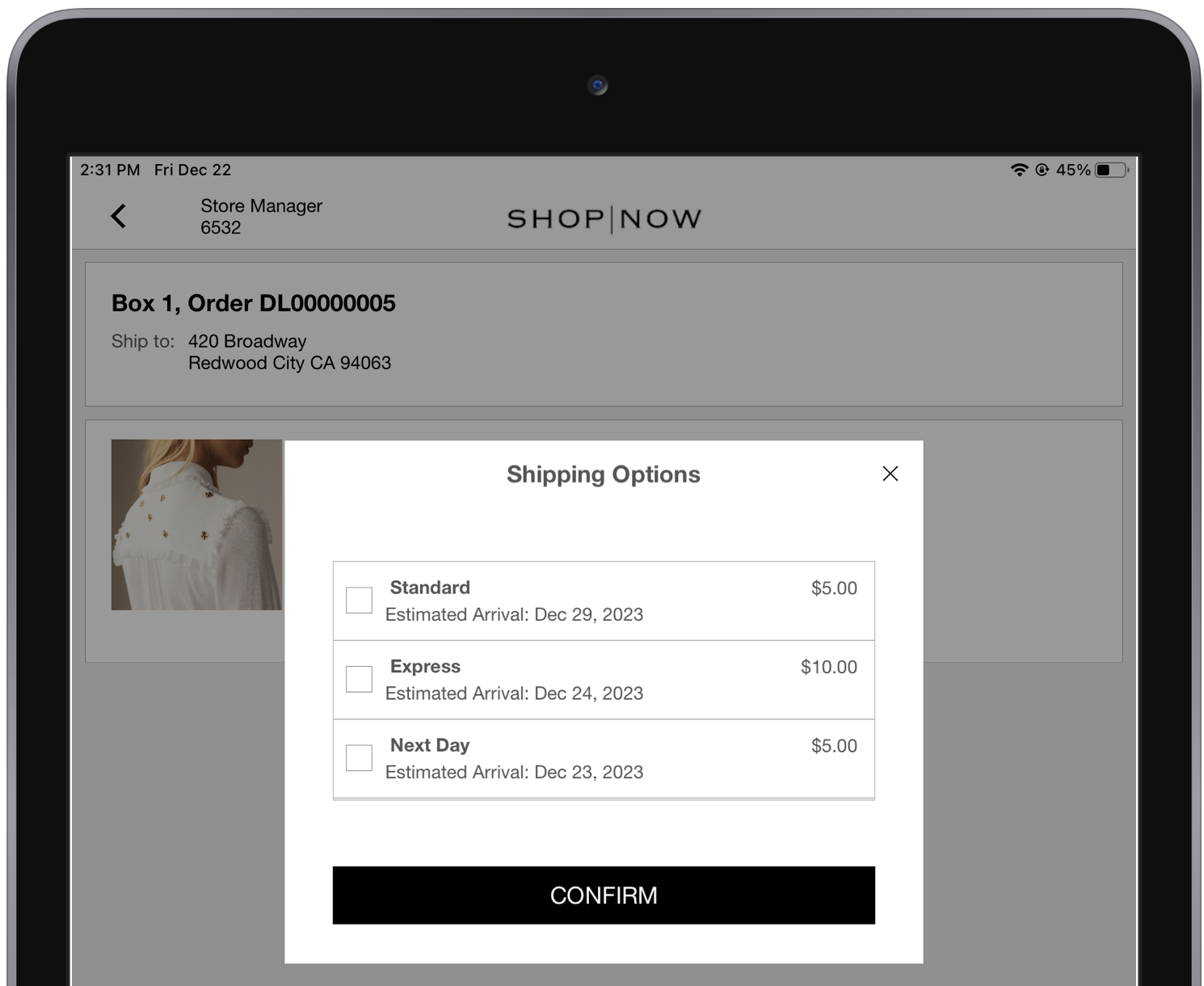
Select and you can print the shipment label.
Completing Order
After the shipment label has been generated and printed, complete the order by adding a tracking number.
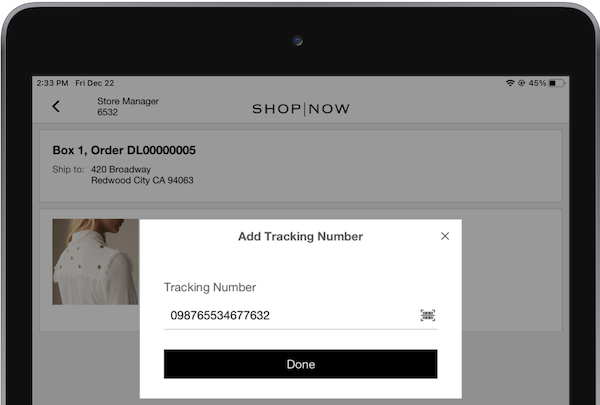
Scanning or entering the tracking number marks that box as shipped. If multiple boxes are to ship, the order status changes to . After all boxes are designated as shipped, the order status changes to .
Order History
Tap the deep link to view a list of shipped orders. This list can be filtered by order number, customer phone number, or customer name.
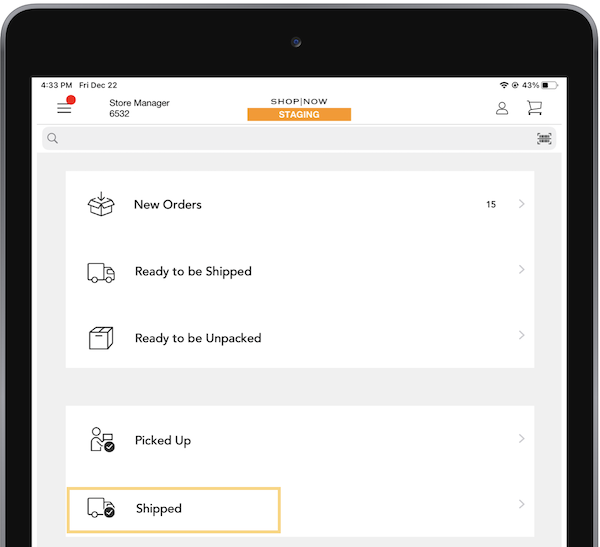
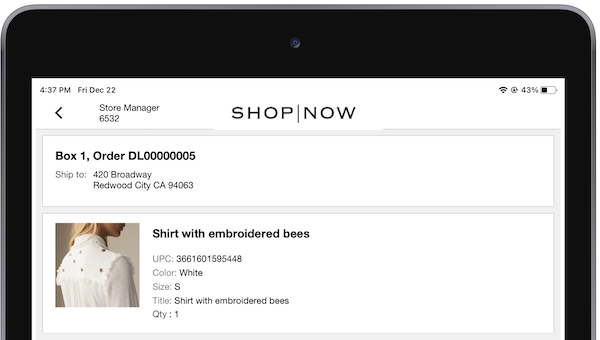
Access an order to view its packed boxes, and explore each box's contents.
Configure and Print Shipping Labels for Store-to-Store, Return to Vendor, and Corporate Transfers
Scan and pack items for Store to Store (STS) Transfer, Return to Vendor (RTV) Transfer, and Corporate Transfer (CTS) in the Point of Sale (POS) app. View transfer details, add a tracking number, and print a packing slip.
For STS, RTV, and CTS flows, after all items are scanned and packed, you can tap and you'll see the option to generate a shipping label.
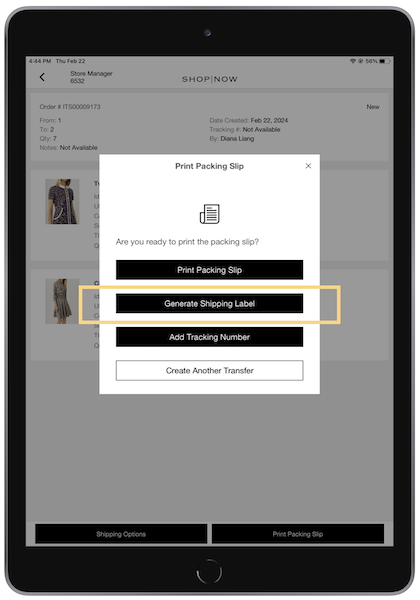
After generating a label, the app updates the transfer's status to . The app displays a successful message along with a tracking number. Tap to view the list of transfers.
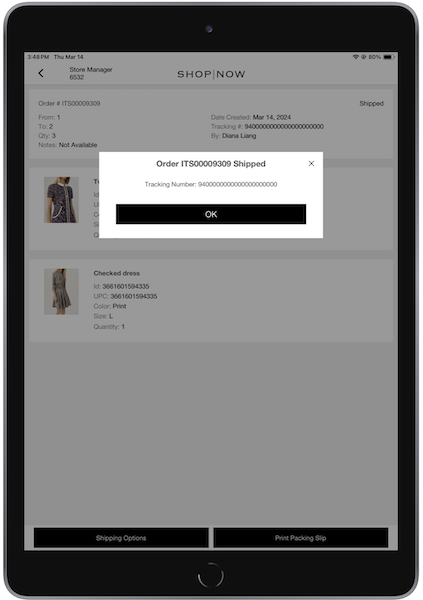
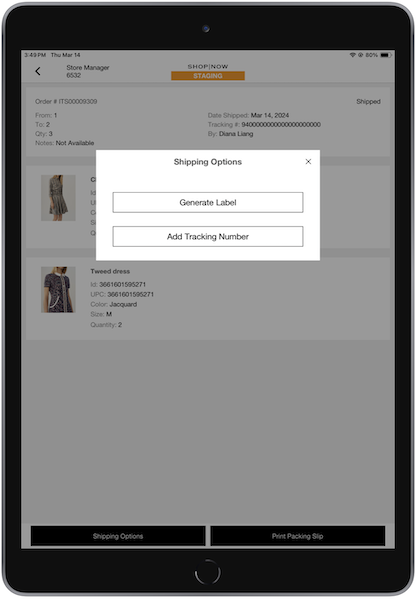
On the transfer list, you can view the details of a shipped transfer along with the options to generate a label, add a tracking number, or print a packing slip.
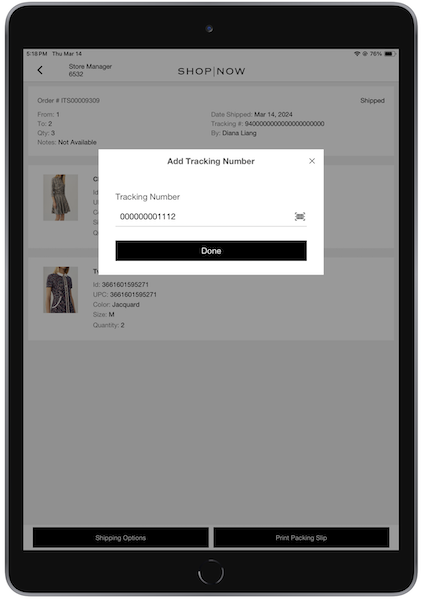
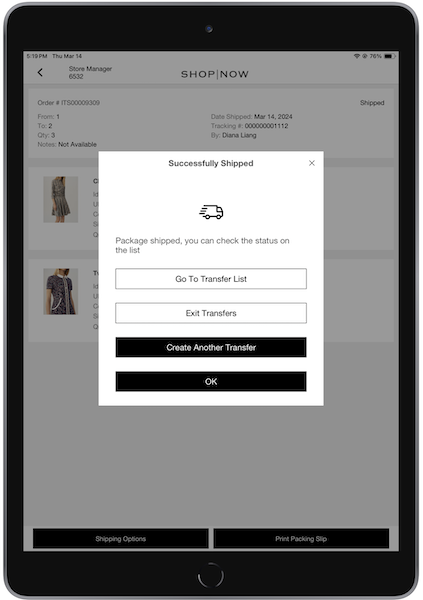
You can update the tracking number, and the transfer reflects this change, visible on both the transfer list screen and in the transfer details.
Generate a Label via a Deep Link in the POS App
Create labels outside defined flows in the POS app.
To generate a label outside defined flows, tap on the Generate Shipping Label deep link. You'll be directed to a screen where you can enter the destination's location. The origin location is prepopulated with the current store's address.
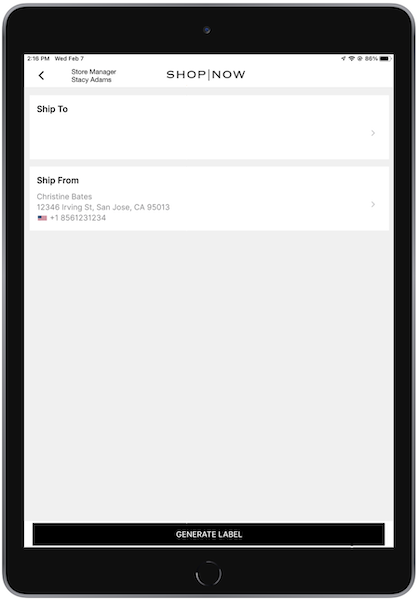
After tapping , you'll be directed to the same flow as Generating Shipping Label.