
Select and configure the inventory records controller for your store.
Point of Sale's Inventory Management Solutions provide options whether you use Point of Sale as the controller of inventory records, the merchant as the controller, or both.
Depending on the chosen operation mode, there are three options available:
-
Point of Sale as Controller of Inventory Records: This option is ideal if all inventory functions are managed within Point of Sale, or any inventory event impacting store inventory is promptly communicated to Point of Sale.
-
Customer as Controller of Inventory Records: This option is best for merchants with an external inventory management system that includes sources beyond their stores. In this case, merchants shall regularly update Point of Sale's inventory records.
-
Dual Controller: This option is for merchants who have an external inventory record but don't want to change Point of Sale's inventory data. Reconciliation and edits are required across systems if discrepancies exist.
Point of Sale's Inventory Management solution is only for store inventory. It doesn't work with online inventory management. While online inventory can be displayed and used for endless aisle checks, it is sourced from an external system.
Point of Sale as Controller of Inventory Records
Set up and use Point of Sale as the controller of inventory records for your store.
CMS Configuration
Configure the store settings and inventory configuration settings to turn on Point of Sale as the Controller of Inventory Records.
- Go to .
-
Turn on .

- Save your changes.
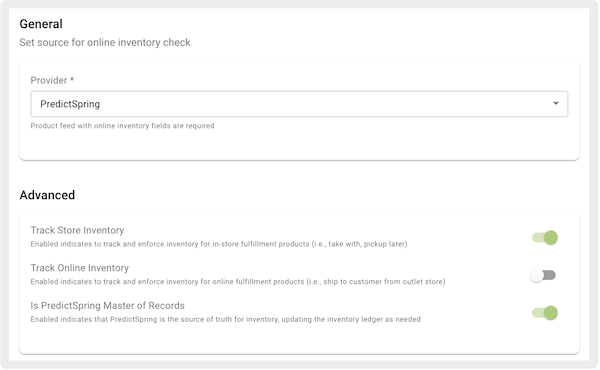
- Go to .
- Under Provider, select "."
- Turn on and .
-
Turn off .
POS Data Seeding
Data seeding involves populating the POS system with initial and ongoing data updates to verify accurate and up-to-date inventory information.
- : Merchants send the initial delta load as a one-time full feed to populate the POS system.
- : After a new store is added, send a delta file specifically for that store to update the system.
- : If new lines or products are introduced, send a delta file for those products to keep the inventory data current.
POS Inventory Updates from Corporate
POS inventory updates from corporate make sure that the POS system remains synchronized with corporate inventory changes through various methods.
- : Use ASN feeds or APIs to update the POS system with advance shipping notices.
- : Manage cycle counts through API to maintain accurate inventory levels.
- : Update inventory based on corporate transfers managed through the CMS.
- : Apply inventory adjustments from the CMS to keep inventory data accurate.
- : Use APIs to push web orders to the POS for store fulfillment.
POS Data Exports
POS data exports lets you send inventory event data through real-time webhooks or file formats. This means you have up-to-date and accurate inventory information without needing to export it every day. Next are the available options for exporting data:
-
: Uses APIs for real-time webhooks to handle sale and return-related inventory events, separate from order exports. Refer to "SALE_INVENTORY" under Inventory Events in the Webhook Summary in Point of Sale API, SPI, and Webhook Specs for more details. Failed webhooks can be reposted in the CMS by going to Reporting and Analytics > Repost Failed Webhook Events.
-
: Manages inventory operations such as cycle counts, transfers, RTV, and STS using API specifications. Refer to Inventory Events in the Webhook Summary in Point of Sale API, SPI, and Webhook Specs for more details.
-
Supported Formats: Webhook and File formats are available, both providing comprehensive results and eliminating the need for scheduled exports of inventory event data.
-
: Refer to Point of SaleWebhook Summary in Point of Sale API, SPI, and Webhook Specs for details of all relevant fields.
- : Only fields configured via Field Mappings will be exported. If no mapping is defined, all relevant fields for the event will be included.
-
-
Configurations:
- : Configure custom connectors to register webhook endpoint details. Refer to the Webhook Summary in Point of Sale API, SPI, and Webhook Specs for all details. Webhooks support OAuth or API key-based authentication.
- : Schedule export jobs for inventory events with an FTP destination in CMS by going to . Different events can have different destinations and are configured individually. Alternatively, all events can be sent to the same destination.
- Additional options for file exports include:
- Using Field Mappings
- Adding a header to the exported file
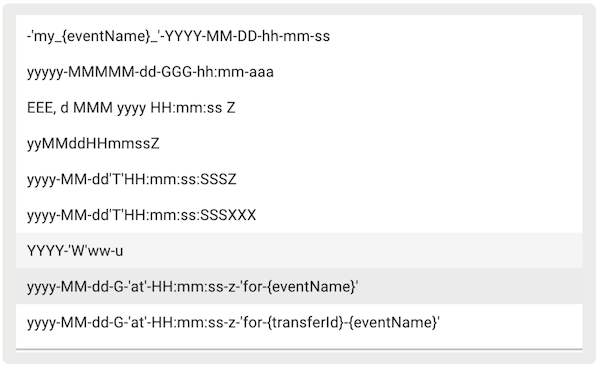
- Naming the exported file according to specific conventions
-
- : Currently in progress, supports both webhook and file formats.
- : Available but not recommended.
- : Not available directly from the system. Can be requested with your Salesforce Customer Success Manager.
POS Inventory Reports
These reports provide detailed insights into inventory activities and status within the POS system.
- Inventory Overview: A summary of the current inventory status across all stores.
- Inventory Ledger: Event-level reconciliation of all inventory activities on the POS.
- ASN Report: Details of advance shipping notices and their processing.
- Cycle Count Report: Records of inventory counts performed to ensure accuracy.
- Inventory Transfer Report: Documentation of inventory movements between stores.
- Inventory Adjustment Report: Records of adjustments made to inventory quantities.
Merchant as Controller of Inventory Records
Use the merchant as the controller of inventory records for your store.
CMS Configuration
Configure the store settings and inventory configuration settings to turn on the Merchant as the Controller of Inventory Records.
- Go to .
-
Turn on .
- Save your changes.
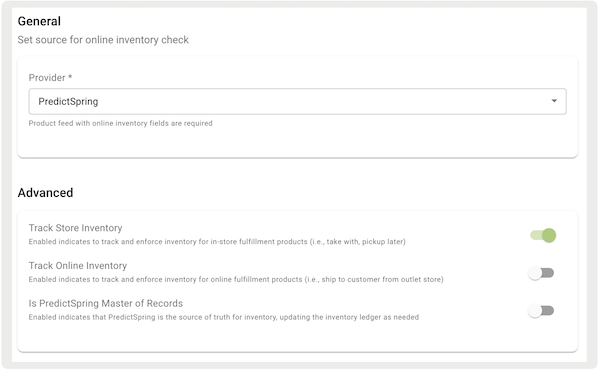
- Go to .
- Under Provider, select "."
- Turn on .
-
Turn off and .
POS Data Seeding
Data seeding involves populating the POS system with initial and ongoing data updates to ensure accurate and up-to-date inventory information.
-
: The customer sends a one-time full feed for the initial load (Quarterly reset).
-
: Ongoing updates are provided through regular delta feeds (more than one time per hour, with options for hybrid hourly and daily updates).
POS Inventory Updates from Corporate
POS inventory updates from corporate make sure that the POS system remains synchronized with corporate inventory changes through various methods.
- : Use advance shipping notice feeds or APIs for updates.
- : Manage cycle counts through API to maintain inventory accuracy.
- : Update inventory based on corporate transfers managed through the CMS.
- : Apply inventory adjustments from the CMS to keep inventory data accurate.
- : Use APIs to push web orders for store fulfillment.
POS Data Exports
POS data exports let you send inventory event data through real-time webhooks or file formats. This means you have up-to-date and accurate inventory information without needing to export it every day.
- : Uses APIs for real-time webhooks to handle sale and return-related inventory events, separate from order exports. Refer to "SALE_INVENTORY" under Inventory Events in the Webhook Summary in Point of Sale API, SPI, and Webhook Specs for more details. Tip: Failed webhooks can be reposted in CMS by going to Reporting and Analytics > Repost Failed Webhook Events.
- : Manages inventory operations such as cycle counts, transfers, RTV, and
STS using API specifications. Refer to Inventory Events in the Webhook Summary in Point of Sale API, SPI, and Webhook
Specs for more details.
- Supported Formats: Webhook and File formats are available, both providing
comprehensive results and eliminating the need for scheduled exports of inventory
event data.
- Files: Only fields configured via Field Mappings will be exported. If no mapping is defined, all relevant fields for the event will be included.
- Webhook: Refer to Point of SaleWebhook Summary in Point of Sale API, SPI, and Webhook Specs for details of all relevant fields.
- Configurations:
- : Configure custom connectors to register webhook endpoint details. Refer to the Webhook Summary in Point of Sale API, SPI, and Webhook Specs for all details. Webhooks support OAuth or API key-based authentication.
- : Schedule export jobs for inventory events with an FTP destination in CMS by going to Feeds > Export Jobs. Different events can have different destinations andare be configured individually. Alternatively, all events can be sent to the same destination.
- Additional options for file exports include:
- Using Field Mappings
- Adding a header to the exported file
- Naming the exported file according to specific conventions
- Supported Formats: Webhook and File formats are available, both providing
comprehensive results and eliminating the need for scheduled exports of inventory
event data.
-
Inventory Bucket Adjustment Events: Currently in progress, supports both webhook and file formats.
-
Nightly Delta Exports: Available but not recommended.
-
Full Data Export: Not available directly from the system; can be requested with your Salesforce Customer Success Manager.
POS Inventory Reports
These reports provide detailed insights into inventory activities and status within the POS system.
- Inventory Overview: A summary of the current inventory status across all stores.
- ASN Report: Details of advance shipping notices and their processing.
- Cycle Count Report: Records of inventory counts performed to ensure accuracy.
- Inventory Transfer Report: Documentation of inventory movements between stores.
- Inventory Adjustment Report: Records of adjustments made to inventory quantities.
Point of Sale and Merchant as Controllers of Inventory Records
Use both the merchant and Point of Sale as the controller of inventory records for your store.
This setup is similar to the "Point of Sale as Controller" configuration. The customer is responsible for reconciling inventory on their end using event and nightly delta exports.