---
schema_version: "1"
id: 24f125b0434700611eda1463b20c8af30e6baa9d93abd7c508b0d95e168d97a5
title: Create and Manage Customer Quotes
collection: admin
version: current
locale: en-us
portal_url: https://docs.salesforce.com/admin/current/en-us/commerce/264-0-0/rt_pos_create_manage_customer_quotes.md
canonical_url: https://help.salesforce.com/s/articleView?id=commerce.rt_pos_create_manage_customer_quotes.htm&release=264.0.0&type=5
source_site: help.salesforce.com
content_type: documentation
content_hash: 72608cccdf415046d9f60f9bfa0fcccca97d0cbe67fc8b3887424fb3fe045918
description: Merchants can create and track customer quotes on the POS app. Each quote has a unique number and includes customer information. Store associates can work with customers on merchandise and pricing, either in-store or over the phone, and then email the quote for review or print it on A4 paper. Customers can save the quote, delete it, or complete the checkout process.
products:
- Commerce
release: "264"
---
# Create and Manage Customer Quotes
Merchants can create and track customer quotes on the POS app. Each quote has a unique number and includes customer information. Store associates can work with customers on merchandise and pricing, either in-store or over the phone, and then email the quote for review or print it on A4 paper. Customers can save the quote, delete it, or complete the checkout process.
Prerequisites
- Modern POS App Build: 5.10.3 or greater
- Platform Support: iPhone and iPad
- Offline Support: No
## Enable Quotes for POS App
From the CMS, enable the feature to create quotes from saved carts.
1. In CMS, go to Apps and edit an app config.
2. Go to **Modules** | **POS**.
3. Select Enable Quote On Saved Cart.
4. Save your changes.
## Access Quote History
In the CMS, configure a deep link so store associates can look up customer quotes on the POS app.
1. Edit a layout, hamburger menu, or tab.
2. Using the deep link picker, go to **Store Associate** | **Quote History**.
3. Under Default Customer, set the type of customer search on the app:
- Current Customer—Returns quotes for the customer logged into the app.
- All Customers—Returns quotes for any customer. For this option, you can configure the default search queries for store, associate, register, and date range.
4. Save your changes.
## Create a Deep Link for Quotes From Cart
You can create quotes from a suspended cart. Alternatively, you can create quotes directly from the cart by configuring a deep link. After a quote is created, it logs a quote created event in the Electronic Journal.
Learn about the [Electronic Journal](https://help.salesforce.com/s/articleView?id=commerce.rt_cms_reports_electronic_journal_overview.htm&release=264.0.0&type=5 "Customize filters for transaction research and record store transactions in Retail Cloud.").
1. In CMS, go to **Layouts** | **Layout Pages**.
2. Create or edit an existing Cart Options layout.
3. Add a new tile for the deep link.
4. Using the deep link picker, go to **More** | **Create Quote From Cart**.
5. Save your changes.
## Specify an External Master of Records
Point of Sale manages all quote records by default, but you can configure a third-party ERP system as the Master of Records and retrieve quote data from there. When a merchant system is configured as the master of record, all quotes must originate from that system, and any modifications to quotes are reflected in the merchant system. As of 2023, Point of Sale only supports NetSuite as the Master of Records for quotes.
When an external ERP system is configured as the Master of Records, the following behavior applies:
- All quotes must come from the merchant system.
- Any modifications made to quotes are reflected in the merchant system.
- Quotes can be viewed in the POS app but cannot be edited or deleted from Point of Sale.
1. In CMS, go to **Store Management** | **Store Settings** | **Advanced**.
2. Enable **Quote Master of Record is external ERP system**.
3. Save your changes.
## Retain Quote ID on Edit
When Point of Sale is the master of quotes, merchants can choose to keep the same quote ID when editing a quote. Otherwise, a new quote ID is generated each time a resumed quote is saved. If a resumed quote is saved, the suspended cart is no longer listed in the saved cart lookup, but all changes are updated in the original quote.
This setting only applies when Point of Sale is the master of records. When an external ERP system is the master of records, quote modifications must be made in the merchant system.
1. In CMS, go to **Store Management** | **Store Settings** | **Advanced**.
2. Enable **Keep same Quote ID when quote is resumed as cart and then converted back to quote (retainQuoteIdOnResumedCart)**.
3. Save your changes.
## Create and Manage Quotes in the POS App
On the POS app, you can create and manage quotes.
### Required Editions
### Creating Quotes from Suspended Carts
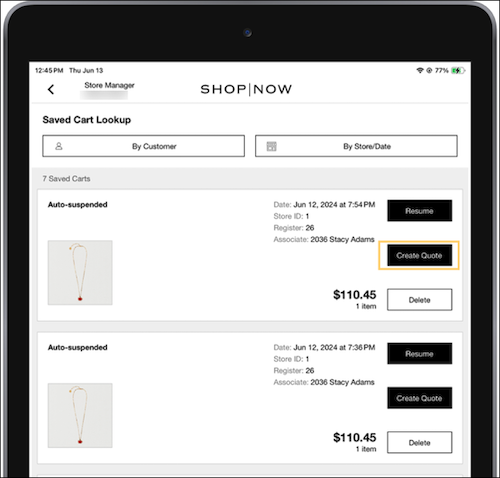
1. After saving a cart, tap the [Saved Cart History deep link](https://help.salesforce.com/s/articleView?id=commerce.rt_pos_orders_process_suspend_cart.htm&release=264.0.0&type=5 "The Point of Sale platform supports a feature that allows store associates to save a cart and resume and complete it later. By saving a cart, the totals, discounts, customer information (including shipping/billing addresses), and shipping methods will be put on pause until the associate chooses to resume it.") to access the Suspended Cart list. This list shows all saved carts.
2. Locate the desired cart and tap **Create Quote**.
3. Enter the quote details and tap **Create**.
You can view all quote details, such as the products included, customer information, and the associate who created the quote.
4. Tap **More Options** to email or print the quote for the customer, or to delete the quote. Optionally, tap **Resume Cart** to add the products back to the cart and complete the checkout process.
### Creating Quotes from Cart
To create a quote directly from the cart, tap the Create Quote From Cart deep link, and enter the details of the quote.
### Viewing Quotes
To display all created quotes, tap the Quote History deep link to access the list. This list can be filtered by customer, quote ID, and store or date.
### Filtering Quotes
To view only specific quotes, filter the list by searching on specific criteria.
By default, the Quotes list shows only quotes created in the POS app. To import and view quotes from connected systems (such as ecommerce, call centers, CRM, and order management), configure the [Quote Service SPI](https://developer.salesforce.com/docs/commerce/retail-cloud/references/quote-spi?meta=Summary).
When a merchant system is configured as the master of record, all quotes must originate from the merchant system, and any modifications to quotes are reflected in the merchant system. You can also use the [Quote Events Webhook](https://developer.salesforce.com/docs/commerce/retail-cloud/references/quote-events-webhook?meta=Summary) to receive notifications about quote changes.
1. Filter by any one of these criteria:
- By Customer—To filter quotes based on a particular customer, tap **By Customer** and enter the customer details. To yield the best results, limit your search to one field. Searching on multiple fields can be more accurate; however, it can also return no results.
- By Quote ID—To filter quotes based on a particular quote, tap **By Quote ID** and enter the ID.
- By Store/Date—To filter based on more advanced criteria, tap **By Store/Date** and select any of these criteria:
- Associate identifier (defaults to current associate)
- Store identifier (defaults to current store)
- Date Range (Today, Yesterday, past 3 days, and past 7 days)

Tip To change a selected date range, select **By Store/Date**. On the Search By Store/Date page, highlight the Date Range value to show the list of options, and then select a different range.
2. Tap **SEARCH** to see the filtered results.
## Customer Quotes Known Issues and Restrictions
When working with customer quotes, be aware of these considerations.
### Required Editions
### Searching for Quotes by Customer
When searching for a quote by customer, the format of the phone number you enter must match the format used when the quote was created. For example, if the phone number format is (123) 456-7890, enter the number using that same format. If you enter a mismatched format such as 1234567890, you receive inaccurate results.
### Creating Quotes from the Cart
When creating a quote from the cart, the register ID isn't shown because Point of Sale can't receive the ID from third-party systems such as NetSuite.
### Quotes with Discontinued Products
Discontinued products are those not in the POS product catalog. If you attempt to resume a quote with discontinued products, the POS app displays an error message. The associate can then choose to create a new quote or cart.
### Editing and Deleting Quotes
When a merchant system is configured as the master of record, all quotes must originate from the merchant system. Any modifications to quotes are reflected in the merchant system and cannot be edited or deleted from the POS app.
When you delete a quote created in Point of Sale, it is removed from Point of Sale and is no longer accessible. For quotes originating from external sources like NetSuite, you cannot delete them using the POS app.
### Viewing Quotes
The limit of viewable quotes in the POS app is 100. If the number is greater than that, only the latest 100 are visible, though all quotes remain in the system.