Integrate the Clienteling SPI to check a customer’s address before placing an order.
Prerequisites
- Modern POS App Build: 9.2.1 and later
- Platform Support: iPhone & iPad
- Offline Support: no
- Technical Prerequisites: Third-party integration (for example Quick Address Systems (QAS) by Experian)
Set Up Point of Sale CMS for Customer Address Validation
Set up Point of Sale CMS to validate customer addresses and configure supporting features. Connect the Clienteling SPI for customer search, turn on address verification, and confirm that customer profiles have all the required address fields before checkout.
Configure the Clienteling SPI
Connect the Clienteling SPI to support customer search in the POS app.
- In the CRM system, configure the Clienteling SPI. Then, create a custom Customer Search layout, for more information, refer to this article.
- Configure the endpoints of the third-party integration in Point of Sale CMS by going to .
Turn On Address Verification
Configure the POS app to verify entered addresses.
- In CMS, go to .
- Edit the app configuration.
- Go to .
- Turn on .
Set Up Address Field Completion Check
Configure the POS app to check that all required address fields contain a value before checkout. The app validates first name, last name, street address, city, state, ZIP code, country, and email address.
- In CMS, go to .
- Edit the app configuration.
- Go to .
- Turn on .

For countries that don't require a state as part of their address format, go to and add the 2-character country ISO code to . Separate multiple codes with commas. The state field no longer appears on the app's address forms for that country's addresses.
Validate Customer Addresses in the POS App
Use the POS app to check customer addresses and tell store workers to fix wrong information. This will give you the correct shipping information for online orders.
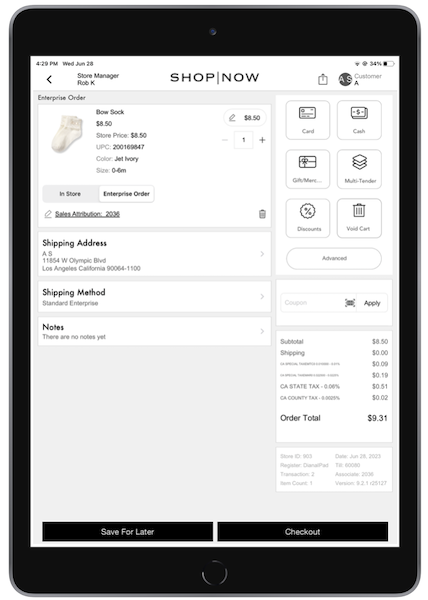
If a store associate adds an online item to the cart and pulls a customer's profile, the shipping address auto-populates from the profile.
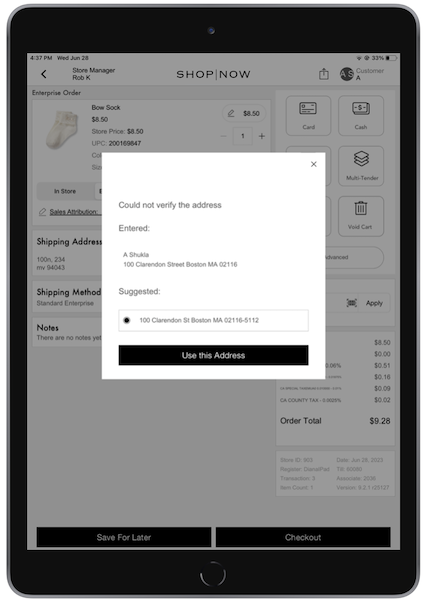
If there's no address listed in the customer's profile, the POS app prompts the associate to enter an address. If the address can't be checked, a window opens. The associate can select either the address that was updated before or a suggested one. If an address has been inputted before logging in as a customer and if unable to validate, the POS app offers suggestions.

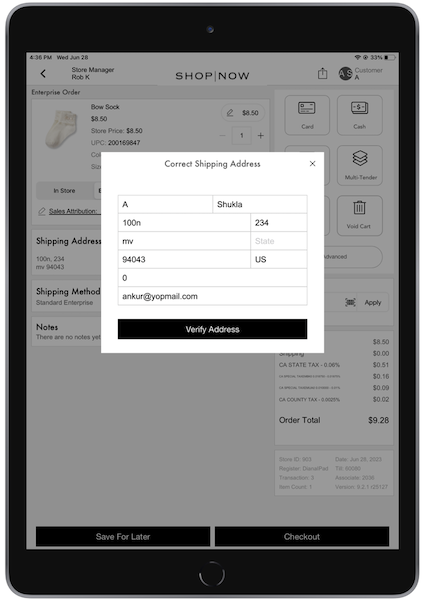
However, if there's an address listed in the customer profile but it's incomplete, the POS app will validate the address if the associate attempts to checkout. If unable to verify, a window appears prompting the associate to correct the information.
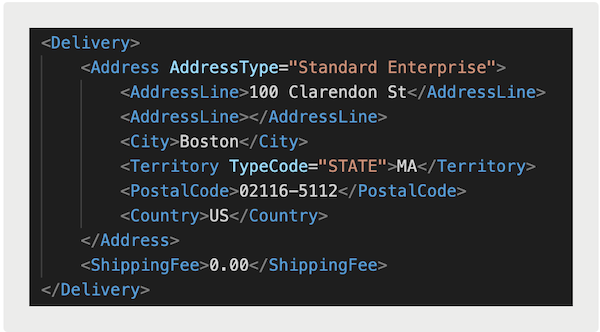
After the address has successfully been verified and the associate completes checkout, it'll be recorded in the TLogs.
There's no difference between how this is recorded and whether the address was edited via suggestion or not. The TLogs only records the address used to ship a completed order.