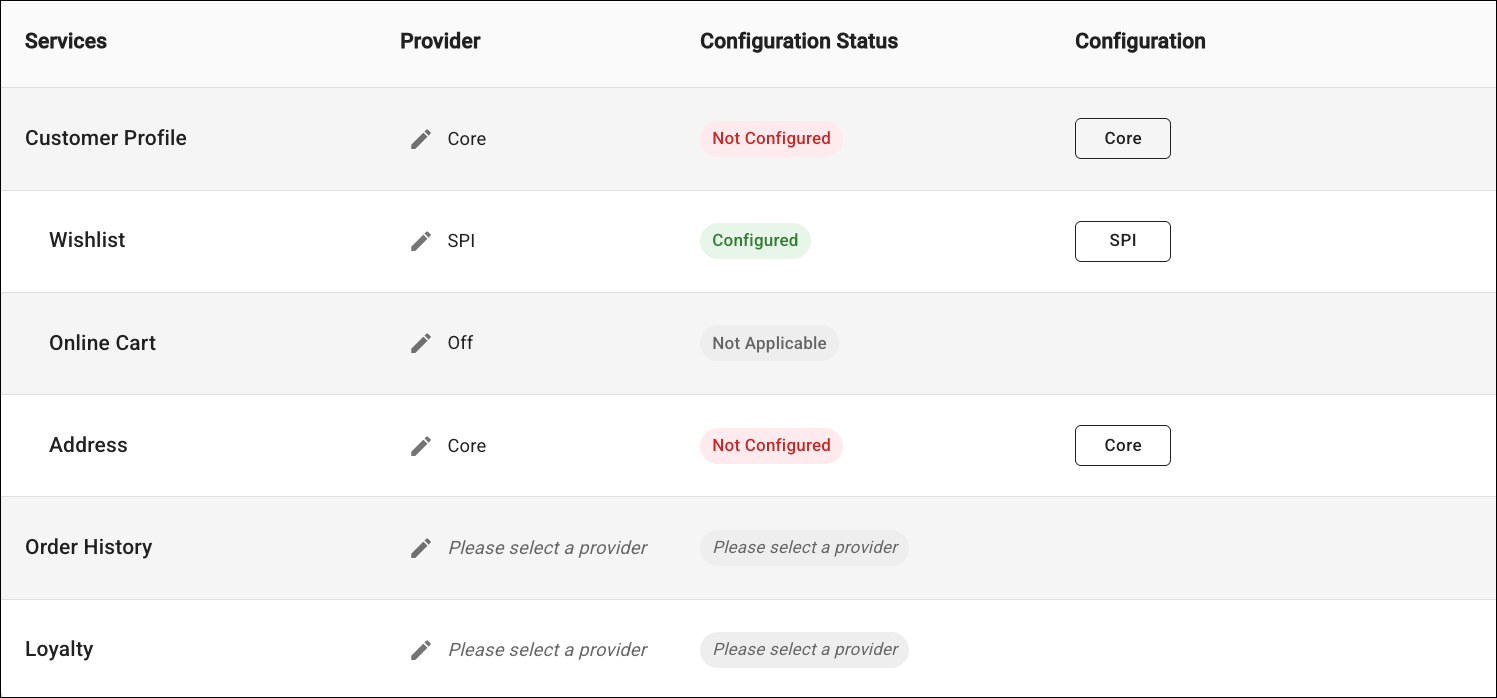
Configure the connector or service that powers each Customer 360 area in the POS app, giving store associates a unified view of customer data from Commerce or Service. The configured connector or service applies only to the Customer Profile, Address, and Wish List flows.
Before configuring Customer 360 in the CMS, review these integrations:
- SCAPI ERP connection configured in POS CMS. See Configure SCAPI ERP Configuration in Point of Sale.
- (Optional) Shopper Profile Sync configured in B2C Business Manager. If you configure this, your POS and B2C Commerce use the same customer ID. A shopper who buys online and in store is matched to one customer profile in both systems. See Configure Shopper Profile Sync.

Important The built-in wish list is deprecated. If you don't select a
provider for Wish List, the wish list stays empty in the customer profile and
customers can't add products to it. To use the wish list, select Service
Provider Integration (SPI) or another supported provider. For details
about implementing the SPI, see Wishlist SPI.
- In the CMS, go to .
-
For each module, select a provider or connector:
- Customer Profile - Basic customer information including name, contact details, and preferences
- Wish List - Customer's saved items and product preferences
- Online Cart - Customer's current online shopping cart contents
- Address - Customer's shipping and billing addresses
- Order History - Customer's past purchases and transactions
- Loyalty - Customer loyalty membership and points balance
 Note Selecting Commerce for the customer profile automatically applies to wish list, online cart, and address modules. Selecting Service lets you choose SPI for wish list and Service for address. Service doesn't support online cart.
 - Review the configuration status for each module.
- Save your changes.