
Customize how clienteling displays in the POS app by configuring the layout through app config settings or by creating a custom clienteling profile layout. After you customize the layout, make clienteling accessible to store associates through the user icon or a deep link.
Set Up Clienteling with the App
Setting up clientling through the app pulls in a hard-coded screen to the app that you can customize in the app config settings.
- Go to .
-
Edit the settings shown.
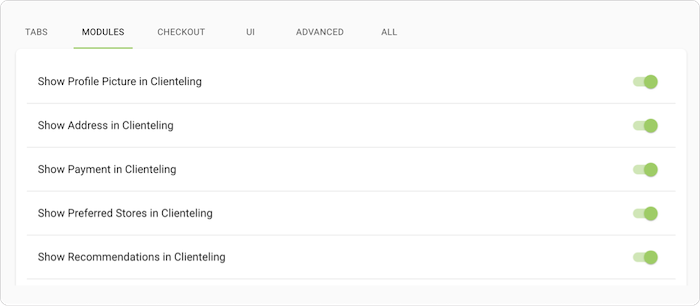
- Save the config and reload the app.
Set Up Clienteling in the Profile Layout
The clienteling profile layout is constructed with the Layout Editor, which allows for greater flexibility than the app view. However, the Editor doesn't support some features, such as messaging, add to black book, and preferences.
- Go to All Layouts.
- Select Add From Template.
- Select Clienteling Profile, and select a font, then publish the layout.
- Edit the app config.
- Select the clienteling profile layout that you just created.
- Save the config and reload the app.
Expose Clienteling with the User Icon
To expose clienteling in the store associate app, you can display the clientling user icon.
- Edit the app config.
- Enable Show Clienteling Icon.
- Save the config and reload the app.
Expose Clienteling Using a Profile Deep Link
To expose clienteling in the store associate app, you can use a profile deep link from the hamburger or layout menu, use a Clienteling deep link to link to the clienteling functionality. If a customer is selected, the deep link launches the customer profile layout. Otherwise, it navigates to the customer search screen.