
Merchants can create targeted promotions tailored for specific customer groups, for example veterans, teachers, which are defined in their customer records. By using the customerGroup attribute, shared across the SPI and Salesforce fields, merchants can efficiently apply these targeted promotions to groups of customers. This functionality is supported via Point of Sale's SPIs and Salesforce Sales Cloud (SFSC). For NetSuite customers, contact a Retail Cloud representative for custom mapping instructions.
Prerequisites
- Modern POS App Build: 9.2.1 or higher
- Platform Support: iPad
- Offline Support: No
Customer groups are established in the customer CRM system during profile lookup. Through our custom Customer Signup layout, associates can collect this information when signing up a new customer.
-
Configure a custom layout to capture Customer Groups.
- In the merchant's external system, configure Point of Sale's Clienteling SPI. Then, configure the endpoints in CMS by going to .
- In CMS, configure a Customer Signup layout by going to
-
Add a new field for Customer Groups.
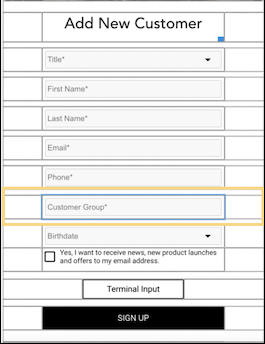
- (Optional) To prepopulate the Customer Group field after a customer search, in the Default field, add the PS Tag :ps_c_customer_group.
- Configure the rest of the fields. For field information, see New Customer Sign-Up Layout.
-
Create a promotion for targeted customer groups.
- In CMS, create a new promotion by going to Promotions.
- Select the type of promotion (e.g., Amount off, Percentage off).
-
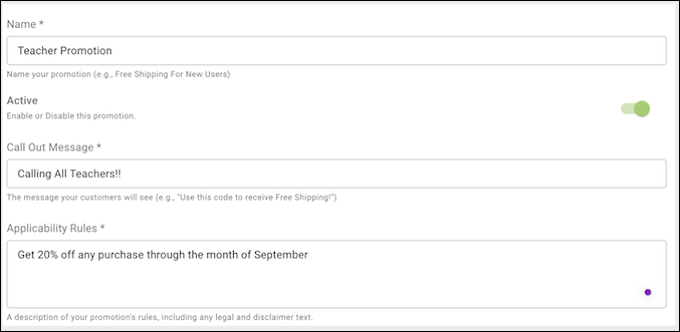
Under Basic Promotion Information, enter the required fields that identify and
describe the promotion.
- Under Promotion Configuration, configure the promotion discounts.
-
Go to Customer and create a Customer Group.
You can define any number of groups. The types of groups can be entered manually or imported from an CSV file by clicking the ellipses.
- Complete any remaining fields. For field information, see Creating Promotions.
- Save the changes.
After a customer group-specific promotion is successfully applied to an order, and the customer completes the checkout process, the customer's group attribute is automatically recorded in the transaction log (TLog) and exports. To access the TLogs, go to the CMS and go to .