
Review Point of Sale (POS) Register policies and registration approval modes.
When the Has POS Registers app settings are enabled
the POS app checks to see if it is allowed to use the app.
Register Not Configured
If the register isn't preprovisioned in CMS, the POS behaves in the way you set it in the POS Store Settings POS Registration Approval Mode.
Pre-Provisioned Mode
The app will show the installation ID along with a Retry button. Make note of the installation ID and use that ID to create the register in the CMS by following the instructions below.
- In CMS, go to .
- Select a store and click in the upper right of the screen.
- Fill out the required fields. Refer to POS Activation & Register Setup for more details.
- Save your changes.
- After the register is created in the CMS, click .
Self-Registered Mode
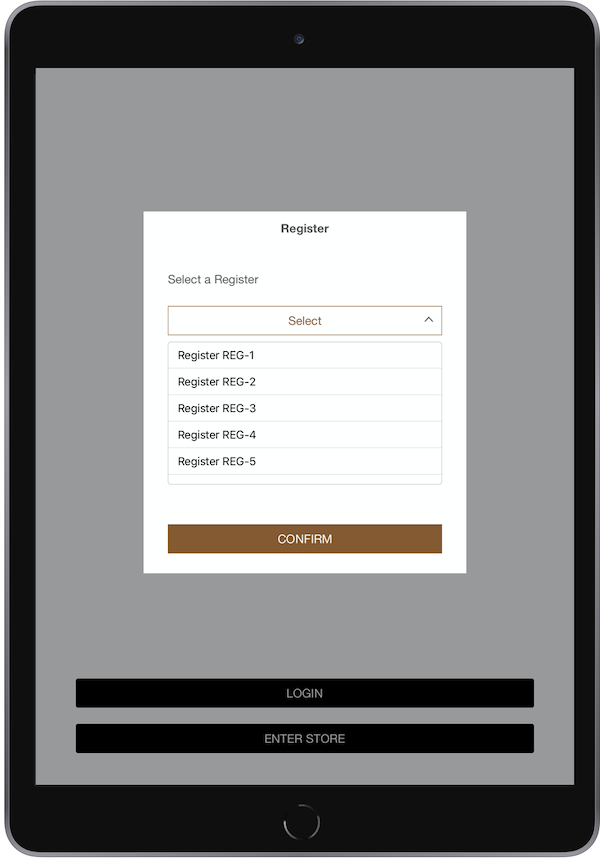
If there's a list of register IDs available, select the register ID from the dropdown. This list can be controlled using the "Store Register Number" settings.
If there are no register IDs available, the app shows a text field. Enter the register ID that you want to associate this device with.
If the register exists in the CMS and is authorized, the POS shows the "Welcome to Register" message.
Pre-Configured Register
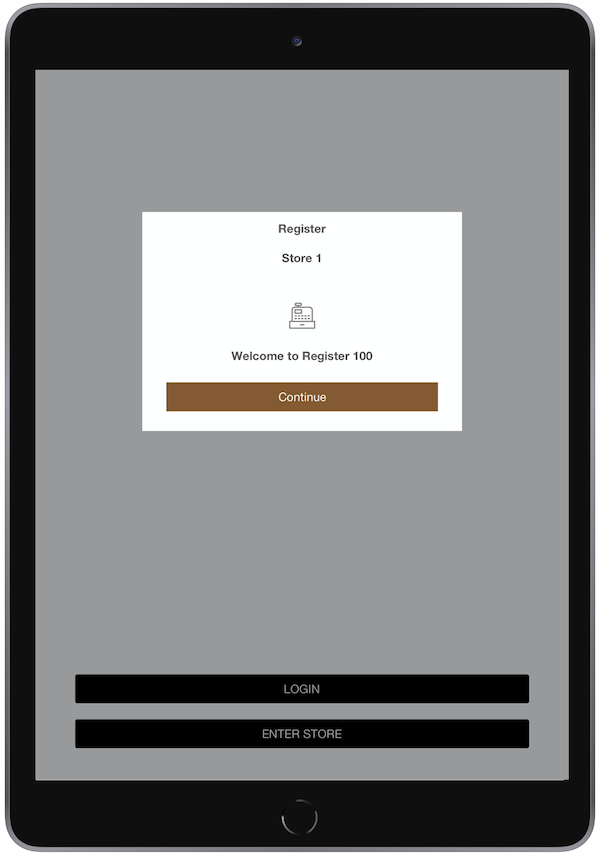
If the register is preprovisioned in CMS, the POS app shows the store and register ID details as shown.
If an associate is assigned to one store (for example Store A), they receive the error message, "You are not authorized to use this device in this store," when attempting to log into a different store (for example Store B) on another device.
Peripheral Enforcement Policy
If the merchant chooses Pre-Provisioned mode, the POS app also checks every device that is connected to the POS. It then decides if the POS can talk to the device or not.
The following peripherals are validated today:
-
- Adyen Verifone Terminal
- Regular Verifone Reader
-
- Zebra
- Socket
- Verifone
-
- Star
- Epson
Tip: See the PDF attachment for a full list of supported devices.
The validation is performed by comparing against the serial number and model. If either of these fields is set as “ANY”, the POS app won't perform any validation. If there's a value for either of these fields, the POS app only communicates with the peripheral if it has the same serial number/model number as specified for this register.
If the peripheral isn't authorized, then the app shows an “Authorization Error” message. To get out of this case:
- Edit the Register details in the CMS by adding this peripheral’s serial number/model number.
- Edit the Register details by choosing “ANY” for the peripheral’s serial number and model number.
- Get the peripheral that is specified in the Register details.
