Find products by capturing a photo with the POS device camera. Visual search works alongside text and barcode search.
- Modern POS App Build: 12.1.1 and later
- Platform Support: iPad, iPhone
- Offline Support: No
-
Configure the Visual Search SPIs.
- In CMS, go to Integrations | Custom Connectors.
- Configure the Visual Search and Visual Search Upload SPIs. To learn how to configure SPIs, refer to Point of Sale for Developers.
-
Configure how to access visual search on the POS app. You can use one or both of the following methods.
- To open visual search from a layout button, tab, or other entry point, edit a layout and configure the Visual Search deep link.
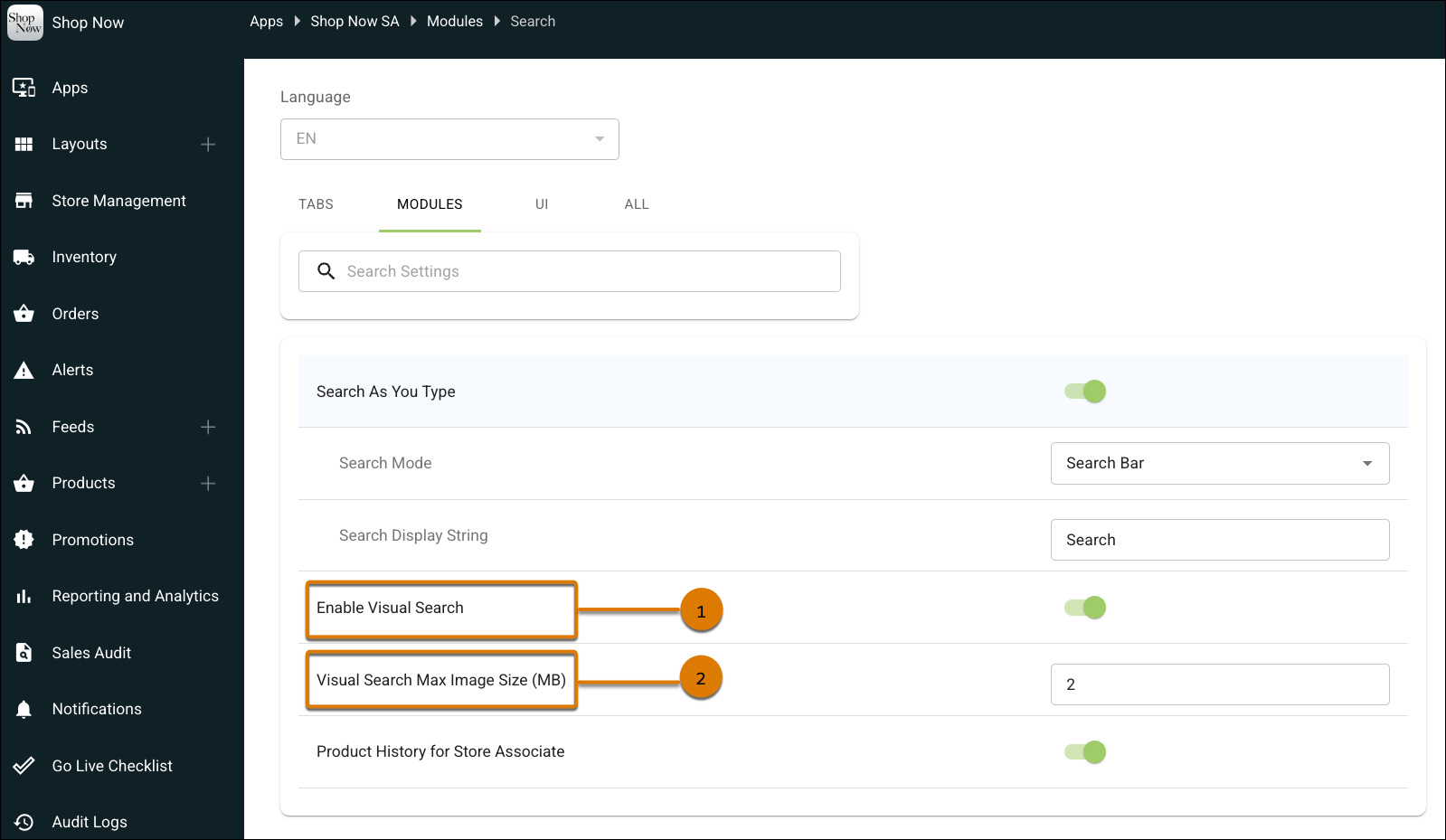
- To show a camera icon in the search bar, edit an app configuration, and go to Modules | Search. Turn on Enable Visual Search (1).
-
(Optional) Set Visual Search Max Image Size (MB) to control the maximum file size for
captured images (2). The default is 2 MB. Increase this value if you need high-resolution
images for detailed products like jewelry or fabric patterns. Decrease the value to limit
storage usage.