
Configure the product search function in the Point of Sale CMS to define the data fields used to match query text in search requests.
Merchants can define which data fields are used to match the supplied query text in search requests.
Additionally, filters can be added to refine search results, and certain products can be set to be "hidden" from search results.
Accessing Product Search Config in CMS
This feature can be accessed in the CMS by going to .
Query Fields
These are the fields (that is, column attributes in the product feed) that a user can search for. Typically, these can include color, description, ID, title, and category. The list of query fields defines which data fields will be used in the search request to match against the supplied query text. For example, if only the query fields of title and description are defined, then the search engine will only look into those two fields to match against the supplied search text.

Boost or Demote by Value
To boost only online items, you can give products whose "OnlineOnly" attribute equals "true" a
strong boost.
Sort Field
The Sort Field should come in the feed as a numerical value so that results can be sorted in ascending or descending order.
For example, if you include "RevenueByProduct" as an attribute in the feed, users can apply
for a "Best Sellers" sort order.
Backend Filters
Backend filters allow you to specify conditions that must be met in order for products to be
returned in the search results. For example, if you don’t want to show products with an
inventory of two or less in the search results, this can be achieved with a backend filter as
follows: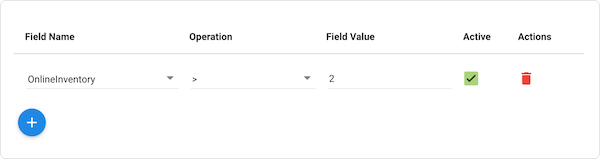
Advanced Users
For more complex backend filtering options, the can be set to , and a search expression entered directly into the .
Search expressions are in the form . You can include more than one field by using parentheses and logical and operations.
Field values in these expressions can be of the following types:
- String
- Number
- Boolean (true or false)
- Range, for example:
- [1 TO *] to search for values >= 1
- [* TO 100] to search for values <= 100
- [2 TO 5] to search for values >=2 and <= 5

App Filter Fields (aka Facet Fields)
App Filter Fields differ from Query Fields in that they’re more specific. The filter fields
include additional data for filtering the search results in the app. For example, defining a
filter field for color includes a list of all color values in the search results along with the
frequency at which each color appears. In the app, the user can select one of those color values
and only see results that match that color.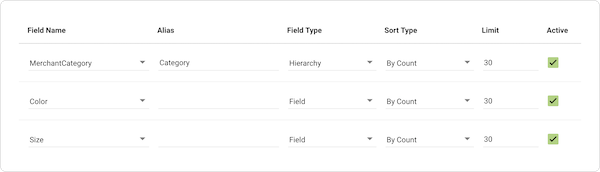
The specifies the target field name in the field mappings. The specifies what the end-user sees in the app.
App Filter Field Range (aka Facet Range Fields)
The App Filter Field Range is commonly used to control the behavior of the price filter.
The end-user can filter by price range in the app.
App Sort Fields
The end-user can apply the app sort fields on the product search (aka PLP) page.
Inventory Availability
By configuring Alias or Display names for Availability filters (), you can limit search results by available inventory.

Variant Grouping
Product search collapses results by variant group, so only one representative product from each group appears in results. By default, search collapses on VariantGroupID (item_group_id in the product feed), which is required for every product.
If you map "item_sub_group_id" (SubVariantGroupID) in the product feed, product search switches the collapse field to SubVariantGroupID for your entire catalog, even if no product has a value for it yet.
Known Issues and Restrictions
- Only CustomString0 - CustomString5 are tokenized if they are indexed for search.
- If product search returns no products but facets still show counts, check for a mapped but unpopulated "item_sub_group_id" (SubVariantGroupID) field. See Variant Grouping.