
Configure Delivery and Pickup Dates for Omnichannel in Point of Sale.
Point of Sale allows delivery and in-store pickup orders with the option of a date selection to improve visibility with shoppers. The date selection can be done at the order level (default) or the line level.
Prerequisites
- Modern POS App Build: 9.9.1 or later
- Platform Support: iPad
- Offline Support: no
Omnichannel CMS Configuration and Setup
Configure Omnichannel delivery, pickup dates, and shipment addresses within Point of Sale CMS at the item and order levels.
For instructions on how to configure delivery and pickup dates, refer to this article.
Enabling Shipment Addresses at Order Level

- In CMS, go to .
- Under , select the pencil to show the window.
- Disable .
- Set and save your changes.
- Relaunch your POS app.
Enabling Delivery and Pickup Dates at Order Level
- In CMS, go to .
- Under , select the pencil to show the window.
- Under , check .
- Disable .
- Relaunch your POS app.
Enabling Shipment Addresses at Item Level
- In CMS, go to .
- Under , select the pencil to show the window.
-
Turn on the flags:
- Set and save your changes.
- Relaunch your POS app.
Omnichannel Delivery and Pickup Date POS App Flow
View the workflow for setting delivery and pickup details in the Point of Sale (POS) app
Setting Shipment Address at Order Level
On the POS app, after an item with either a fulfillment type of "Ship to Home" is added to the cart, the store associate sees a section for selecting delivery dates.
Selecting Multiple Delivery & Pickup Dates at Order Level
On the POS app, after an item with either a fulfillment type of "Ship to Home" or "Pickup Later" is added to the cart, the store associate sees a section for selecting delivery or pickup dates.
Tapping on the field opens the calendar window. Here, the store associate can select the date and time.

Setting Multiple Shipment Addresses at Item Level
If a customer is logged into their profile and has items in the cart, the shipping address associated with their profile automatically populates for all items designated for shipment. To change a specific item's address, select its shipping address. This action opens a window where the address can be edited. In this window, the store associate has the option to apply this new address to every item in the cart.
Items that have the same shipping addresses are organized into separate shipments (for example, Shipment 1, Shipment 2, and so on). The order can only be completed if a shipping method has been selected for all deliverable products.
Selecting Multiple Delivery & Pickup Dates at Item Level
If a customer is logged into their profile and has items in the cart, the information associated with their profile (name, email, and phone number) automatically populates for all items designated for delivery or pickup.
To update the pickup details for an item, select its current pickup information. This opens a window where you can modify the pickup details as needed. In this window, the store associate has the option to apply the same information to every pickup item in the cart. To learn how to configure the layout, refer to Pickup Information Layout.
To select a pickup date, select Pickup Date to select a specific date and time. This opens a window for choosing a date either for that specific item or for all pickup items
Delivery Groupings
Items with the same fulfillment method, shipping address, delivery date, and shipping method are grouped together for delivery. The POS app receives the delivery groups in a sorted order from Point of Sale's backend, and this sorting order is shown in the cart. Each group has a sequential shipment number, starting with Shipment one.
If one of the items has changed (for example, the way it's shipped or the address), it'll be in a different shipment. The number of these shipment increases by one (for example, Shipment two).
Omnichannel Delivery and Pickup Date Receipts
Configure email and print receipt settings in Point of Sale to customize the information that appears on customer receipts.
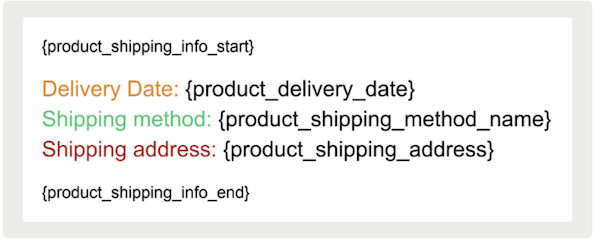
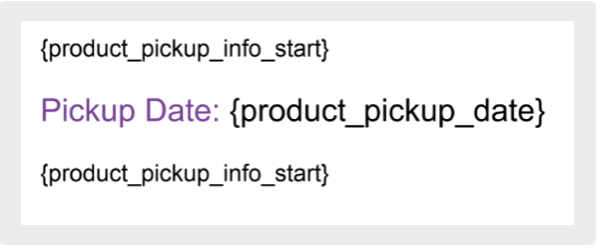
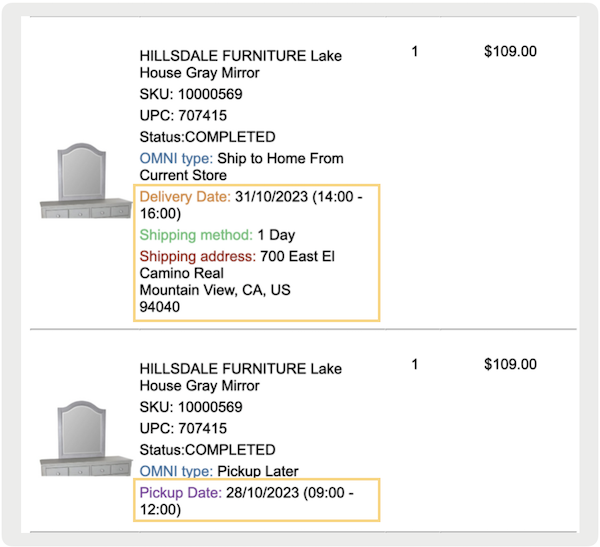
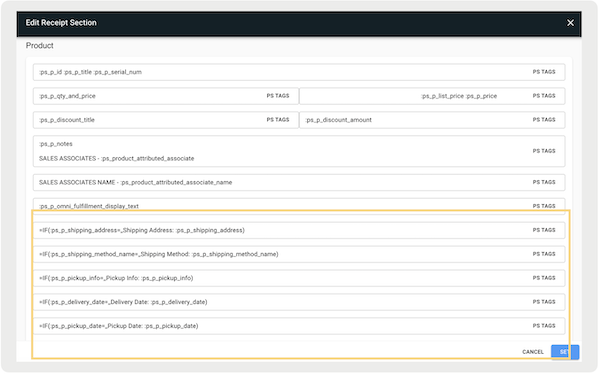
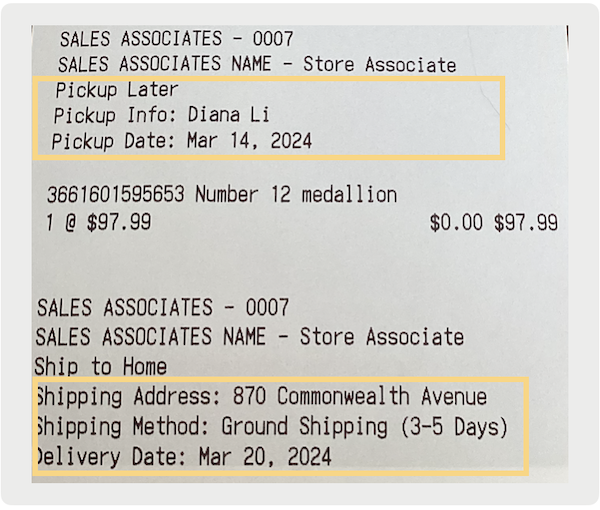
Delivery and pickup details can be printed on receipts using Print Tags or Email Tags
| Use Case | Print Tags | Email Tag |
|---|---|---|
| Display name of the designated person for picking up the product | :ps\_p\_pickup\_info | TBD |
| Display product’s pickup date that is selected on the POS app at item level | :ps\_p\_pickup\_date |
{product\_pickup\_date} Email tag must be placed between {product\_pickup\_info\_start/end} tags |
| Display product’s delivery date that is selected on the POS app at item level | :ps\_p\_delivery\_date |
{product\_delivery\_date} Email tag must be placed between {product\_shipping\_info\_start/end} tags |
| Display product’s shipping method that is selected on the POS app at item level | :ps\_p\_shipping\_method\_name |
{product\_shipping\_method\_name} Email tag must be placed between {product\_shipping\_info\_start/end} tags |
| Display product’s shipping address that is selected on the POS app at item level | :ps\_p\_shipping\_address Note: Print tag only displays address line 1 |
{product\_shipping\_address} Note: Email tag must be placed between {product\_shipping\_info\_start/end} tags |
Example Email ReceiptExample Print Receipt ConfigurationExample Print Receipt
Omnichannel Delivery and Pickup Date Known Issues & Restrictions
Read about how order management limitations can impact how your data is displayed and how the Point of Sale (POS) app behaves.
After items are returned, the app no longer shows the shipping address, shipping method, or delivery date details at the item level on the Order History screen.
If an item's fulfillment is changed to "SHIP_TO_HOME" or "SHIP_TO_HOME_CURRENT_STORE," the app doesn't automatically apply the customer's address as the item-level shipping address.
If item fulfillment is changed to "PICKUP_LATER" or "PICKUP_NEAR_STORE," the app doesn't automatically apply the customer's information as item-level pickup information.
If the item-level shipping address is set and customer login is mandatory before checkout, the POS app won't request login at that point. Instead, the app prompts for a customer login before starting the tendering process.