Scan items that have the same product ID but different GTINs or UPC codes in the Retail Cloud Point of Sale (POS) app.
-
Modern POS App build: 5.8.1 or later
-
Platform Support: iPhone
-
Offline Support: yes
-
Technical Prerequisites:
- Product Feed
- Create a new column in your product feed file that will contain your product's GTIN values. Use a pipe delimiter for Multiple GTINs.
- While you can use the original GTIN field, it's recommended to create a new field with a different name (for example MultipleGTIN) to prevent automatic mapping to GTIN.
- Field Mappings: Create a new field mapping from your product feed column that contains
GTINs to the MultipleGTINs field:
-
- Go to
- If your column that contains your GTINs doesn't currently exist in the Source Fields column add it by clicking the blue icon.
- Map your column that contains GTINs from Source Fields on the left to the field on the column.
- Select .
-
- Product Feed
See the Field Mappings article for complete details on field mappings.
The POS app supports products with multiple GTINs. Supporting multiple GTINs is useful if a product has many versions that are different but have the same price. For example, a magazine can have a single product ID with different GTINs for every version. This article outlines the configuration requirements in order to turn on the multiple GTINs feature.
- In CMS, go to
-
Turn on .
Multipe GTIN support depends on this setting. After it’s turned on, each added cart item creates a separate line item, each having a quantity of one.
- Save your changes.
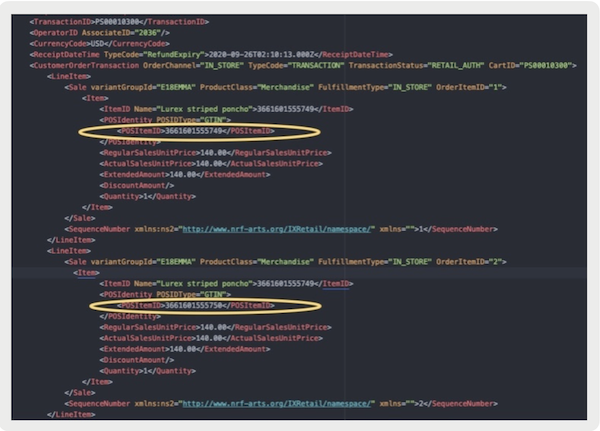
The MultiGTINs concept allows store associates to scan items having the same product ID but different GTINs or UPC codes. The POSLog export provides the scanned GTIN value.
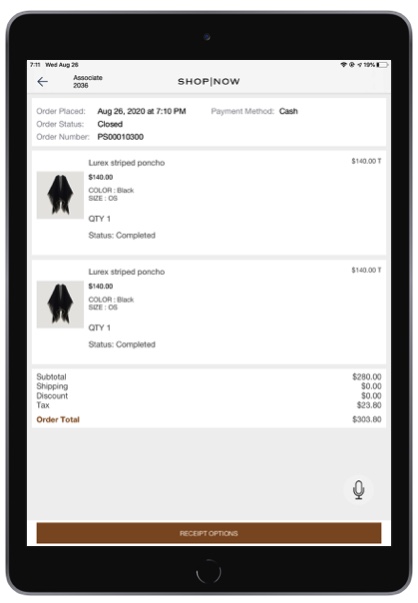
An order is placed by scanning different GTINs corresponding to the same product. The NRF pos log captures the scanned GTIN corresponding to each line item.