Use an inventory ledger to track item details, quantities, costs, dates, and balances in Point of Sale CMS.
An Inventory Ledger allows you to view all inventory movement-based transactions. It records item details, quantities, costs, dates, and balances. It can help merchants monitor stock levels, value, and facilitate accurate financial reporting. Point of Sale's Inventory Ledger can be filtered by store, category, transaction types, and date range. Additionally, in-depth details can be viewed for each transaction.
Configure Inventory Ledger Settings
Set up the Inventory Ledger in Point of Sale CMS so that it accurately reflects your inventory.
Turn on Inventory Ledger
- In CMS, go to .
- Under , select .
- Turn on .
- Save your changes.
If the Inventory Configuration is set to any other Provider, inventory won't be recorded and therefore, won't yield accurate results in the ledger.
Accessing Inventory Ledger
- In CMS, go to .
- Under , select or search for a store.
- Under , select the transactions you want to see in the report (for example , , , and so on) or select all.
- Under , enter the IDs of the products you want to see in the ledger. This can be done through manual entry, selecting from the Product Picker, or importing a CSV file.
- (Optional) You can configure the date to view the ledger for a specific date range.
- Select .
The update interval for inventory data syncing to the inventory ledger is near real time and won’t take more than 15 minutes, depending on the current system workload
Inventory Ledger Field Descriptions
View the descriptions of the fields in the ledger report in Point of Sale CMS.
Field Descriptions
| Field | Description |
|---|---|
| Product ID | Product ID mapped in Product Field Mappings |
| Title | Product title mapped in Product Field Mappings |
| Quantity on Hand | Number of units physically available and in stock of the specific data range |
| Sold | Number of units sold in the specified date range, which reduces Quanty On Hand (QTYOH) |
| Returned | Number of units returned in the specified date range, which increases QTYOH |
| BOPIS Picked | Number of items that were picked in the store for Buy Online Pickup In-Store (BOPIS) orders that originated online |
| BOFIS Shipped | Number of items that were sent out for BOPIS orders from the store that the store, which reduces QTYOH filled. |
| Received | Number of items received by the store that increased QTYOH |
| Out - STS | Number of items that the store transferred in a Store to Store (STS) transfer that reduces QTYOH. |
| Returned to Vendor (RTV) | Number of items in the store returned to the vendor, which reduces QTYOH |
| Adjustments | Net change after an adjustment. A negative number indicates a decrease in QTYOH, while a positive number indicates a positive in QTYOH |
| Cycle Count | Net change after a cycle count. A negative number indicates a decrease in QTYOH, while a positive number indicates a positive in QTYOH |
Inventory Ledger Transaction Details
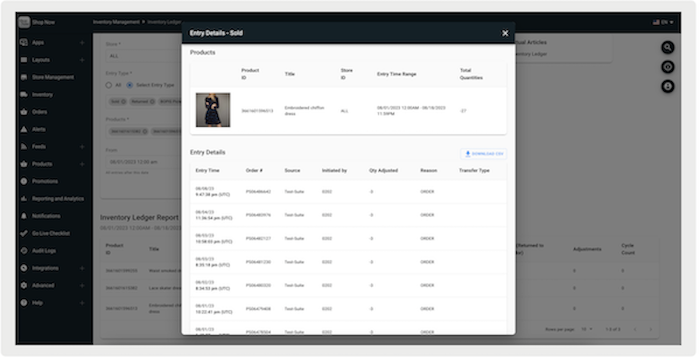
View information about purchase events and up-to-date inventory numbers resulting from the event.
Any event can have more information, including information about the transaction and changes
to the quantity. For example, you can have information about Sold, Returned, BOPIS Picked, and
more. They can be accessed by clicking on the quantity number (highlighted in blue) under their
respective columns in the report. The screenshot is an example of the details: