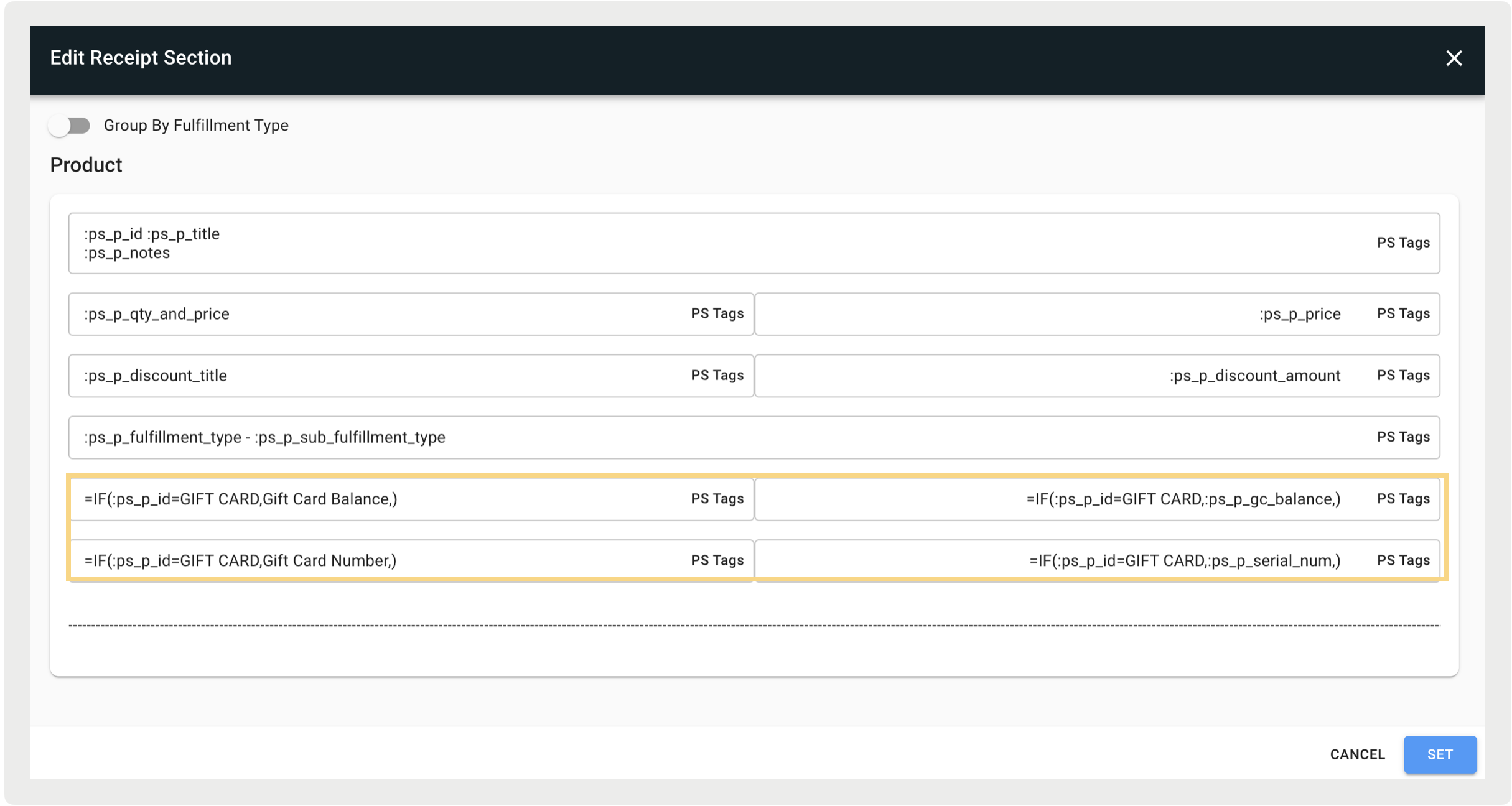
Functions in Point of Sale receipt layouts dynamically display relevant information, improving clarity and reducing clutter. For instance, cash details are hidden for credit card payments, and employee discount info is omitted for non-employee sales, ensuring a cleaner, more user-friendly receipt.
| Function | Description | Example |
|---|---|---|
=IF(expression,TrueOutput, FalseOutput) |
If the expression is true, TrueOutput will be displayed otherwise FalseOutput will be displayed. Only "=" will be honored in the expression. | =IF(:ps_p_fulfillment_type=Online,(S),(I)) |
=DATEFORMAT(TimestampPSTag, DateFormat) |
Timestamp PS Tags can configured to display a custom date format.  Note The date format can have a maximum of 75 characters.
Supported: Modern POS >= 8.1.1 |
To display the time with minute precision (e.g., "08/28/2024 10:01 AM") use the formula:
To display the time with second precision (e.g., "08/28/2024 10:01:38 AM"), use the formula:
|
Notes
- All content will be shown on the receipt as visibility of rows and cells cannot be toggled.
- There can only be one function per cell, functions cannot be chained together,
i.e.,
=IF(=DATEFORMAT(tag,format) == time, A, B) - Functions can only contain one PS tag at a time.
- Functions MUST be the only configuration for a given cell. They can not be mixed with text.
- If functions are not formatted correctly, the receipts will display an incorrect output or the raw input function.
Functions For Truncations
Starting in POS version 9.2.1, when the
=IF function returns an empty string, the receipt line will be truncated,
thus removing the empty row where the =IF function result would have been.
As of 9.2.1 this only applies to the Payment Tender receipt component.
For example, take the functions:
- =IF(:ps_payment_tender_type=Gift Card,:ps_gc_tender_balance,)
- =IF(:ps_payment_tender_type=Cash,:ps_cash_tendered_amount,)
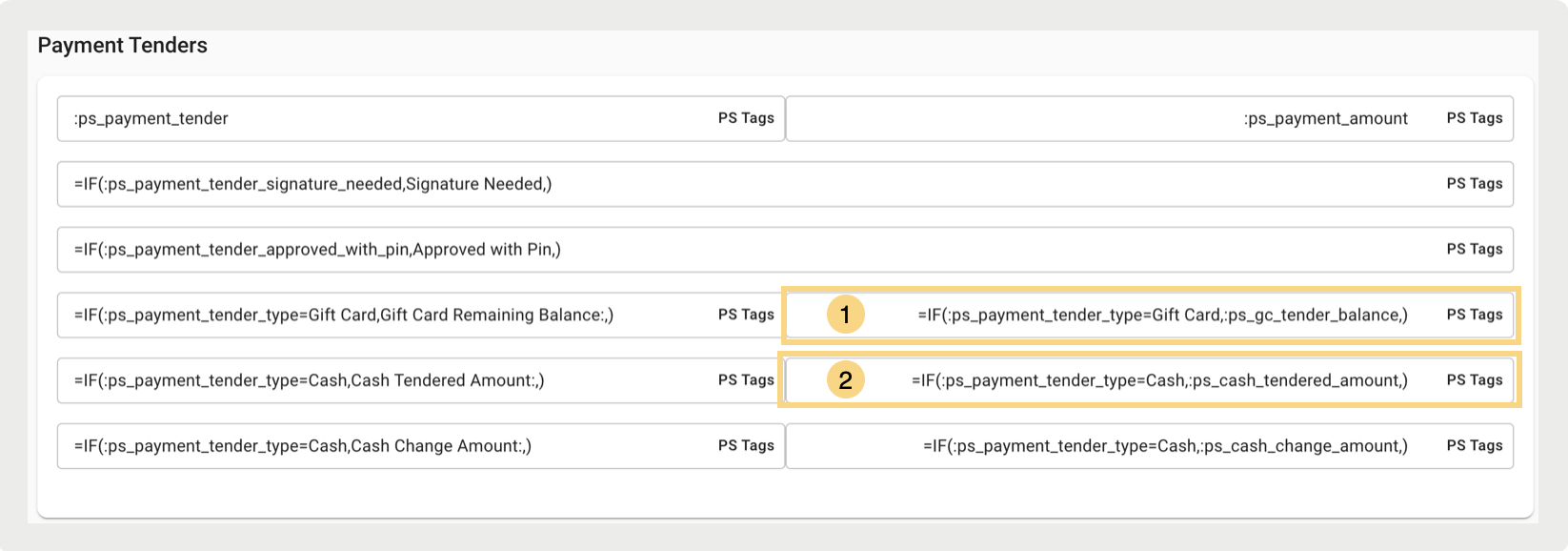
If an order is paid with cash:
- In the first function
- The PS Tag,
:ps_payment_tender_typein the expression:ps_payment_tender_type=Gift Cardwill be replaced with “Cash”. - As “Cash” does not equal “Gift Card” we will return the false output. False output is “” and since it is an empty string then the receipt line will be truncated and an empty space will not be rendered on the receipt.
- The PS Tag,
- In the second function
- The PS Tag,
:ps_payment_tender_typein the expression:ps_payment_tender_type=Cashwill be replaced with “Cash”. - As “Cash” does equal “Cash” we will return the true output.
- The PS Tag,
To summarize, the configuration of the PS tags and functions determines the outcome.
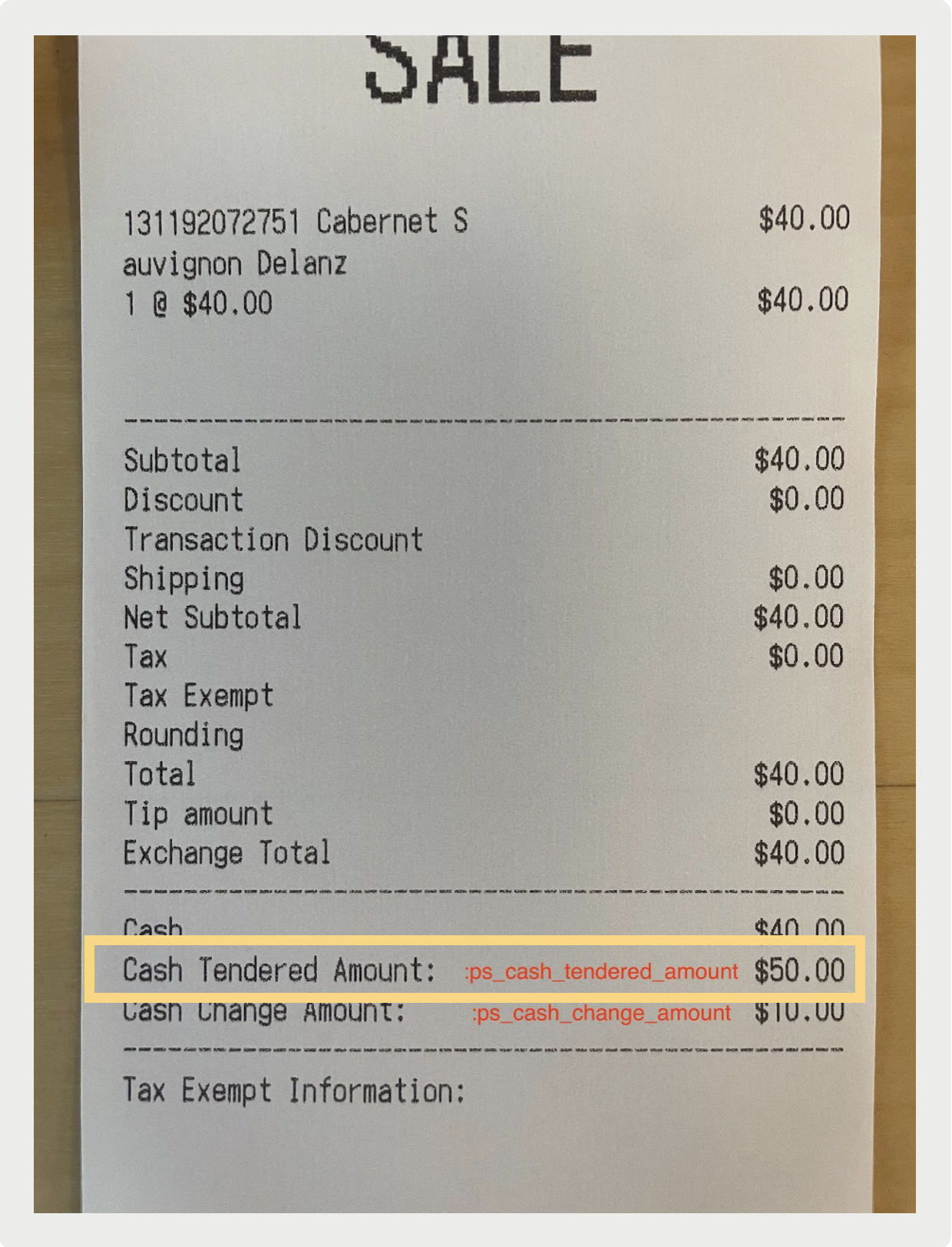
As the order was placed using cash as the payment method, the function
=IF(:ps_payment_tender_type=Gift Card,:ps_gc_tender_balance,) yields a
false output. On the other hand, the function
=IF(:ps_payment_tender_type=Cash,:ps_cash_tendered_amount,) generates a
true output. The following receipt example shows the gift card details are omitted and
instead displays the relevant cash information, ensuring that no empty space is left on the
receipt.
Language and Functions
When operating in a non-English language, ensure that conditional selections are adjusted to match the language of the region. For instance, update "Gift Card" to "Carte cadeau" for the IF statement to align correctly.
- France
=IF(:ps_payment_tender_type=Carte cadeau,Solde de carte cadeau,)or=IF(:ps_payment_tender_type=Carte cadeau,:ps_gc_tender_balance,)
- Mexico
=IF(:ps_payment_tender_type=Efectivo,Monto Pagado en Efectivo,)or=IF(:ps_payment_tender_type=Efectivo,:ps_cash_tendered_amount,)
Gift Card Balance & Serial Display for Gift Card Products
To display the Gift Card Balance & Serial Number for Gift Card Products only, use these functions:
- Gift Card Balance
=IF(:ps_p_id=<GC Product ID>,:ps_p_gc_balance,) - Gift Card Serial Number
=IF(:ps_p_id=<GC Product
              ID>,:ps_p_serial_num,)
For example, if the configured product ID is "GIFT CARD," the function should be:
=IF(:ps_p_id=GIFT CARD,:ps_p_gc_balance,)