
The look and feel of the Point of Sale search results screen (aka PLP) is controlled by app config settings and the Search Layout associated with the app config.
Set the App Config Search Layout
There are several settings in the app config that affect the search screen:
- Go to your app config and click EDIT.
- Go to .
The layout available include:
- Search Layout (V1) - The Search Layout contains various settings.
- No Search Results Layout - This shows a custom layout when there are no search results.
- Default Search Display Style - This shows search results as a list or as a grid (typically grid).
- Search Layout Grid Type - This specifies the number of columns to be shown (one,
two, or three).
 Note For store app customers, there is a limitation of 2-wide, XXL thumbnails in the user interface. This means that only 2x2 products with XXL thumbnails are visible on the screen at first glance with the PLP Search Layout.
 - Show Price Slider in Refine Screen - When enabled, the price filter is a slider as opposed to a dropdown list of price ranges.
Set the Search Layout Options
The Search Layout contains settings that control the behavior, look, and feel of the search screen. To edit the Search Layout that is associated with an app config:
- Go to your app config and click EDIT.
- Go to .
- Click the pencil icon to the right of Search Layout (V1).
The settings available include:
| Settings | Description |
|---|---|
| Search Settings | Settings in this section enable you to customize the overall appearance of the search screen |
| Variants and Wishlist Template Settings |
Customize wishlists and product variants with the settings in this section. Note Note that the "Template" setting must be set to "Variants and Wishlist Template" to
access these options.
|
| Cell Settings | Customize the cells, which are the parent containers of each search result. For instance, to remove the cell border, select "None" for "Cell Border Thickness." |
| Title Text Settings | Control the appearance of the product title under the image using the settings in this section |
| Promotion Text Settings | Manage the look and feel of promotion text. Please keep in mind that in Field Mappings, the source field mapped to "promotion_title" will be used for the promotion text. |
| Price Text Settings | Adjust the appearance of the price text with the settings provided in this section |
| Banner Settings |
Customize the banner's appearance with the settings available here. In Field Mappings, any source field mapped to a target field can be used as the Banner Product Field Name. This field can be either text or an image URL. Note To display the
banner, ensure that the "Enable Banner" flag is turned on in two locations: the Search
Layout and the App Config (App Config > Modules > Settings).
|
| Ratings Settings | Control the look and feel of product ratings with the settings in this section |
Set the Template
The right side of the screen shows a preview of the template: 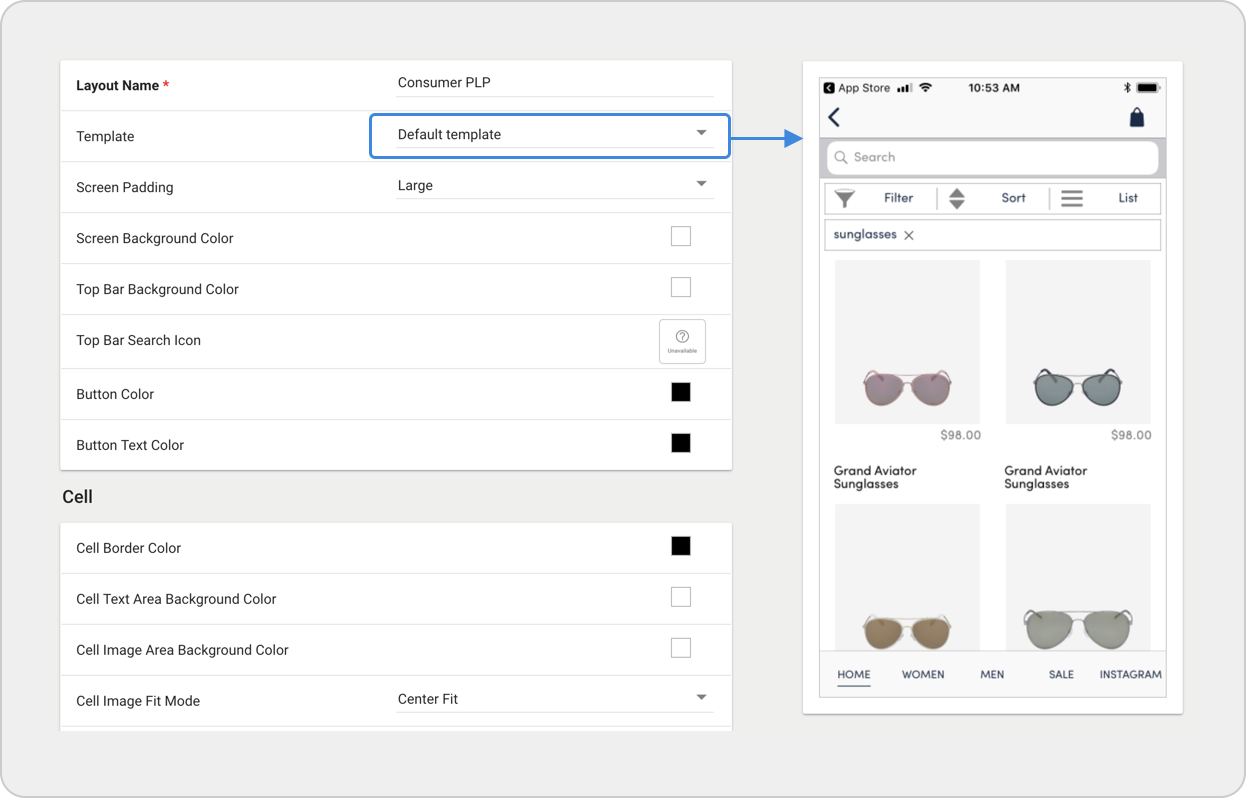 The templates available include:
- Default template - The price is above title.
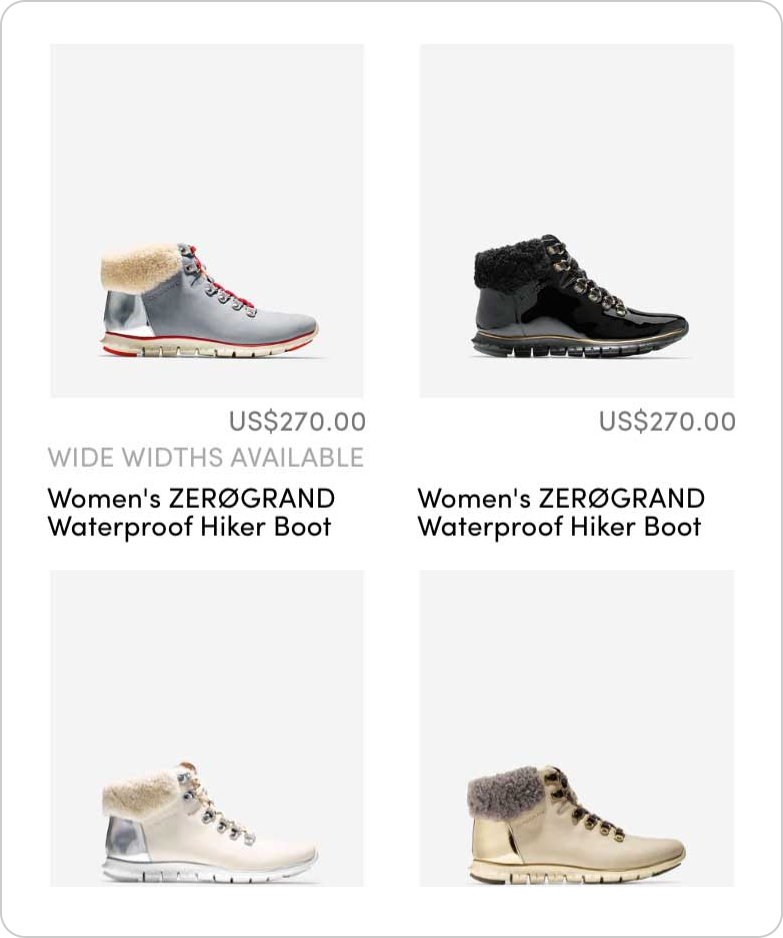
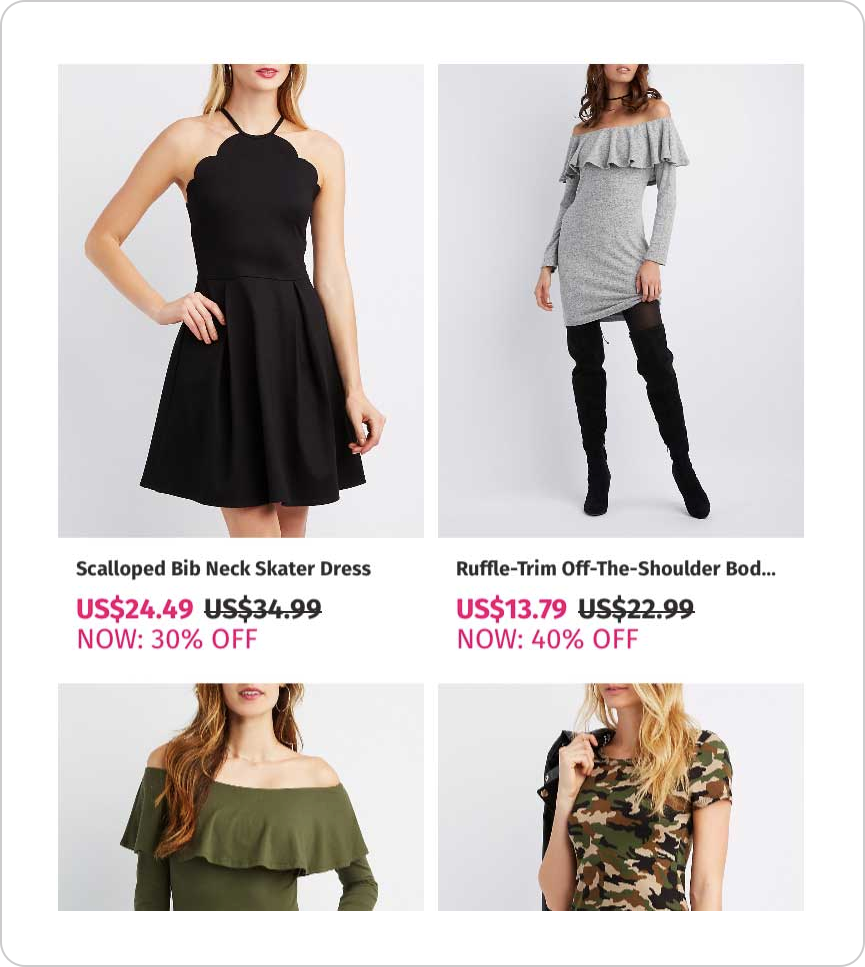
- Default template, text fields reversed - The title is above price.
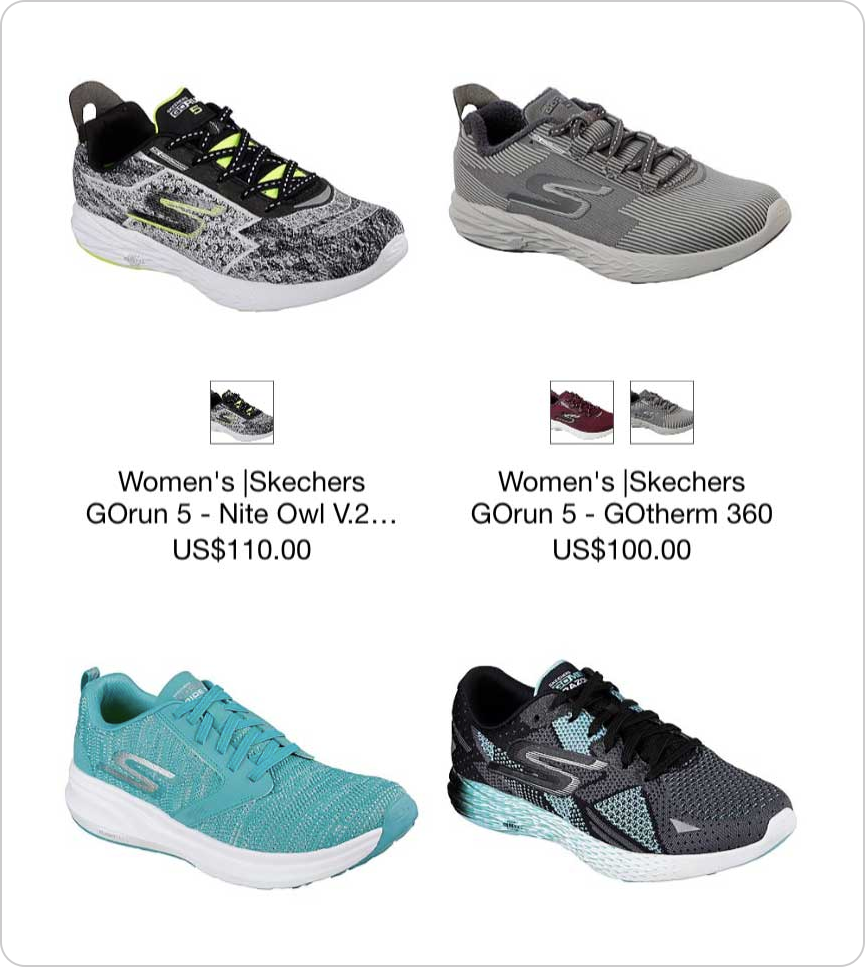
- Variants and wishlist template - This shows swatches and wishlist icon.
Test Changes
After saving changes to the app config or Search Layout, the changes are visible after relaunching the app. To test changes without affecting production, use a test app config that is linked to a test Search Layout.
- Save app config or Search Layout.
- Relaunch the app.
- Do a product search.