
The Media Library allows you to upload images and videos or reference them using a URL, enabling seamless integration into the Modern POS UI for a visually engaging user experience. This feature enhances the layout editor, making it easy to create dynamic and appealing interfaces.
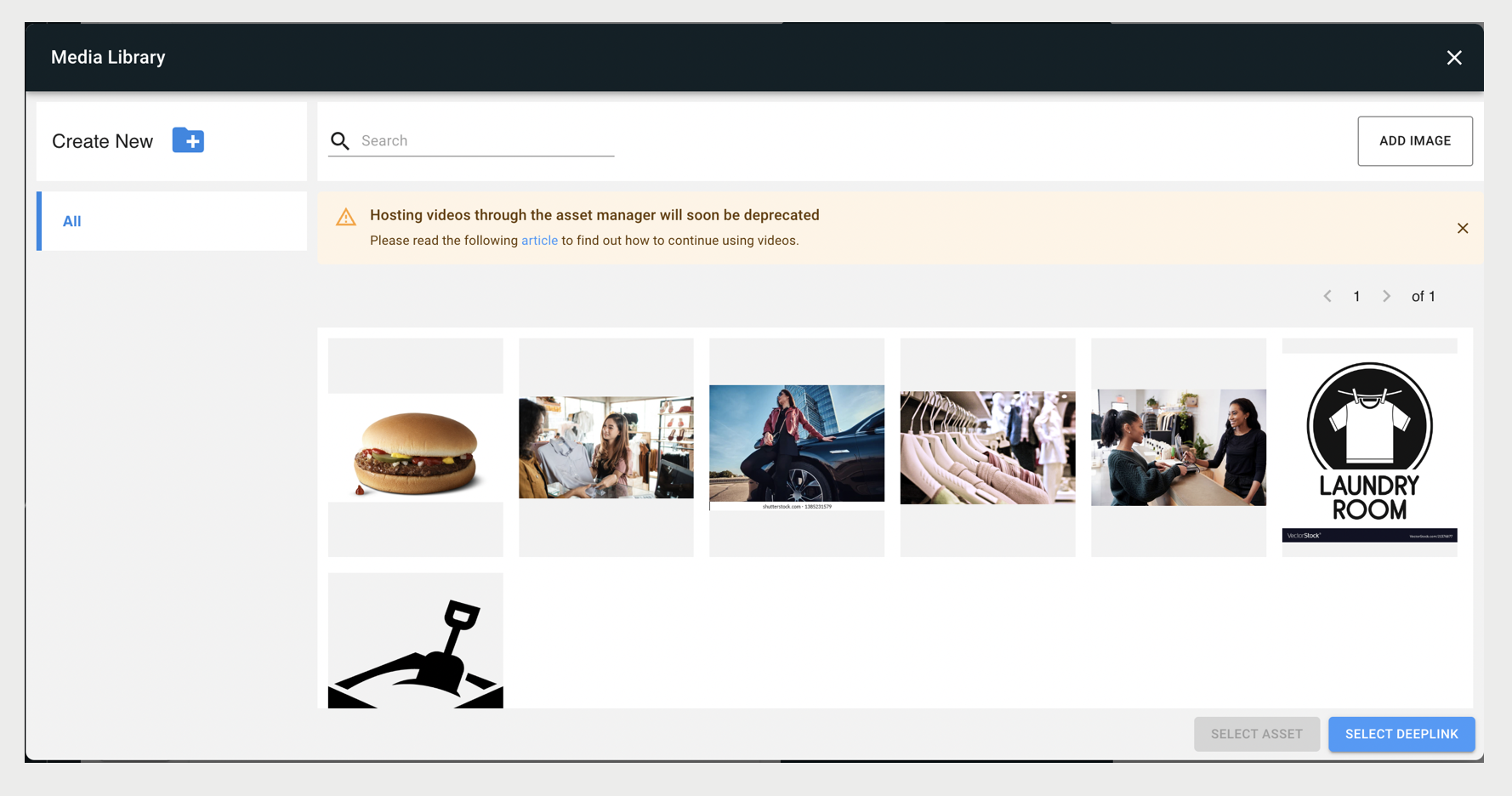
Upload Images
- You can upload assets by dragging and dropping them onto the Media Library, or by clicking Add Image to the top right of the screen.
-
If using Add Image, you have the option to add it using local
upload or by inserting an URL.
When using a URL, the CMS will display the image to show the layout, but it doesn't store the image elsewhere (for example, it isn't cached). Additionally, if the URL no longer points to an image, an empty cell will be displayed.
Select Images
- When you select an image, the selection is indicated by a checkmark in the upper right of the thumbnail.
You will have the option to either Select Asset or Select Deep Link.
- Select Asset - This will allow you to set the image you've selected.
- Select Deep Link - This will allow you to assign a deep link to the image. For more information on deep links, refer to Cell Configuration in Layouts.
View Details of an Image
Clicking on the information icon by hovering over an image will bring up a pop-up that will display that image’s metadata.
Information such as uploaded by, size, and the link to the image can be found here.
Delete Images
- Clicking on the blue trash icon to the top right of the screen will delete the selected Images.
- Alternatively, you can also hover over the image and click the trash icon to delete it.

Important You can only delete images that aren't used in a layout or notification.
Search for Images
You can search by entering a search term into the search field.
The search will return results by searching by filename, uploader user ID, and folder name. Therefore, naming your files with descriptive names can greatly improve your search results.
The Special “All” Folder
All assets belong to a special folder called “All”. When you first bring up the Media Library, it will display the contents of this folder. If you move an asset to a named folder other than “All” that asset will still appear in the “All” Folder. The “All” folder can't be removed.
Create Folders
To create a folder, click Create New Folder and enter a folder
name.
You can't create a folder if that folder name is in use. Folders aren't case-sensitive,
so you can't create the folder “Backup” if “backup” exists.
Edit a Folder's Name and Delete a Folder
- Clicking on a Folder’s edit button will allow you to edit the folder’s name.
- You can save your new folder's name by clicking on the pencil icon to the right or delete it by clicking on the trash icon.
All images in the folder will still appear in the renamed folder.