
Layout groups (aka Personalized Layouts) in Point of Sale enable you to tailor app experiences for different user segments, such as gender and loyalty tier, ensuring a more relevant and engaging experience for each customer. By customizing layouts, you can enhance user satisfaction and drive higher engagement and loyalty.
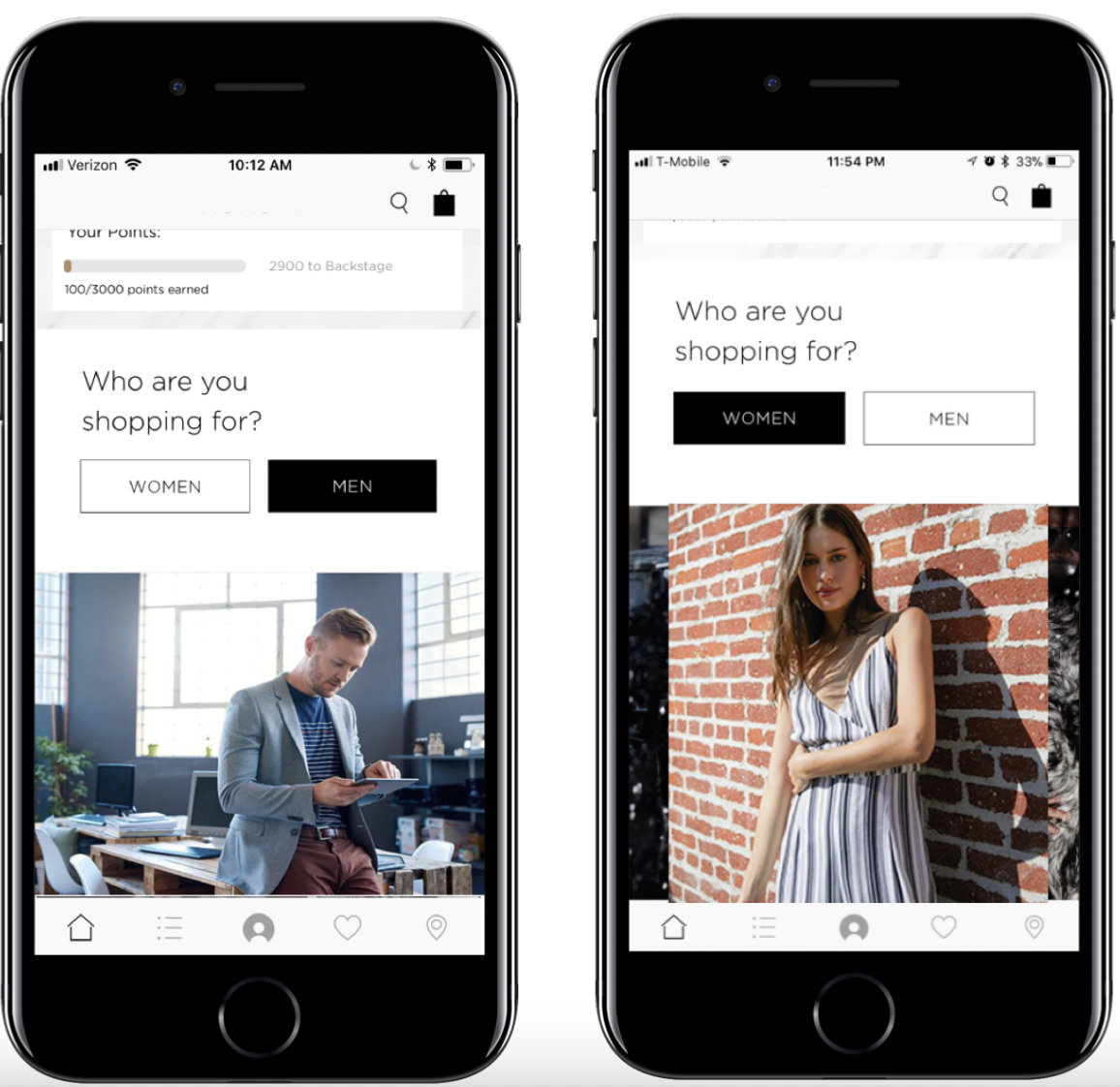
The Layout Groups functionality depends on several different areas in the CMS.
Enable Layout Groups Setting
The Layout Groups setting must be enabled for this feature to work.
- In CMS, go to .
- Under Advanced, toggle on Enable Layout Groups.
Create a Segment
Segments are groups of users that share certain characteristics like gender or loyalty tier.
- In CMS, go to .
- Click Create in the upper right.
- Complete the required fields and save your changes.

Segment Types
- Loyalty Tier (requires loyalty integration)
- Demographic
- Gender (requires gender be part of account creation)
- Is Profile Complete
- Is Gift Eligible
- Logged In Status
- App Version
- Segment Group (combination of multiple segment types (e.g., gender and loyalty tier))
Create a Layout Group
A layout group defines the mapping between user segments and layouts. For example, a layout group can map gender segments with gender-specific layouts.
- In CMS, go to .
- Click the plus icon.
- Create mappings of the layouts and segments.
- Select Set as Default for one layout (see note below)
- Save your changes.
Assign a Layout Group to an App Tab
A layout group can be assigned to a tab in the app config (for example, the home tab). This is done by editing the app config:
- In CMS, go to .
- Edit a selected app config.
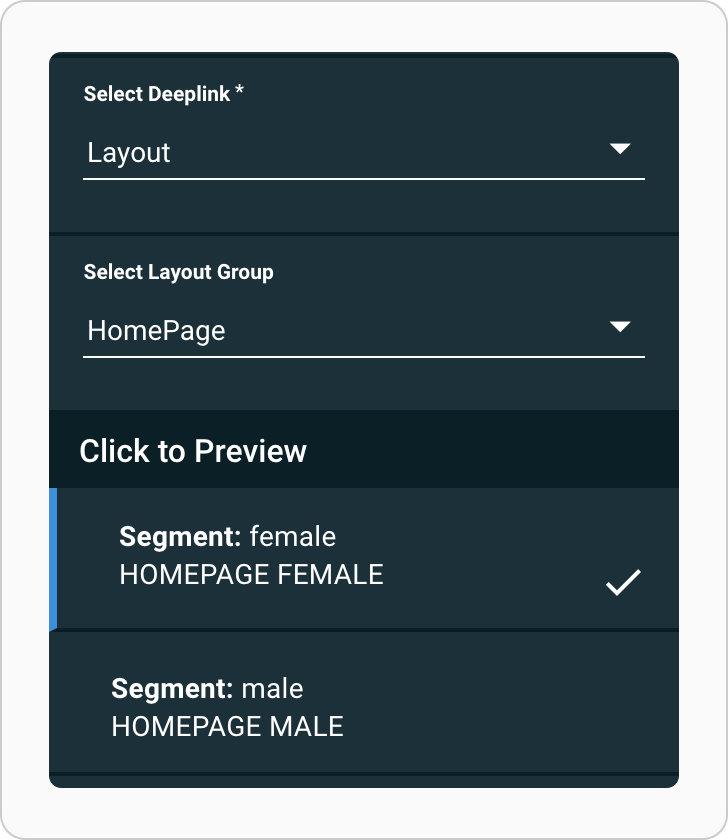
- For the tab's Deeplink type select Layout.
- Select a Layout Group from the dropdown.
- Save your changes.
The checkbox icon indicates the default layout that is shown when a user doesn't match any of the segments. The blue vertical bar to the left of the layout indicates which layout preview is currently being shown.
Deep Link to a Layout Group
To deep link to a layout group in the Layout Editor:
- In your app config, select a cell.
- Click Deep link from the toolbar.
- Go to .
- Under Layout Type, select Layout Group.
- Under Layout Group, select a group.
- Click Set and save your changes.