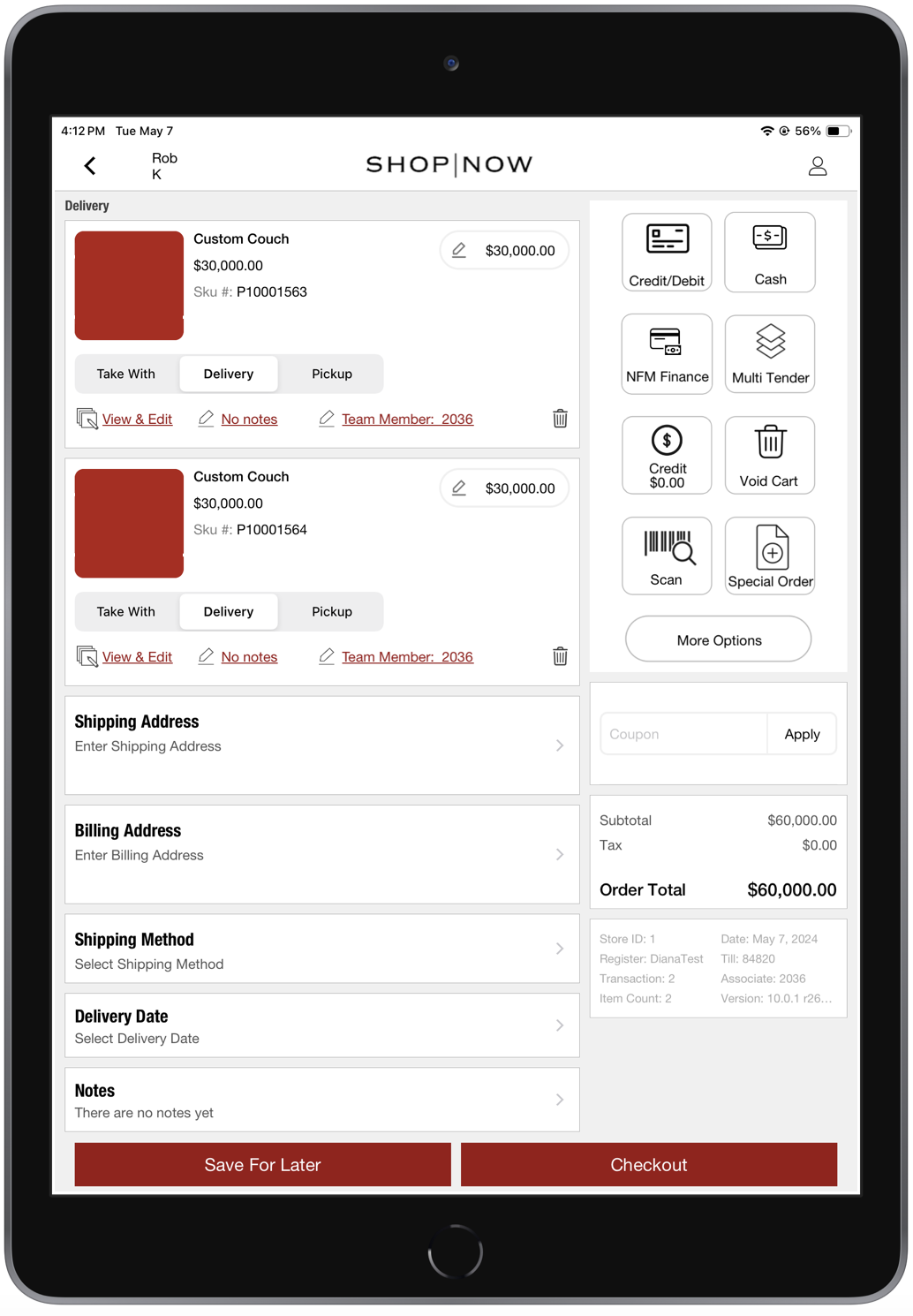
Add a copy button to your custom order layout in the POS app to quickly duplicate forms. Tapping the button creates a new form with all original input values, which can be edited and is automatically added to the cart. This feature streamlines order management for store associates, especially for similar items.
- Modern POS App Build: 10.0.1 or greater
- Platform Support: iPhone & iPad
- Offline Support: No
Configure Custom Order Layout
Add a copy button to your custom order layout.
- Create a custom order layout. For detailed instructions on how to do this, refer to Create Custom Orders on POS App.
- On the layout, add a button using the right toolbar. Go to .
- Under Button Text, input the text that will appear on the button in the POS app (for example, "Copy Form").
- Under Button Action, select Copy Not on File Product Form.
- Adjust any additional fields as needed to suit your requirements.
- Save your changes.
Test the copy button
-
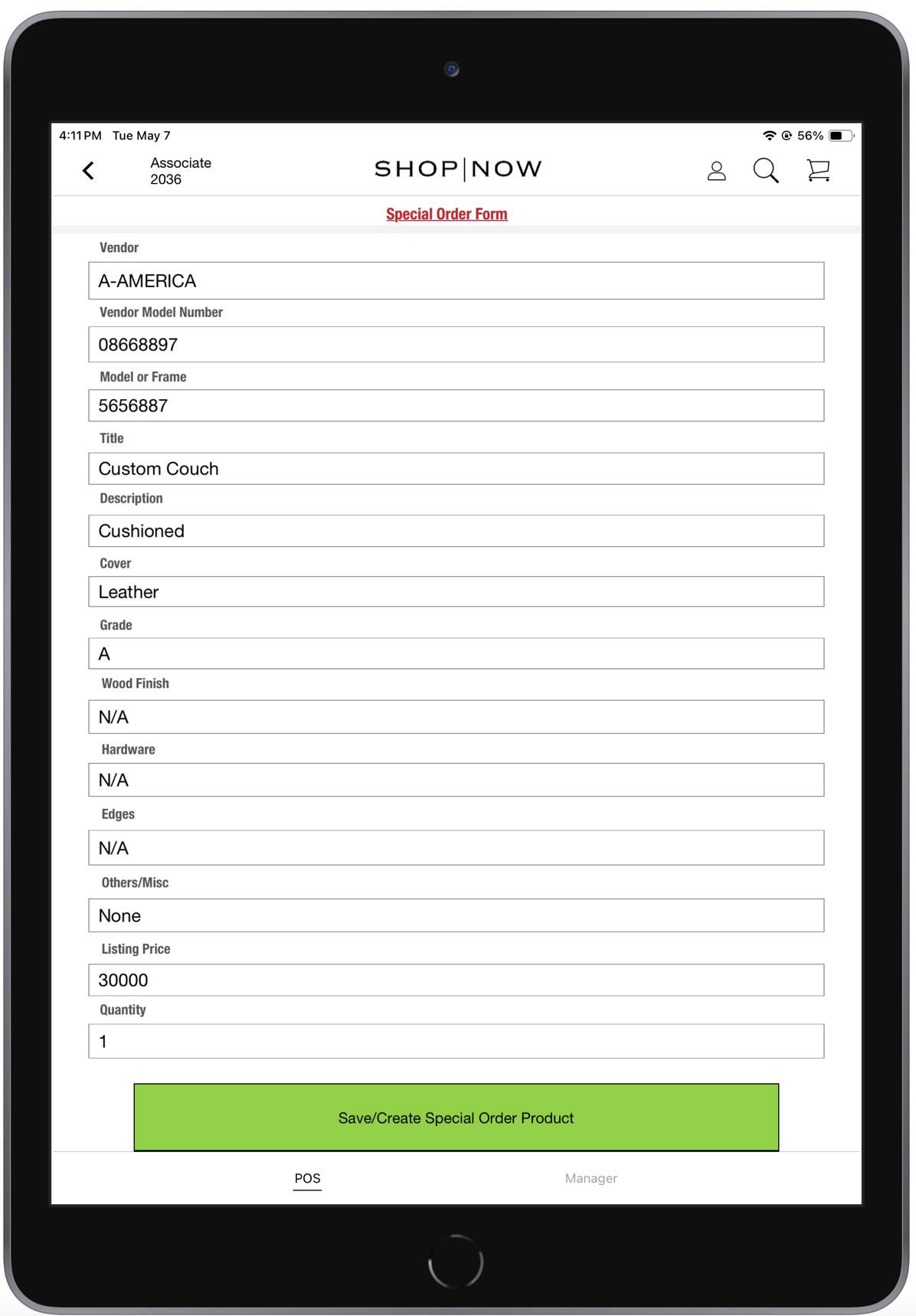
On the cart screen, tap the Custom Order deep link to launch the custom order layout. Complete the required fields and save your entries. The completed form will automatically be added to your cart.
-
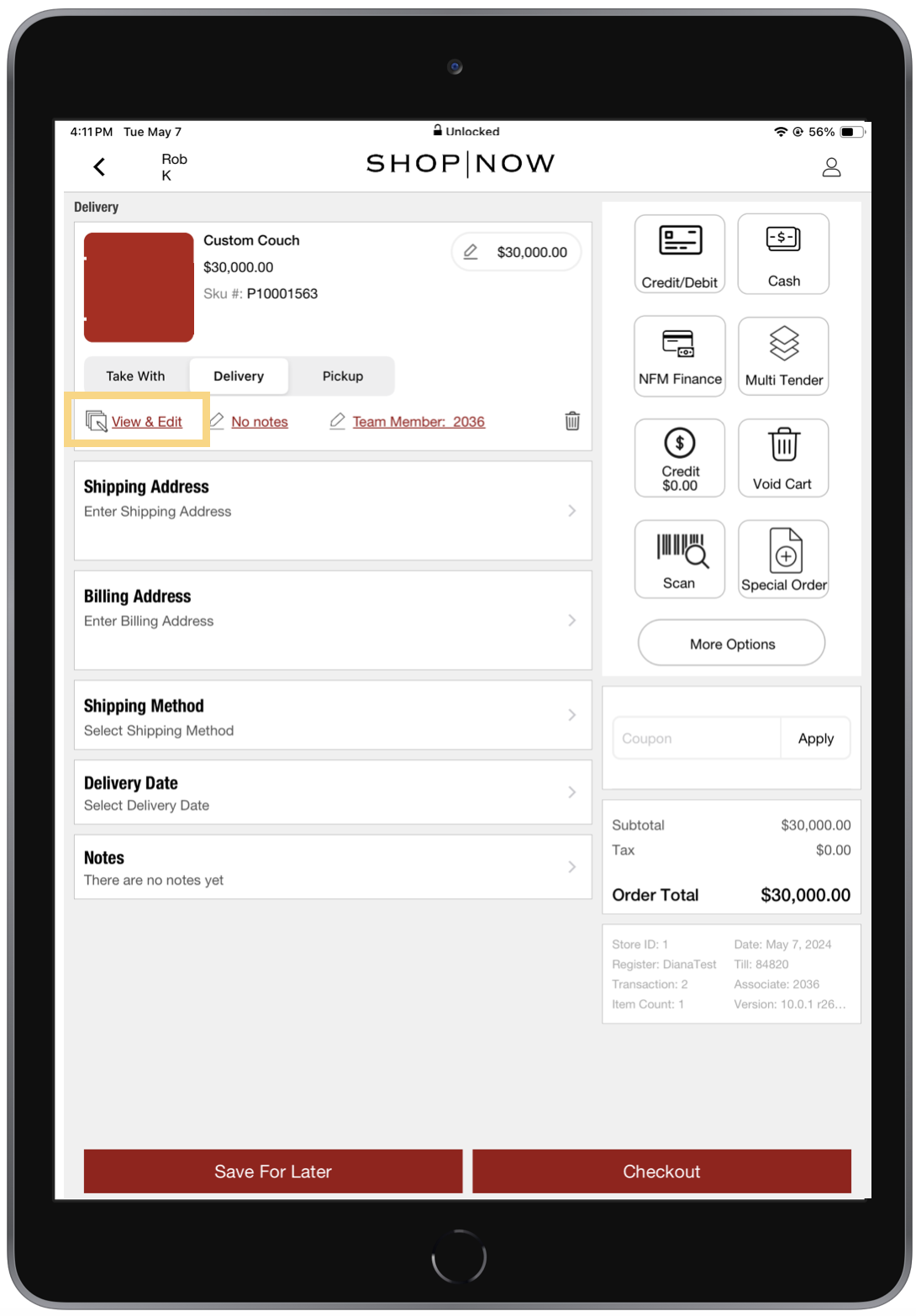
To copy the form, tap View & Edit under the item. This will open the form, pre-filled with the previously entered values, which you can edit as needed.
-
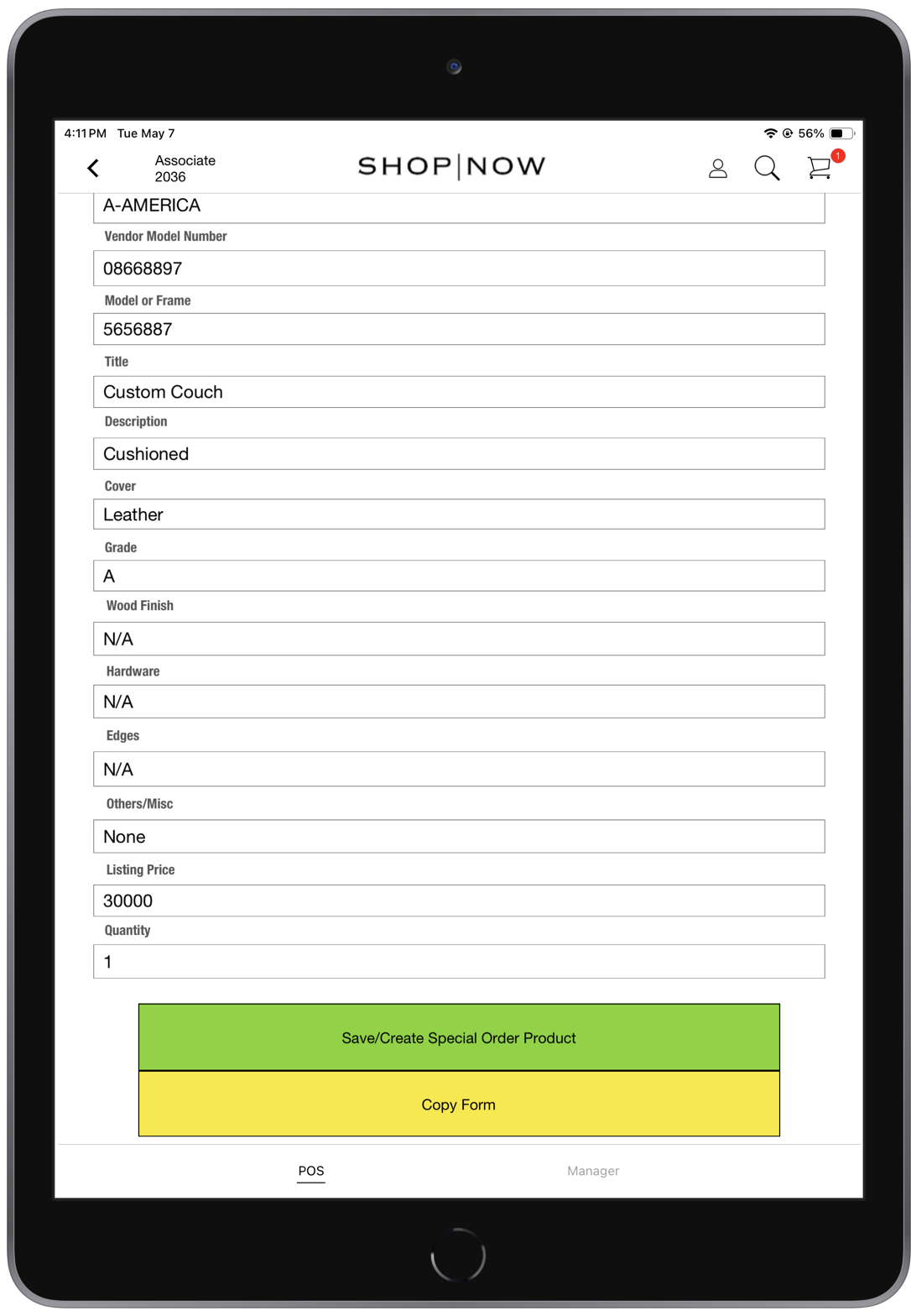
Next, tap the copy button. A message confirming a successful copy will appear at the top of the screen.
-
Save your changes to add the copied form to the cart.