
Point of Sale's Layout Editor helps ensure your app meets ADA compliance, enhancing accessibility with alternative text and a 75px by 75px touch target. This feature helps businesses serve all customers, including those with disabilities, by adhering to federal standards.
Check ADA Compliance
In the Layout Editor:
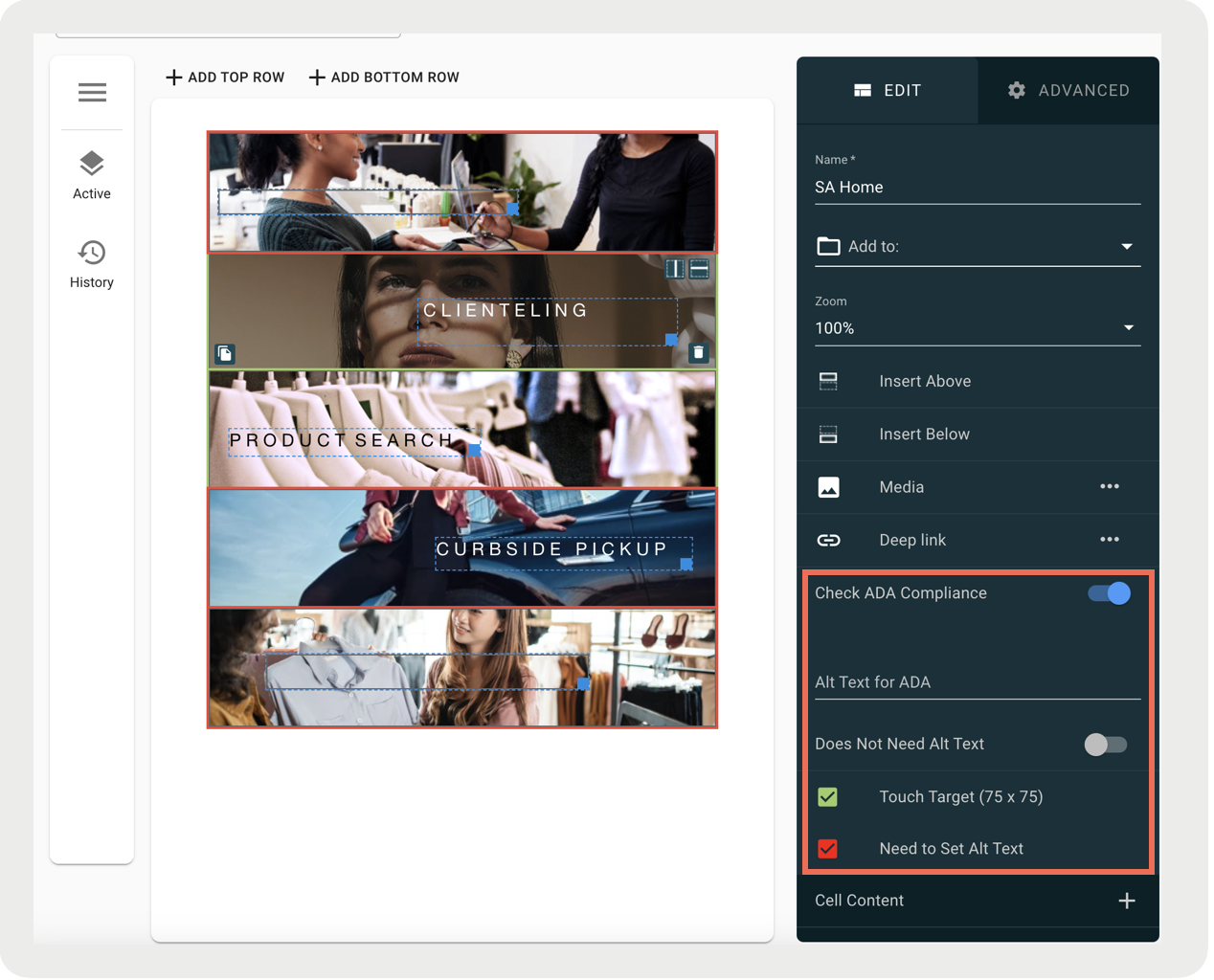
- Enable Check ADA Compliance in the first tab of the toolbar.
- The cells highlighted in green are compliant, while the red-highlighted cells aren't compliant.
- Select a red-highlighted cell to see what the compliance issue is. A red check-marked box indicates which is needed
Alternative Text
For ADA compliance, alternative text must be provided for images, audio files, videos, and all other non-text elements published online.
To add alternative text to a cell that contains an image:
- Select the cell.
- Enter Alt Text for ADA.
Decorative Cells
The screen reader should ignore cell types that are purely decorative (for example, dividers or blank cells).
- Select the cell.
- Enable Does Not Need Alt Text.
Quiz Answer Cells
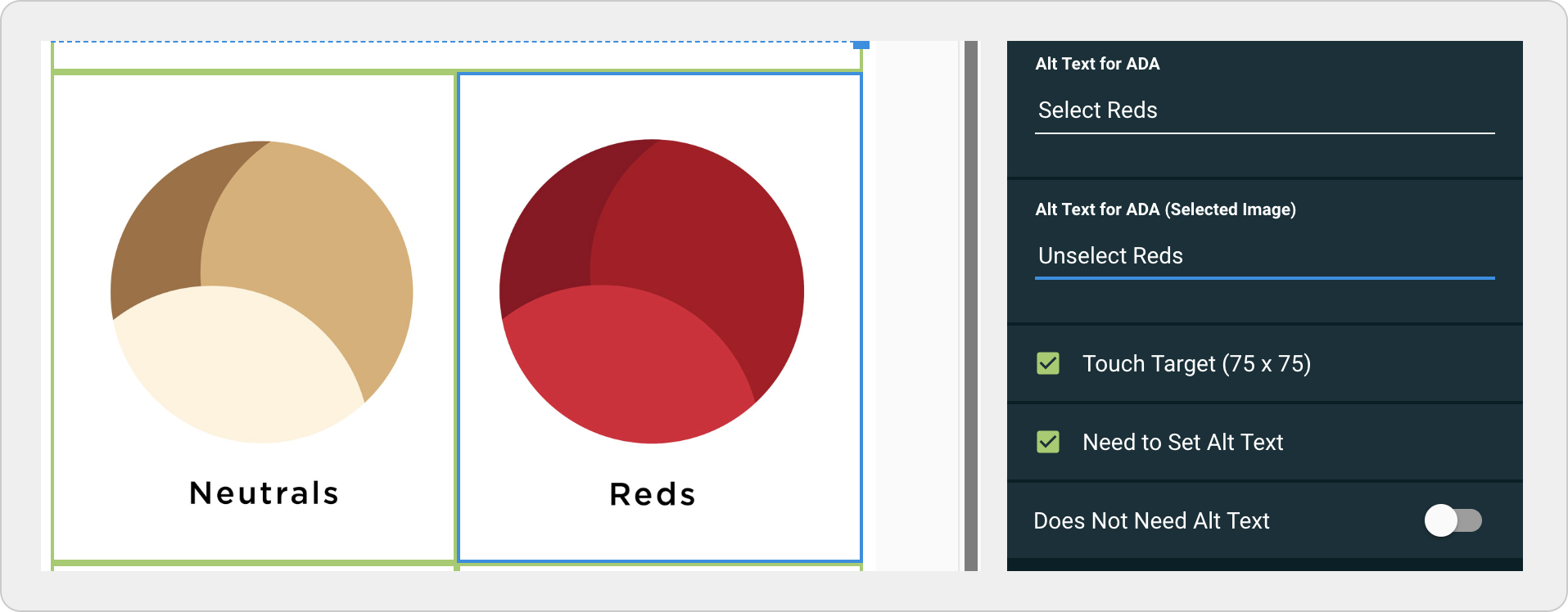
Because quiz answer cells have selected and unselected images, each cell should have two alternative texts.
- Select the quiz answer cell.
- Enter Alt Text for ADA.
- Enter Alt Text for ADA (Selected Image).
Touch Target Size
In addition to having alternative text for non-text cells, compliancy also includes adequate touch target size. Having a touch target too small may hinder the ability to interact with the app for those with disabilities. Clickable cells like deep links and form elements should be at least 75px by 75px. If you select a cell and a red checkbox appears next to the Touch Target, the cell height and width are less than 75 pixels.
- Select the cell.
- Set the row height or width to at least 75 pixels.
Additional Information
Information on other aspects of accessibility to consider.
Color Contrast
WCAG2 requires contrast to be a ratio of 4.5:1 for normal text and 3:1 for large text. Images and text that are created in layouts should comply with this standard. For more information, visit https://webaim.org/resources/contrastchecker/.
In-App Web Links
When launching a web link inside a Point of Sale iOS app, check that the web page is ADA compliant by its ability to allow the user to pinch to zoom.
Text Size
Text size options aren't configured in the Layout Editor. Rather, they can be adjusted on your Apple device by going to your settings and selecting Accessibility. The POS app will respect the settings by displaying a larger font and boosting the size of the layouts.
On the iPad, go to Settings > Accessibility > Vision > Display and text size.
For information on iPhone accessibility support, see the Apple Accessibility Support page.
Resources
The Point of Sale ADA compliance guidelines and features were developed in consultation with Mobile Accessibility: How WCAG 2.0 and Other W3C/WAI Guidelines Apply to Mobile https://www.w3.org/TR/mobile-accessibility-mapping/.