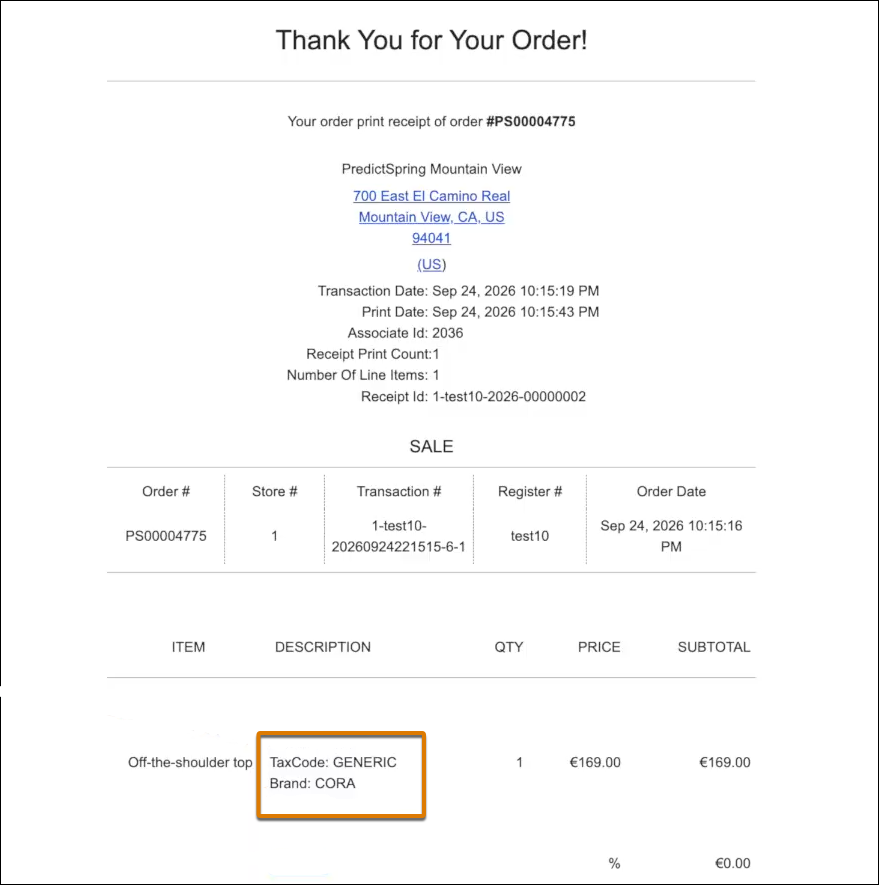
Print custom product attributes, such as tax codes or brand names, on Point of Sale receipts.
Map any product attribute, including custom fields like CustomString0, to a label that prints on customer receipts. The label prints as entered, and the app automatically replaces the attribute name with its value for each transaction.
- In CMS, go to , and under Modules, select Product.
-
In the Product Attributes to Include on Receipts field, enter a comma-separated list of label:attribute name pairs, where label is the text you want printed on the receipt, and attribute name is the attribute name as it appears in your product feed.
For example, enter Tax Code:CustomString0,Brand:BrandName. The receipt prints the labels Tax Code and Brand as entered. The app replaces CustomString0 and BrandName with the matching values from the product feed.
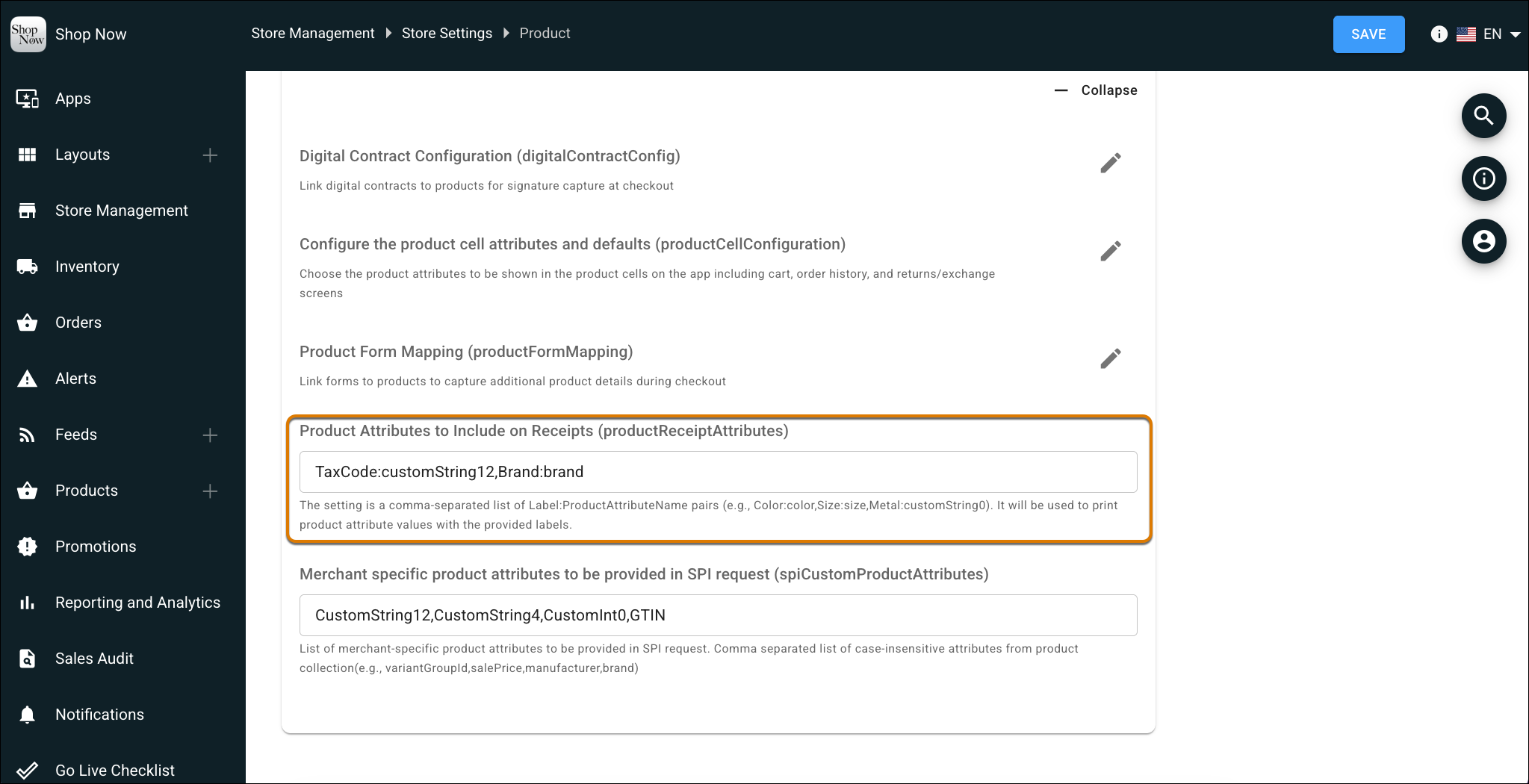
- Save your changes.
- To print the mapped attributes on e-receipts, go to , and edit a receipt template.
- In the product section of the template, add the {ProducReceiptAttributes} tag.
- To print the mapped attributes on printed receipts, go to , and open edit a receipt template.
- In the product section of the template, add the :ps_p_receipt_attributes tag.
- Save your changes.
Place a test order and trigger both an e-receipt and a printed receipt. Confirm that each mapped attribute prints with its label and the correct value. For the full list of Point of Sale receipt tags, see Comprehensive Print Tags List.