
Customize Point of Sale receipt appearance to match your branding and create a consistent customer experience. Control email receipt-sharing options so that you can ensure secure and efficient delivery. Format receipt content to highlight important information and improve readability.
- Modern POS App Build: 5.8.2 or above
- Platform Support: iPhone & iPad
- Offline Support: Yes
The configuration settings mentioned in this article are managed at the merchant account level.
Require Printer for Receipts
If you want to tie receipt functionality closely to whether a hardware printer is configured, you can do so in CMS by turning on the Requires Printer for Receipts setting.
Setting a Logo
- Go to the Receipt Configuration setting in your app config.
- Click EDIT (the pencil icon).
- Click the image icon to open the media picker.
- Select the image file you want to use as the header image and then click SELECT ASSET.
- Click the SET button at the bottom.
- Click the SAVE button at the top right.
Receipt Language Localization
To configure receipts in different languages, see Receipt Localization for more details.
Add PS Tags
There are multiple options for configuring tags for text substitution on receipts. Text substitution works by allowing users to format the way data will appear without knowing exactly what that data will be beforehand.
Example: You want to configure the receipt to
display the customer name above the address but you don't know what the name is beforehand. To
do this, you use :ps_first_name and :ps_last_name tags. The
current order will take the customer's information and format it correctly.
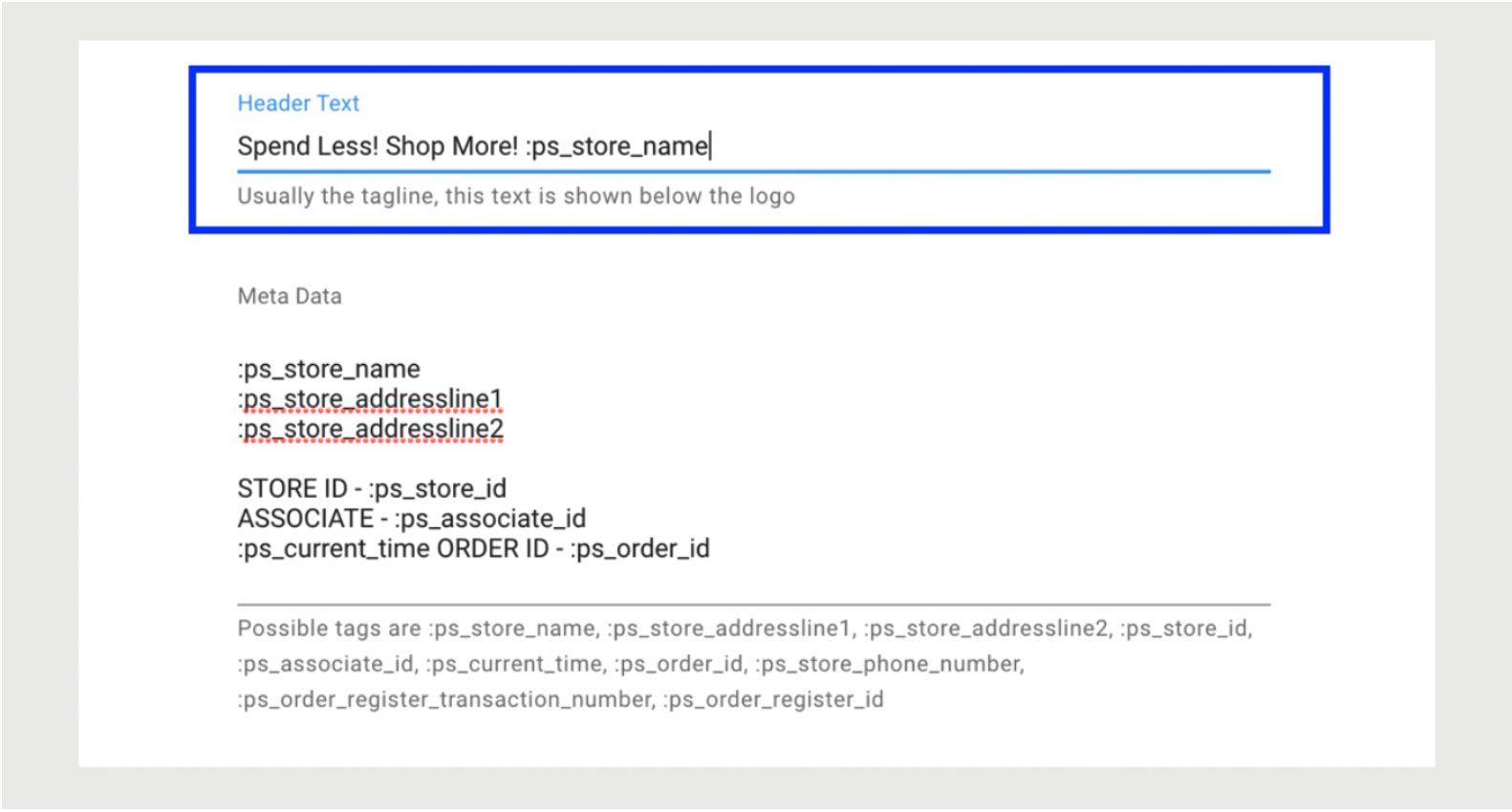
Tag Types
Refer to Print Tags Configuration for a comprehensive list of tags supported for receipt customization.
Printer Settings
You can set the number of characters per line depending on the printer type. This can be helpful to ensure content is positioned correctly within the printout and not running over to other lines.
Receipt Settings
Point of Sale provides setting that enable formatting and content changes to the receipt beyond text substitution.
| Setting | Description |
|---|---|
| Receipt Lines Keys |
This field takes a comma-separated list of the key names that will be included in the receipt. This is an example of a comma-separated list of all the possible values: txdate,txtime,pan,cardType,paymentMethod,paymentMethodVariant,posEntryMode,cvmRes,mid,tid,ptid,authCode,txRef,mref,txtype,totalAmount Leaving this field empty will default to all values shown on the receipt (i.e., the list in the example above). |
| Show Loyalty Details | Shows loyalty details on the receipt, That is, points earned and loyalty tiers. |
| Show Customer Profile Details In Header | Shows the customer profile details in the header (e.g., Name, Address, Email, Customer ID, etc.). |
| Show Transaction Header | Shows the transaction header above the product details section. |
| Show 'Card Holder Copy' | Shows the message Card Holder Copy above the transaction details. When toggling this on, it will reveal a text field to enter the desired message. |
| Show Section Separators | Shows a divider line between sections of the receipt. |
| Show Tender Details Under Total | Shows the tender details and amount, e.g., AMEX $439 |
| Show Receipt Barcode | Adds scannable barcode to receipt. |
| Show Customer Name | Shows the customer's name for the logged-in customer. |
| Show Payment Subheader Message | Shows a message such as Your Return Policy underneath the transaction totals. |
| Show Items In Columns | Shows items in three columns: Item Name, Number Of Items, Price. |
| Show Receipt with Compact Line Spacing | This setting defines whether a receipt line item will be in spaced out or compact mode. |
| Swap Total and Subtotal Order | This setting swaps the position of Total with SubTotal. |
| Show Variant Group ID | This setting displays the Variant Group ID next to the product line item. |
| VAT Included In Subtotal | This setting prevents the VAT value from being removed from the subtotal and removes the line item on the receipt to display the VAT value. |
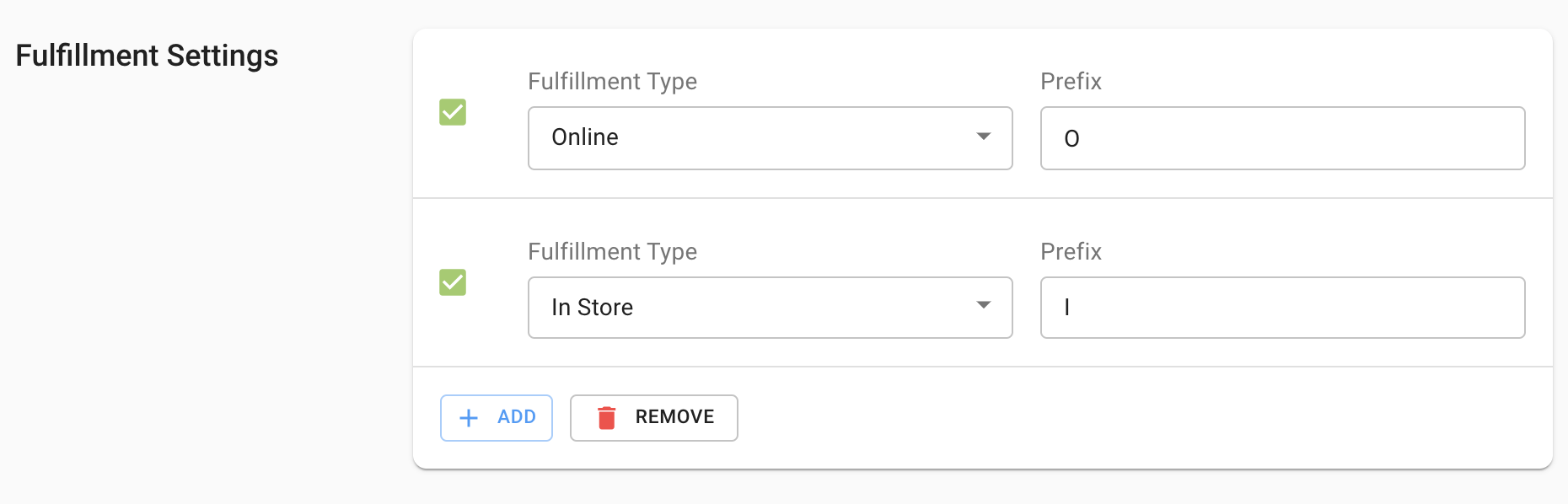
Receipt Customization for Fulfillment Types/Subtypes
The POS app allows specifying a prefix that will be added at the beginning of each product line item. This allows store associates to quickly identify the fulfillment type of each of the products.
For orders with products that all have the same fulfillment type and
subtype, the PSTags :ps_o_fulfillment_type and
:ps_o_sub_fulfillment_type can be configured to show the respective
information. Note that these tags do not apply to orders with mixed fulfillment
types/subtypes.
Receipt Layouts
After configuring and customizing receipts at a fundamental level, you have the opportunity to enhance the receipt further by configuring a receipt layout. With the receipt layout, you have the ability to determine what information will be displayed on the receipts, including store details, product information, store associate details, and more. It's important to note that configuring a layout can override app-level settings starting from v7.16.5.