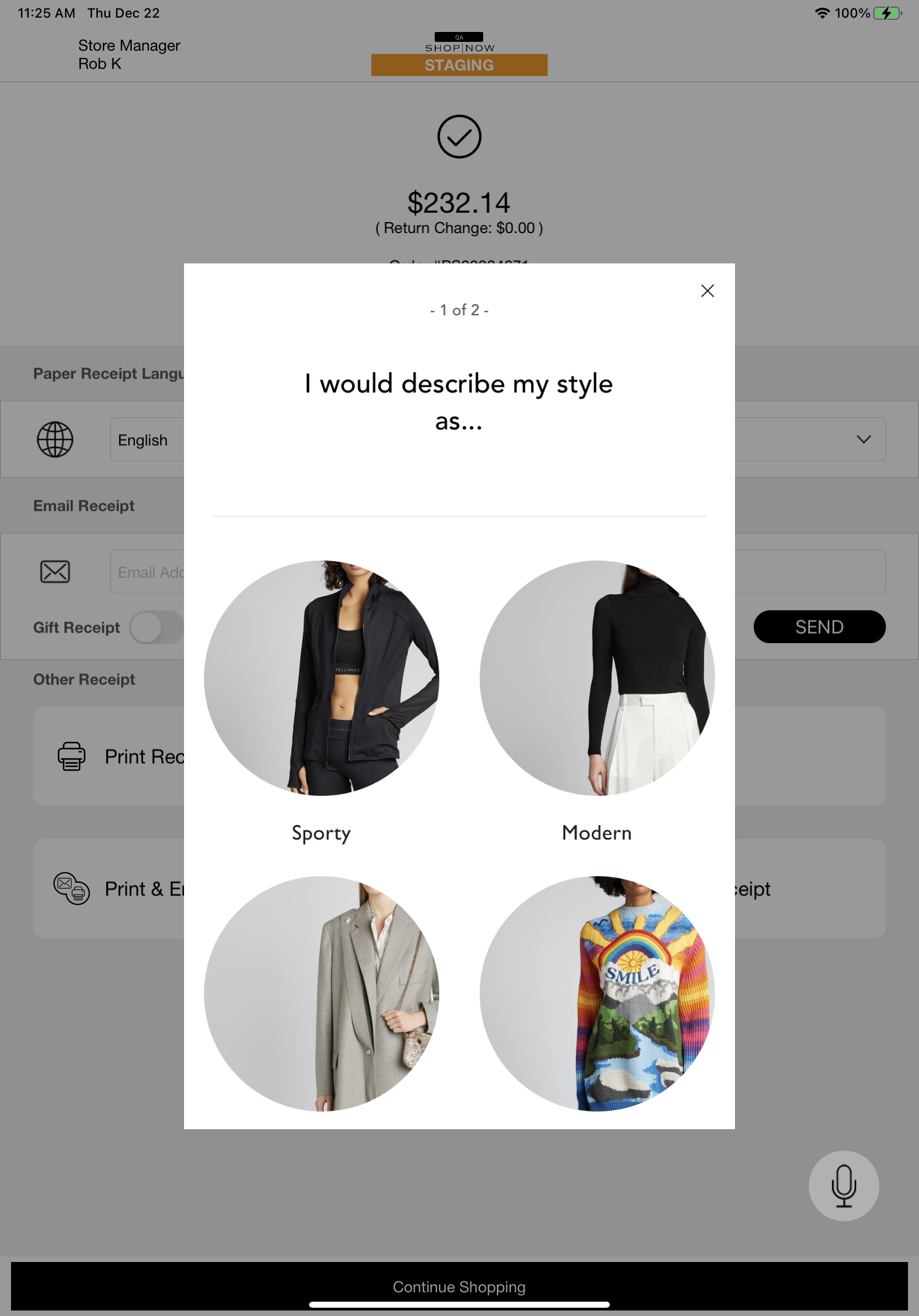
To collect additional information related to an order in the POS app during checkout, create quizzes that appear either just before tendering payment or just after an order is placed.
- Modern POS App build: 8.7.1 or above
- Platform Support: iPhone & iPad
- Offline Support: No
- Technical Prerequisites:
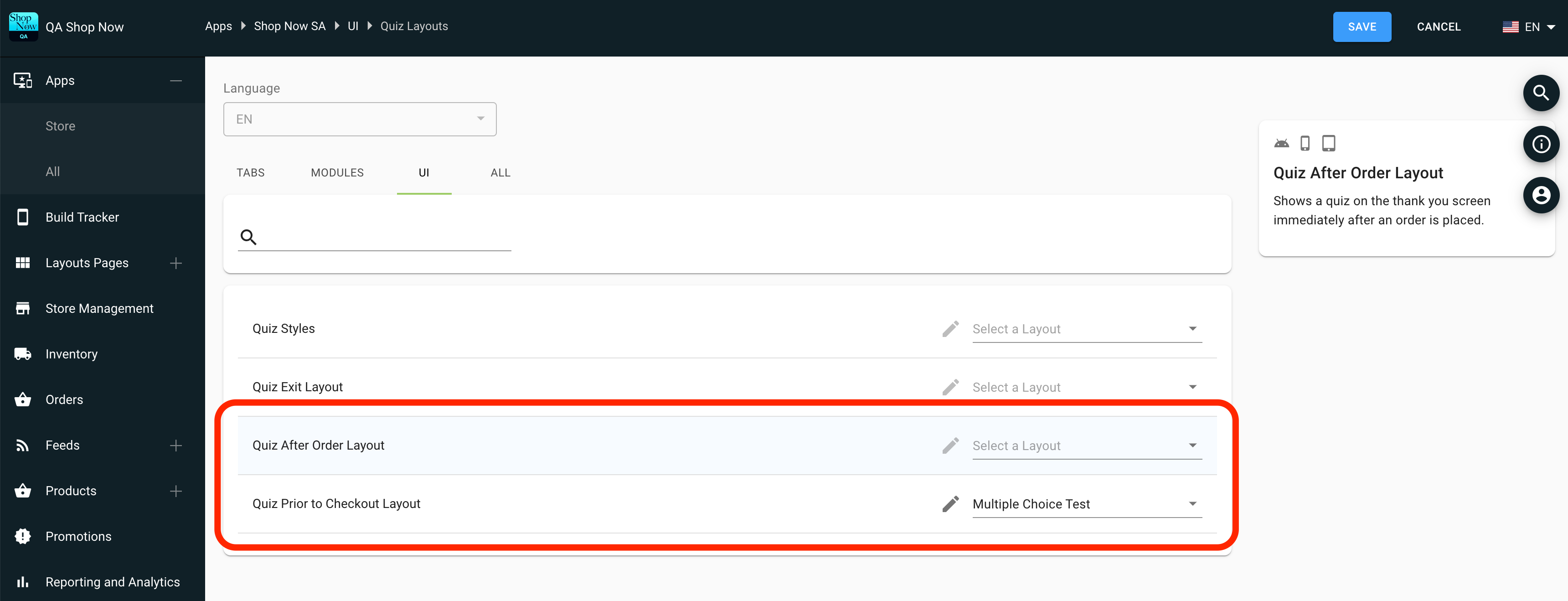
- For the Checkout Quiz to appear, a quiz must be created and set as the CheckoutQuizLayout in the CMS for the build in question.
- For the Order Success Quiz to appear, a quiz must be created and set as the OrderSuccessQuizLayout in the CMS for the build in question.
The two quiz layout types that can be used for this are:
- Quiz Prior to Checkout Layout - shown just before tendering.
- Quiz After Order Layout - shown just after a successful order.

See Also
POS Behavior
Learn about how checkout quizzes work in the POS app.
Quiz Prior to Checkout Layout
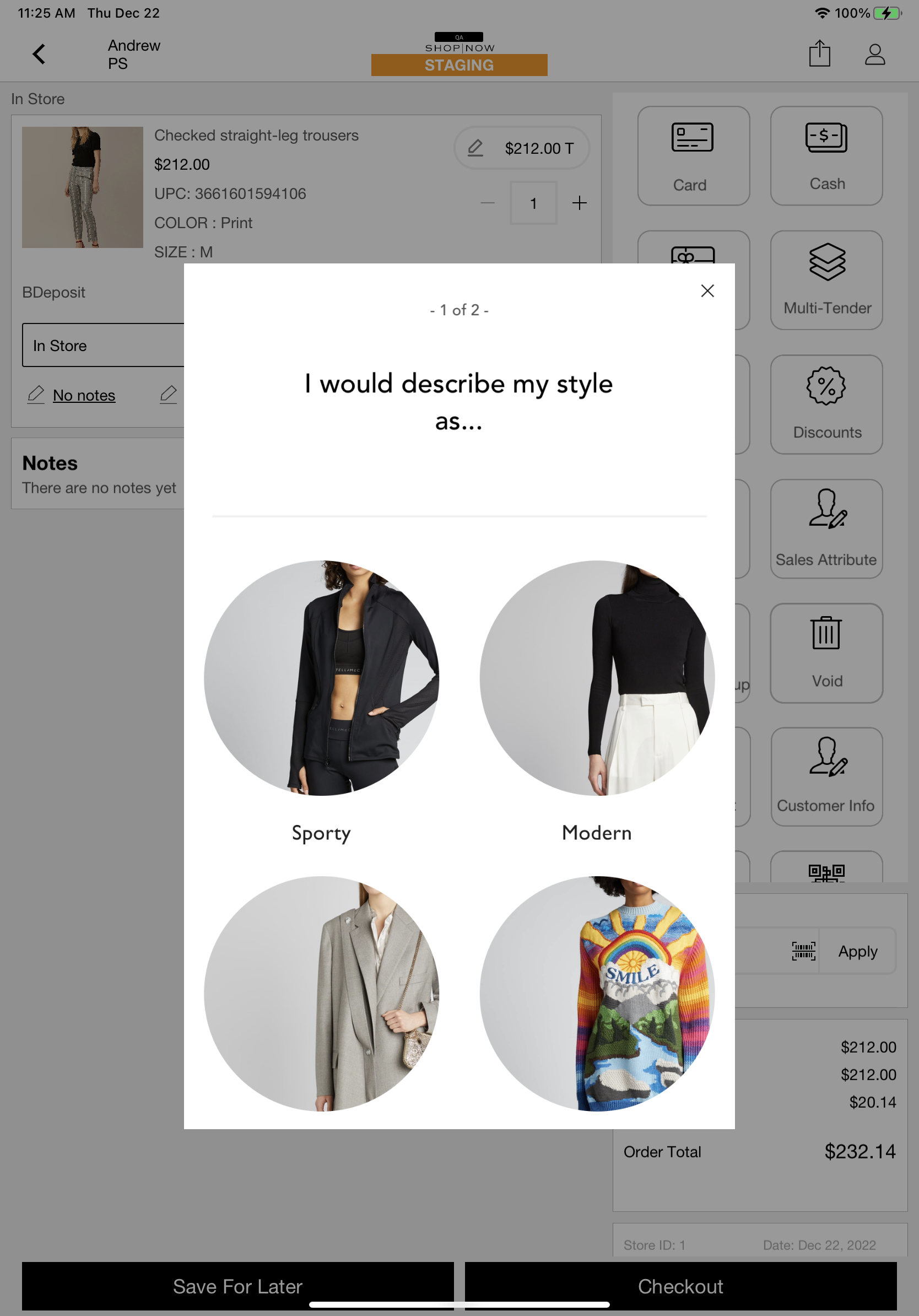
When a Quiz Prior to Checkout Layout is set from the CMS, it will be shown in an interstitial anytime the user attempts to tender payment on a new cart. Once the quiz has been completed for a given cart, it will not be shown again until a new cart is created. The user may dismiss this interstitial when it is shown, but once tendering is initiated again, the quiz will be shown again.
Quiz After Order Layout
If an app config has a Quiz After Order Layout set from the CMS, it will be shown in an interstitial on the right when the order success screen is shown for each successful order. The user may dismiss this interstitial without completing the quiz.