Create effective quizzes in the POS app that engage users and gather valuable insights. Follow these best practices for designing multipage workflows, providing clear answer summaries, and optimizing answer layouts. These guidelines help you build quizzes that are user-friendly and provide actionable data.
Multi-Page Workflow
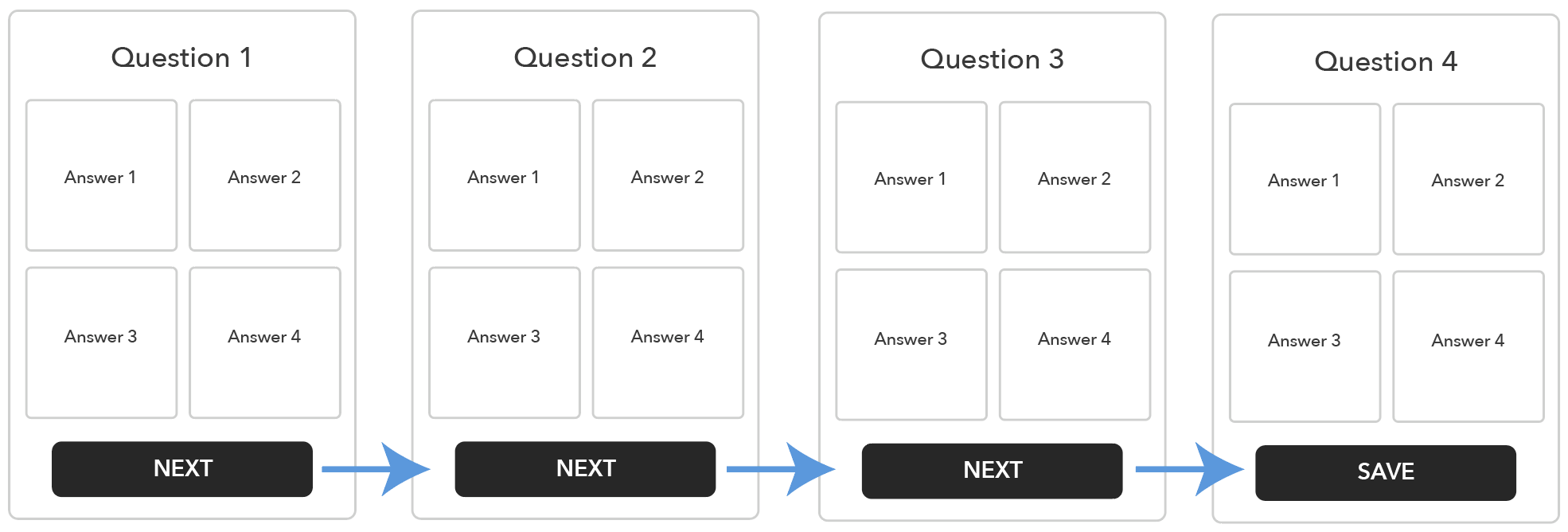
If you create a quiz with multiple pages, it's helpful to understand the user flow. As an example, say that you create a quiz with four pages and one question per page. The first three pages will have the NEXT button and the last page has a SAVE button that saves the answers.
When the user takes the quiz for the first time, they see this flow:
Answer Summary
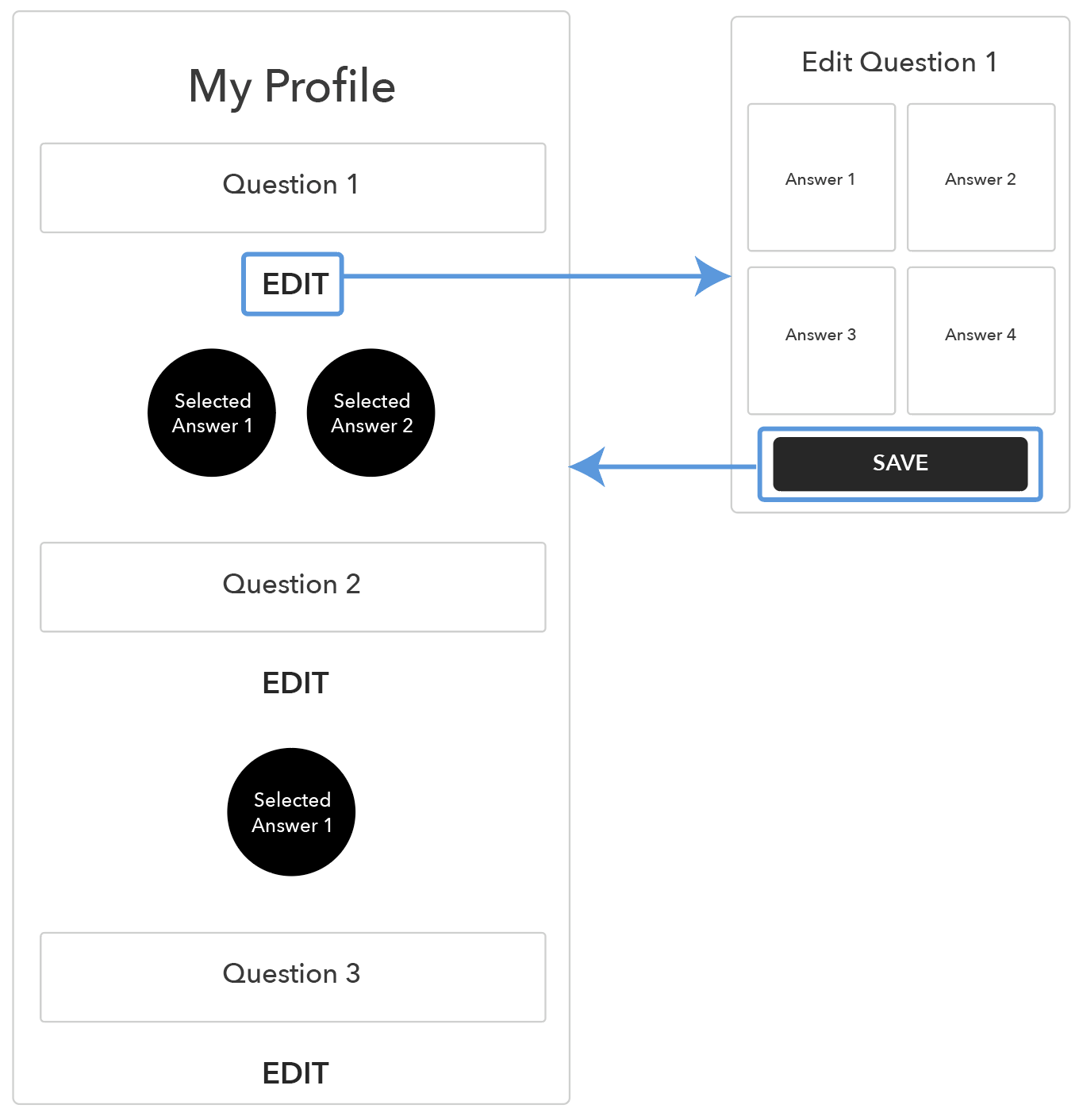
When creating a quiz, you can specify whether you want to generate a layout that displays the user's answers. A use case for an "Answer Summary" layout would be if you want to create a "My Profile" page. After the user completes the quiz, the user would be taken to the "My Profile" (that is, Answer Summary) Layout.
Edit Answer Layouts
If you decide to include an answer summary layout, you can additionally specify whether to include "Edit Answer" layouts. These layouts allow the user to edit individual questions from the "Answer Summary" page without having to go through the multipage workflow. Using the "My Profile" example from above, the "Edit Answer" layouts could be used to allow the user to edit specific profile attributes. Each EDIT button takes the user to a Layout for that specific question. The SAVE button on the edit question layout takes the user back to the profile page.