
Launch images appear on the screen immediately after the POS app loads. Configuring these images in the CMS provides a fresh look and feel without requiring a new build. Using CMS to configure the launch images lets you quickly update the look and feel of the application. You can keep the application current without the overhead of managing application updates.
Previously, configuring Launch Images required that you upload files that adhered to a rigid naming convention. Managing these images in the CMS has been simplified and no longer requires that you adhere to a naming convention.

-
In CMS, go to .
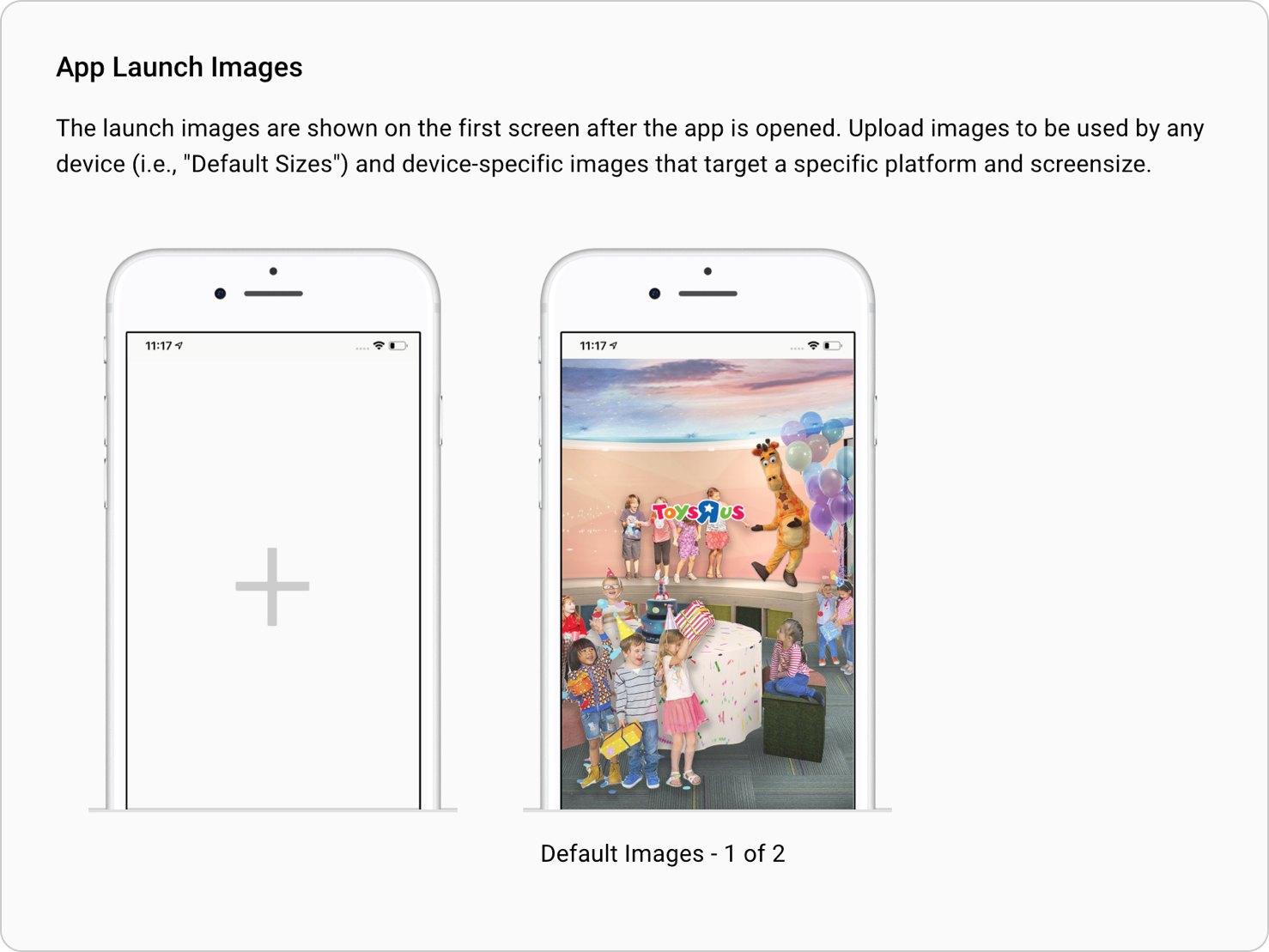
- Click the Plus icon to create launch images for the first time or to add new sizes OR click the Edit icon to edit existing launch images.
- Click the Plus icon.
- Click SELECT FILES and select the images on your computer.
- (Optional) Drag the files into the desired order.
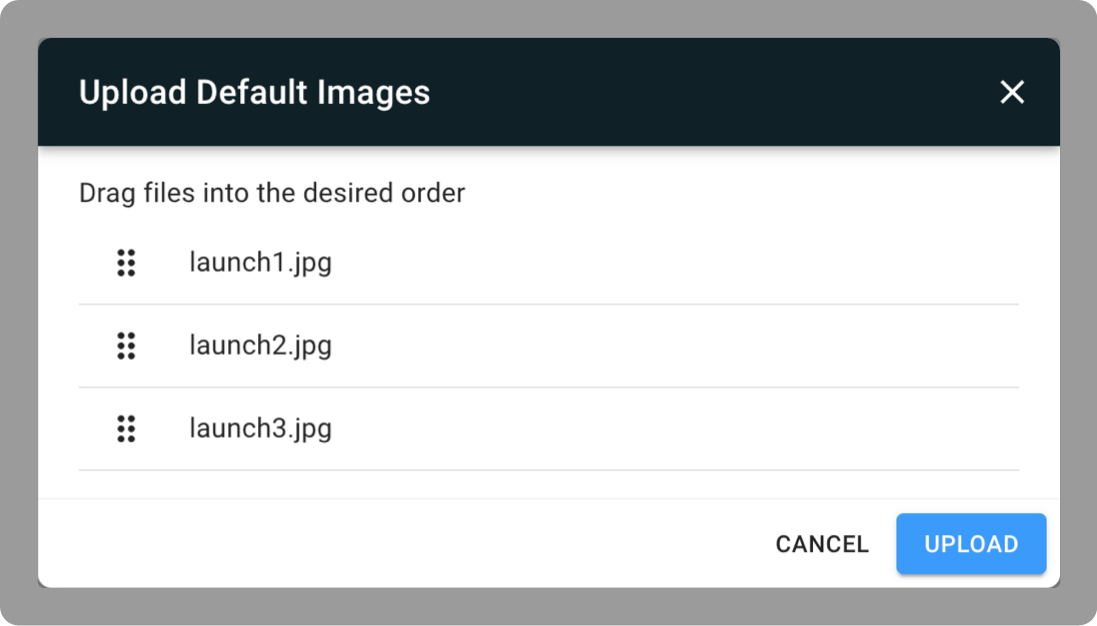
-
Click UPLOAD.
 Important Images must be uploaded in JPG format.
Troubleshooting
All image sizes must be updated when swapping launch images
If you do not create replacement images for all existing launch image sizes users can be served old images.
Consider this scenario:
- You have uploaded a 2048px x 2732px and a 1668px x 2224px size image
- Some time goes by and you update the 2048px x 2732px image
The above will result in users on 1668px x 2224px screens to still get the old image.