Custom fonts help you extend your brand to the POS app. Upload your fonts to match your company's brand guidelines, and use CMS to select them. You can then customize your app with your specific fonts.
- App Build: Any
- Platform Support: iPhone, iPad
- Technical Prerequisites:
- Font files in TTF format must be supplied
- A valid license for each custom font for use within an app setting (i.e., iOS) must be provided
Once you have completed the technical prerequisites contact Salesforce Customer Help to obtain a new app build. Fonts must be packaged with your app, so a new build will be required. Include the font files and any licenses.
Once your build is ready you can use the CMS to configure Layouts, and various UI elements to use your custom font.
Add Custom Fonts to Text (HTML) Overlays
- Go to .
- Select a layout to edit or create a new one.
- Click on ADD TOP ROW.
- Click into the created cell.
- Click .
- Double-click the text overlay in the cell.
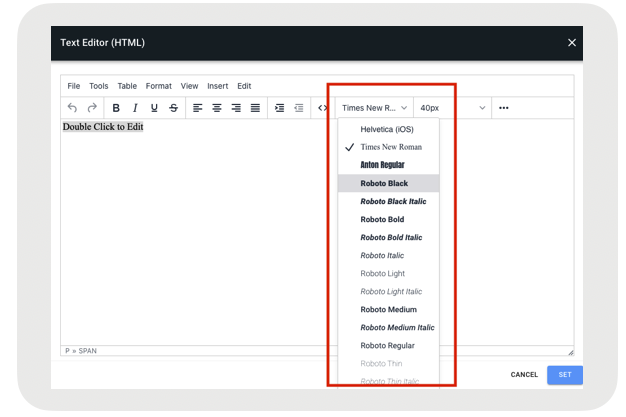
- Highlight the text in the editor, and click the font menu.
- Select a font from the menu.
Add Custom Fonts to Text (Native) Overlays
- Go to .
- Select a layout to edit or create a new one.
- Click on ADD TOP ROW.
- Click into the created cell.
- Click .
- Double click the text overlay in the cell.
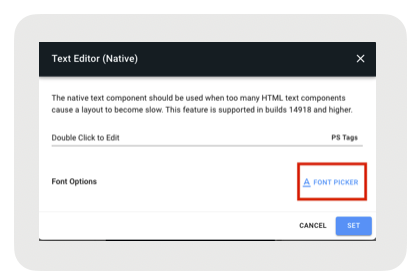
- Click the FONT PICKER button.
-
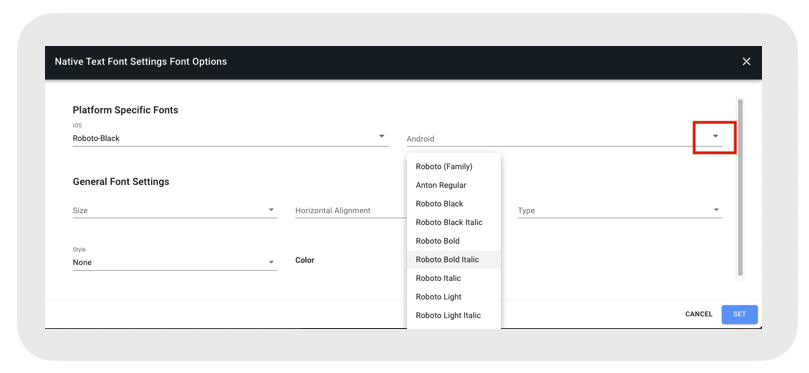
Select a font from the FONT PICKER popup (see the using the Font Picker Popup
section).
Customize UI Elements
Various UI elements can be styled with custom fonts in your app. In this walkthrough, we will use a custom font for temporary dialog display boxes that your app might display, but these steps can be applied to any settings that support font options.
- Go to an App Config by clicking Apps > All in the left menu.
- Select an App by hovering and clicking edit.
- Click the UI tab, and then Click the UI Options module.
- Find the ButterBox Font Settings.
- Click the FONT SETTINGS button.
- Use the FONT PICKER popup to configure your font (see the using the Font Picker Popup section).