
Learn how to create and publish layouts using the Point of Sale Layout Editor, including starting from a blank layout or a template, and managing live versions, drafts, and scheduling. Discover how to edit, save, publish, and restore layouts, ensuring your content is always up-to-date and tailored to your needs.
See Layout Editor to learn about the core building blocks within a layout (i.e., rows and cells).
Creating a Layout
You can create a blank layout or base it on a template.
Blank Layout
To create a layout from scratch:
- In the CMS, go to Layouts > All Layouts.
- Click Add Blank Template.
From a Template
To create a layout from a template:
- In the CMS, go to Layout Pages > All Layouts.
- Click Add From Template.
- Select a template.
- Enter a font name and click CREATE.


Viewing or Editing a Layout
In the CMS, go to Layout Pages > All Layouts.
Hover over a layout and click EDIT.
Search & Pagination Controls:
In the Layout Editor, to view the next page of layouts, click the right arrow icon in the top right of the screen. You can also search for layouts by typing into the search field.
Live Version and Drafts
The Layout Editor supports versioning and scheduled publishing. There is always one "Live" version of the layout, which is what you will see when you load the app. The different versions of the layout can be viewed and accessed from the versions panel.
Once the versions panel is open, you can view drafts or history. The current layout that is being displayed is highlighted in blue. The "Live" layout has a green icon and draft layouts have a gray icon.
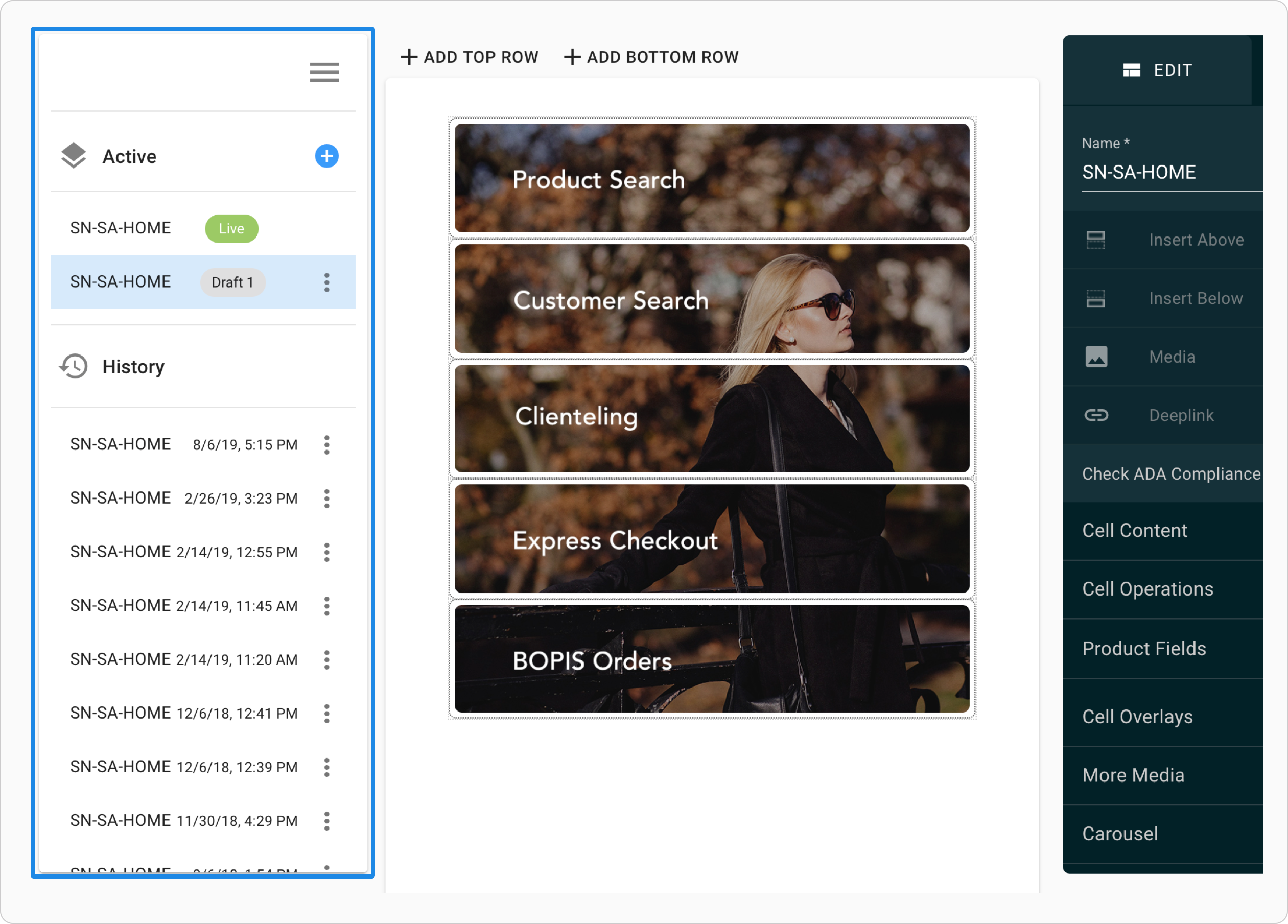
When the drawer is closed, you can tell if you are working on a draft layout or the live one by looking for the "Live" icon in the header.
Saving, Publishing, and Scheduling
Publishing a Layout
You can save and publish a layout with one click by clicking PUBLISH NOW in the top right of the screen (you will still see a confirm dialogue). If you relaunch the app, you will see the changes in the app.
Saving a Layout
The SAVE button always saves the layout as a draft. The changes are not visible in the app. If you are on a draft then the current draft is saved. If you are on a "live" or "history" layout and click SAVE then a new draft is created.
Scheduling a Draft to Be Published
To schedule a draft to be published at a specific time and date, edit the layout and go to the draft's tab:
- Click the dropdown next to Publish Now.
- Click SCHEDULE.
- Enter a time and date in the future.
- Click SCHEDULE.
Drafts that are scheduled to be published display the publish time in the toolbar. The changes can still be made to the draft without affecting the publishing schedule.
Restoring a Previous Version of a Layout
- Edit the layout.
- Open the versions panel.
- Select the previous version of the layout under History.
- Click PUBLISH NOW.
Copying a Layout
To create a copy of an existing layout (drafts and published), refer to Copy Tools.
Deleting a Layout
To delete a new layout:
- Click LAYOUT PAGES from the CMS homepage or go to Layout Pages > All Layouts.
- Hover over the preview and click the Delete icon.
Troubleshooting
If you encounter any issues while configuring or publishing your layout, reach out to Salesforce Customer Support. Copy LayoutJson is a debugging tool used by Salesforce team members to extract layout JSON data for debugging purposes. This tool simplifies the process of identifying and addressing layout-related issues, such as incorrect app configurations in the POS app.