---
schema_version: "1"
id: d06069816c2c8bd2a65123ee5ed8792bd216184b97b79beeb21e23e0ed31b36c
title: Create a Home Layout
collection: admin
version: current
locale: en-us
portal_url: https://docs.salesforce.com/admin/current/en-us/commerce/264-0-0/rt_cms_layouts_manage_home.md
canonical_url: https://help.salesforce.com/s/articleView?id=commerce.rt_cms_layouts_manage_home.htm&release=264.0.0&type=5
source_site: help.salesforce.com
content_type: documentation
content_hash: 06a0a672665c2d08dcc5981135b920fe18dbde5cbd302f7a918c7d7eff1b67c9
description: Learn how to design a visually engaging Point of Sale app home page with a GIF, text overlay, padded image, and carousel. Enhance user experience by integrating dynamic elements and clean layout techniques.
products:
- Commerce
release: "264"
---
# Create a Home Layout
Learn how to design a visually engaging Point of Sale app home page with a GIF, text overlay, padded image, and carousel. Enhance user experience by integrating dynamic elements and clean layout techniques.
Before going through this article, it is recommended that you read the related articles.
- For information on creating a category layout with six images and product search deep links, refer to [Create a Category Layout](https://help.salesforce.com/s/articleView?id=commerce.rt_cms_layouts_manage_category.htm&release=264.0.0&type=5 "Learn how to design a visually engaging category page in Point of Sale that contains six images and product search deep links.") .
- For information on defining the content and behavior of cells, refer to [Cell Configuration in Layouts](https://help.salesforce.com/s/articleView?id=commerce.rt_cms_layouts_manage_cell_config.htm&release=264.0.0&type=5 "Learn about the different ways that cells can be configured in Point of Sale layouts with content and interactive behavior.").
- For information on how to create and edit rows and cells within a layout, refer to [Layout Editor](https://help.salesforce.com/s/articleView?id=commerce.rt_cms_layouts_manage_editor.htm&release=264.0.0&type=5 "Easily manage and customize your layout in Point of Sale with powerful editing tools. Add, insert, resize, and delete rows and cells, and adjust cell padding for precise control. Enhance user experience with features like Paginate for full-screen views, override app config settings for tailored UI options, and Snap to Grid for accurate overlay alignment.").
- For information on creating and publishing layouts, refer to [Create and Publish Layouts](https://help.salesforce.com/s/articleView?id=commerce.rt_cms_layouts_manage_process.htm&release=264.0.0&type=5 "Learn how to create and publish layouts using the Point of Sale Layout Editor, including starting from a blank layout or a template, and managing live versions, drafts, and scheduling. Discover how to edit, save, publish, and restore layouts, ensuring your content is always up-to-date and tailored to your needs.").
This article walks you through creating a home as shown in this image.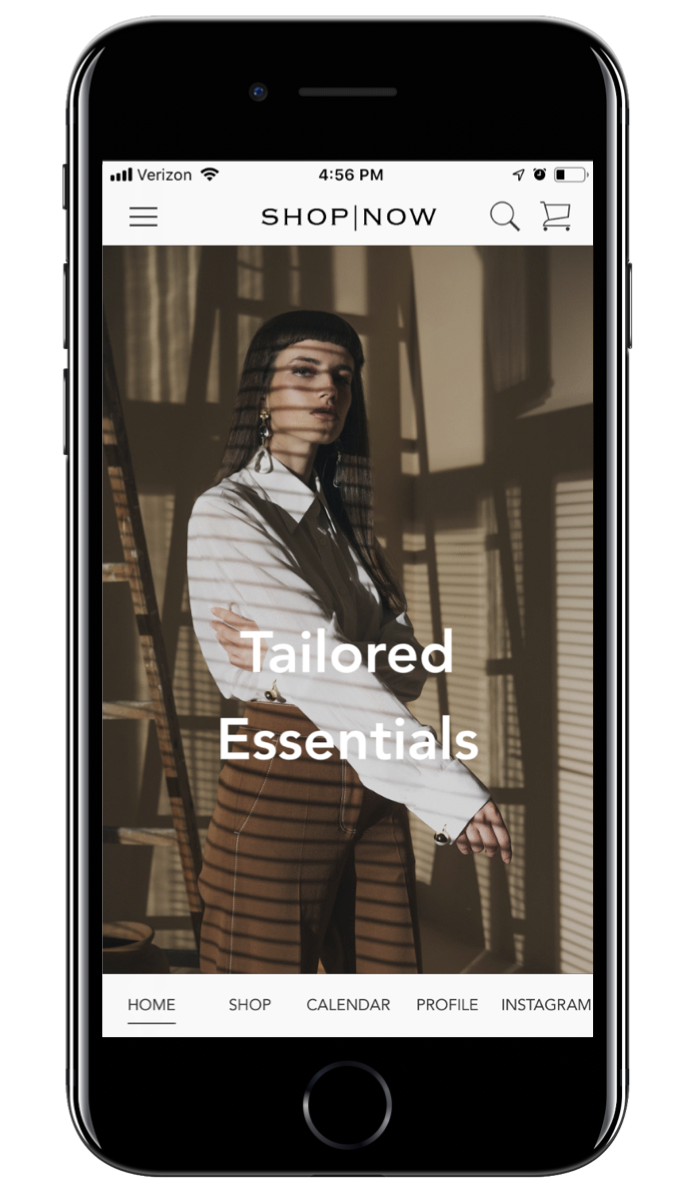
## Step 1: Create a Blank Layout
1. Click **LAYOUT PAGES** from the CMS homepage or go to **Layout Pages** | **All Layouts**.
2. Click **Add Blank Template.**
3. Enter a name for the layout in the toolbar.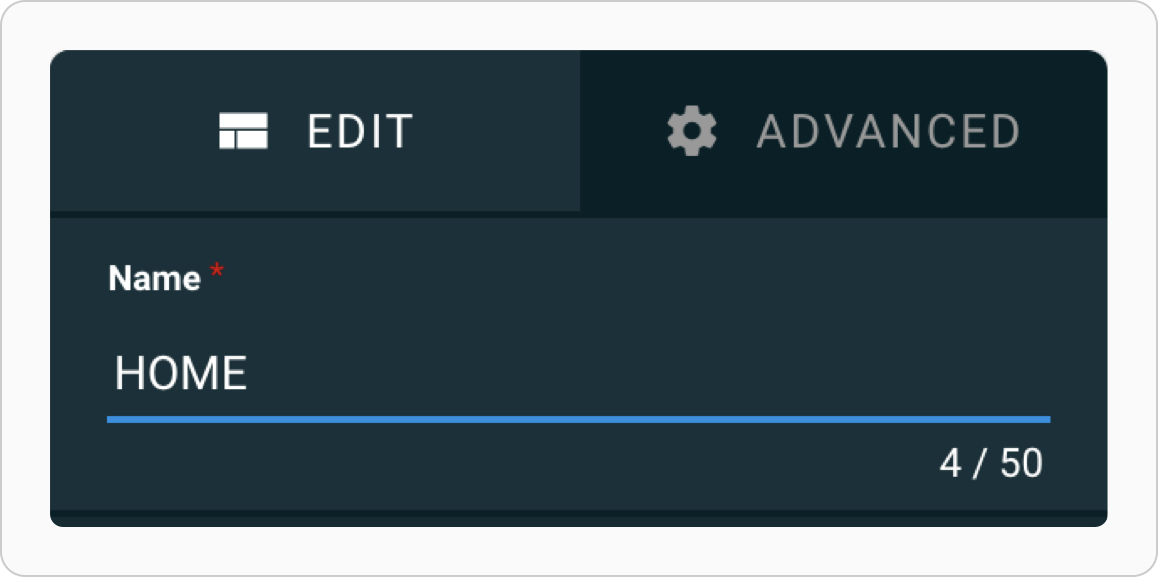
## Step 2: Override the App Config Settings
1. Select the ADVANCED tab in the toolbar.
2. Expand UX.
3. Enable **Override App Config Settings**. This ensures that there is no margin around the cells regardless of what the app config settings are.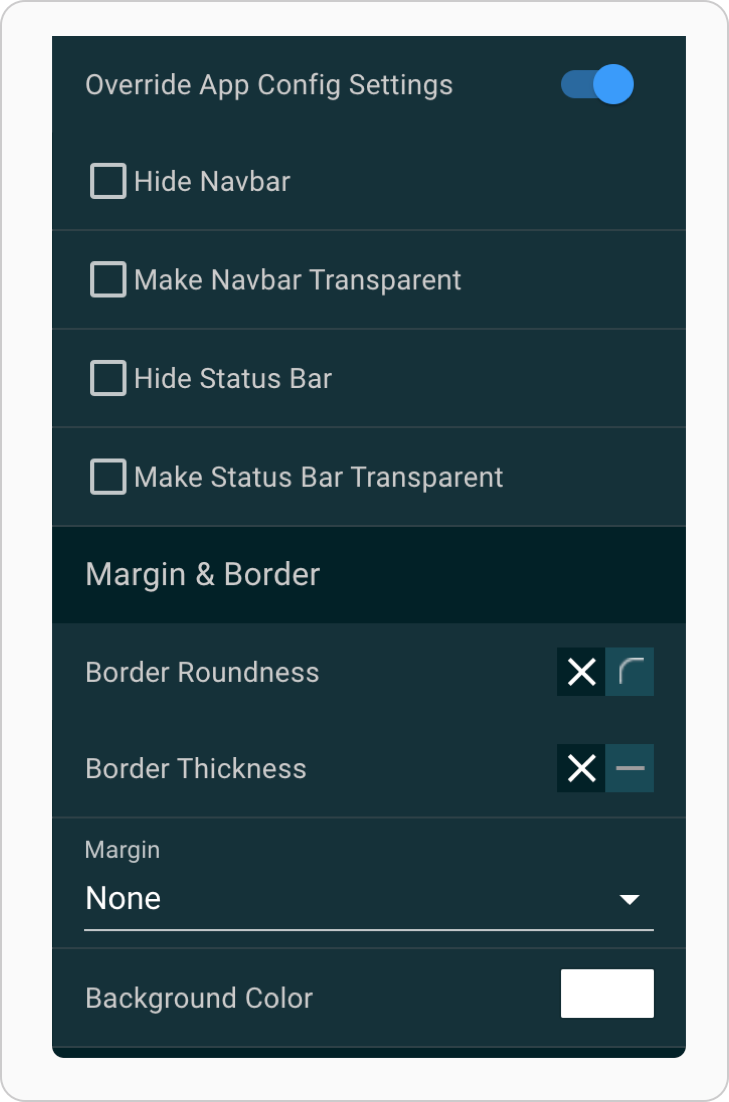
## Step 3: Upload the Images
1. Download these images: [Carousel-1](https://resources.docs.salesforce.com/rel1/doc/en-us/static/misc/carousel-1.jpg), [Carousel-2](https://resources.docs.salesforce.com/rel1/doc/en-us/static/misc/carousel-2.jpg), [Carousel-3](https://resources.docs.salesforce.com/rel1/doc/en-us/static/misc/carousel-3.jpg), [Home-1](https://resources.docs.salesforce.com/rel1/doc/en-us/static/misc/home-1.gif), [Home-2](https://resources.docs.salesforce.com/rel1/doc/en-us/static/misc/home-2.png), [Home-3](https://resources.docs.salesforce.com/rel1/doc/en-us/static/misc/home-3.png), and [Home-4](https://resources.docs.salesforce.com/rel1/doc/en-us/static/misc/home-4.png). Alternatively, you can use your images.
2. Select the blank cell.
3. Expand More Media in the toolbar.
4. Click the Create New Folder icon in the top left of the Media Library.
5. Enter a name and press the Save icon.
6. Drag the images into the Media Library window.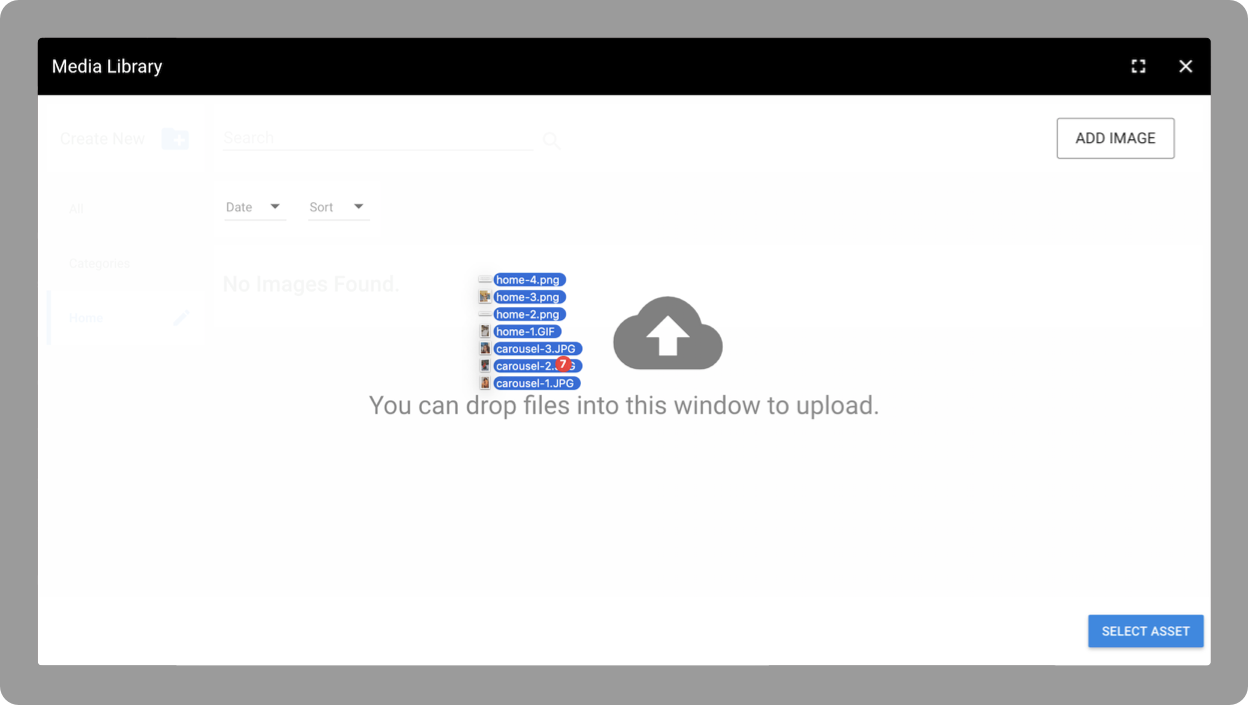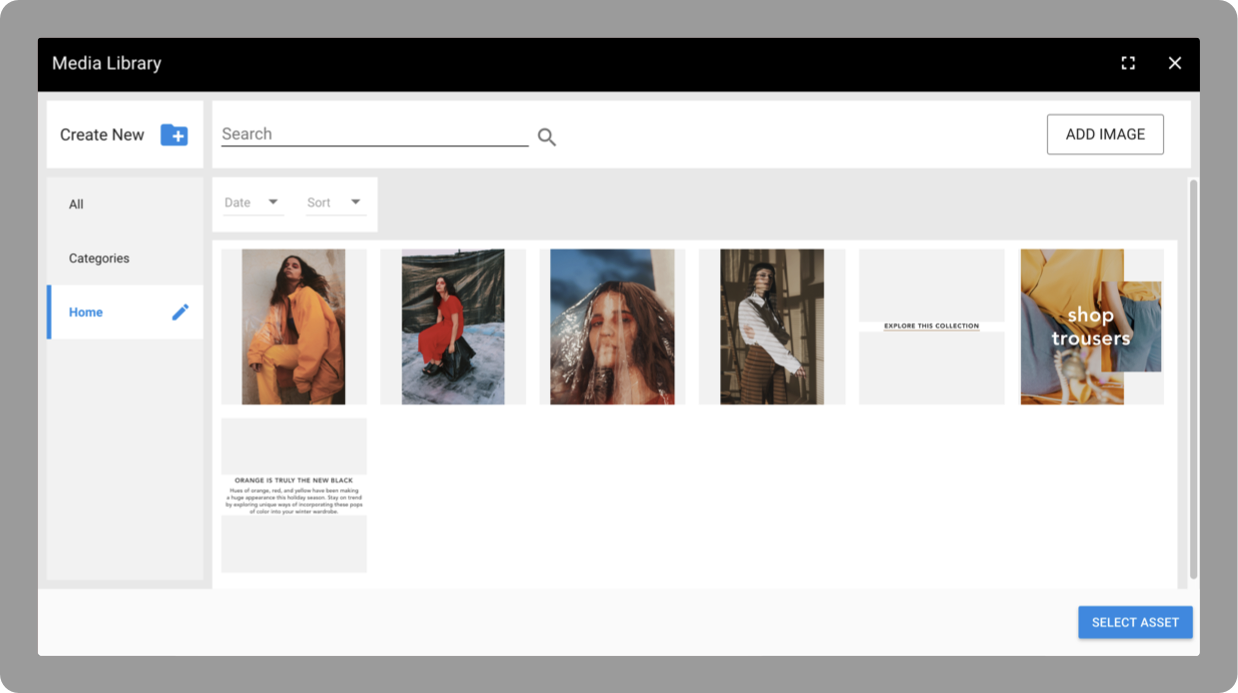
## Step 4: Insert and Resize Multiple Images
1. Select home-1.gif, home-2.png, home-3.png, and home-4.png (in that order).
2. Click **SELECT ASSET**.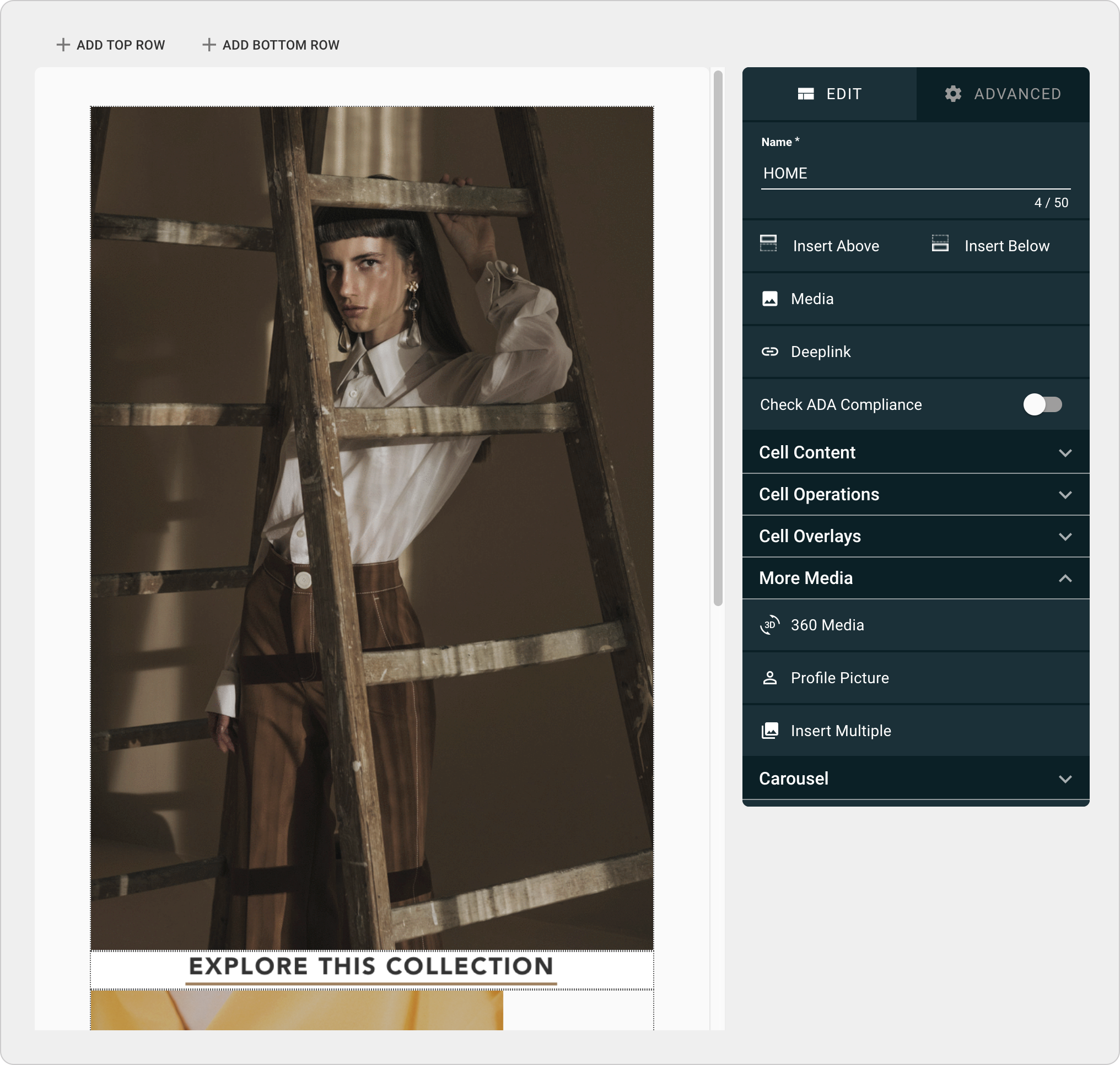

Tip The images are inserted into the layout in the same order in which they were selected.
## Step 5: Add Text Overlay
1. Select the first cell that contains the GIF.
2. Expand Cell Overlays in the toolbar.
3. Click **Text**.
## Step 6: Edit Text Overlay HTML
1. Double-click the blue text overlay to edit it.
2. Click the <> (Source code) icon.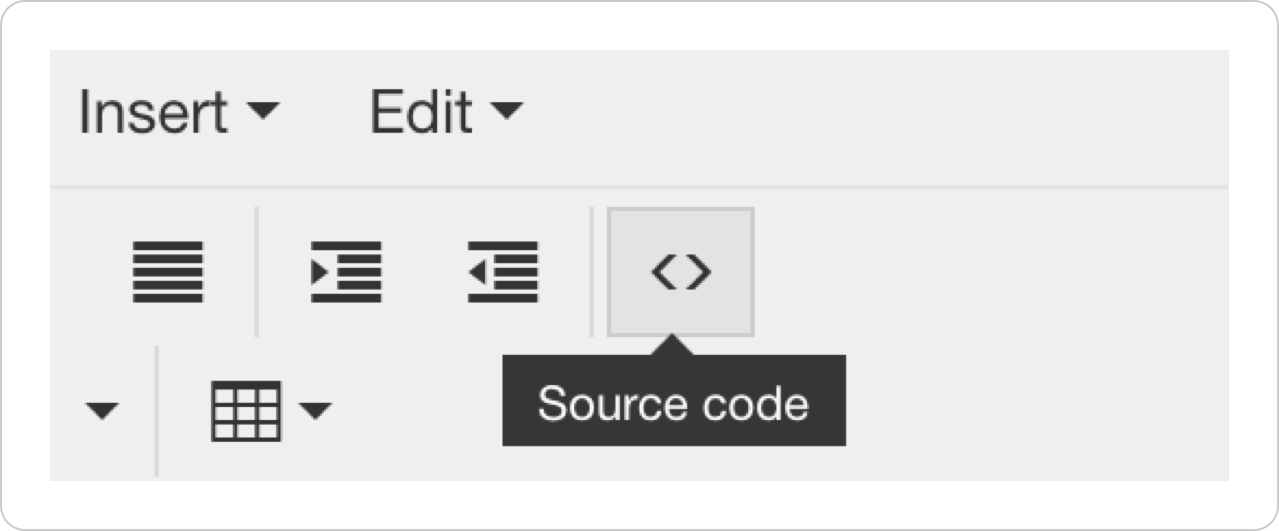
3. Paste the HTML snippet below:
```
Tailored
Essentials
```
4. Click **OK** to set the source code.
5. Click **OK** to apply the changes.
Your layout should now look like this:
## Step 7: Move and Resize the Text Overlay
1. Go to the ADVANCED tab of the toolbar.
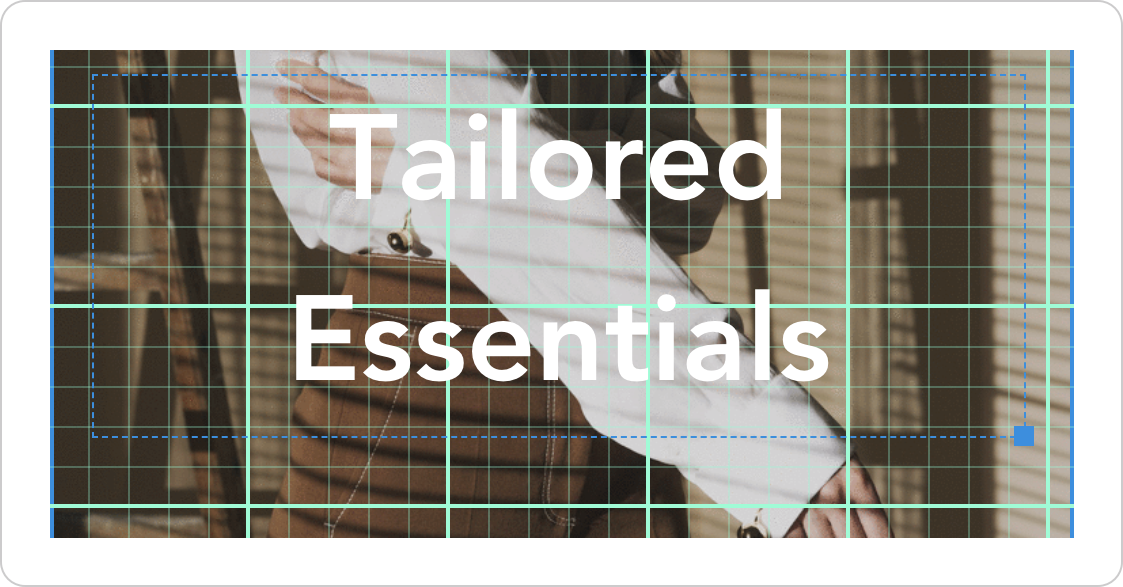
2. Click **Guides** and enable Grid.
3. Drag and drop the text overlay to move it.
4. Drag the blue square at the bottom right corner to resize it.
## Step 8: Insert Spacer and Set Row Height
1. Select the cell with the GIF.
2. Click **Insert Below** from the toolbar.
3. Select the blank row that was inserted.
4. Expand Cell Operations.
5. In the **Set Row Height** input enter 20.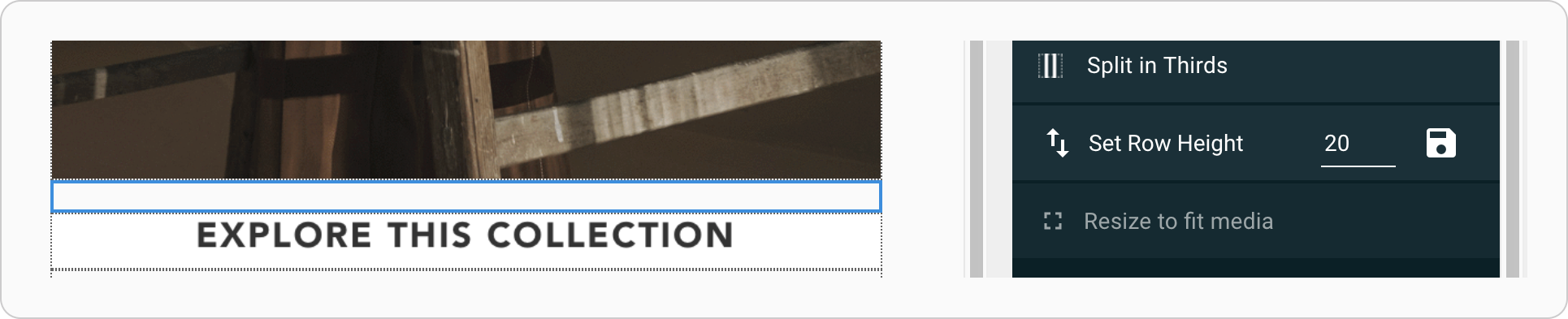
## Step 9: Insert and Resize Spacers
1. Select the cell that has the "EXPLORE THIS COLLECTION" image.
2. Click **Insert Below** from the toolbar.
3. Drag the bottom of the spacer row up until it is 80 pixels.
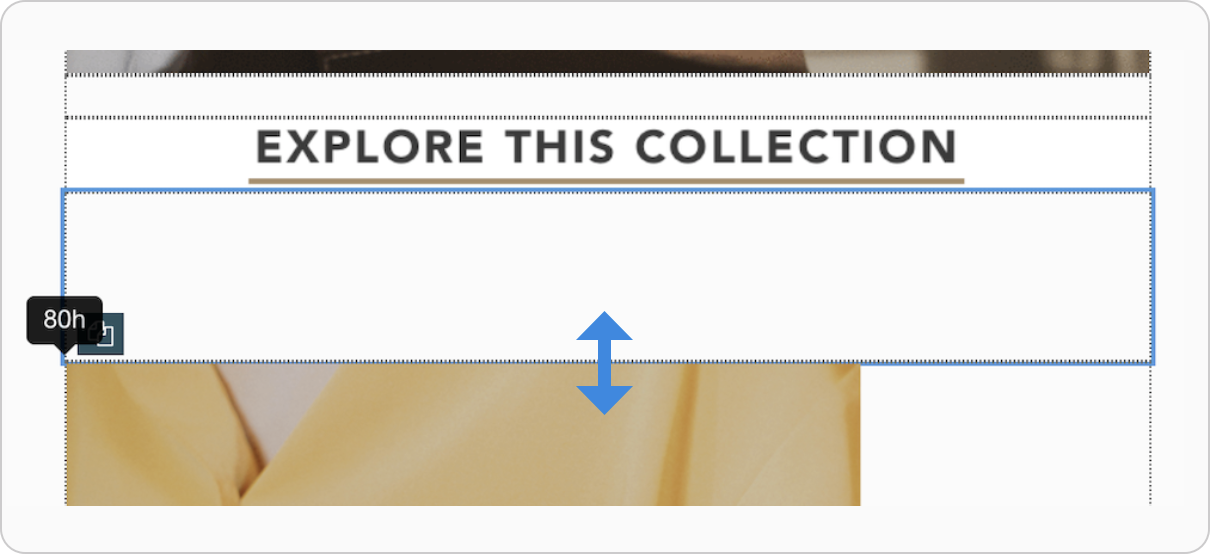
4. Hover over the spacer row and click the Copy icon in the bottom left.
5. Select the cell with the shop trousers image and click **Insert Below** from the toolbar.
6. Select the row that was created and press cmd + v.
## Step 10: Add Padding to Image
1. Select the cell with the shop trousers image.
2. Expand Cell Operations in the toolbar.
3. Click **Split in Thirds**.
4. Under Padding on Sides click **Split**.
5. Click **Split** to apply the default of 10% padding.
## Step 11: Add a Carousel
1. Select the cell with the "ORANGE IS TRULE THE NEW BLACK" image.
2. Click **Insert Above** from the toolbar.
3. Expand Carousel in the toolbar and enable Add Carousel.
4. Double-click the blank slide.
5. Select the first carousel image and click **SELECT ASSET**.
6. Select the first slide and click **Cell Operations** | **Resize to Fit Media**.
7. Click the second dot to show the second slide.
8. Double-click the second slide.
9. Select the second carousel image and click **SELECT ASSET**.
10. Hover over the carousel and click the + icon in the bottom right to add a third slide.
11. Double-click the third slide
12. Select the third carousel image and click **SELECT ASSET**.

Tip To change the indicator from dots to lines, use the app config setting, go to **Apps** | **All** | **your app config** | **EDIT** | **UI** | **Layouts.** Then enable Carousel Indicator and click **SAVE**.
## Step 12: Deep Link and Publish the Layout
1. Creating deep links for some or all of the cells. Refer back to [Cell Configuration in Layouts](https://help.salesforce.com/s/articleView?id=commerce.rt_cms_layouts_manage_cell_config.htm&release=264.0.0&type=5 "Learn about the different ways that cells can be configured in Point of Sale layouts with content and interactive behavior.") for instructions on how to do so.
2. Click **PUBLISH NOW**.