
Customize layout settings in the Point of Sale Layout Editor to enhance user experience and control. Enable features such as Paginate for full-screen cell views, override app config settings for tailored UI options, and use Snap to Grid for precise overlay alignment.
The Advanced tab contains layout settings.
Paginate
The paginate setting causes each cell in the layout to occupy the entire view area. The user can swipe up or down to move between cells.
- Go to the ADVANCED tab of the toolbar.
- Expand UX.
- Enable Paginate.
Override App Config Settings
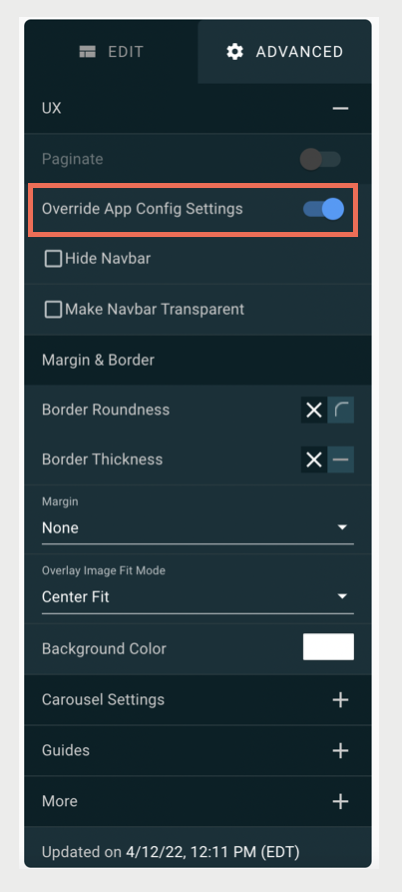
Layouts inherit settings from the production app config (), but these settings can be overridden.
To override app config settings:
- Go to the ADVANCED tab of the toolbar.
- Expand UX.
- Enable Override App Config Settings which reveals additional configuration fields.
Switch App Configs
The Layout Editor preview uses the iOS production config for default layout settings, such as background color and margin ().
To preview the layout settings from another app config:
- Go to the ADVANCED tab of the toolbar.
- Expand MORE.
- Click Set App Config.
- Select an app config and click SET.

Carousel Settings
- Go to the ADVANCED tab of the toolbar.
- Expand Carousel Settings.
- When Auto Scroll is enabled, the carousel automatically cycles through images without the user having to swipe.
Replacing Fonts in Text Overlays
When a layout has multiple text overlays, it can be tedious to change all the fonts. There's a utility that performs this task automatically.
- Go to the ADVANCED tab of the toolbar.
- Expand MORE.
- Click Replace Fonts.
- Select a font from the dropdown or enter a font in the input field and click SELECT.
Snap to Grid
When there are multiple overlays that need to be aligned, you can use the Snap to Grid feature.
- Go to the ADVANCED tab of the toolbar.
- Expand GUIDES.
- Enable Snap to Grid.
- (Optional) Enable Grid to view the actual grid in the layout.
- (Optional) Change Grid Size for fine-tuning the snap placement of an overlay.