
Easily manage your Point of Sale layout by adding, inserting, resizing, and deleting rows and cells. Customize cell padding and split cells horizontally or vertically for precise control, enhancing your design flexibility and efficiency.
If you've used a spreadsheet application, such as Microsoft Excel or Google Sheets, you can think of a layout like a spreadsheet. A layout has to have at least one row. and you can add as many additional rows as you like. Initially, a row contains one cell. Each cell can be split one or more times. Rows and cells can be resized, copied, and deleted.
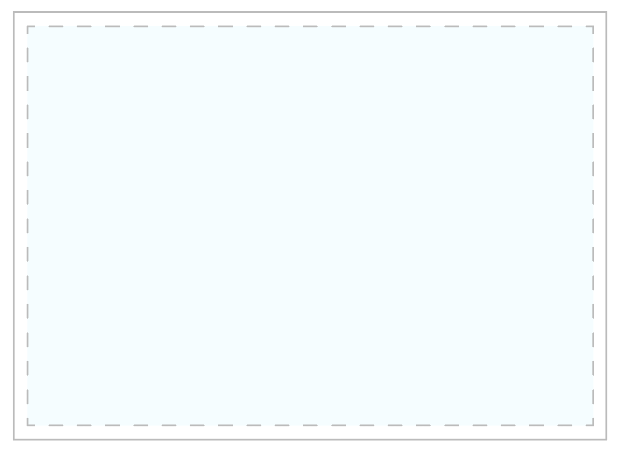
A row takes up the entire width of the app screen and has a specified height. The cell takes up the entire space inside of the row. A blank layout starts as one row with one cell inside it.
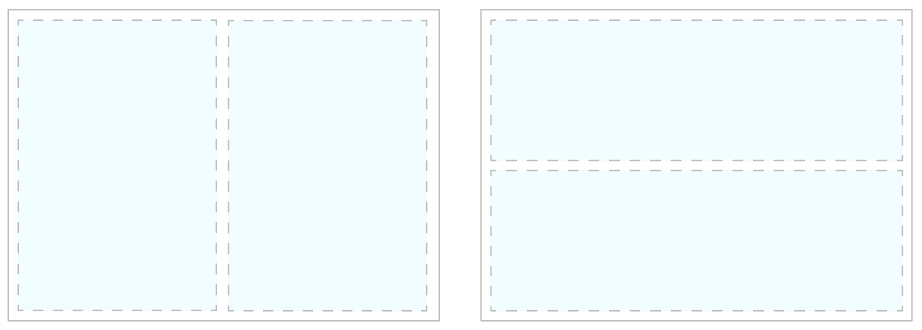
Each cell can be split one or more times. You can split a cell vertically or horizontally. When you perform a split, each cell takes up half of the space, but you drag the space separating the two cells to change how much space each cell takes up.
Add a Row
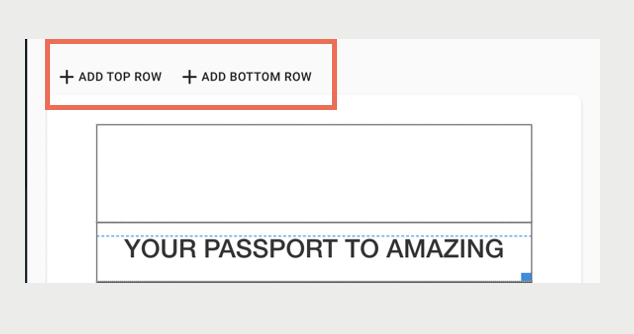
Click + ADD TOP ROW or + ADD BOTTOM ROW above the layout preview.
Insert a Row
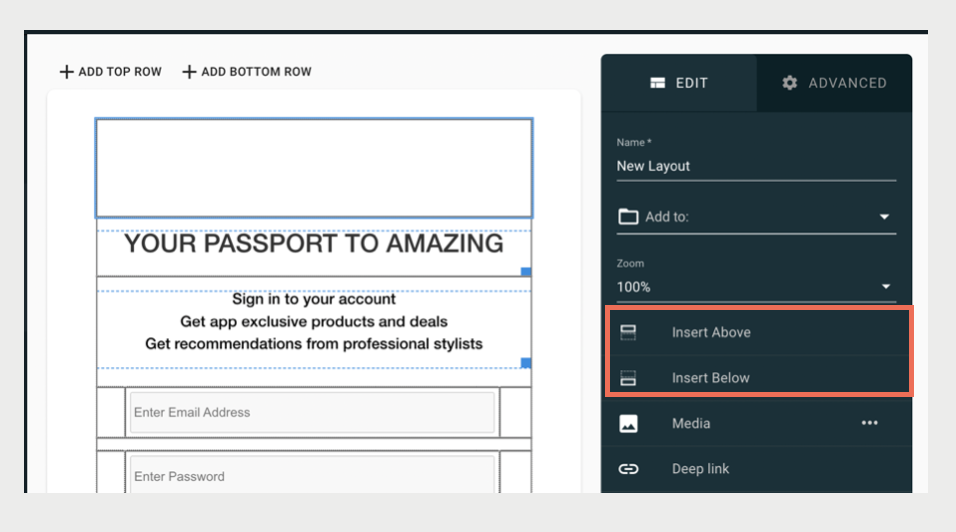
- Select any cell in the row.
- Click Insert Above or Insert Below from the toolbar.
Set a Row's Height
You can drag the bottom of the row to adjust its height.
- Hover over the bottom edge of the row.
- Click and drag up or down to adjust the row's height.
Alternatively, you can manually enter the row's height.
- Select any cell in the row.
- Expand Cell Operations in the toolbar
- In the field, Set Row Height, enter the height in pixels.
- Hit Enter or click the Save icon.

Delete a Row
- Hover over the row.
- Click the Delete icon in the bottom right
Copy a Row
You can copy a row by clicking the row's Copy icon.
- Hover over the row.
- Click the Copy icon in the bottom left.
- Hover over another row.
- Click the Paste icon in the bottom left.
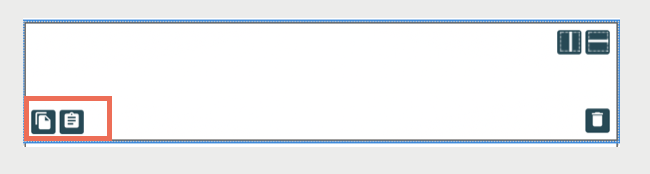
Alternatively, you can use hotkeys to perform a row copy.
- Select any cell in the row.
- Press cmd + shift + c.
- Select any cell in another row.
- Press cmd + v.
Split a Cell
You can split a cell by using the icons in the top right of the cell.
- Hover over the cell.
- Click the Horizontal Split or Vertical Split icon in the top right.
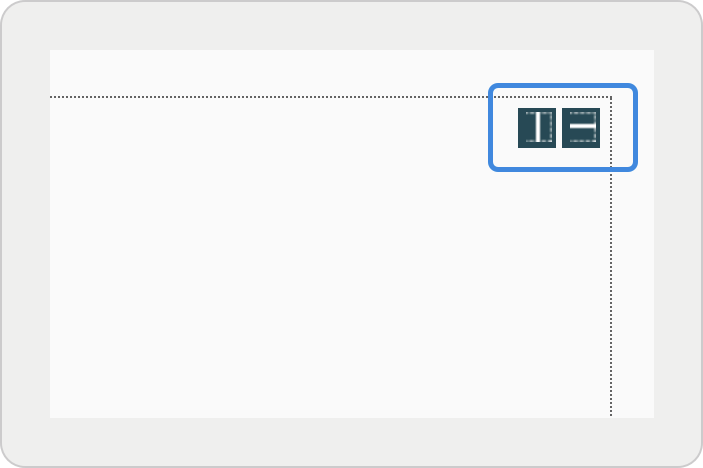
Alternatively, right-click a cell and use the menu, or use the toolbar to the right of the layout preview to perform a cell split.
- Select a cell.
- Expand Cell Operations in the toolbar.
- Click Horizontal Split or Vertical Split.
Resize Split Cells
Split cells can be resized by hovering over the space between the cells. A blue outline appears around the cells to be resized.
- Hover over the split.
- Click and drag the blue line to perform the resize
Adjust Cell Padding
Cells can have their padding adjusted using the layout editor.
- Select a cell.
- On the layout editor, go to .
- Customize the padding in pixels for the top, bottom, left, and right.
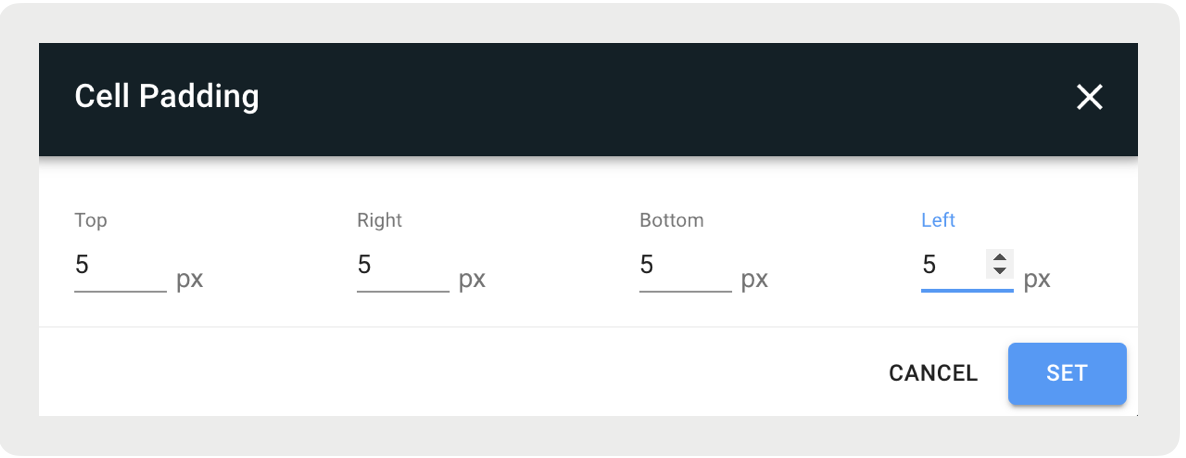
Clear a Cell
- Select the cell.
- Press backspace/delete.
Delete a Cell
- Select the cell.
- Hover over the cell and click the Delete icon in the bottom right OR press cmd + backspace/delete.

Copy a Cell
- Select the cell.
- Press cmd + c.
- Select another cell.
- Press cmd + v.
Layout Editor Hotkeys
| Action | Hot Keys |
|---|---|
| Undo | Ctrl + Z |
| Copy cell | Ctrl + C |
| Copy row | Ctrl + Shift + C |
| If a cell was copied, paste cell | Ctrl + V |
| If a row was copied, paste row | Ctrl + V |
| Cut cell or text overlay | Ctrl + X |
| Cut row | Ctrl + Shift + X |
| Empty cell | Delete |
| Delete cell | Ctrl + Delete |
| Delete row | Ctrl + Shift + Delete |