
Learn about the different ways that cells can be configured in Point of Sale layouts with content and interactive behavior.
Before reading this topic, it's recommended that you review the related articles.
- For information on how to create and edit rows and cells within a layout, refer to Layout Editor.
- For information on creating and publishing layouts, refer to Create and Publish Layouts.
After you've finished reading this article, see Create a Category Layout for information on creating a category layout with six images and product search deep links.
Deep Links
Deep links launch specific views within an app, enabling customized rendering options. For instance, a product search deep link can set the search query and a layout deep link can control the visibility of the tab bar, enhancing user navigation and experience.
To set a deep link inside the Layout Editor:
- Select a cell.
- Click Deep link in the toolbar.
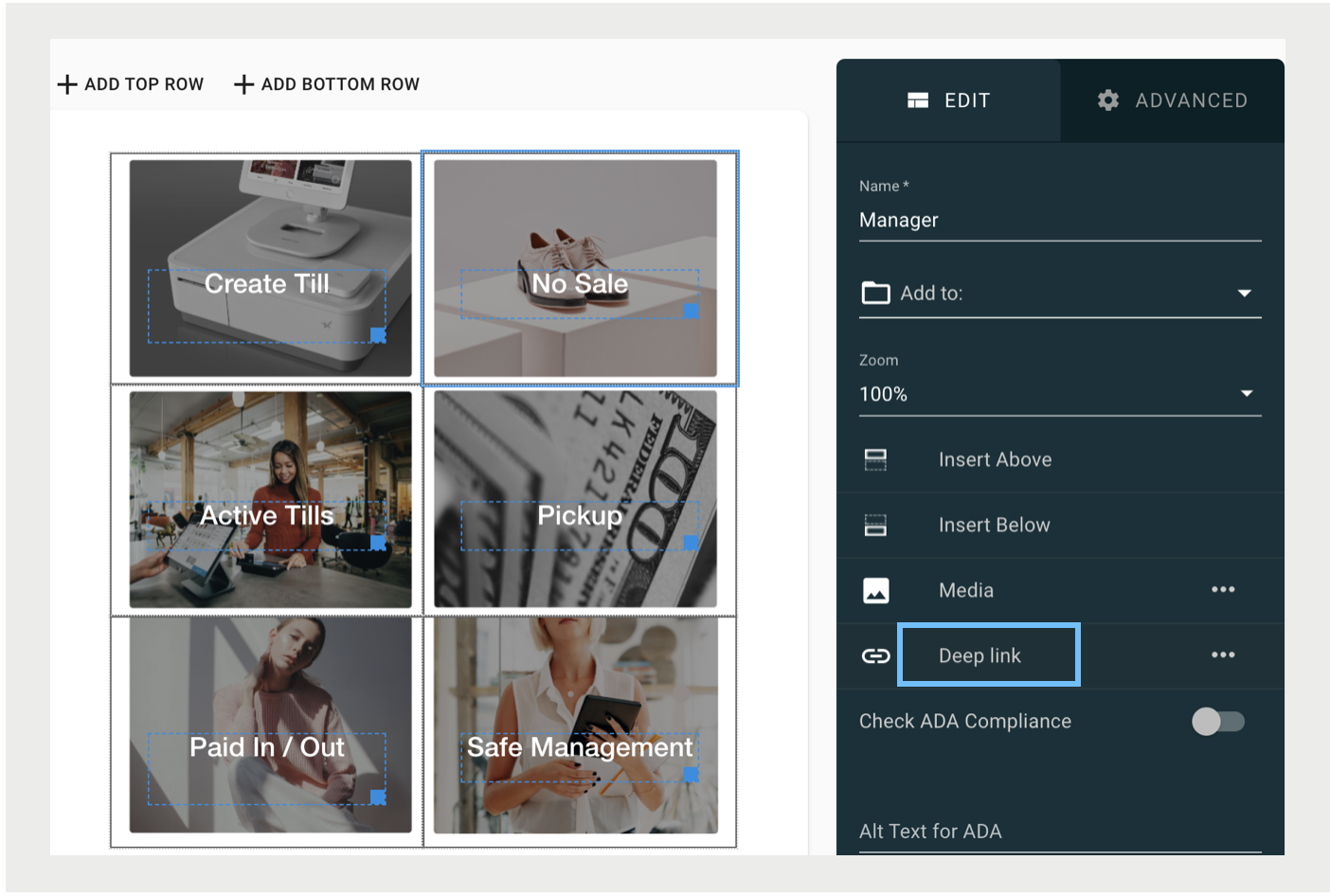
Product Search Deep Link
A product search deep link takes the user to the search screen (aka PLP) and performs a product search. For more details about the configuration, refer to Product Search Deep Link.
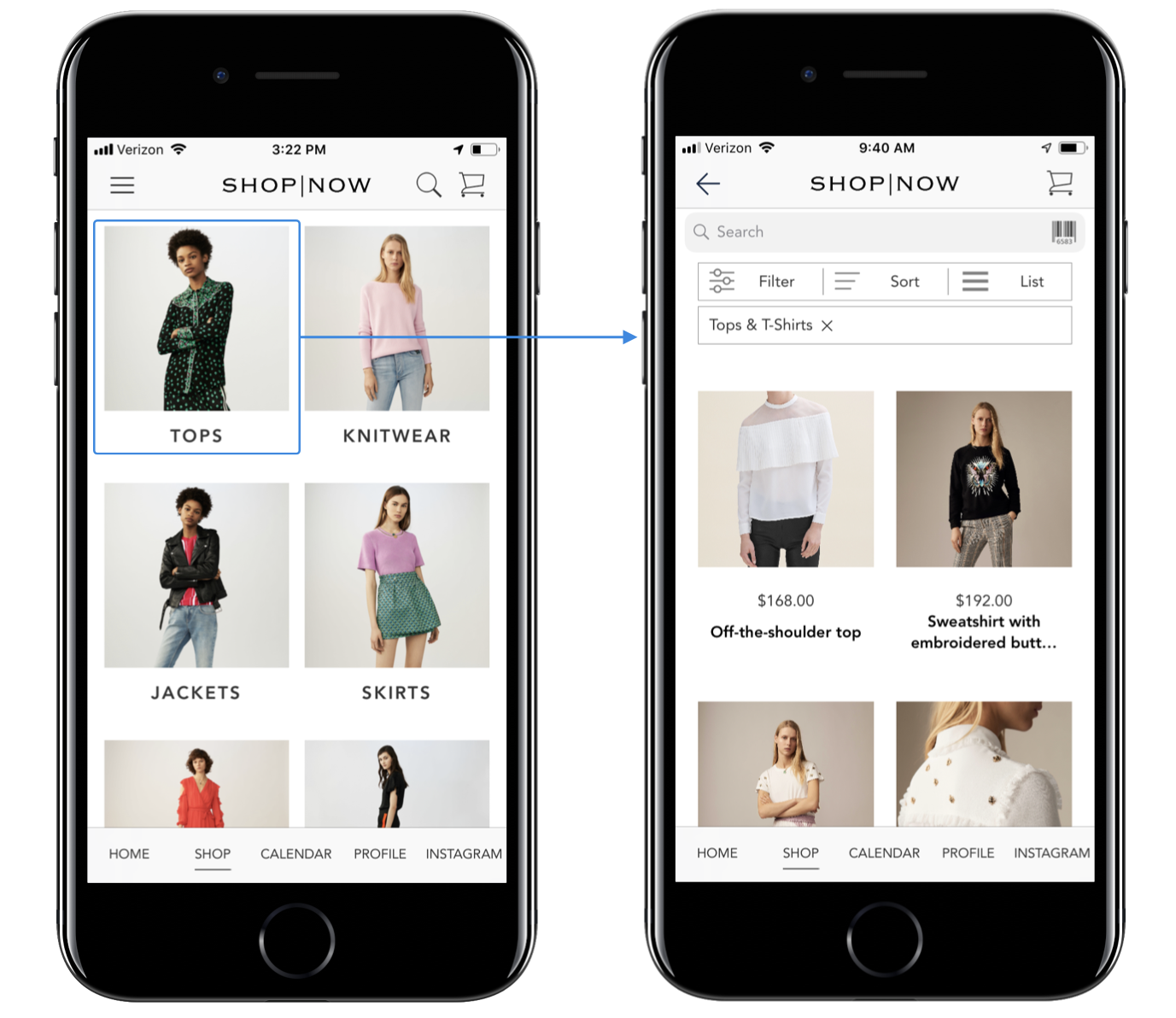
Layout Deep Links
A layout deep link takes the user to a layout. There are options to customize the user experience, e.g., hiding the tab bar or specifying how the layout should transition into the current view. For more details on the available deep links, refer to Deep Links Comprehensive List.
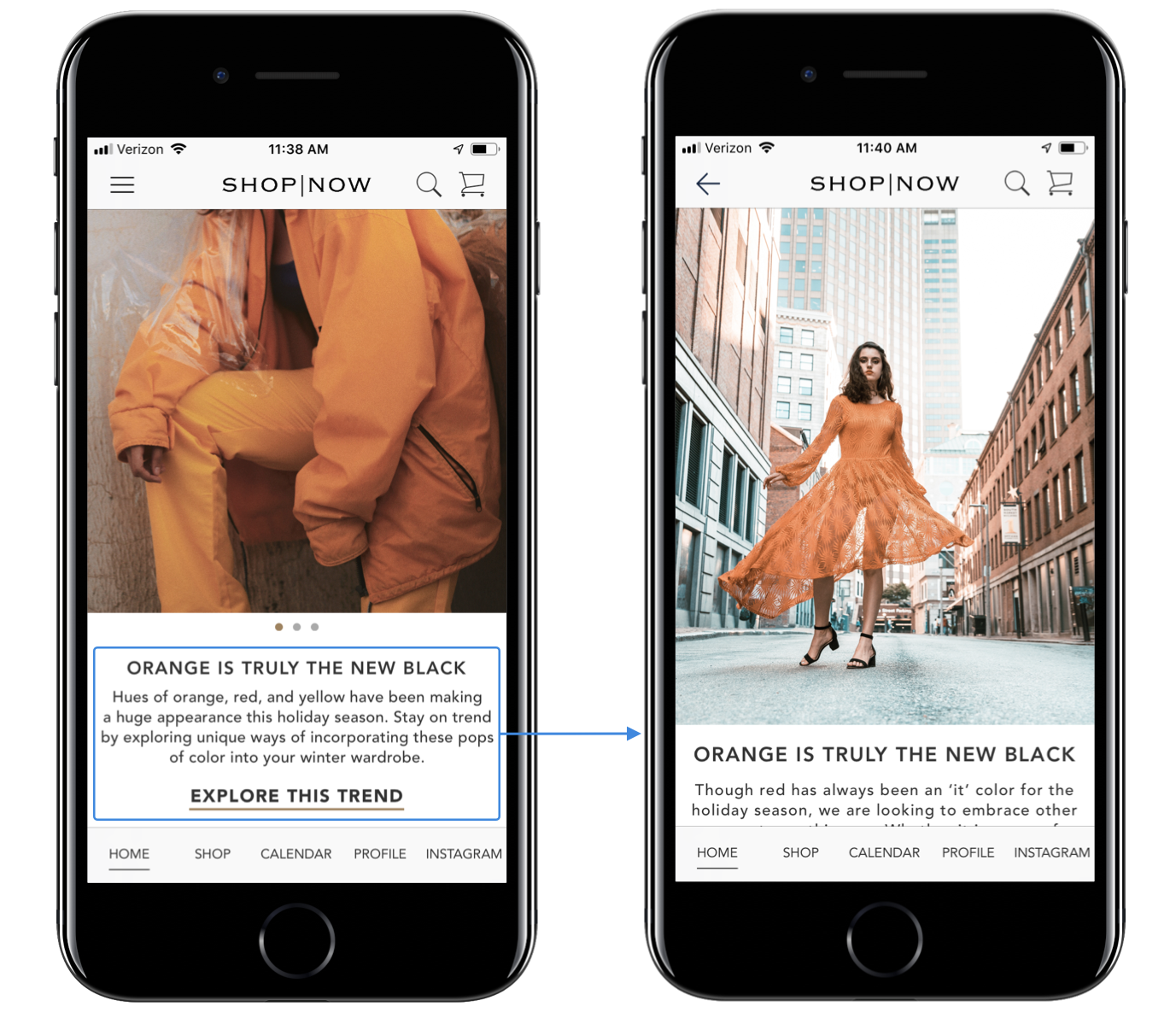
Video Deep Link
This feature can present a static image and transition to a video if "Play In Place" is checked in the video deep link.
To set a video deep link inside the Layout Editor:
- Select a cell.
- Select .
- Fill out the URL.
- Check or uncheck Play In Place.
- Click Set.
When the video is present, it behaves like this in a scroll view:
- If the user scrolls away, the video pauses.
- If the user scrolls back, the video continues playing.
- If the user goes to a different screen and comes back, the initial static image it displayed.
- When the video ends, the initial static image is displayed.
The attributes of Play in Place:
- Audio control
- Muted, but the user has the option to unmute.
- Muted, there's no option to unmute.
- Unmutes when the video is fully visible.

All Other Deep Links
For information on other deep link types, refer to Create Deep Links. The section is organized similarly to the menu in the deep link picker.
Inline Deep Links
A deep link takes the user to another view, an inline deep link renders content inside the current view.
To create an inline deep link in the Layout Editor:
- Select a cell.
- Expand Cell Content.
- Click Inline Deeplink.
- Select a deep link type from the dropdown.
- Configure the deep link and click SET.
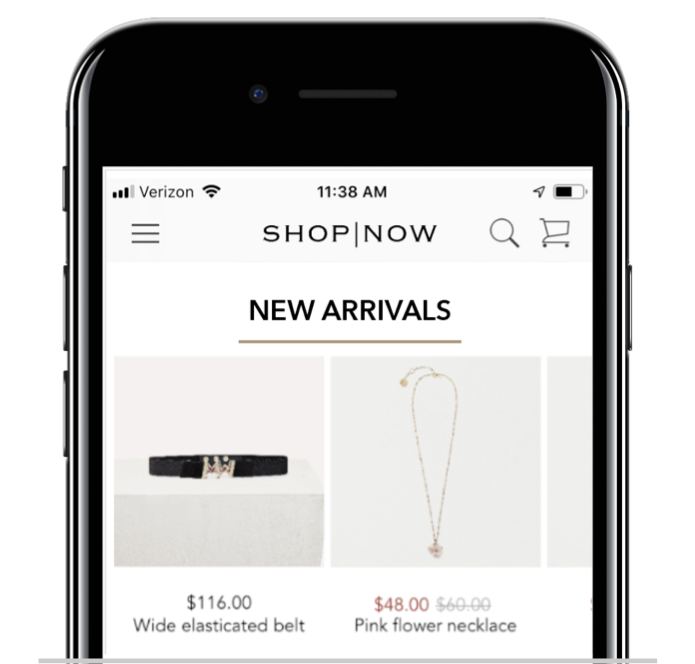
Product Search Inline Deep Link
This inline deep link performs a product search and shows the search results in a horizontally scrollable row.
All Other Inline Deep Links
For details on the different types of inline deep links, refer Add Inline Deep Links.
Product
The product list inlines a product into the layout. However, if the product changes (e.g., after a new feed runs) the layout will still have the old product information.
To inline a single product inside the Layout Editor:
- Select a cell.
- Expand Cell Content.
- Click Product.
- Select a product and click Save.
Promotion
This feature shows an image that calls out a promotion that the user can tap to see additional information about the promotion (e.g., a barcode to redeem).
First, make a promotion in the CMS:
- In the CMS, go to Promotions.
- Select a type of promotion.
- Complete all required fields and click SAVE.
Next, add the promotion in the Layout Editor:
- Select a cell.
- Expand Cell Content.
- Click Promotion.
- Select a promotion and click Save.
Form Element
Form elements are used to create custom forms for pages, e.g., sign up and log in.
To add a form element:
- Select a cell.
- Select from the toolbar.
- Select the type of form element.
- Complete the required fields and click SET.

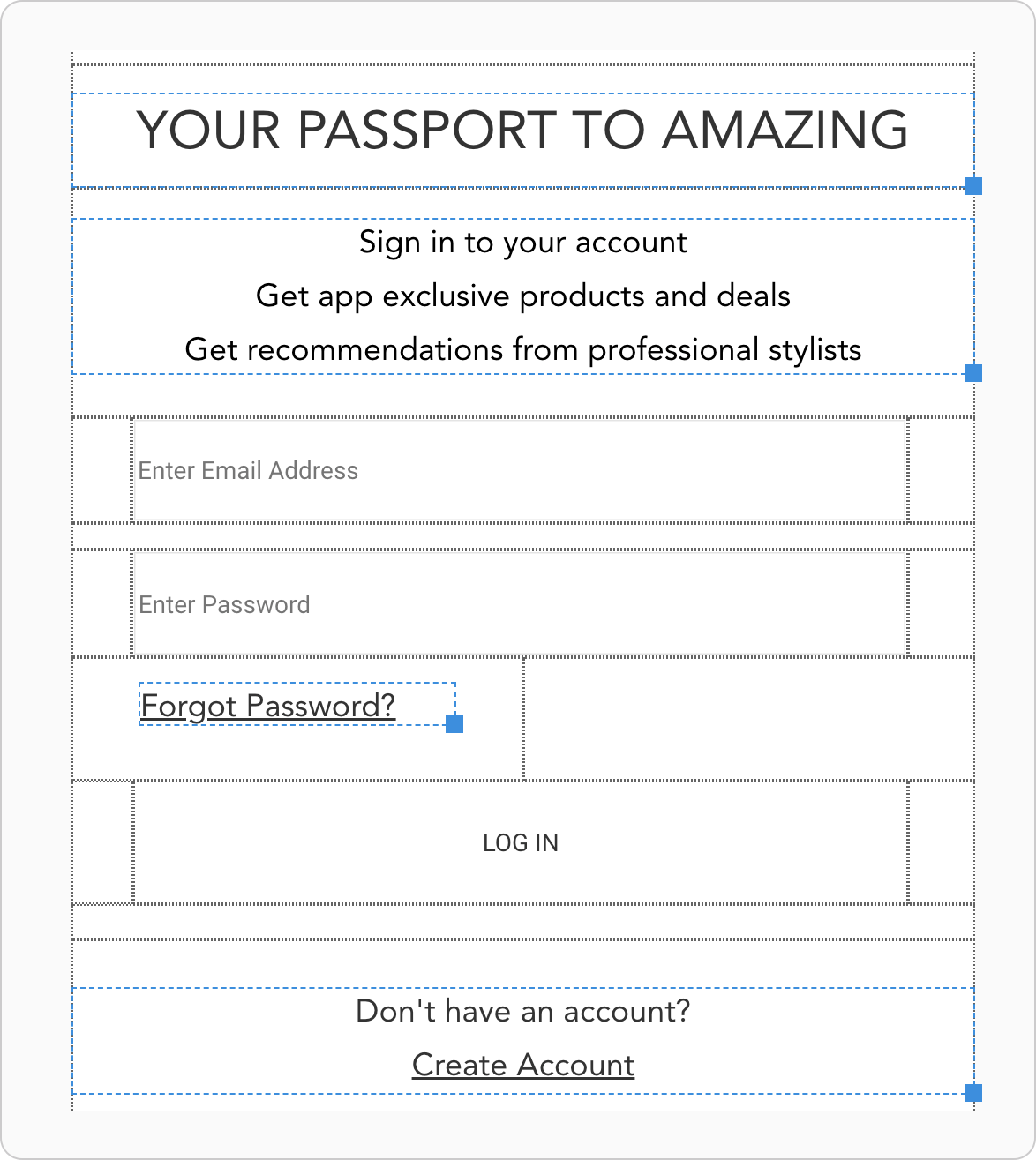
These form elements are configurable in the Layout Editor:
- Button: Used as a CTA to trigger events, e.g., log in or sign up. Buttons are usually configured with a Button Action that corresponds with an API request and a Deep Link that specifies where the user is taken after the API request finishes. Refer to the table for the use cases of the Button Actions.
- Checkbox: Used for checkboxes in forms, e.g., opting into a newsletter.
- Date Picker: Used for birthdays or other date inputs. Important Don't make the birthday field mandatory in sign-up forms or the app build will get rejected by Apple.
- Age verification value may be used to validate the birth date. For more information, go to Age Verification.
- Dropdown List: Used for lists, e.g., states. If creating a lengthy dropdown list it is
best to prepare a CSV of the options to upload. Refer to the States.csv file. Important Key and Display Name values must be configured to view this field on the app.
- Password Field: Used on account creation and login pages.
- Phone Number Field: Used on customer sign-up page.
- Text Input: Used to enter first name, last name, address, city, and other text inputs.
- Username Field: Used on the log-in page.
- Enable Terminal Input - When enabled, this field will allow user input from the terminal device.
 Note This is only applicable to app versions greater than or equal to 8.5.1.
| Button Action | Description |
|---|---|
| Accept Finance Agreement | Customer agrees and accepts finance agreements. See Processing Synchrony Credit Card Purchases via Adyen. |
| Check Current Order Status | Checks the order status. |
| Clear Form | Clears the form. |
| Complete Profile | Completes the customer's profile. |
| Decline Finance Agreement | Customer declines finance agreements and returns the user to the cart. See Processing Synchrony Credit Card Purchases via Adyen. |
| Email Sign Up | Signs up the customer with their email. |
| Forgot Password | Gets the forgotten password. |
| Get Loyalty Identifier | Gets the Loyalty Identifier. |
| Get Profile | Gets the customer's profile. |
| Inventory Panel | Gets the inventory panel. |
| Login | Logs the customer in. |
| Loyalty Enroll | Enrolls the customer in the Loyalty tier. |
| None (Configure Deep link Below) | The configured deep link action. |
| Notify Me | Notifies the customer of a certain product or collection. |
| Quiz Continue | Continues the quiz. |
| Quiz Submit | Submits the quiz. |
| Redeem Points | Redeems points. |
| Resend Payment Link | Resends the payment link. |
| Reset Password | Resets the password. |
| Save Customer Info to Cart | Saves the customer's information to the cart. |
| Save Not on File Product | Saves a product that is not on file. |
| Save Profile | Saves the profile so that the customer may go back to make changes before completing it. |
| Select Profile Picture | Selects the profile picture that is chosen. |
| Share Quiz | Shares the quiz. |
| Signup | Signs up the customer. |
| Signup Without Auto Login | Signs up the customer without auto logging in. |
| Start Chat From Quiz | Starts a chat from the quiz. |
| Store Associate Clienteling | Gets the associate's clientele. |
| Store Associate Login | Logs the associate in. |
| Submit Review | Submits the review. |
| Submit Product Form | Submits the Product Form answers. |
| Terminal Input |
Launches inputs on the terminal. When this is tapped, the terminal will cycle through all the fields with Enable Terminal Input on and collect the appropriate data for each one. Note This is only applicable to app versions greater than or
equal to 8.5.1.
|
| Update Loyalty Preferences | Updates the Loyalty preferences. |
| Skip Customer Login |
Continues the checkout flow when launched from Unified Cart tendering flow. From other screens, it will behave as a back button. Button action is only applicable in the context of Client Search Layouts. Note This is only applicable to
app versions 8.9.1 and above.
|
Age Verification
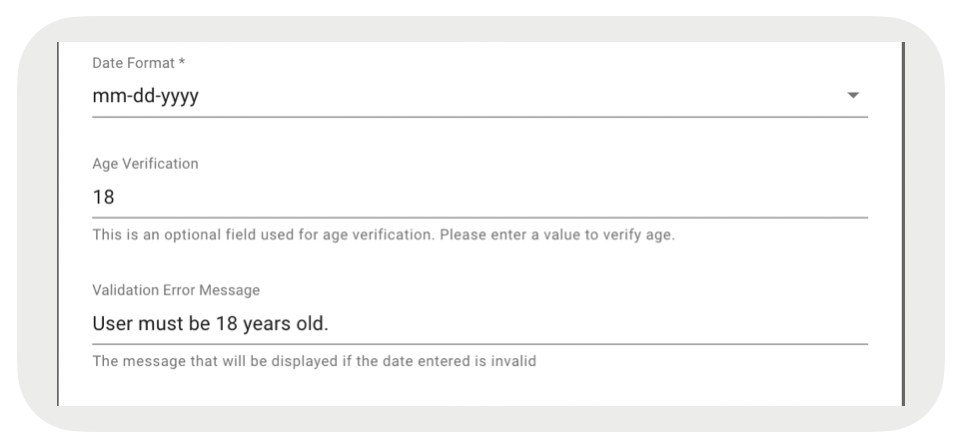
This type of form element can be added to a layout to verify the age of, for example, a new customer. When the minimum age requirement is provided, the POS app will check that the date entered by the customer meets the age requirement from the current date. If the customer does not meet the age requirement, then an error message will display (also configured in CMS).
- In CMS, go to
- Select the layout to add the field to and click Edit.
- Add or select a cell.
- In the tool menu, go to .
- Under Form Element Type, select Date Picker.
- Under Age Verification, enter the minimum age requirement for a new customer.
- Under Validation Error Message, enter a message to display if the date entered does not meet the age requirement.
- Click Set and Save.
Effects
Layering of Images and Text
Overlay Cells (images and text) can be layered via the CMS.
To Layer Images and Text:
- Select an overlay cell.
- Select Cell Operations.
- Select Send Backwards or Send Forward from the toolbar.
Parallax
Overlay Cells (Images and Text) can have a parallax effect added to them. Parallax is an optical illusion of different layered elements moving faster or slower than another layer. Note, since the views start the parallax effect when they become visible the distance traveled on the phone will be different between different screen sizes.
To add parallax to an overlay cell:
- Select an overlay cell.
- Select from the toolbar.
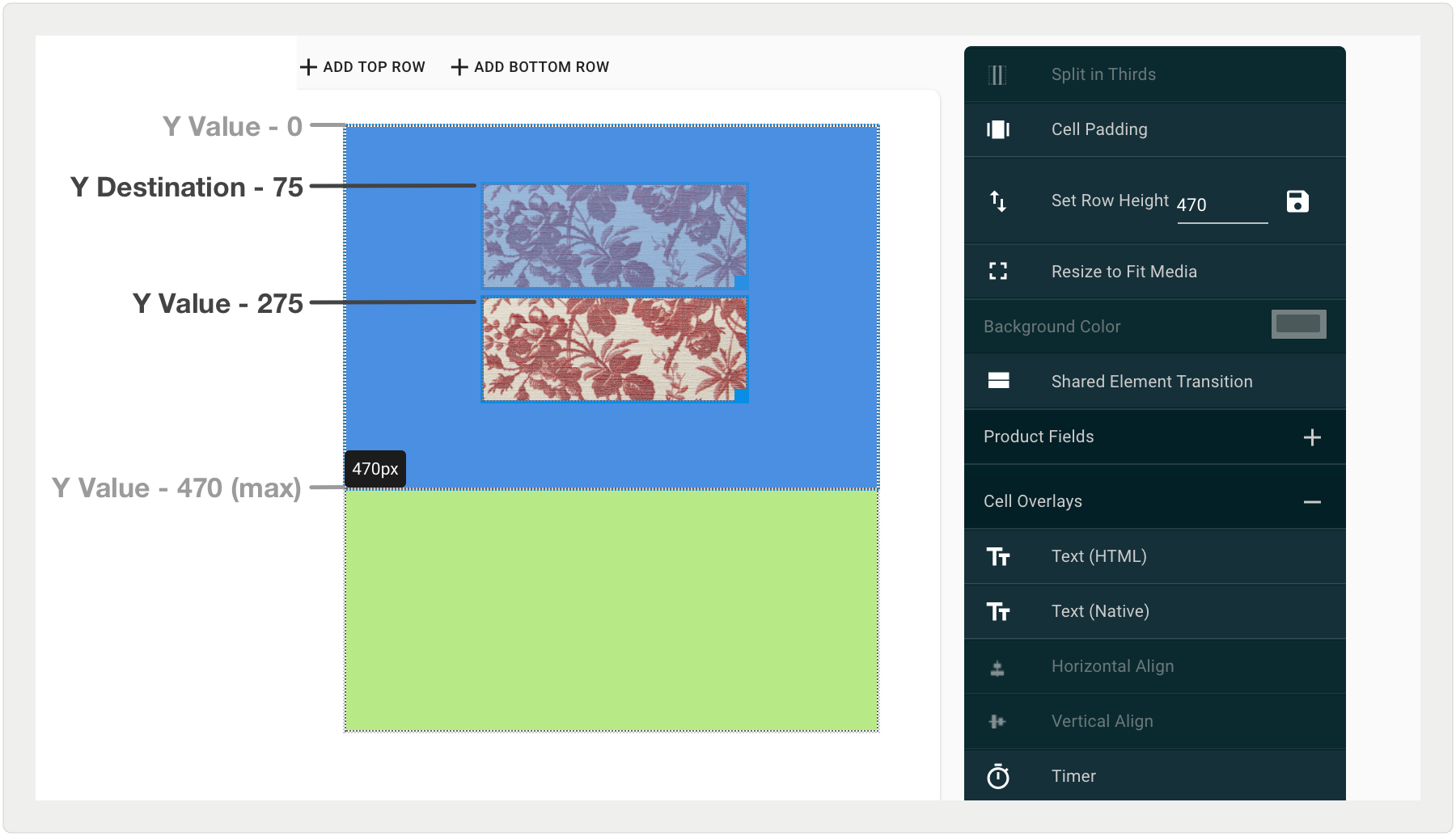
- Y Value is the top of the overlay's cell Y position.
- Speed is how fast the overlay cell will get to the Y Destination.
- Y Destination must be less than the current Y Value. It is the max Y position the cell overlay will end up. The minimum Y Value is 0.
You will see the values and inputs as the following:
- Current Y Value: <value>
- Inputs
- Speed
- Y Destination
In this example, you can see the overlay cell in the left image is lower and as the user
scrolls down the page the image moves higher in the parent cell.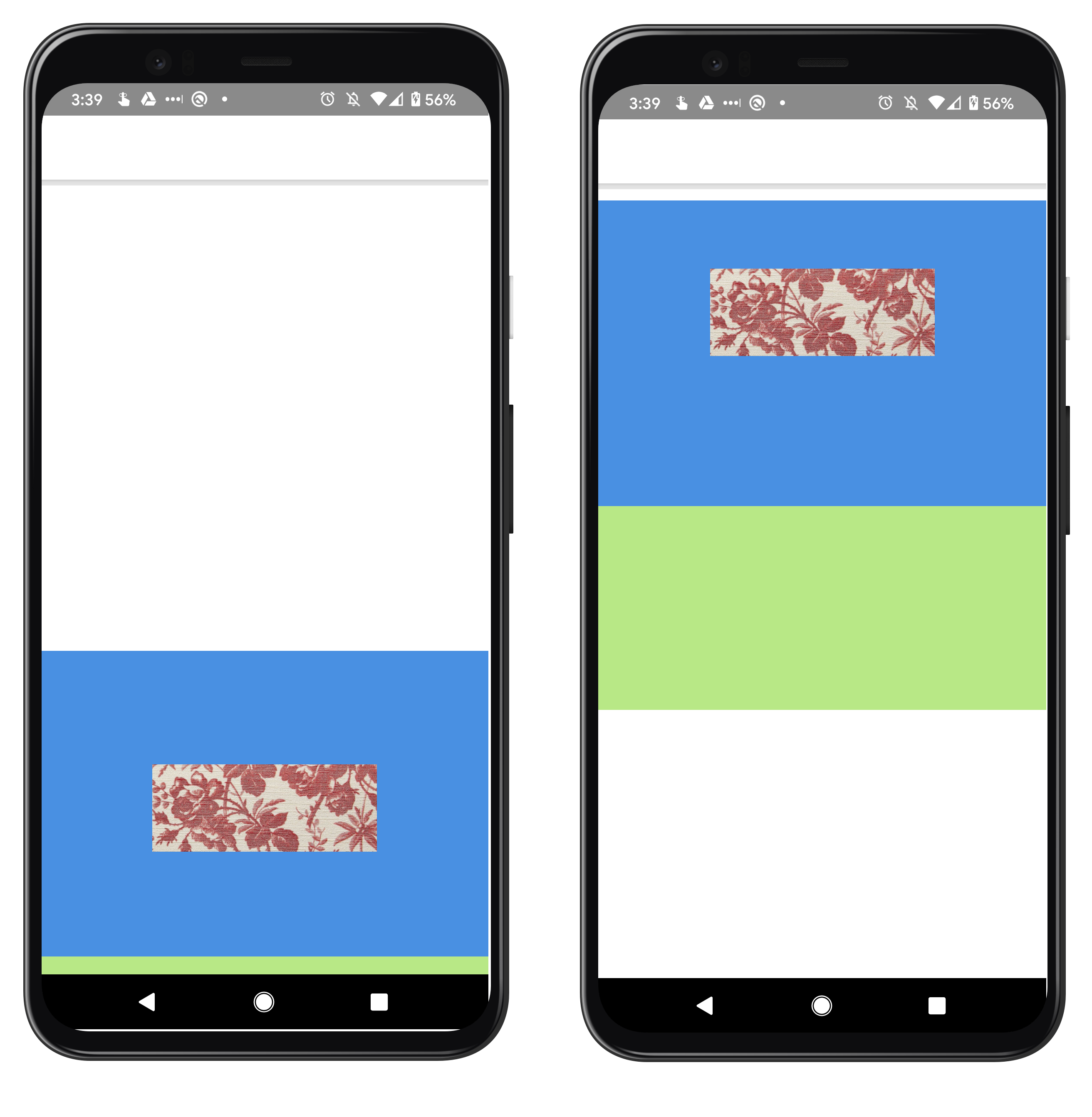
Scroll-base Effects
To add a fade-out/fade-in effect to a cell:
- Select a cell.
- Select from the toolbar.
You see these inputs: End Media Cell and Animation Trigger Point.
- End Media Cell is the final image the cell will transition to.
- Animation Trigger Point has the following values: TOP, MIDDLE, BOTTOM. See the table to understand the values.
| Trigger flag | Behavior (scroll down) | Counter Behavior (scroll up) |
|---|---|---|
| TOP | When the cell's top reaches the top of the viewport it triggers the animation. | When the cell's top moves off the top of the viewport it triggers the animation. |
| MIDDLE | When the cell's top will reach the middle of the viewport it triggers the animation. | When the cell's top moves off of the middle of the viewport it triggers the animation. |
| BOTTOM | When the full cell is visible in the viewport it triggers the animation. | When the full cell is visible in the viewport it triggers the animation. |
In this example, the trigger flag is set to the middle and the end media cell is the lion
wallpaper for the overlay cell.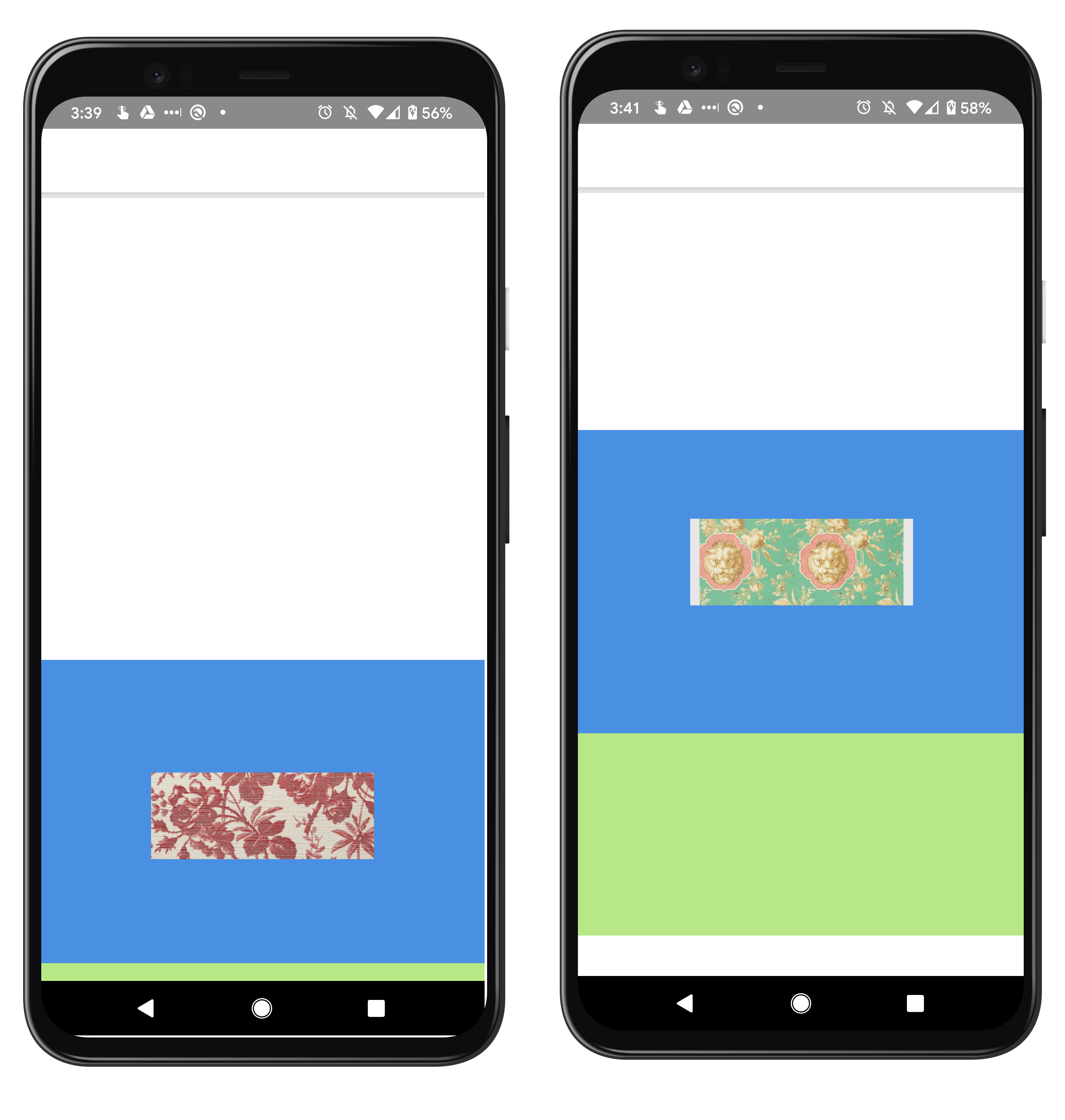

Example feeds: States.csv