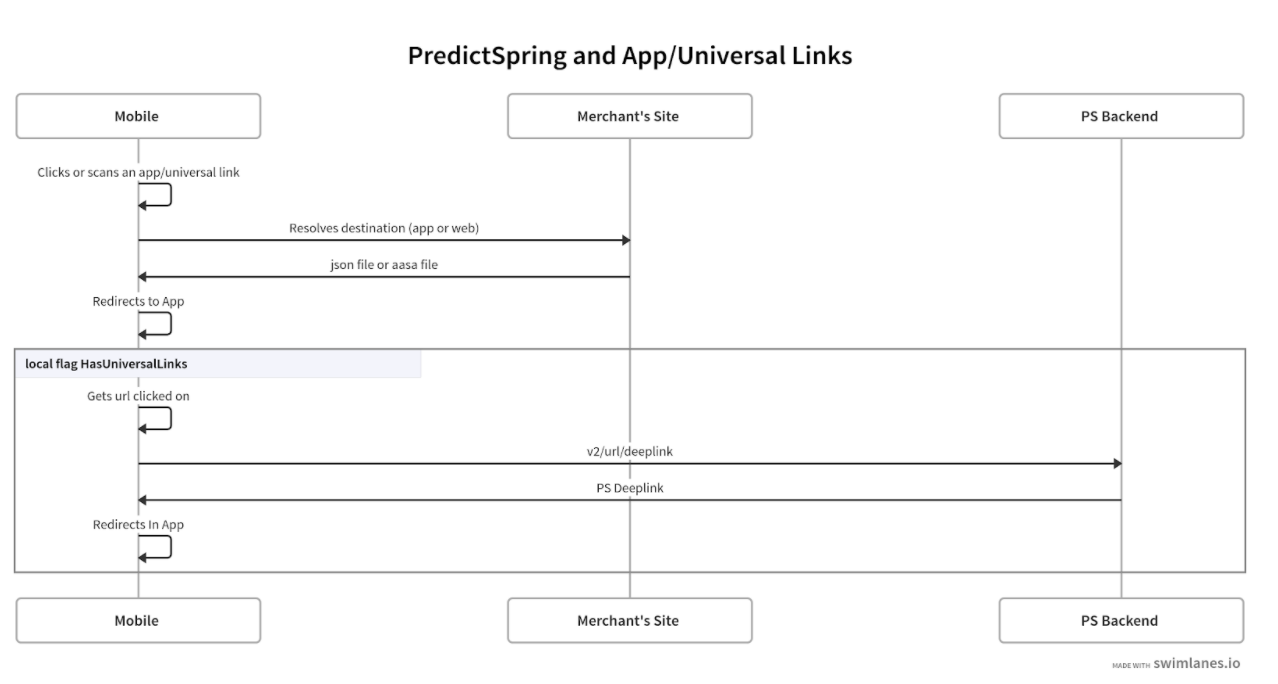
Use a QR code in Point of Sale to enable a user to click or scan a web link and be directed to the POS app or a web page.
The scope of this feature is:
- Merchant wants the ability to scan a QR Code with the device camera.
- Scan QR Codes without the app opening and launch to an in-app page.
- Scan QR Codes without the app opening and launch to a website URL
- If the app is not installed, it will always direct the user to the app store app page for download.
Enable and Test QR Codes
Learn about the various settings needed so the QR code scanning works and how to verify they are in correct.
Configuration
Request a new iOS build from Salesforce. Along with the build, Salesforce will provide you with an Apple App Site Association (AASA) file.
Configure the website to include:
- AASA file for iOS should be uploaded to http://www.<merchant>.com/.well-known.
Generate a QR code:
- Here is QR Code Generator (https://www.the-qrcode-generator.com/).
- Generate a QR code with http://www.<merchant>.com/.
- Scan the QR code with the native camera on iOS device.
- One should be directed to the app.
Verification
Before you begin verification make sure all the steps in the configuration section are completed successfully. There are three scenarios you must test to verify that functionality is working as expected.
When App is installed and Not running
- Action: Scan the QR code.
- End Behavior: App will launch and go to the directed page to which the URL was mapped to.
When App is installed and Running
- Action: Scan the QR code.
- End Behavior: App will launch and go to the directed page to which the URL was mapped to.
When App is not Installed
- Action: Scan the QR code.
- End Behavior: A browser should launch directing the user to the client’s website.
Advanced Configuration for QR Codes
Learn about Point of Sale URL to deep link mapping for URLs that become automatically mapped due to the feed (Product, Category). These links direct the user to the correct page in the app.
Product Details Pages
Problem: I, as a user, am not taken to the PDP when I scan a product url.
http://www.<merchant>.com/<productID>
Troubleshooting:
- In CMS go to Products > Products.
- Search for the product that one is trying to go to.
- View Product Details.
- Ensure the “ProductURL” field’s value is exactly the same as the QR code
scanned.
http://www.<merchant>.com/<productID>
Possible Solutions: Update the product feed with the desired URL.
Category Search Pages

Problem:I, as a user, am not taken to a category search page when I scan.
http://www.<merchant>.com/category/shoes/sandals
Troubleshooting:
- Make sure said category is in the product feed or category feed.
- If the URL is different than other category URLs then Point of Sale will have to be notified
Possible Solutions:
- Add the category URL to the feed.
- Manually map said URL.
This should be used as a last resort option and only if the category URL is an anomaly; the rest of the category URLs map correctly.
Manually Mapped URLs
Scenario: I, as a merchant, would like our users to go to the store locator when they scan the QR code. http://www.<merchant>.com/stores
Steps:
- To do this in CMS go to Layout Pages > Deeplink Mapping.
- Click the plus icon in the upper right corner.
- Enter the URL in the field web url; http://www.<merchant>.com/stores.
- Set a deep link; choose the deep link one wants the user to be directed to.
- Click set.
- Click save.
Test: Scan the QR code containing the URL mapped. The user should be directed accordingly.
Landing Page for App Store or Playstore
A landing page may be necessary to incentivize the user to download the app if they do not have it. One will have to do this by a landing page on their website.
Scenario:
- Merchant wants the user to download the app.
- Pre-conditions
- ie) headers, url query parameter
- Merchant builds redirect logic for the landing page
- User does not have the app
- User scans QR code of http://www.<merchant>.com/<productID>
Only Have Some of the Web URLs Go to App
iOS
In iOS, one may modify the AASA file. See the Apple Support Universal Links guide for more details.
{
  "applinks": {
    "apps": [],
    "details": [
      {
        "appID": "9JA89QQLNQ.com.apple.wwdc",
        "paths": [ "/wwdc/news/", "/videos/wwdc/2015/*"] <- this determines which paths open the app
      }
    ]
  }
}
Analytics Reporting for QR Codes
When manually setting a weblink to a deep link in Point of Sale one can set the analytics to report back to your analytics reporting system.