
Point of Sale product bundles are packages of related products or services offered together at a discounted price. This can encourage customers to buy more, providing convenience and value. Product bundles can be ingested as a feed or authored in the CMS.
- Modern POS App Build:
- 6.x.x and above
- 7.14.5 and above for Bundle PDP with BUY ALL
- Platform Support: iPad, iPhone
- Offline Support: No

Author in CMS
- Go to Products > Product Bundles.
- Click the Plus icon.
-
Complete the required fields and click SAVE.
Note: A bundle can contain up to 50 products and respects the order of products that is defined in the CMS.
Uploading Products from File
If you have a list of product IDs you can import these IDs from a CSV file as per the requirement in the product bundle feed. Additionally, note that variant IDs are required to successfully add bundle items to the cart. For more information, see Product Bundles Feed.
Create a Deep Link to a Product Bundle
After you have ingested product bundles via a feed or authored product bundles in CMS, you can create a product bundle deep link. By default, the app will show the first 100 bundles when the deep link is configured with no selected bundles.
Create an Inline Deep Link
In the Layout Editor: Select a cell. Select Cell Content > Inline Deep Link in the toolbar.
- Select Deep Link Type > Products > Bundles.
- For Bundle Type select CMS authored.
- Select a bundle.
-
Click SET DEEP LINK.
The products from the CMS-authored bundle are displayed inline in a horizontally scrollable row.
Note: The inline bundles' deep link only supports CMS-ingested bundles.
Create a Deep Link
In the Layout Editor: Select a cell. Select Deep Link in the toolbar. Select Deep Link Type > Products > Bundles. Select the Bundle Type.
- (CMS authored) Select one bundle.
- (Feed ingested) Select multiple bundles.
- Select a bundle.
-
Click SET DEEP LINK.
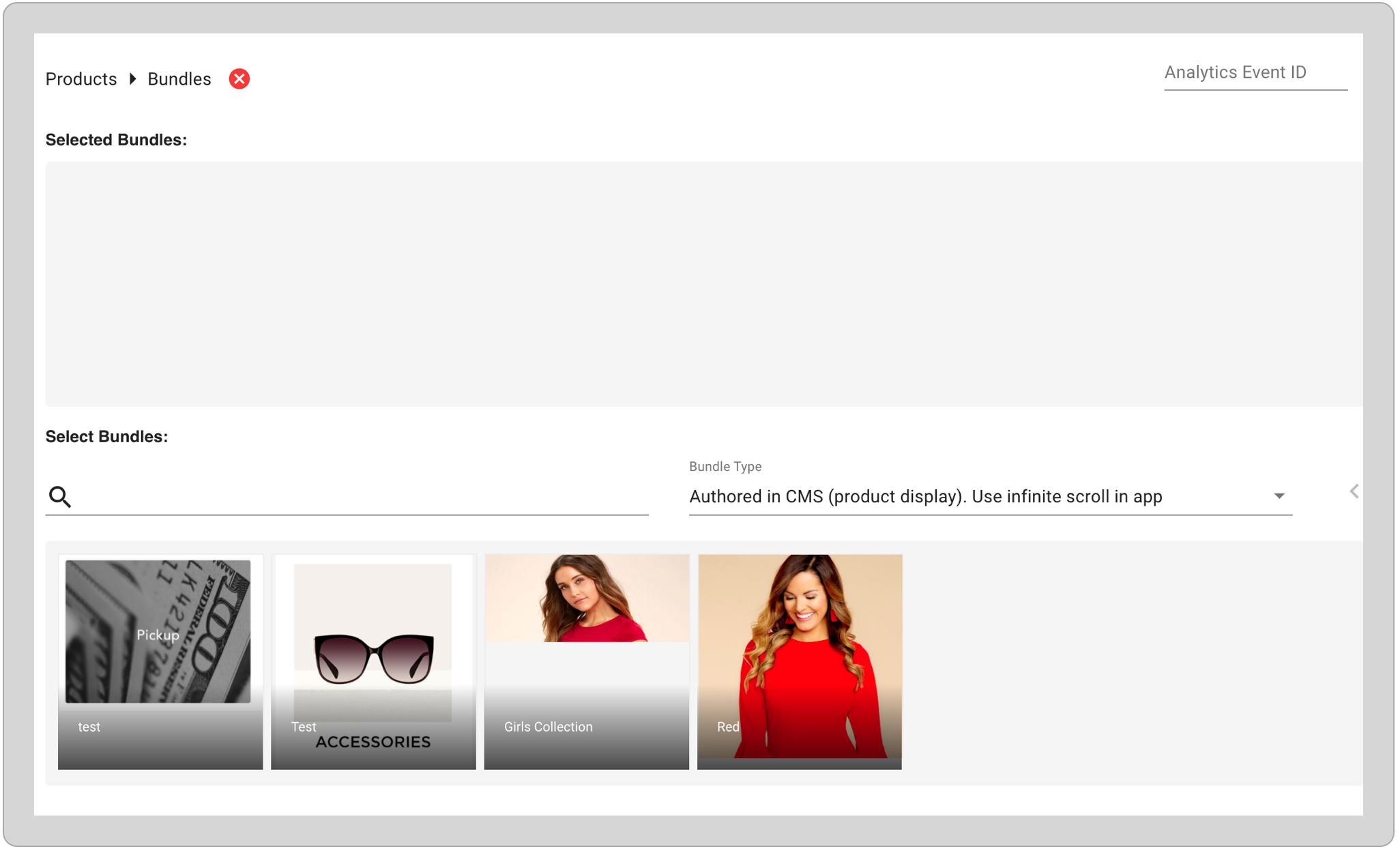
Authored in CMS (Product Display) Use Infinite Scroll in App
The deep link launches the product search page (aka PLP) and displays the products in the CMS-authored bundle. Additionally, this deep link will allow for additional products to get loaded into the search results page as the user scrolls to the bottom of the search results.
Authored in CMS (Product Display)
The deep link launches the product search page (aka PLP) and displays the products in the CMS-authored bundle.
Configure Bundle CTAs in PDP Layout
By default, the bundle PDP screen shows both the “Select your Styles” and “BUY ALL” CTA. These button titles can be configured from CMS and have options to hide “Select your Styles” if you want to prevent the purchase of individual items from a bundle.
Hide Select Your Styles
- Go to Layout Pages > Layouts Templates > PDP.
- Edit the active PDP Layout.
- Choose Advanced tab in the right options pane.
- Go to Bundles Settings.
- Disable “Show Bundle Select Individual Product”.
- Choose Publish.
Set Title for Bundles CTA
- Go to Layout Pages > Layouts Templates > PDP .
- Edit the active PDP Layout.
- Choose the pencil icon on the “Add to Cart” CTA on the layout.
- Set “Button Text ( Bundle - Select Individual Product)” to set Select your Styles CTA’s title.
- Set “Button Text ( Bundle - BUY ALL ITEMS)” to set BUY ALL CTA’s title.
- Choose Publish.
Enable Selection by Default
- Go to Layout Pages > Layouts Templates > PDP.
- Edit the active PDP Layout.
- Choose Advanced tab in the right options pane.
- Go to Bundles Settings.
- Enable “Enable Bundle Selection as Default” to have the item selected by default when choosing items in “Select your Styles” purchase flow.
- Choose Publish.
Bundled Products Section Title
- Go to Layout Pages > Layouts Templates > PDP.
- Edit the active PDP Layout.
- Choose Advanced tab in the right options pane.
- Go to Bundles Settings.
- Set the title in "Bundled Products Section Title" (by default this section is titled "IN THIS LOOK").
- Choose Publish.
Configure Delete Complete Bundle From Cart
- Go to Store Management > Store Settings.
- Enable “Treat Each Item As Separate Line Item”.
BUY ALL Bundle
BUY ALL Bundle checks the inventory of the items in the bundles and adds all items if they are in stock. The POS app checks the inventory for the selected/default order type (In-Store or Online). If one or more items are not in stock, the app will show an error message and suggest the user use the “Select your Styles” option to choose available individual items from the bundle.