Customize Point of Sale app configurations for different user groups to enhance personalization and control. Toggling settings in CMS allows you to disable defaults and enable layout groups, ensuring a tailored experience. iOS users can select from a variety of native, license-free fonts by typing the name directly. Set and edit segmentation preferences to refine the user experience at associate and manager levels.
Enable App Config Segmentation
Enable Point of Sale App Config Segmentation to customize app configurations for different user groups, enhancing personalization and control. By toggling specific settings in the CMS, you can disable role-level or associate-level defaults and enable layout groups, ensuring a more tailored user experience.
- In CMS, go to .
- Expand Rollout.
-
Toggle on Use App Config Segments (useAppConfigSegments).
 Important Enabling this flag will disable selection of a role-level or associate-level default app config.
 - Go to .
- Expand Advanced.
- Toggle on Enable Layout Groups (layout.groups.enabled).
Create App Config Segmentation
Create a Point of Sale app configuration in CMS to customize your app's look and feel with logos, fonts, and other settings. iOS users can use a variety of native, license-free fonts by typing the name directly.
- In CMS, go to Apps.
- Click + to create an app configuration.
- Select the app config type and click Next.
-
On the App Config Details screen, set the logo, fonts, and other related settings to
customize the app's look and feel.
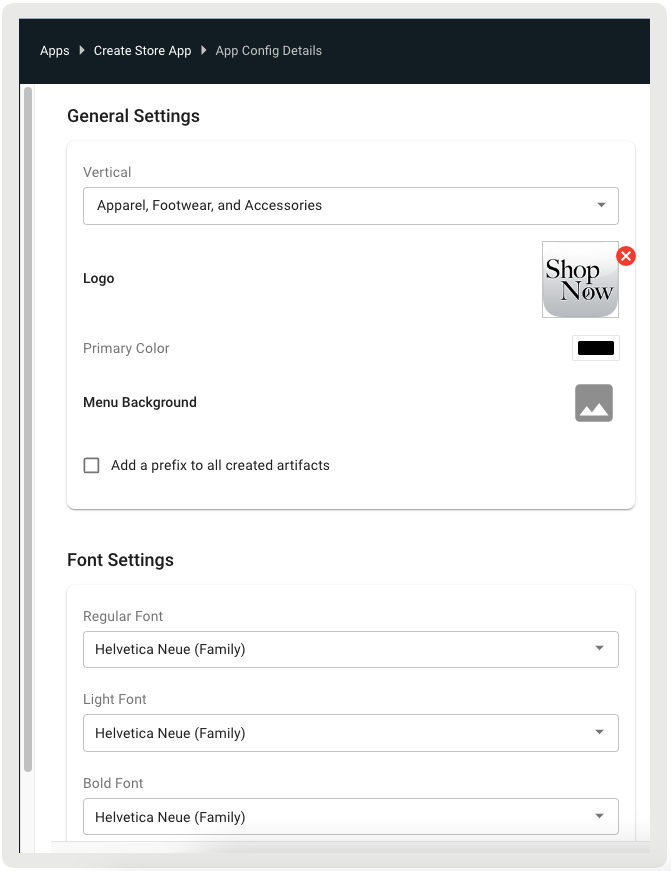
 Tip iOS supports many fonts natively. You can type in a font name even if it doesn't appear in the dropdown list. These are license-free fonts available for use.
 - Click Next when done. You are directed to the App Config Segment Preferences screen.
Set App Config Segment Preferences
Set segmentation preferences for Point of Sale app configs to tailor the user experience. If Modern POS is selected as the app config type, set preferences at the associate and manager levels.
-
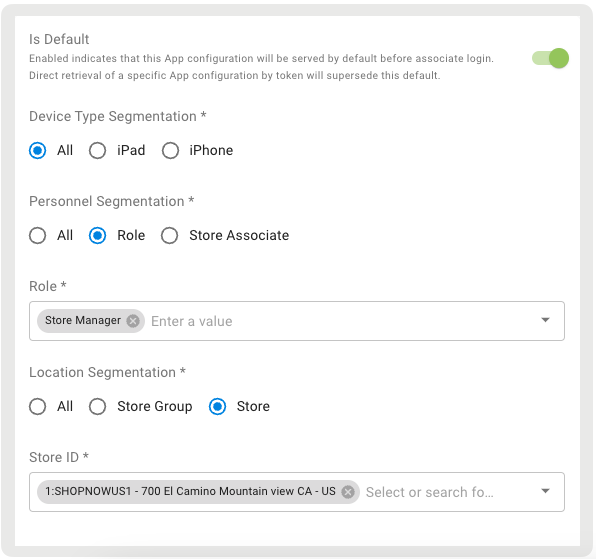
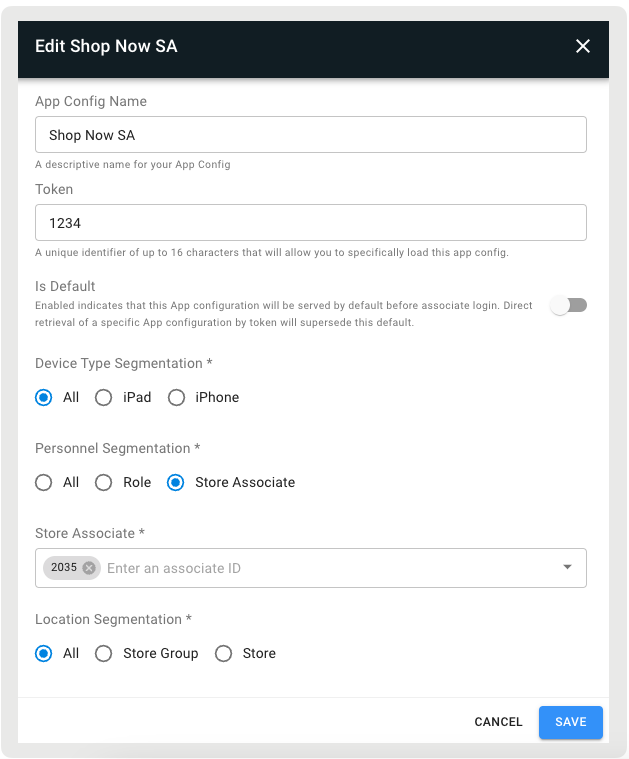
Enable Is Default to set this app config as the default before
associate login. Default app configs are marked with a blue Default label underneath
them.
If this is the first app config, the flag will be enabled by default and noneditable as long as there’s only one app config.
- Select the device type for Device Type Segmentation (iPhone, iPad, or both).
-
For Personnel Segmentation, select the personnel type:
- Role: Multiselect dropdown to specify applicable roles
- Store Associate: Multiselect dropdown to specify applicable users
- All: This app config will be available to all personnel
-
For Location Segmentation, select the location type:
- Store Group: Enter the store group ID
- Store: Select the store ID
- All: This app config will be available to all locations