
Configure your wired or wireless Zebra scanners in the Point of Sale (POS) to make sure of accurate and efficient barcode scanning.
Prerequisites
- Modern POS App Build: 7.1.0 or greater
- Platform Support: iPhone & iPad
- Offline Support: yes
Setup Zebra Scanner in Point of Sale CMS
Configure the scanner settings within Point of Sale CMS under Apps, Modules, and Peripherals so that store associates can scan items at the point of sale.
Configuring Scanner Settings
- Within Point of Sale CMS, select your configuration under Apps from the left panel.
- Select
- Under , select either for USB-connected scanners to Epson printers or otherwise.
-
Under , turn on .
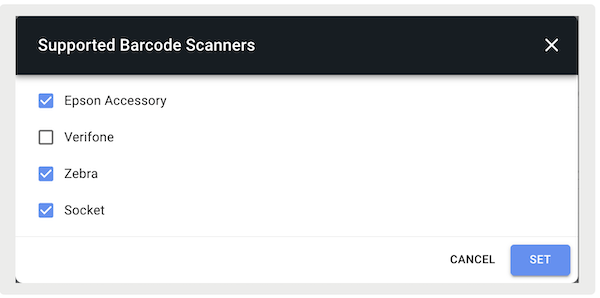
Configuring Register Settings
- Go to .
- Under , make sure the connection type is appropriately set.

Configuring Multiple Scanners in a Region
If you're using two or more different types of scanners in a country, you can configure your Point of Sale (POS) app to switch a scanner at the touch of a button.
- In CMS, create or edit an existing Hamburger menu layout. For more information, read Hamburger Menu.
- Select the blue + sign at the bottom of the screen.
- Enter the text to be seen on the app and select an icon, if applicable.
- Under , select .
- Under , select .
- Select to the right (highlighted in blue).
- In the deep link picker, go to in the menu to the left and select .
- Select and .
- If you haven't assigned your Hamburger menu to an app config, do so now.
Zebra Scanner Configuration
Manage the scanner connection type in the Point of Sale (POS) app. Configure Bluetooth, Star Micronics printer USB ports, and Epson printer USB ports.
Connect Via Bluetooth
Models: DS8178, DS2278
To connect (first-time pairing):
- Complete the steps in the CMS Configuration section.
- Make sure the scanner is charged and confirm it is turned on by pressing the scan trigger.
-
Open the app and the Bluetooth pairing popup appears (if not connected to a scanner):
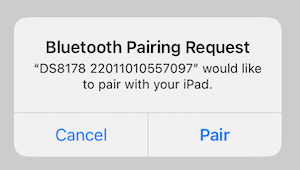
- After it’s paired, the scanner appears in the Device Manager.
- If you deny granting permission by tapping "", you'll be unable to connect to your scanner.
- If you have a scanner listed, select the trash can next to your scanner to remove it from Device Manager.
- Only connect or disconnect the Zebra scanner via the POS app. Don't connect/disconnect via the "Settings" on the device.
- If your scanner 'disappeared' from Device Manager before you tapped "Pair", press the trigger button to prompt discovery.
Reset Bluetooth Connection
Models: DS8178, DS2278
-
Before resetting, complete the steps in CMS
Configuration. After all the previous steps are complete, you can go to the Device
Manager of the POS app. Select the info icon next to the scanner. The screen next is shown.
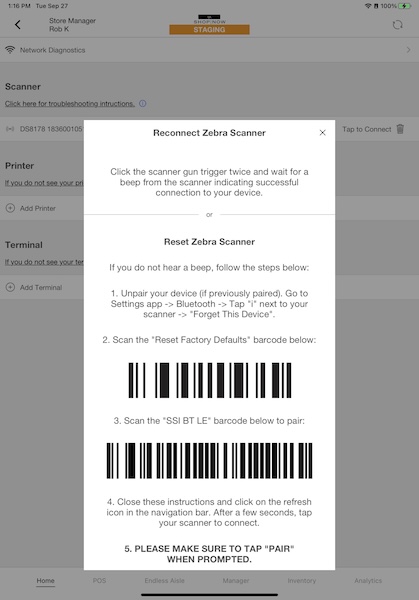
- Scan both the barcodes to reset and program the scanner. Your scanner is now ready to use.
Connect via Star Micronics Printer's USB Port
These can be plugged directly into the USB port of specific models of Star printers.
Models: DS4308, DS9908, DS9208, DS2208, LS2208
- Turn off the printer before plugging in the scanner.
- Plug the USB port of the scanner into any port not designated for an iPad and power on the Printer again.
- Wait to hear the scanner's power-up indication beep.
- Go to the and wait until discovery has been completed (spinner will no longer be shown).
- Under , select the printer with the directly plugged-in scanner.
Connect via Epson Printer's USB Port
These can be plugged directly into the USB port of specific models of Epson printers.
Models: DS4308, DS9908, DS9208, LS 2208
Not supported by Epson TM-m30, P80, TM-T88IV, TM-T88V, and TM-T88VI series. See Supported Hardware Overview.
- Plug the scanner's USB port into any printer USB port not designated for an iPad.
- Wait to hear the scanner's power-up indication beep.
- Go to the and wait until discovery has completed (spinner will no longer be shown).
- Under "", select the printer with the directly plugged-in scanner.
Reset Epson Printer's Connection
Models: DS4308, 9908, 2208
To obtain the barcodes, refer to the "Quick Start Guide" included with your scanner purchase or search online for the guide specific to your scanner model. Alternatively, you can google "Quick Start Guide Zebra <Model>" to find the necessary barcodes.

- Scan factory defaults.
- Scan USB Keyboard HID Mode.
- Scan the barcode to Add Enter key (or) CR/LF Suffix to each scanned barcode.
Reset Epson Printer's (DS9208) Connection
Models: DS9908
To obtain the barcodes, refer to the "Quick Start Guide" included with your scanner purchase or search online for the guide specific to your scanner model. Alternatively, you can google "Quick Start Guide Zebra <Model>" to find the necessary barcodes.
- Scan factory defaults.
- Scan USB Keyboard HID Mode.
-
Scan the barcode to Add Enter key (or) CR/LF Suffix to each scanned barcode.
- Set scan data transmission format to <DATA> <SUFFIX>
- Scan suffix mode
- Scan Enter Key four-digit barcodes (7013)
Firmware Upgrade
In order to provide the best user experience, make sure all your devices are on the latest firmware.
- Go to the Apple App Store and download "Zebra Scanner Control".
- Open the app and pair your scanner to the application by scanning the barcode on the home page. If you previously connected your device to your scanner, "Forget" your device via the "" app.
- After it’s paired, select "" in the lower right and then "".
Troubleshooting Zebra Scanners - Bluetooth Connection
Check the battery, re-pair, or reset the device to make sure your scanner connects to Point of Sale (POS) via Bluetooth, so you can quickly resume scanning items.
The scanner isn't listed in Settings > Bluetooth (or) the scanner is listed in Other Devices but isn't able to connect with the scanner by tapping on it.
Make sure that the scanner’s battery isn't dead. The battery needs to be charged in the charging dock and turned on. Keep it connected while pairing the device.
For another reason, follow reset steps in the app:
- Go to > If you don't see your scanner, select the link to pair the device. Steps are provided.
- See previous directions for your model.
- If it still isn’t detected, reload the app.
Connection Failed is showing in the Device Manager.
Make sure you have been granted permission to "pair" your scanner.
If the scanner's "Bluetooth" symbol is blinking blue or flashes red, your device is in an error state and not ready to connect to Modern POS. Wait until it stops blinking.
Not Discovered is showing in the Device Manager.
"Not discovered" means Modern POS has been unable to locate your preferred scanner or your scanner is no longer available to use.
To address:
- Tap the trigger on your scanner twice to "wake it up" from sleep mode
- Make sure your scanner has a charged battery.
Scanner beeps four times after a product barcode is scanned.
This occurs if there's a transmission error between your Apple device and the Zebra scanner. To resolve this, go to Device Manager to disconnect and reconnect to your scanner.
Deleted DS8178/DS2278 BT scanner not appearing in Device Manager or failing to connect.
Addressed in Modern POS: 8.0.1
A problem with DS8178/DS2278 scanners is that after the device is deleted, it can take several attempts to find it in Device Manager.
After the scanner reappears, if attempts to connect fail, go to Settings > Bluetooth, select the information icon of the scanner, and press "Forget This Device", then start the connection process as mentioned previous.
Connected DS8178/DS2278 BT scanner disconnecting if going to Device Manager.
Addressed in Modern POS: 8.0.1
There's a known issue where DS8178/DS2278 scanners disconnect if device discovery runs in the Device Manager page.
To resolve this, select device discovery several times and the scanner sounds the paired chime indicating that the device has successfully reconnected. If the device doesn't reconnect, follow the steps outlined in troubleshooting section #5.
Troubleshooting Zebra Scanners - USB Connection
Check the battery, re-pair, or reset the device to make sure your scanner connects to Point of Sale Point of Service (POS) via USB, so you can quickly resume scanning items.
Modern POSs don't recognize scans from USB-connected scanners
For scanners plugged into the USB port of the printer, connect to the host printer for scans to be recognized. To do so, go to Device Manager and connect to the printer.
POS shows connected blue checkmark against the scanner entry, but the cans aren't recognized
Make sure the scanner is connected and plugged into the printer. Check the connection on the printer's USB port as well as the port on the scanner (for applicable models like DS9208).
USB-connected scanners to Epson Printers aren't working
If the Scanner stops working after the POS app was "backgrounded and foregrounded" or "the iPad screen locked and then was unlocked":
- Open Hamburger Menu and select the <> deeplink. This fixes the scanner issue. If not, follow the next steps.
- Use Pen/Pencil to press and hold the “SW” bottom (close to the cash drawer connector) for 3–5 seconds, and then release it.
- Verify you have a connected peripheral via the print on the second page of the status sheet with models and Device ID listed.
- If this information isn't presented, turn off your printer, unplug your scanner, and restart the setup process.
- If it is presented, follow the reset connected zebra scanner instructions previous.
- Otherwise, download the TM Utility application to verify you're able to scan via <>. After you verify, restart the setup process.
- If none of the previous steps work, go to and select <.>. At the bottom of the interstitial, select and send over the file to the Salesforce team for further log analysis.
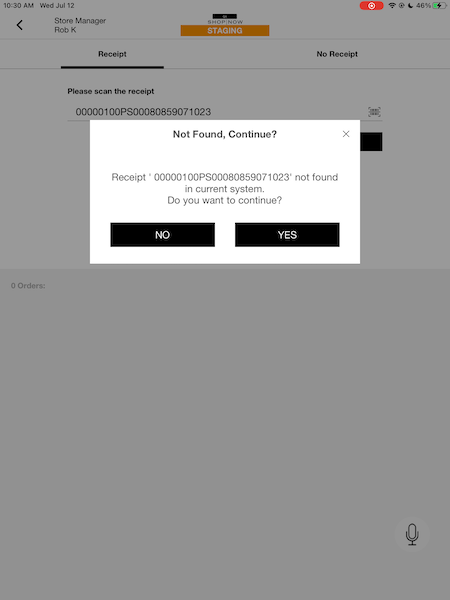
Barcode scans from USB-connected scanners to Epson Printers have extra space in front
As shown in this image, some bar code scans result in an extra space in front of the value. In this scenario, follow the steps in the Reset Connected to an Epson Printer section previous to reset the scanner and barcode scanning works as expected.
Known Zebra Scanners Support Issues
Understand the known support issues for Zebra scanners to ensure proper functionality with Point of Sale
Zebra - Bluetooth
Barcode scanning is not supported if Modern POS is in the background. Modern POS must be in the foreground.
Epson Accessory
Only available for Epson IP Printers.
Doesn't have a callback to report scanner unplugging from printer. So the scanner entry on the DM continues to show connected checkmarks.
Zebra scanners must be purchased from an authorized retailer and be licensed to you with the ability to update the firmware.