
Perform a sale using a Verifone Payments terminal integrated with Point of Sale.
Payment Using Card Option in Cart Screen
The Credit Card option in the Unified Cart screen allows one to initiate a payment for the order using the connected Verifone Payments terminal. If there's no connected Verifone Payments terminal available for payment, the POS app provides an option to directly go to the device manager screen to connect to a new terminal.
If paying using a credit card, Verifone Payments terminals start an authorization and then
payment capture while performing the payment. The POS app will show an alert asking to
present the card on the terminal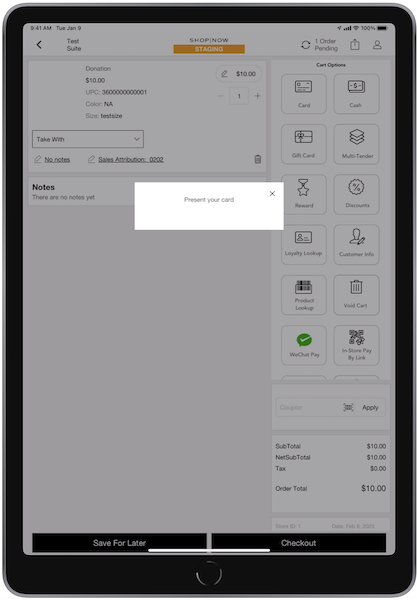
The terminal also prompts with a message to present the card.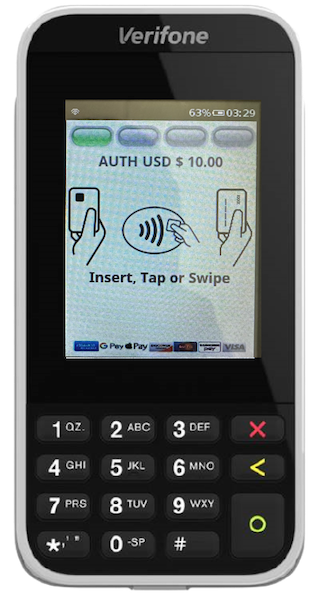
After presenting the card, authorization is performed. Wait for the confirmation
screen.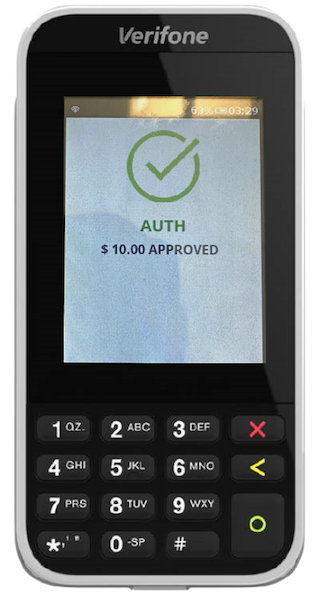
After the authorization is complete, the capture payment starts. Both the POS app and
terminal show the status of the capture process. Wait for the confirmation screen to
show.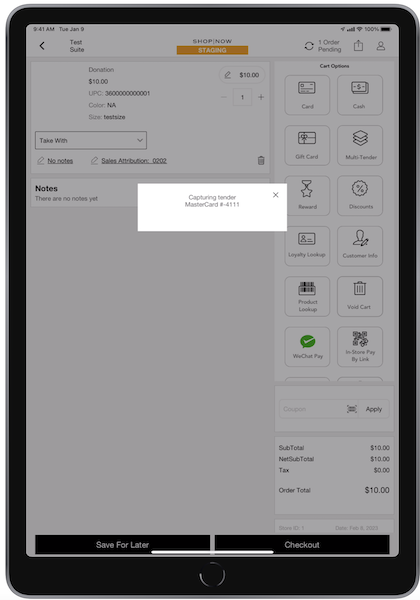
After both authorization and payment go through, the POS shows the order confirmation
screen.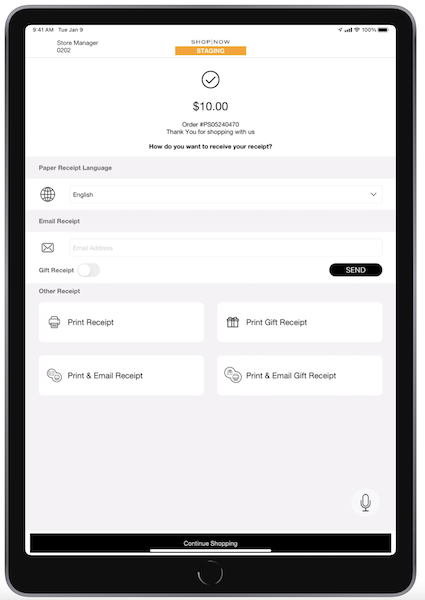
Card Payment in Multi-Tender Screen
Card payment is one of the tender options on the multitender screen, and the user can
combine card payments with other tender options.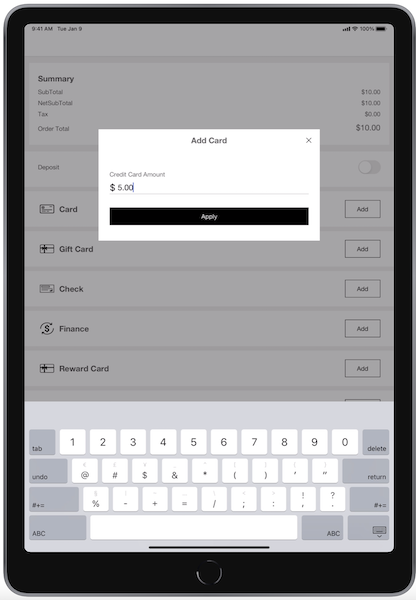
If placing the order in multitender, the authorization capture for all the payments happens
while submitting the order.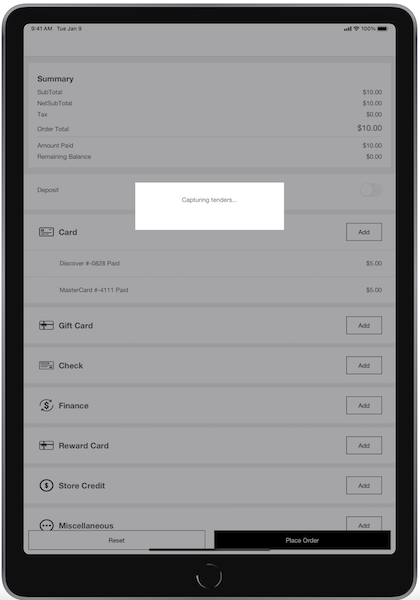
After capture is completed, the POS shows the order confirmation screen.

Authorization Capture Failure
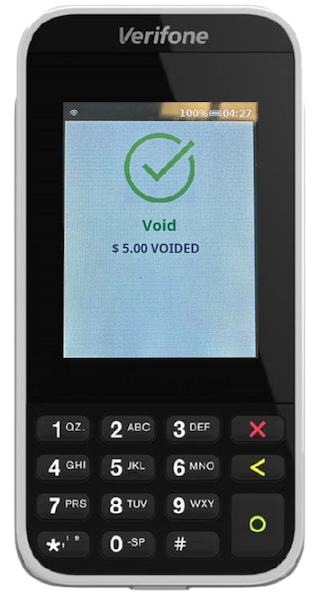
In both multitender and unified carts, if the payment authorization fails, the app
automatically cancels the sent authorization.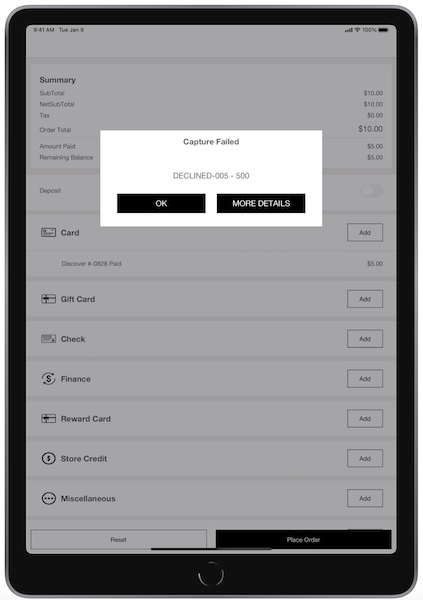
Submit Order Failure
After processing the payment on the terminal, if the order submission fails, the app
presents the option to start the refund flow from the POS app. This makes sure that the
amount taken is returned to the user because the order wasn't placed successfully.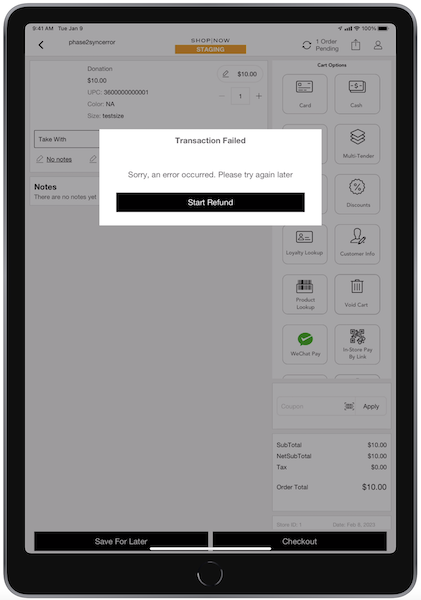
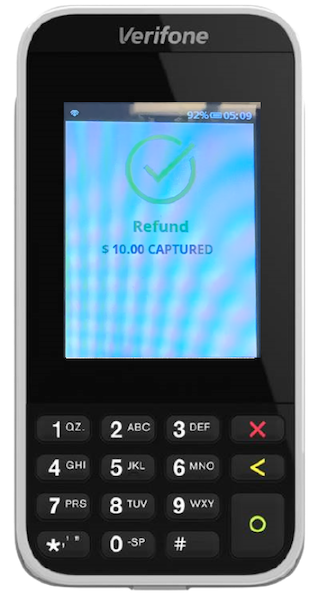
After a refund is done successfully, the app refreshes the cart so the use can start the
transaction again. In case of refund failure, the app shows the option to "" the refund or "" it. Retry starts the refund flow again and skipping it refreshes the
cart.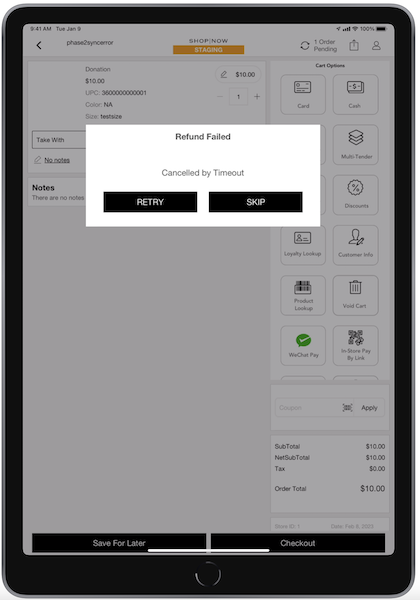
Other Troubleshooting Tips
If the Verifone terminal screen is stuck due to network issues or other issues, the fallback solution is to reboot the terminal. This can occur if the line item display doesn't get cleared or if the screen shows "payment successfully captured" but remains stuck. Follow the section of this article to know how to reboot the terminal.