
Resolve Tap to Pay errors and connection problems by verifying your Adyen configuration in the Point of Sale (POS) app and internet connection.
Error Processing Request When Proceeding with Tap to Pay
- If you see this error in your Staging environment, make sure you've accurately followed the steps from the Test Setup.
- Make sure that your Adyen configuration is set up correctly.
- Restart your payment session on your iPhone.
- On your POS app, go to the screen.
- Under the section, select the link "".
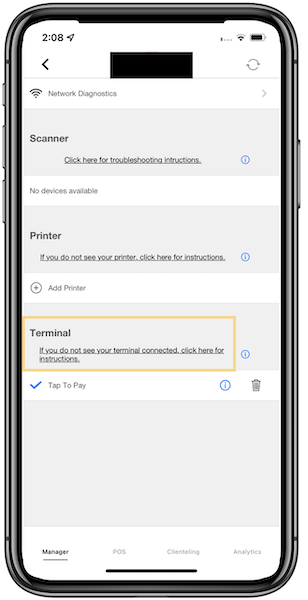
- Then select "".
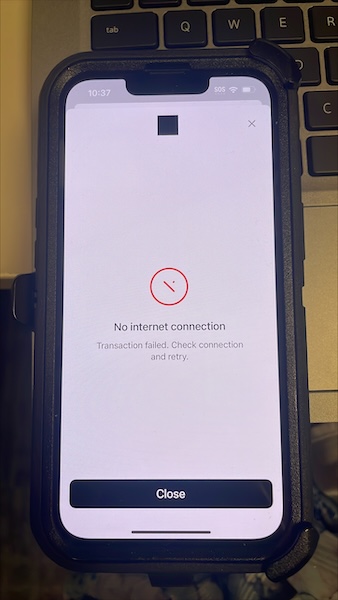
No Internet Connection When Initiating Tap to Pay
- Make sure you've added *.adyenpayments.com and *adyen.com along with other Apple’s Tap to
Pay-related endpoints as listed in POS Access List–URLs and IP Address.
Logo Not Displaying or Black Colored Block Displaying on Tap to Pay Screen
- Make sure the background of your logo is transparent and not white.
- Any color pixels (other than the transparent logo) show up as black pixels and result in your color logo being displayed as a black-and-white logo.
iPhone Asking for Profile Password
- This issue typically occurs if sandboxed, test iPhones haven't been transitioned back to production ready.
- Sign in with the correct Apple ID.
"Unavailable Service" Error When Activating
- Make sure the Adyen Store Code field is empty while activating Tap to Pay on your device. This can be found in CMS by going to .
- Edit the Adyen integration.
- Go to .
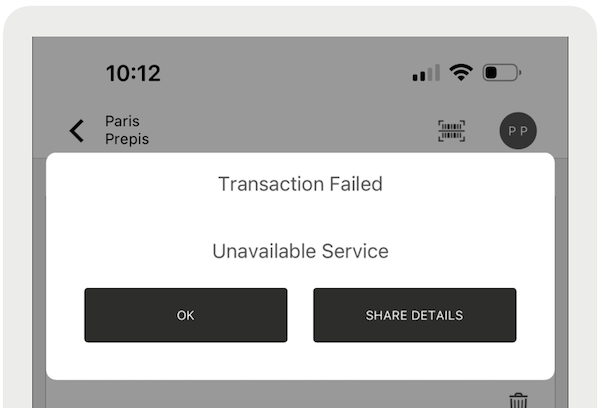
"Unavailable Service" Error When Activating
- Make sure the Adyen Store Code field is empty while activating Tap to Pay on your device. This can be found in CMS by going to .
- Edit the Adyen integration.
- Go to .
Could Not Initialize Tap to Pay
- If Tap to Pay fails to initialize and shows the error "Could not initialize Tap to Pay", make sure the iPhone has a passcode set.
- Tap to Pay requires a device passcode to unlock the iPhone used for Tap to Pay. If the passcode was removed or no passcode was set, add a passcode and try again.