Turn on Tap to Pay in Point of Sale for a register in Store Management and configure the Adyen URL in Payment Gateways.
Register
To turn on Tap to Pay for a specific register:
- In Point of Sale CMS, go to .
- Select a store from the dropdown menu.
- Edit a register by selecting the pencil icon to the right of it.
- Go to .
- Turn on the "" flag.
Payment Gateway Setting
Next, you'll need to configure the Adyen URL.
- In Point of Sale CMS, go to .
- Select in the upper right.
- Under Payment Gateway, select "Adyen".
- Go to .
- Enter the endpoint used to create a payment session for the POS app.
Switching Between Tap to Pay and a Terminal
Registers configured to use Tap to Pay can process credit card payments using both Tap to Pay and a connected terminal. The default selection is Tap to Pay, and associates can switch to a terminal in Device Manager.
You can set a deep link in the Cart Options layout to let associates easily change items during checkout without having to go back to the Device Manager.
- In CMS, go to your and edit it.
- In the deep link picker, go to .
- Add the deep link to the cart layout.
- Set and save your changes.
Configure Tap to Pay - Set Up Ayden Portal
Prepare the Ayden portal for use with the Point of Sale (POS) app.
Set this configuration:
TFM setting -> appleTapToPay.enable
TFM setting -> appleTapToPay. terminalProfileId
TFM setting -> appleTapToPay. merchantDisplayName
POS WebService User -> Client Key
Configure Tap to Pay - Set Up Apple Business Manager
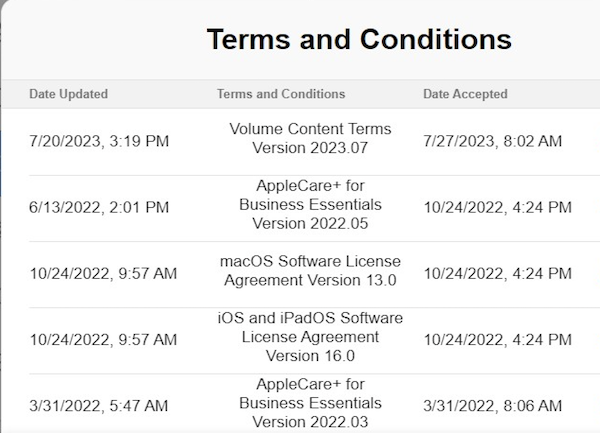
Accept Apple's terms and conditions to use Tap to Pay in the Point of Sale (POS) app.
For merchants that use Apple IDs on their registers, the register user must accept the terms and conditions directly on the iPhone.
For merchants that don't use Apple IDs on their registers (and use an MDM instead), the
merchant must accept the terms and conditions directly in the Apple Business Manager.