
Make sure of reliable Point of Sale (POS) system operation, even if stores have unstable Wi-Fi or a shortage of ethernet ports.
When does one use this?
If the stores have unstable Wi-Fi and seek a stable ethernet connection.
If the stores have a shortage of ethernet ports and want to use a common ethernet port for both printer and register.
Star Printer Models supported
MCP31LB, MCP31L, MCP31LBNH, and MCP31LNH

Prerequisites
- The Star mC-Print3 firmware version must be Ver. 2.3 or later
- Install Utility app from the App Store
Check and Enable SteadyLAN
- Open the app on your register and check if your printer is selected at the top. If not,
find your printer and select it.
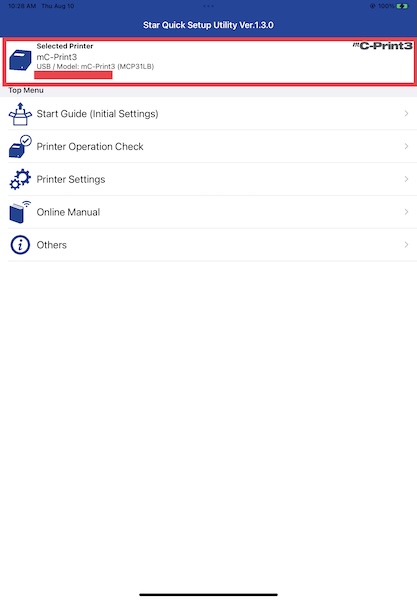
- Select "".
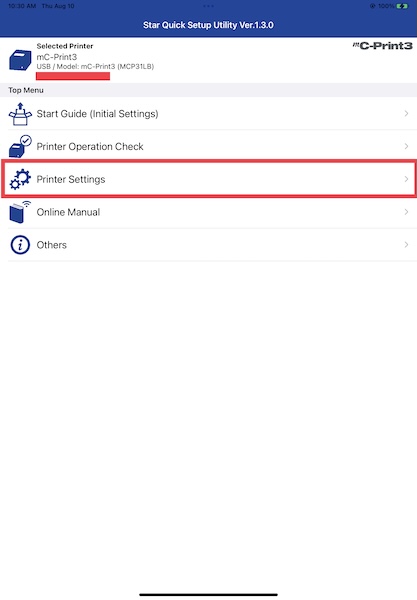
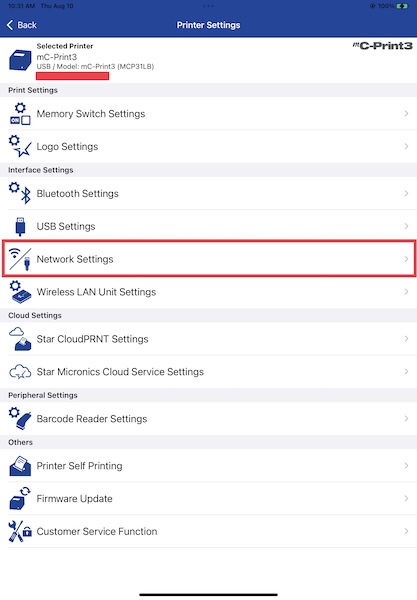
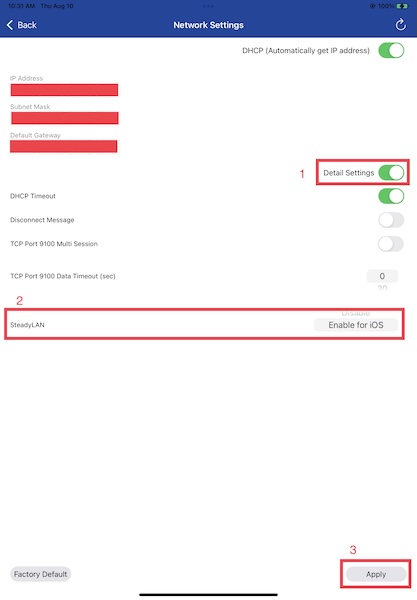
- Select the "" switch to reveal the "" setting. Turn on to "" and select ""
Printer to iOS Device Connection
- Connect the printer to a wired network.
- Turn on the printer, and then wait until the Ethernet LED stops flashing and stays on.
- On the iOS device, tap .
- Connect the iOS device to the printer using a Lightning (or USB-C) to USB-A cable. Make sure
to connect the cable to the USB-A Device Charging connector that is marked iPad.
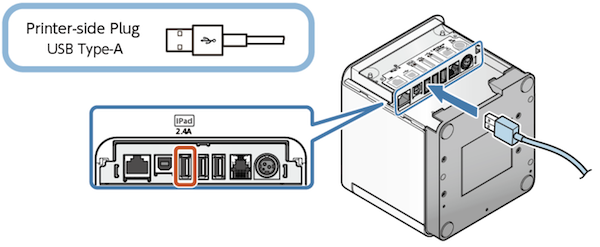
- On the iOS device, tap , and then check that an IP address has been set.
- If a DHCP server isn't used on the network, set the IP address and subnet mask manually.
CMS Setup - Connection Type
Star printer allows any of the supported connection types (USB, IP, BT) while SteadyLAN is active. Therefore, there's no special configuration required for SteadyLAN and the primary connection type can be configured.
Troubleshooting
- “SteadyLAN” setting isn't displayed in ".
The connected printer firmware doesn't support SteadyLAN; the firmware must be Ver. 2.3 or later.
The firmware version is printed in the title section of the printer information (1st page) that is printed on a printer's test print (self-printing).
Firmware update can be performed from "" of Star's app.