
Integrate Point of Sale with APG Cash NetPro cash drawers using an IP connection.
CMS - Configuration & Setup
This hardware needs two settings to be configured:
- Cash Drawer Model - APG
- Cash Drawer Connection Type - IP
These settings can be enabled at two levels: Store Config level and Register level. If the Register level is configured, it takes precedence over the Store Config (global) level settings.
Store Config Level
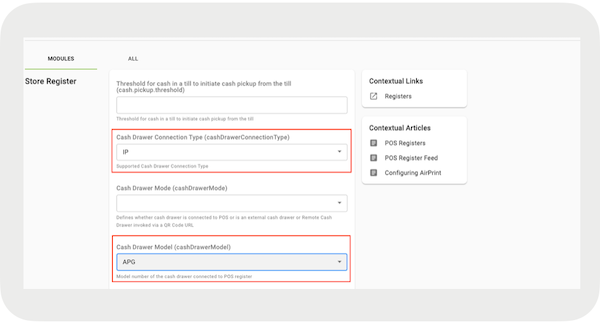
Register Level
Make sure , , and are set as below: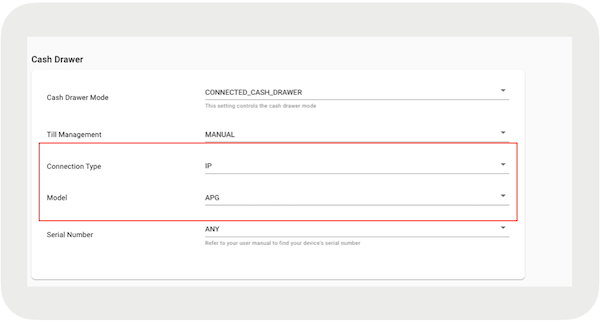
This will allow the section to appear in the Device Manager screen on the POS app.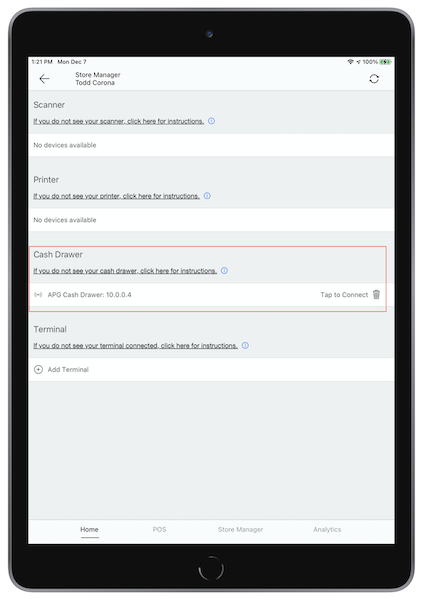
Pairing
Pair the APG Cash Drawer using the barcode that is attached to the front of the drawer. This will allow the devices to communicate. To pair the drawer, select it from the list and you'll be prompted to use the camera to scan. After it’s successfully scanned, it’ll be listed in the Device Manager on your POS app under "Cash Drawer".
APG Cash Drawer Hardware Setup
Set up your new cash drawer and connect it to a Power over Ethernet (PoE) switch to function with Point of Sale.
There are a few additional steps the first time the cash drawer is set up. However, these only needs to be done one time if it is purchased. To begin with, you will need to make sure that you have Power over Ethernet Switches available.
To power the device, you will need to connect the cash drawer to the PoE switch using the
cable. Make sure that the cable is plugged into the yellow ports on the PoE switch. If the
device is properly connected to power, it beeps if you open the cash drawer.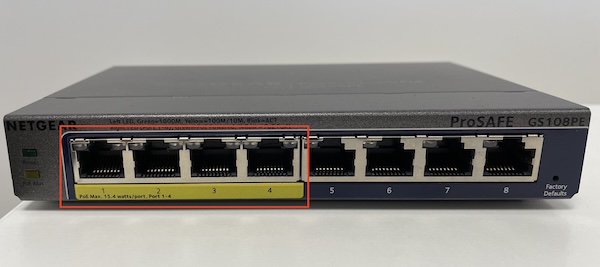
Changing To DHCP - Windows
Windows computers support a .exe file that APG provides. Use this utility to connect and configure that cash drawer. Send the customer the link to the APG utility (used for scanning the network for the drawer)
- https://cashdrawer.sharefile.com/d-s20580c1e5de416c8
- After it’s downloaded and copied to a Windows PC that’s connected to the same network as the drawer, open the application and select “Scan”.
- The Windows 10 firewall will probably appear asking the user for access to the network, which is allowed for this program. Instruct the customer to check the boxes next to “Domain networks” and “Private networks”, then select Allow access.
-
If the utility finds the drawer, check the drawer’s IP address.
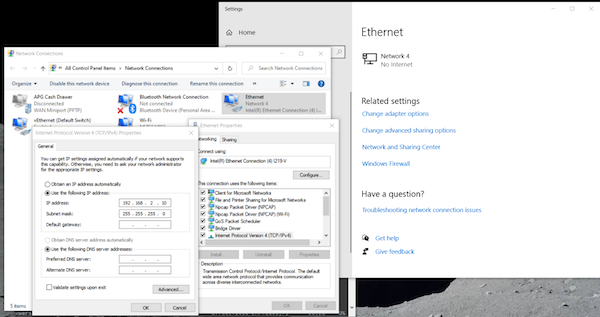
- If this is the problem, tell the customer to connect the drawer directly to a computer (without a router or switch between them). Set the computer to a fixed IP address of 192.168.2.10.
-
If the IP is 192.168.2.5, inform the customer that the drawer is shipped with a fixed IP
address of 192.168.2.5, which is likely in a different subnet than the customer’s network
(the subnet is usually the first 3 values of the IP: that is 192.168.2)
-
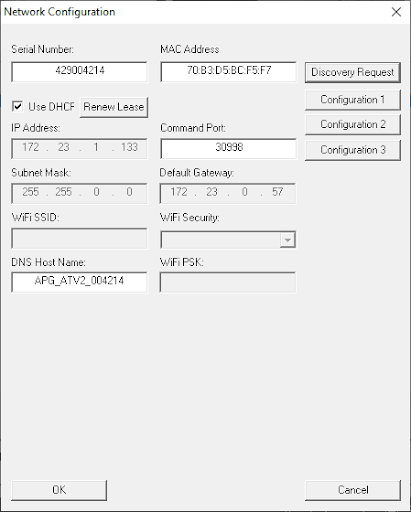
Use the APG Utility to either change the IP to a fixed value in their subnet or to
change the drawer to use DHCP (select “Details” to bring up the window).
-
If the IP address is within the customer’s subnet, have them select “Monitor”, then have
them select “Get Status.” The drawer status shows at the bottom of the window.
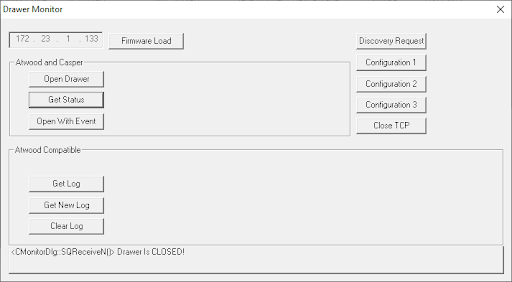
- If the drawer status is closed, have the customer select the “Open Drawer”.
- If the drawer’s IP address is in the range 169.254.xxx.xxx, the drawer is configured to use DHCP, but it cannot obtain an IP address from the DHCP server. For example, they can have more than one drawer on the network. The DHCP server won't allow more than one drawer with the same DNS Name to get an IP, and so on)
- If the DHCP server expects all hardware to have a unique DNS Name, tell the user to change the DNS Name using the APG utility. The field to change the name is on the same screen as the DHCP checkbox. You can download that from here.
Changing To DHCP—Mac
- You'll need to manually change the IP address to: 192.168.2.10.
- To do so, go to your Mac System preference and select the Network Pane.
-
If you're using a wireless network, connect your Mac directly over Ethernet to the same
network interface as the cash drawer.
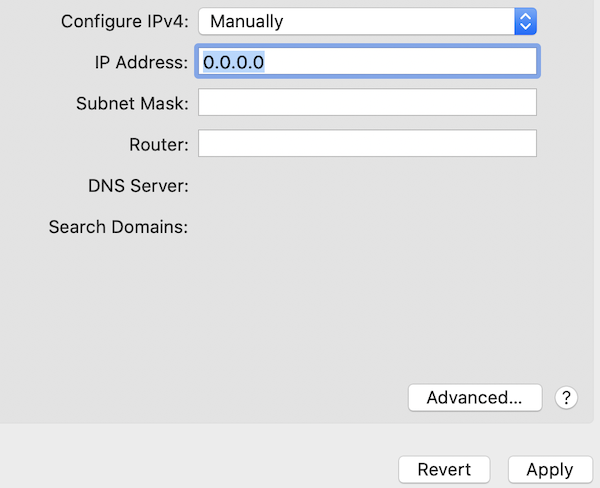 Change the IP address manually to the following: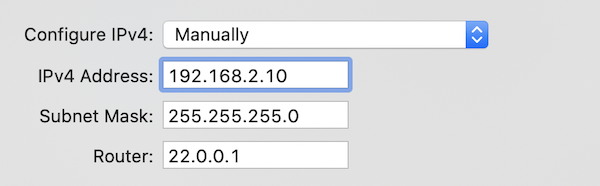
- On Mac computers there are no working utilities or applications, so you will need to set up your cash drawer using a Python script. That script is available for download at the bottom of the article. The download is provided as a .txt text file. You will need to change the file ending from .txt to .py which makes it into runnable code.
- To run your Python script, you can use Apple's Terminal application. To find the Terminal application, hit: Command (or Cmd) ⌘ and Space key to pull up the quick look and type in Terminal.
- You can run the script by opening a command terminal interface and navigating to the directory where the Python script is located. You can go to a directory by typing the cd (change directory) command followed by the location of the directory.
$User_Input: cd ~/Documents
$User_Input: python NetPRO_Console.py

Retrieving list of available NetPRO drawers . . .
1. Project AtwoodV2 (34:E1:D1:B0:0A:A9) at 172.23.1.141 with firmware = "Ver AT1.5.3.49"
Please select NetPRO drawer: (i.e. 0, 1, 2, etc)

$User_Input: 0

0: Set drawer to DHCP
1: Open drawer
2: Get drawer status
Please select option to perform: (i.e. 0, 1, 2, etc)

$User_Input: 0

Drawer set to DHCP. Please allow 30 seconds for drawer rebootTroubleshooting the APG Cash Drawer
Resolve connection failures and barcode mismatch errors with your APG cash drawer.
"Connection Failed" is Showing in Device Manager
If the POS app is unable to get a response from your APG cash drawer, "Connected Failed" will be displayed in Device Manager. To solve this, follow the steps:
- Make sure your cash drawer has power.
- Make sure your cash drawer is on the same network as the device running the POS app.
- Make sure your cash drawer is set up correctly per the instructions.
"Barcode does not match with cash drawer" Error Message
If the POS app is displaying the preceding error message, follow the steps:
- In Point of Sale CMS, go to .
- Select and edit the app config.
- Go to .
- The flag must turned on in POS versions 8.10.1 or later.

Device Discovery Issue
If the POS app is unable to detect your device, make sure “Announce” is enabled on your cash drawer. This can be enabled using the APG NetPRO test utility found here.