
Reassign a payment terminal to a different store in the Retaio Cloud Point of Sale (POS) app.
To assign or reassigning Terminals to Store Under Same Account:
- Go here to access the Adyen console.
- Select if your terminal is assigned to the test account.
- Go to .
- If this is a new unboarded terminal, you will find it in the tab in the Adyen console.
-
Select .
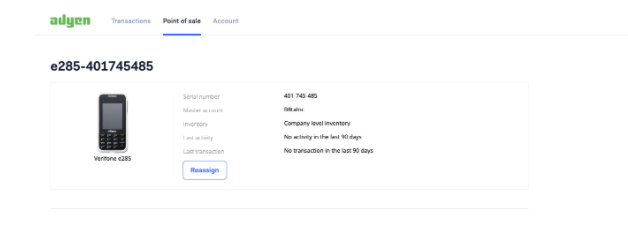
-
If this is a boarded terminal assigned to a store, you will find it in the tab in the Adyen console. Select the terminal and select .
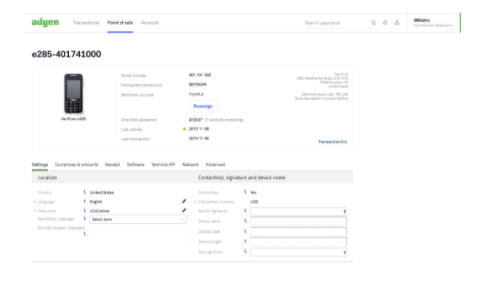
- You'll be shown a warning message that reassigning the terminal won't be immediate and will only happen after the terminal has been synchronized to the latest configuration.
-
Reassign to the option.
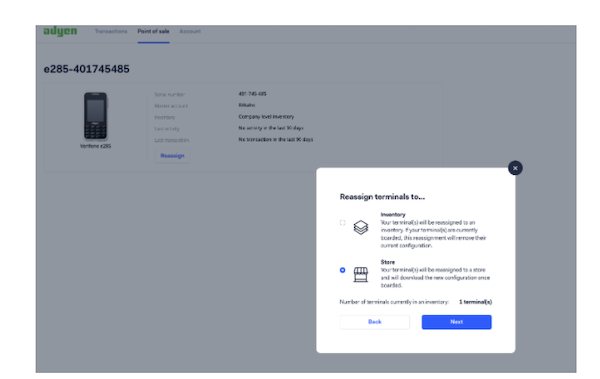
- Start typing in the store code (not the store address) you want to assign to (this can be a different store for the same merchant or a different store for a different merchant under the same parent account) and select the store. You can find the store code by going to tab and selecting the store option in the dropdown.
-
Select on the confirmation.
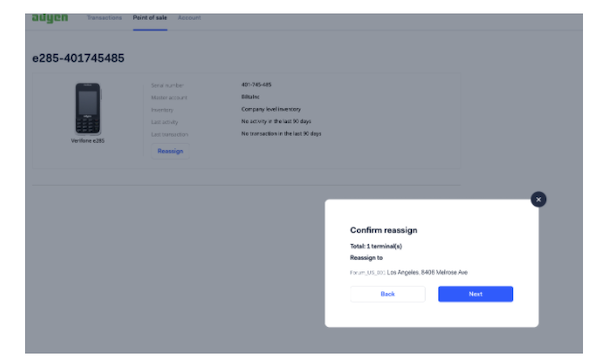
- If you want this to happen immediately, select the option if available.
- Go to the admin menu at .
- This reboots the terminal. Select and on the terminal to validate that the store ID is updated to match the latest assignment.