
Configure your Elavon terminal to work with Point of Sale for secure payment acceptance, whether in-store or online.
Configure Elavon Terminals
Get your Elavon Move 5000, Link 2500, Lane 7000, or Lane 5000 terminal ready for use with Point of Sale.
To get started, press and hold the green "O" button in the terminal to power it on. Then, use the steps in the rest of this document to connect to the network.
Connect the Static IP Address for the Move 5000 Terminal Model
A successful connection can be confirmed with the Wi-Fi icon at the top left of the terminal home screen showing up in green. A white Wi-Fi icon indicates an issue with connectivity.
On your terminal, select on the Elavon Main Menu and set to "".

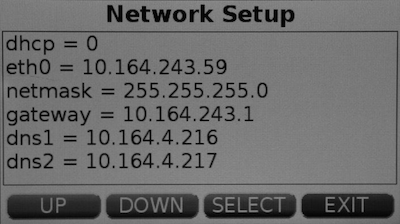
- Reboot the terminal by selecting the and button together in the Terminal. The Terminal shows a welcome screen and a few other initial setup screens.
- During the reboot process, wait for the green O button to appear on the bottom right of screen
- Select the Green O button on the terminal screen when it shows ‘. The screen shows ‘’ and ‘’
- Select and Enter the admin password (352866) to view the options.
- Select and select the local network inside Elavon Main Menu
- Verify the connection using Status option inside
Connect the Static IP Address for the Link 2500 Terminal Model
- Reboot the terminal by clicking and button together in the terminal.The Terminal shows a welcome screen and followed by few other initial setup screens.
- During the reboot process, wait for the green O button to appear on the bottom right of screen
- Select the button in the terminal when the terminal screen shows ‘‘’’ with a green O button on screen. The screen shows ‘’ and ‘’. Use F2 and F3 to move up and down the menu options and to choose an option.
- Choose and Enter the admin password () to view the options.
- Choose and choose the local network inside
- Verify the connection using option inside
Confirm Terminal EthernetConnection
These steps are for both the Lane 7000 and Lane 5000 Terminal models.
Connect one end of the ethernet cable to the router and the other end to the Ethernet port at the bottom of the terminal, then use these steps to verify the IP address.
- Reboot the terminal by clicking the and button together in the terminal. The Terminal shows a welcome screen and is followed by a few other initial setup screens.
- During the reboot process, wait for the green O button to appear on the bottom right of screen
- Select the button on the terminal screen when it shows “Initialization”. The screen shows ‘’ and ‘’
- Select and enter the admin password () to view the options.
- Select to view the IP address and make sure it's not 0.0.0.0
Set up and Configure Point of Sale CMS For Elavon Terminals
Add Elavon as a payment gateway in Point of Sale CMS so that store associates can process payments.
Mobile Configuration Settings
In , set for the flags in the section:
Payment Gateway Settings
In , create a Payment Gateway configuration for Elavon by setting the following values. The Location Name, Chain Code, and terminal ID for the Elavon account are the key parameters to set up the payment gateway configuration in CMS.
- Store ID can be DEFAULT or specific store ID
- URL Base is the gateway URL for Elavon
- Merchant Organization ID is the Elavon location name
- Terminal Gateway ID is the Elavon Chain code
- Default Device ID is the terminal ID
Optional Register Settings
Default Device ID in Payment Gateway for a store can be overridden with individual register-level settings in Store Management > Stores > Register List by editing a particular registry entry. This setting is optional.
- Set the model of Card Reader to Elavon
- Set the Terminal ID to the register-specific setting
Order Number Range Configuration
Go to Advanced > Order Number Range Config and select Create.
- Set as
- is
- is empty
- : suggested setting is . This is the starting number for the Elavon transaction
- set as
- set as . If there are multiple device ID available for the merchant, create for each Device ID

View Elavon Terminal Troubleshooting and Known Issues Information
Understand and solve common issues with Elavon terminals and Point of Sale.
IP Shown as 0.0.0.0 in Elavon Terminal
The Wi-Fi isn't connected to a valid network. Reboot the terminal and reconnect to the network using the Ethernet, or Wi-Fi connection as applicable to the device model.
Payment Declined: Test Cards/Live Card in Demo/Test Elavon Environment
Elavon demo package is preprogrammed to decline card payments of a particular order value depending on card type and the cents value in the payment amount. More details can be found here.
For example, if the card is Amex, payment of $xx.61, $xx.62, $xx.63 are declined.
Payment Declined and Shows 'CALL AUTH CENTER' in Test Elavon Environment
This can result from issues in the Elavon QA test host response. First attempt to resolve by restarting your terminal. If this doesn't resolve the issue, reach out to Elavon support team.
Home Screen shows ‘Closed’ with F1, F2, F3, F4 Options Below
There are two software packages that are available for the Elavon terminal. The package, which shows , is used for standalone transactions where the user enters the amount manually and carries out the transaction. This will require an update of the software package in the terminal with the help of the Elavon support team.
Intermittent 'SWITCH TIMEOUT' or 'ON GUARD TIMEOUT' Error Messages for Payment Cancellation
After the prompt to insert card in the Retaul Cloud POS app and Elavon terminal, the app sometimes declines payment intermittently with errors such '' or ''. These are due to inconsistencies in the Elavon fusebox environment and require that you escalate them to the Elavon Support team for resolution.
POS App Unable to Initiate Payment and Shows Error 'The terminal is unreachable at the moment, please try again. If you continue to experience problems, please check the connection from Device Manager.'
- Confirm if the terminal is connected to a network and the IP is the same as the one connected in the device manager screen. This can be verified by selecting in the pin pads. The IP value is masked and we’ll enter the admin password () to view the IP completely.
- Check if the iPad has internet access and if the user can do other things like search for products or add to cart right away after the error is seen.
- Check if the connection worked by choosing the info icon for the connected terminal in . If the connection can be established successfully, retry to initiate payment and confirm if we still see the error.
- If there are still connection issues, disconnect the terminal and reconnect the terminal from .
Orders Not Seen in Elavon Customer Console
- Verify if the account credentials in the CMS Payment Gateway screen are configured properly
- Verify if the transactions are yet to be settled in the "" view in Elavon's console
Device Manager shows 'Terminal Connection Failed'
If you see "" if attempting to connect to your terminal in , verify the region of your iOS/iPadOS device matches the region of your terminal.
In the "" app, go to
Known Issues & Restrictions
Prior to version 8.4.1, payment terminal topology was configured at the store level. Modern POS versions 8.4.1 and onwards added support to configure payment terminal configuration at register level.