
Resolve iPad and printer connectivity issues by ensuring proper power, Bluetooth connections, and Device Manager settings in Point of Sale.
Printer isn't listed in Settings > Bluetooth (or) the printer is listed in Other Devices but not able to connect by tapping on it
- Make sure the printer is powered ON.
- The printer can be paired with another iPad. Make sure to disconnect and Forget Device on the other connected iPad and try again.
-
If the previous step doesn’t work, follow these steps:
- Delete the printer if listed in Bluetooth settings by choosing and .
- Power OFF the printer with the power switch on the side of the printer.
-
Press the Bluetooth red reset button (RST) (1) below the printer and power ON using the
button on the side (2) simultaneously.
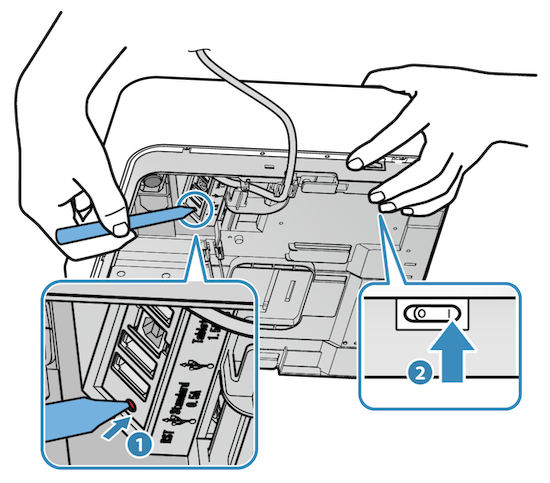
- The initialization starts with the blinking lights on the top of the printer and completes after the LED light blinking stops.
- Power OFF the printer and restart the iPad.
- Power ON the printer and start the Bluetooth pairing process again in iPad.
Printer is seen paired in Settings > Bluetooth but not listed in Device Manager
-
Go to >
 > and make sure the Star printed is selected.
- Make sure another Star printer is not connected to the iPad by USB. The app doesn’t look for a printer by Bluetooth if there's a printer connected to the iPad by USB. Disconnect the printer connected via USB and try again. Check Star ID numbers.
- If it still doesn’t get detected, relaunch the app.